Understanding Callbacks within Nooks
Last updated: October 13, 2026
This guide explains how to configure callbacks, answer incoming calls, and review and follow up on callbacks in Nooks.
Applies To: Users with a Dialer seat or a Bullpen seat with the Nooks Sequencing add-on.
Overview
A callback is an inbound call from a prospect returning a call you made using a Nooks phone number. You can receive callbacks in Nooks or forward them to your phone, customize your Nooks voicemail greeting, and review recent callbacks in your Callback list.
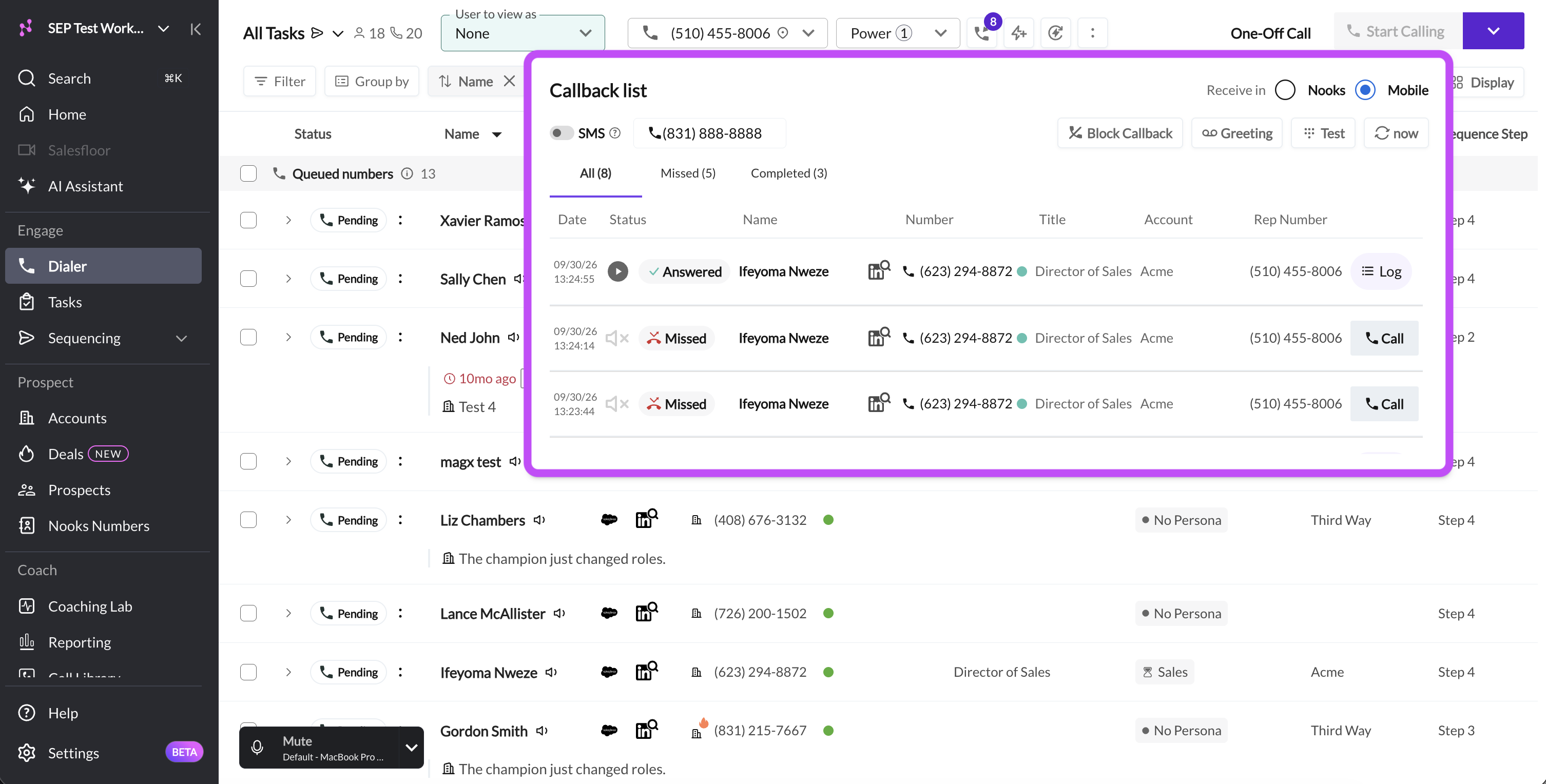
Both Dialer users and Nooks Sequencing users with calling access have the same callback settings and list actions. Where you access them depends on whether you have a Dialer seat. Dialer users also have a missed-callback Smartlist..
Your callback settings control who can reach you, where calls ring, and what callers hear when you do not answer. These choices affect how incoming calls are handled and which calls reach your Callback list. For example, numbers you have blocked never ring in Nooks and never appear in your Callback list.
Before You Begin
Before you can use callbacks, you must have:
A seat that includes calling and a Nooks phone number. That can be:
Dialer seat: Bullpen + Power Dialer or Bullpen + Parallel Dialer seat (with or without Nooks Sequencing access)
Sequencing-only seat: Bullpen and Nooks Sequencing seat
Optional: A mobile phone number, if you want to receive callbacks on your phone instead of in Nooks.
How Callbacks Are Routed
Nooks connects a callback to you only when it can match the call to you. By default, a caller reaches you only if you have already called them from Nooks. Calls from numbers you have never dialed end without ringing, which keeps spam off your line.
Nooks matches the number the prospect called using these rules:
Your own Nooks phone number: The callback goes to you.
A shared Smart Presence number: The callback goes to the team member who most recently called the prospect from that number. That team member is not always the prospect's CRM record owner.
A personal cell phone used as your caller ID: The callback goes to that phone through your carrier and never reaches Nooks.
After Nooks matches a callback to a team member, it handles the call in this order:
If you have blocked the caller, Nooks ends the call. The caller hears "Sorry, the number you called is not available right now." Nothing is added to your Callback list.
Nooks rings you where you have chosen to receive callbacks, either in Nooks or on your mobile phone. See the Configuring Callback Settings for more information.
If you answer in Nooks, Nooks opens the call window with the prospect's details and records the call (if it is eligible for recording).
If you do not answer in Nooks, the prospect hears your callback voicemail greeting and can leave a voicemail. You can play the voicemail later from your Callback list.
Nooks adds the call to your Callback list with the status Answered or Missed.
Opening Your Callbacks List
You can review your recent callbacks and configure most callback settings from your Callback list.
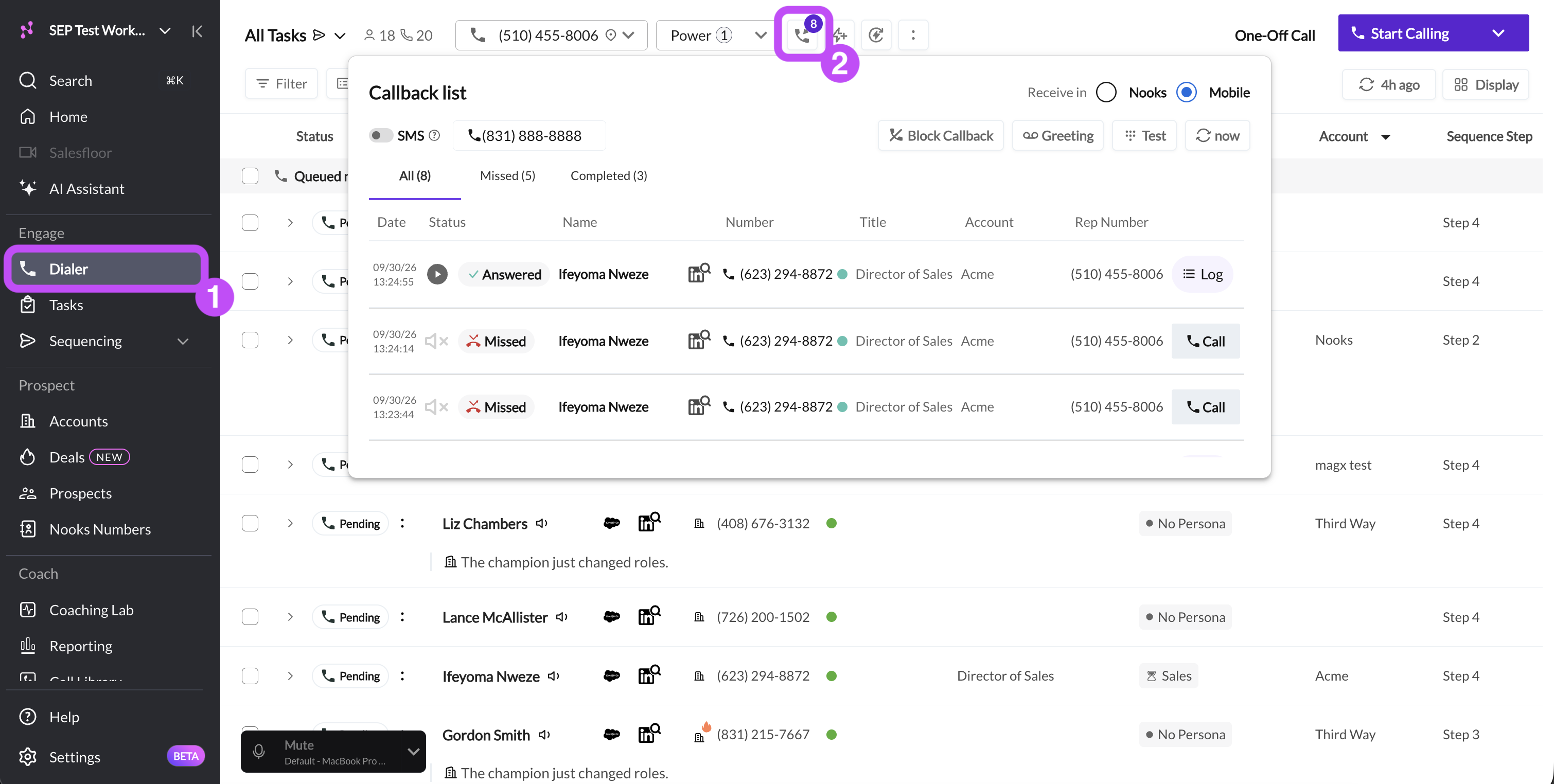
If you use the Nooks Dialer:
Open the Dialer.
Click the Callbacks icon in the Dialer toolbar.
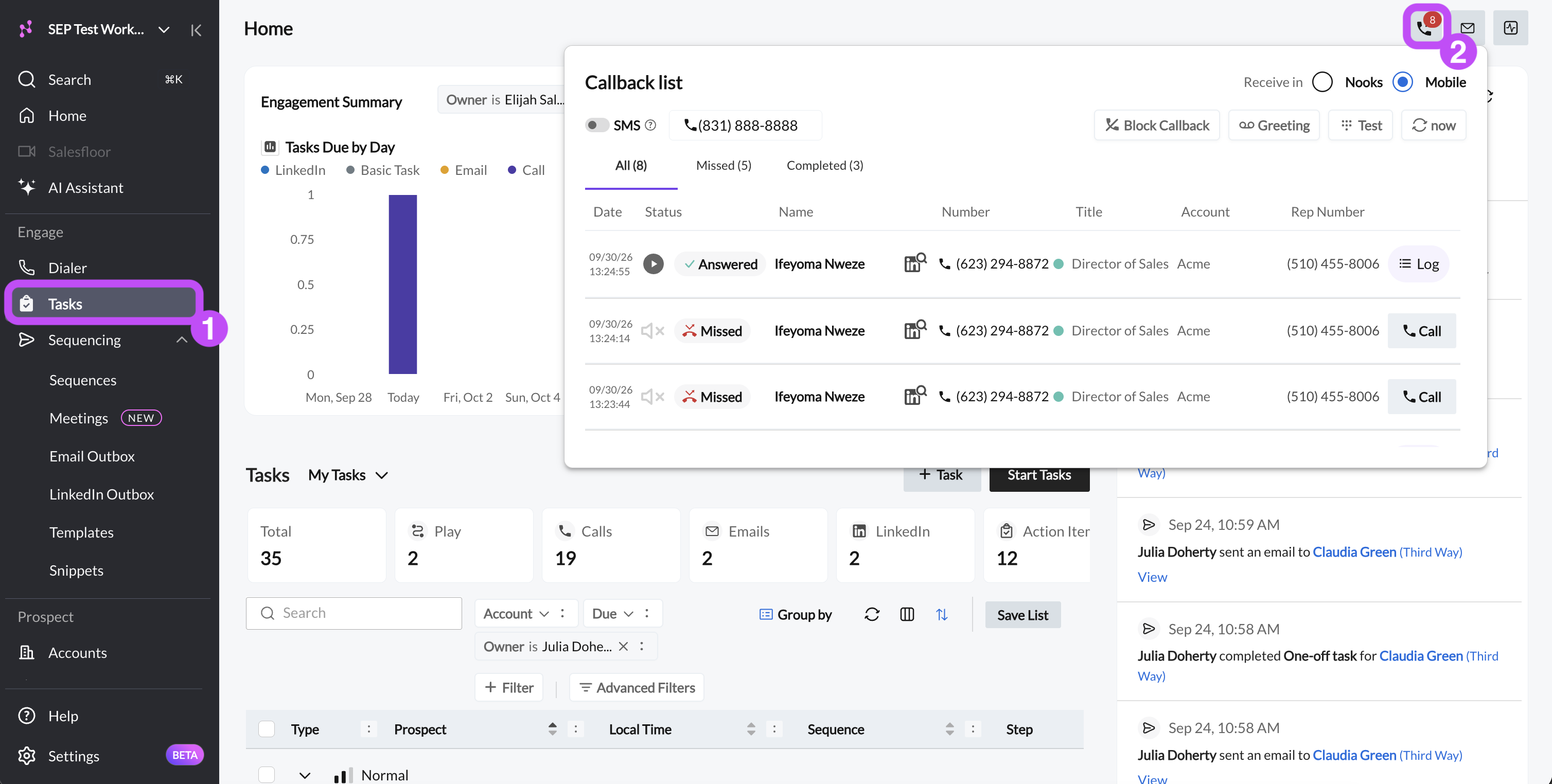
If you use Nooks Sequencing:
Open the Tasks page.
Click on the Callbacks icon in the upper-right corner of the page.
If you use both the Nooks Dialer and Nooks Sequencing, you can open your Callbacks list from either of the above locations.
The Callbacks icon shows a badge with the number of callbacks you have received in the last 7 days.
Configuring Callback Settings
Each team member configures their own callback settings. Your settings apply to every Nooks phone number you choose. Changes save automatically and apply to. your next callback.
Where to Configure Your Settings
Most callback settings are available directly in the Callback list. The settings page includes additional controls, such as Accept all incoming calls. The table below lists where you can find and configure each callback setting.
Setting | Default | In Callback List | In Callback Settings |
Receive in | Nooks | ✅ Yes | ✅ Yes |
Callback phone number | Empty | ✅ Yes | ✅ Yes |
Backup | On | ✅ Yes | ✅ Yes |
SMS | Off | ✅ Yes | ✅ Yes |
Voicemail greeting | Default | ✅ Yes (shows as Greeting) | ✅ Yes (shows as Customize Callback Voicemail Greeting |
Block Callback | No numbers blocked | ✅ Yes | ❌ No |
Accept all incoming calls | Off | ❌ No | ✅ Yes |
Accessing the Callback Settings Page
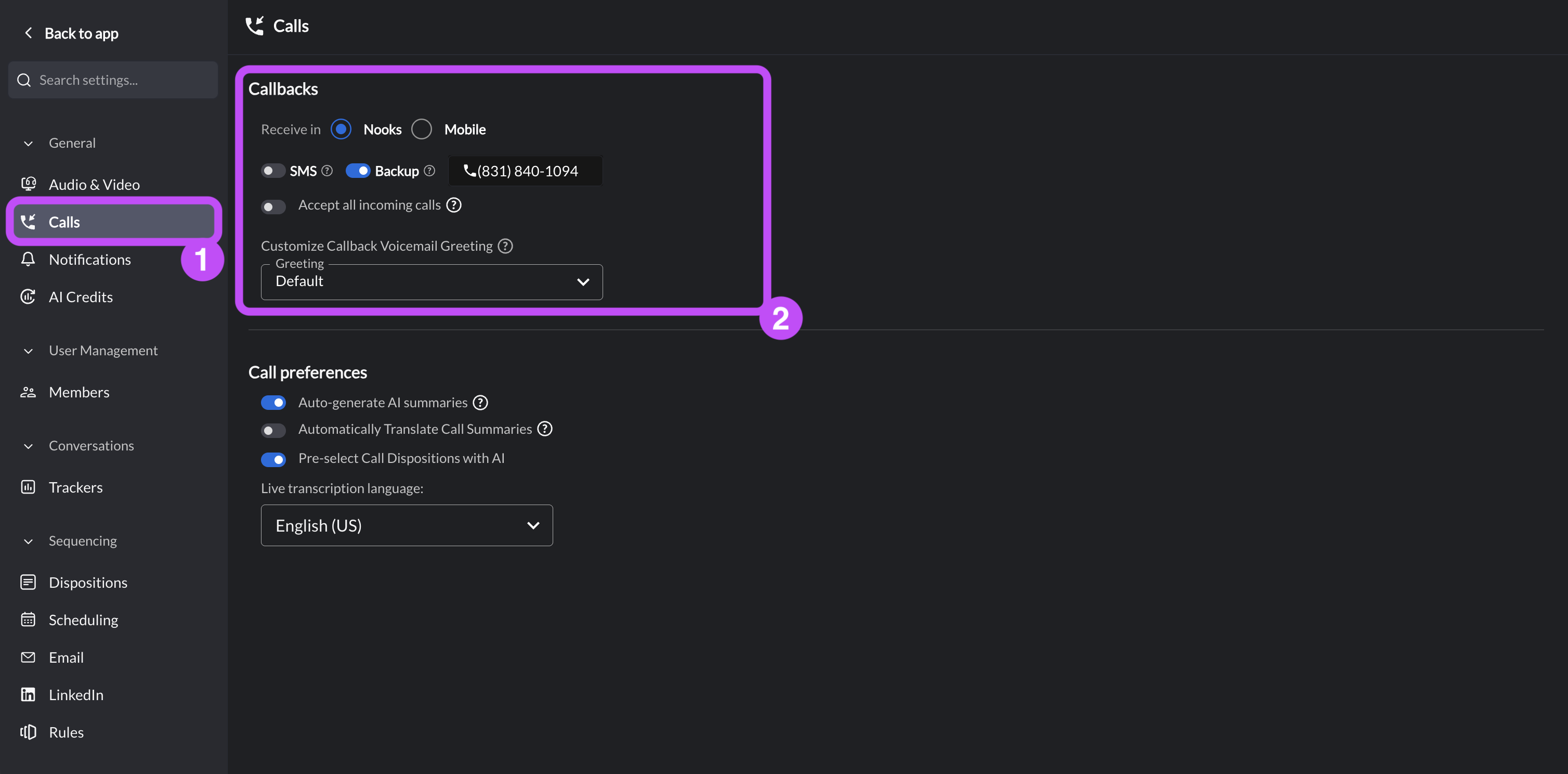
The Callback settings in Nooks Settings live in different locations depending on your seat type. To open your Callback settings:
Go to Settings → All Settings.
If you have a Dialer seat: Under Dialer, select Preferences. Scroll to Callbacks.
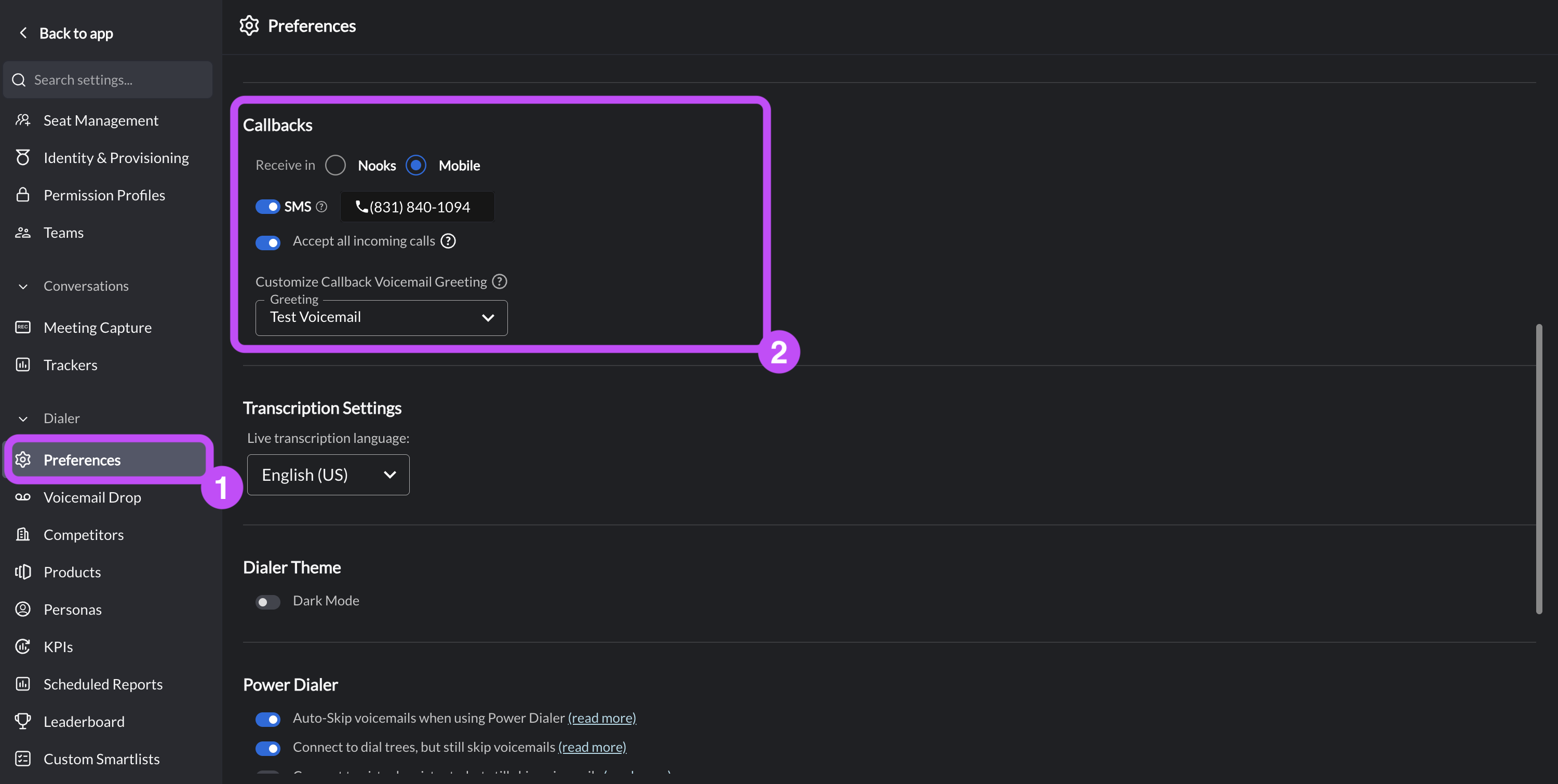
If you only have a Sequencing seat: Under General, select Calls. Locate Callbacks near the top of the page.
Choosing Where to Receive Callbacks
The most important Callback setting to configure is where and how you receive callbacks.
Open your Callback list or Callback settings.
Under Receive in, select Nooks or Mobile.
If you select Mobile: Enter the phone number where you want to receive callbacks.
If you select Nooks and want phone forwarding when Nooks is unavailable (recommended): Turn on Backup and enter a phone number.
Optional: Turn on SMS to receive caller details by text when callbacks are forwarded to your phone. In the Allow SMS Notifications dialog, click Allow.
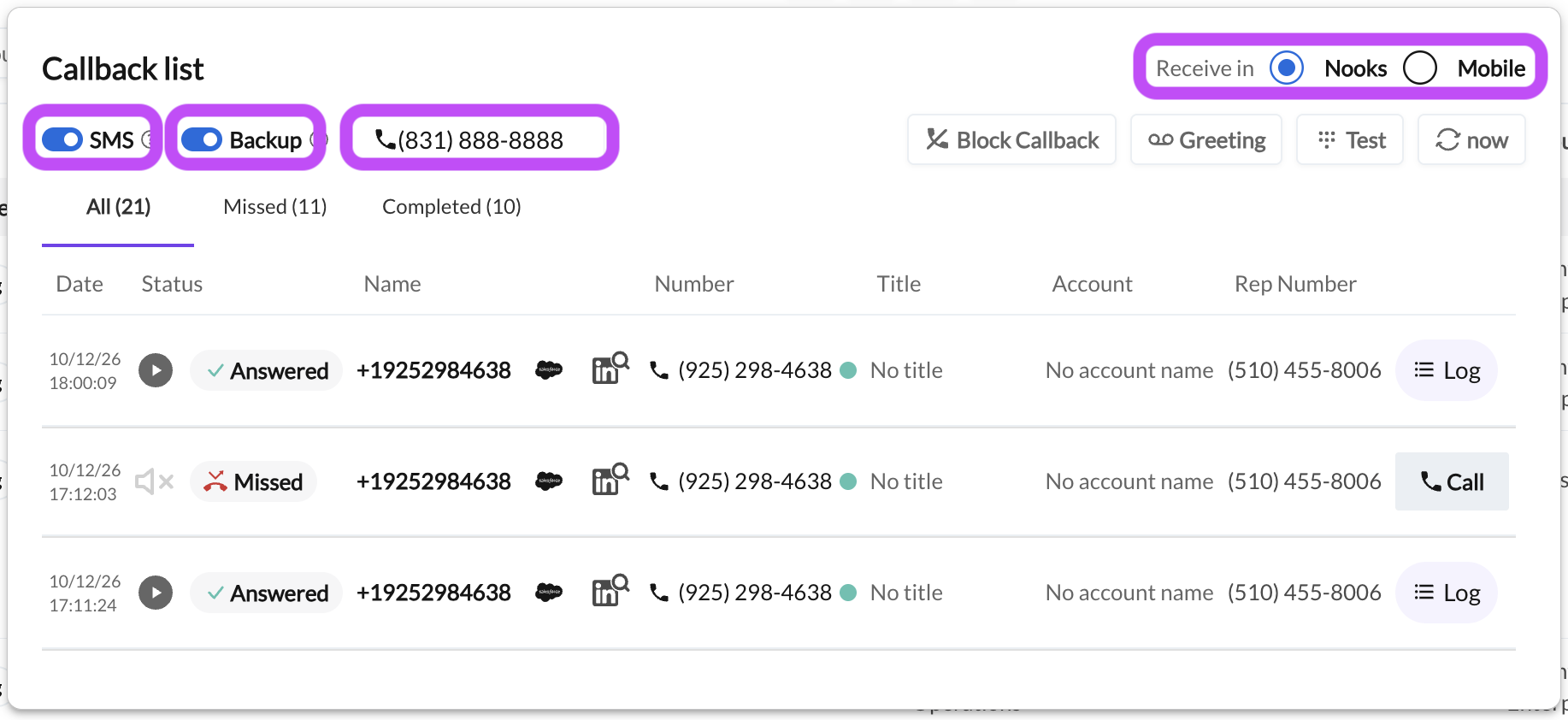
The following subsections explain each of the settings described above in detail.
Receive In
Receive in sets where your callbacks ring. The following table compares the two options.
Behavior | Nooks (default) | Mobile |
Where the call rings | Every Nooks browser tab you have open | The callback phone number you enter |
Caller ID you see | The prospect's details in the Nooks alert | The prospect's phone number |
Recording and call logging | In Nooks | In Nooks |
If you select Mobile without entering a callback number, callbacks keep ringing in Nooks.
Callback Phone Number
The callback phone number is where Nooks forwards callbacks, either as your Mobile number or as your backup number. The number must be a valid phone number, and it cannot be one of your Nooks phone numbers. If it is, Nooks shows "Invalid number" or "Callback phone cannot be a Nooks number," respectively.
For numbers outside the United States and Canada, enter the full number with the country code, such as +44**********.
Backup
Backup appears only when Receive in is set to Nooks. It is enabled by default and uses your callback phone number. A callback phone number is required for Backup to work.
When Backup is on, Nooks forwards callbacks to your callback phone number when Nooks has been closed or asleep for more than 20 seconds.
Important: Backup does not forward a callback you miss while Nooks is open. If you miss the alert in Nooks, the prospect hears your voicemail greeting. If you are stepping away but leaving Nooks open, set Receive in to Mobile.
SMS
When you are fielding a callback, a key piece of engaging your prospect is knowing who is calling. SMS sends you a text with the caller's details when Nooks forwards a call to your phone, either through Mobile or Backup.
The text alert contains the following prospect details when they available: Prospect name, title, account, and the list or sequence from which you last called them. The text looks like this:
Nooks: Ifeoma Nweze (Director of Sales) from Acme is calling you back. Source: Cold to Close (Call-only Sequence)

Until you enter a callback phone number, the SMS toggle is unavailable. The tooltip shown reads: "Add a callback number first. Nooks texts that number before a prospect calls back."
The text alert does not delay or change the call. We recommend reading the SMS while you phone rings to prepare yourself for the call.
To stop SMS messages, turn off SMS or reply STOP. To restart SMS messages, text START to +18889600328.
Customizing Your Voicemail Greeting
Customize Callback Voicemail Greeting sets what prospects hear when they call you back but you are unable to answer.
The Default greeting says:
The number you called is not available right now, but we will give you a call back as soon as possible. Please leave a message after the beep.
To record a custom greeting:
In the Callback list, click Greeting, then click into the Greeting dropdown. Alternatively, from Callback settings, click into the Greeting dropdown under Customize Callback Voicemail Greeting.
Click + Record a new greeting.
Name your voicemail greeting. This name is how you identify the voicemail in the Greeting dropdown.
Click Record to record your voicemail. Click Stop to finish recording.
Trim your audio by dragging the left and right handles to the desired position on the waveform timeline.
To play your recording back, click the play (▶) button.
To delete your recording and start over, click the trash can icon.
Check or uncheck the Add a beep at the end setting to decide whether Nooks adds a beep at the end of your greeting message.
Click Save. Upon saving, the new greeting is set as your voicemail in Nooks.
You can save several greetings and switch between them, or select Default at any time. To change which of your voicemail messages is set as your greeting:
In the Callback list, click Greeting, then click into the Greeting dropdown. Alternatively, from Callback settings, click into the Greeting dropdown under Customize Callback Voicemail Greeting.
Select the greeting you want to use as your voicemail.
Your greeting plays when a callback rings in Nooks and you do not answer. When Nooks forwards a callback to your phone, your carrier's voicemail might answer first.
Blocking or Unblocking a Caller
Block Callback stops specific phone numbers from reaching you. A blocked caller hears "Sorry, the number you called is not available right now." Nothing is added to your callback list.
To block a phone number:
In the Callback list, click Block Callback.
In the phone number field, enter the caller's number, such as +12223334444.
Click Add. The number appears under Blocked Numbers with the date and time you most recently blocked it.
To unblock a phone number:
In the Callback list, click Block Callback.
Locate the number you want to unblock under Blocked Numbers.
Click Delete to the right of the number.
Accepting Calls from Numbers You Have Not Called
Accept all incoming calls lets anyone who calls your Nooks phone number reach you, not only prospects you have called from Nooks. This setting is disabled by default, so only numbers you have dialed through Nooks can call your Nooks phone number. Enabling this setting may allow spam calls to reach you.
When this setting is enabled, callers Nooks cannot match to a prospect appear as a one-off call that shows only their phone number. This setting applies only to your own Nooks phone number, not to shared Smart Presence numbers.
To modify this setting:
Open the Callbacks settings page using the path that corresponds to your seat holdings.
Dialer users: Settings → All Settings → Dialer → Preferences.
Sequencing-only Users: Settings → All Settings → General → Calls.
Turn Accept all incoming calls on or off.
Test Your Callback Setup
Place a test callback to check how your callback settings work together. To run a test:
Open your Callback list.
Click Test.
Nooks calls your selected Nooks phone number from +1 (888) 960-0328. The call follows your current settings. It appears as "Callback Test" in the callback alert and as +18889600328 in your Callback list. When you answer, you hear, "Hi, this is a test callback from Nooks to help you confirm that your settings are properly configured. Thank you for using Nooks."
A test callback checks where calls ring, not whether a specific caller can reach you. The test skips the check for whether you have called the number before.
Answering and Logging a Callback
If your callback settings are set to receive callbacks on your mobile device, answer incoming calls on the phone number you have entered. The following instructions cover answering callbacks in Nooks.
When a callback rings in Nooks, an alert appears at the top of whatever Nooks page you are on. The alert reads: <Prospect Phone Number> is calling you back at <Your Nooks Phone Number>. Where applicable, the alert also shows you the prospect's name, title, company, and the list or Sequence you last called them from.
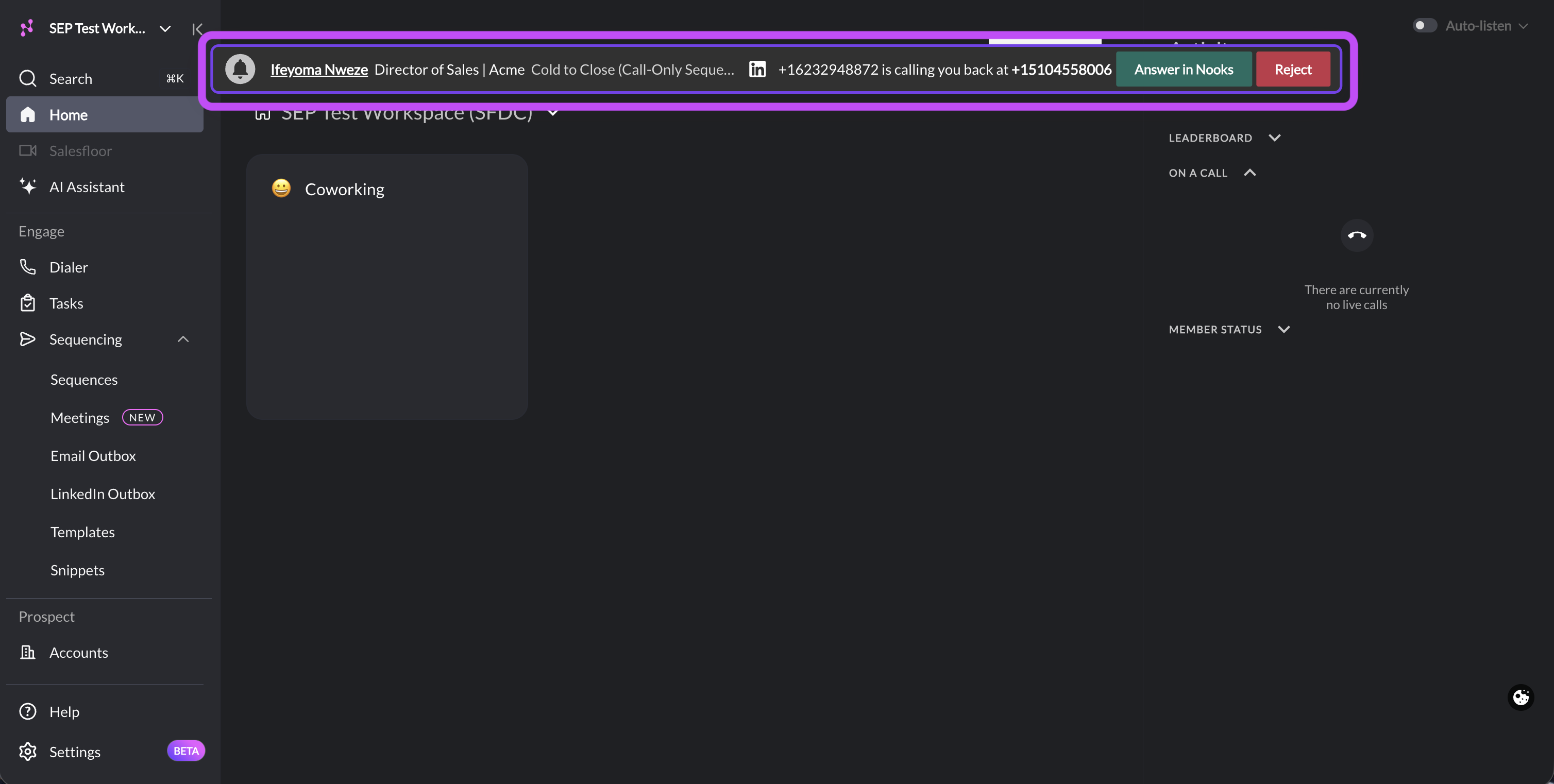
To answer a callback:
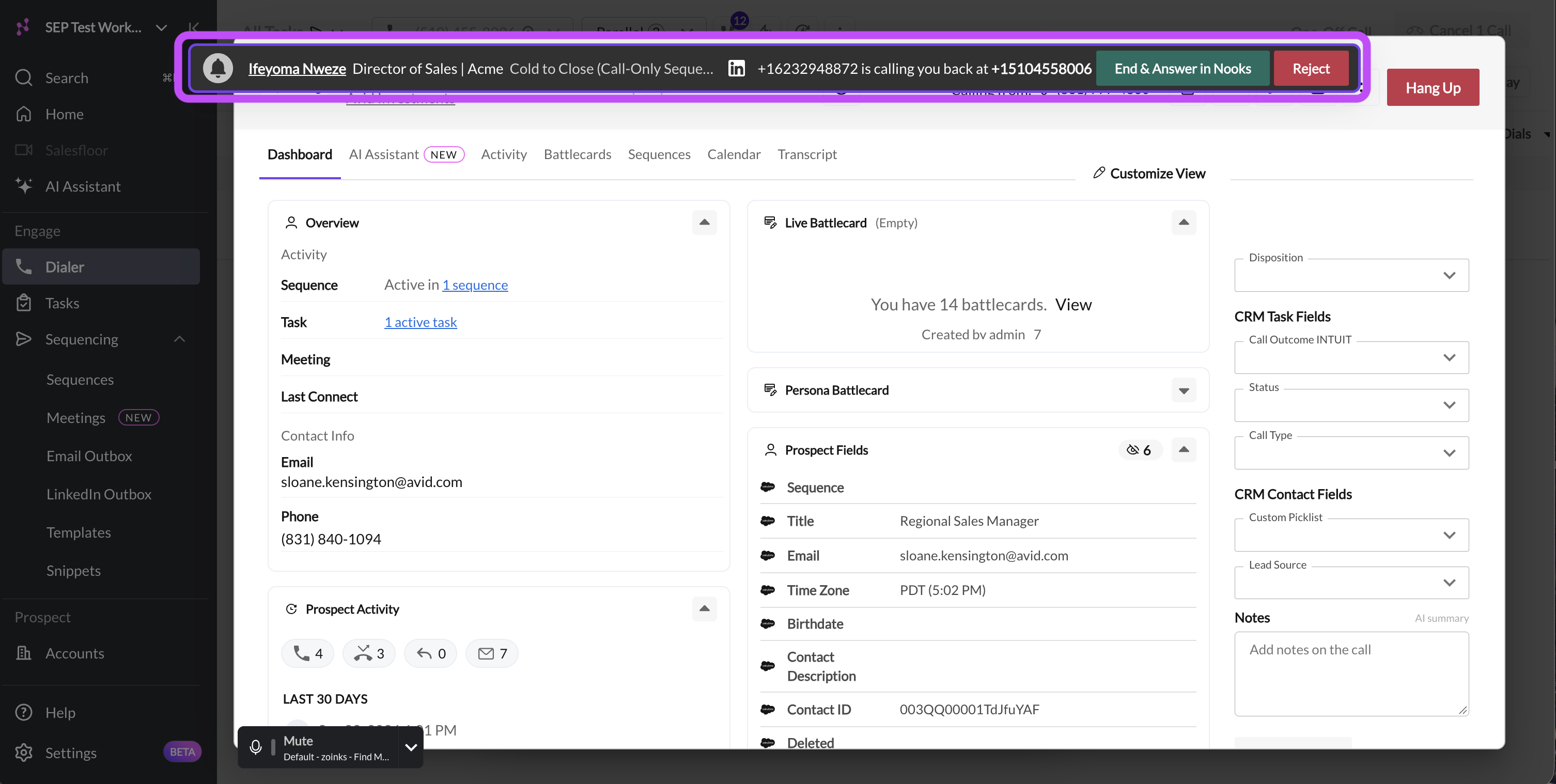
In the alert, click Answer in Nooks. If you are already dialing or on a call, the button reads End & Answer in Nooks. Nooks ends your current call and connects the callback.
Talk with the prospect in the call window.
When the call ends, select a disposition, then log the call.
To decline a callback:
In the alert, click Reject. The prospect hears your voicemail greeting.
At a later time, open your Callback list to find the callback.
While You Are on Another Call
A callback can arrive while you are already on a call or in the middle of a dialing session. When it does:
The alert appears but does not ring to keep you focused.
End & Answer in Nooks ends your current call, stops your current parallel or power dialing session, and connects the callback.
Reject keeps you on your current call, sends the callback to your voicemail greeting, and removes the banner alert.
If you are already on a callback, a second callback shows "You have an existing callback. Please hang up and log the current callback to answer the new one." Once you hang up and log your first callback, the alert for the second shows Answer in Nooks and Reject options.
Logging an Answered Callback
Log a callback the same way you log any other call. If you did not log an answered callback when it ended, click Log on its row in the Callback list.
If Nooks cannot match the caller to a prospect, your Workspace might require you to link a prospect before you finish logging the call. To link one, search for and select the prospect in the Add prospect (required) box.
Review and Follow Up on Callbacks
Your Callback list shows callbacks you have received in the last 7 days, with the newest ones first. To open it, follow the instructions in Open Your Callback List.
Important: The list records the outcome of each original incoming call. Calling a prospect back does not change that callback from Missed to Completed. You cannot remove callbacks from the list; entries and their badge counts drop off after 7 days.
Filtering Your Callbacks
Within your Callback list, you can use the following tabs to filter your list to a subset of callbacks.
All: Every callback from the last 7 days.
Missed: Callbacks you did not answer.
Completed: Callbacks you answered. This tab reflects whether you answered the original callback, rather than whether you have finished following up.
Reviewing Callback Details
Each row in the Callback list shows details about the corresponding callback. The following table describes each column.
Column | What It Shows |
Date | The date and time the prospect called. |
Status | Answered or Missed. |
Name | The prospect's name. |
Number | The prospect's phone number. |
Title | The prospect's title. |
Account | The prospect's associated account, when applicable. |
Rep Number | The Nooks phone number the prospect called. |
Listening, Calling Back, or Logging a Call
Within the callback list, use the following actions in the callback's row.
Action | What It Does |
Play recording (▶) | Plays the call recording or voicemail once processing is complete. |
Call | Calls the prospect using the Nooks phone number they called, if available, or your currently selected number. |
Log | Logs an answered callback that has not been logged yet. |
To follow up on a missed callback:
Open the Callbacks list.
Click the Missed tab.
If the caller left a voicemail, play it to review their message.
Click Call at the right of the callback's row.
After your outbound call, select a disposition and log the call.
Use the Refresh button at the top-right of the list to refresh it.
Additional Follow-Up Tools for Dialer Users
The tools described in this section are available to users with a Power or Parallel Dialer seat.
Missed Callbacks in the Last 90 Days Smartlist
The default Smartlist "Missed callbacks in the last 90 days" lists people who called you back and whom you have not connected with in the last 90 days. Prospects do not need to currently be enrolled in a Sequence to appear on it. Nooks removes a prospect from the Smartlist when you log a connected call or a meeting with them after their latest callback.
To call through your missed callbacks:
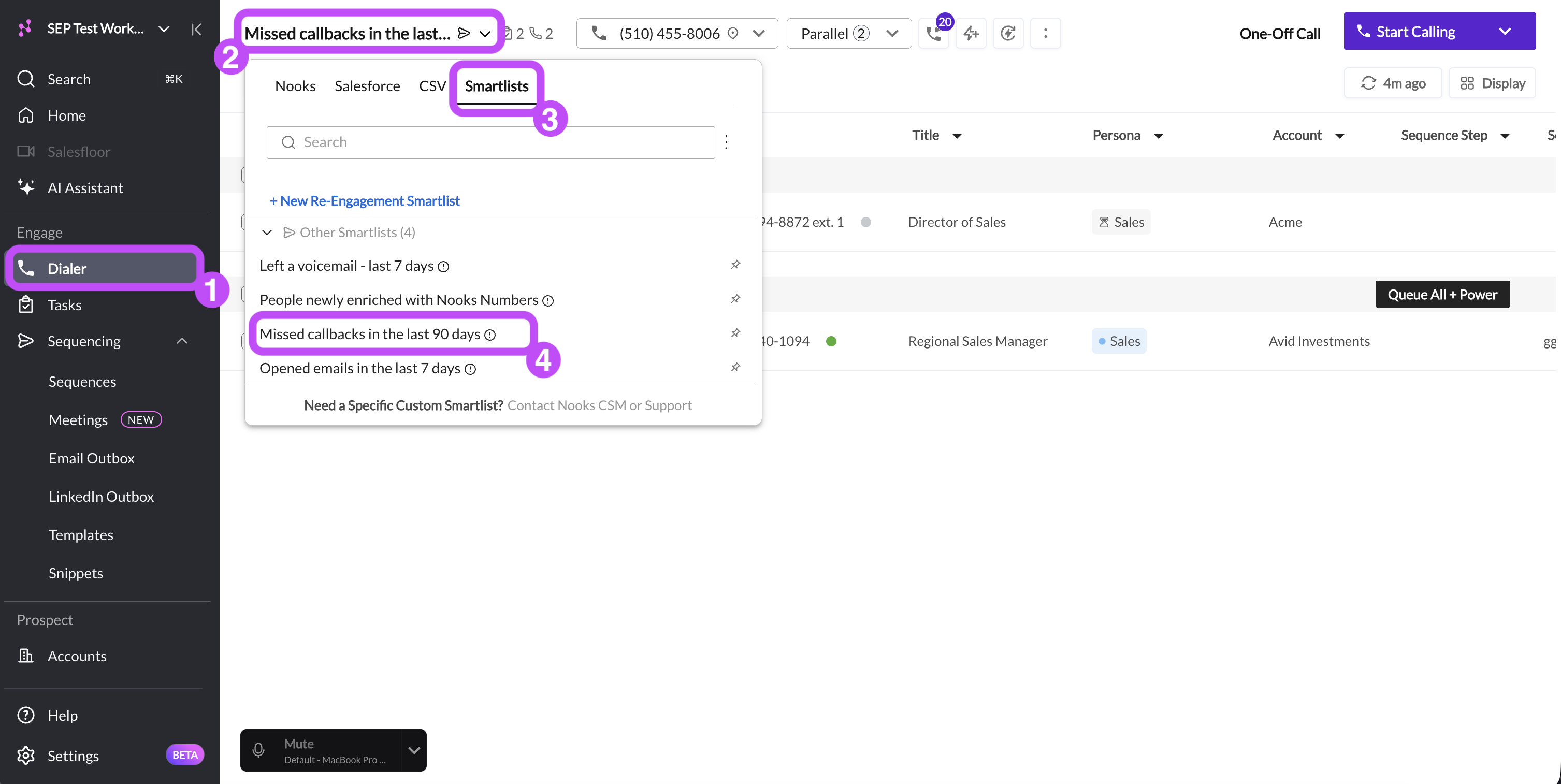
Open the Dialer.
In the list source field, click Smartlists.
Under Other Smartlists, click Missed callbacks in the last 90 days.
Begin your dial session to the prospects in the Smartlist.
FAQs
A callback showed up as Missed, but I never saw the alert. What happened?
The callback alert only stays on screen for a short time. If you're in another tab or window when it appears, it can disappear before you see it. The prospect then hears your voicemail greeting and the call shows as Missed in your Callback list.
As a recommendation, keep one Nooks tab open and visible while you work. If you're stepping away from your desk, set Receive in to Mobile.
I have Backup turned on, so why didn't my missed callback ring my phone?
Backup only forwards a callback when Nooks has been closed or asleep for more than 20 seconds. It does not forward a callback you missed while Nooks was open. If you are away from your computer and Nooks is still open, switch Receive in to Mobile.
I got the SMS from Nooks, but my phone never rang. Why?
When the SMS arrives and the call doesn't, your phone or carrier usually blocked the call. Look for settings like iPhone's Silence Unknown Callers or call screening, or carrier spam filtering, and turn them off. Then run a Test callback from your Callback list.
When a callback rings my mobile, it looks like an unknown caller. Can my phone show the prospect's name?
No. Your phone shows only the prospect's number. Turn on SMS to get a text with the prospect's name, title, company, and the list or Sequence they came from. Read it while the phone rings.
If you want the prospect's details on screen when you answer, set Receive in to Nooks and keep your mobile as Backup.
Can I forward callbacks to a mobile number outside the United States?
Yes. Set Receive in to Mobile and enter the full number with its country code, such as +44. Turn on SMS if you want the prospect's details by text as well.
Why wasn't my callback recorded?
Nooks only records callbacks if you answer them in Nooks and if the call is eligible for recording per your Workspace's recording settings.
When a callback is forwarded to your phone, through Receive in = Mobile or Backup, Nooks does not record it, even if the call is eligible for recording.
If you need callback recordings, set Receive in to Nooks.
Some callbacks show a muted icon instead of a play button in the Callback list. What does that mean?
There is no recording to play for that callback. Either the caller left no message, the recording is still processing, or call-recording consent rules prevented the recording.
Is my voicemail greeting shared with my team?
Your greeting belongs to you and plays on all your Nooks numbers. Each team member records their own greetings.
What makes a good voicemail greeting?
To make a good voicemail greeting, we recommend keeping your greeting to 5–15 seconds. Include your name, company, and a request to leave a message. Record somewhere quiet because prospects hear exactly what you hear on playback. Leave Add a beep at the end on unless your greeting already ends with its own prompt.
Do callbacks log to Salesforce or HubSpot?
Yes, once you answer and log them. An answered callback that you disposition and log writes to the CRM like any other call.