Nooks UX: Explained
Last updated: September 24, 2026
Nooks is a powerful platform with an exceptionally rich feature set. The purpose of this article is to help simplify the anatomy of the Nooks platform given its wide variety of applications and services meant to serve a common goal: make cold-calling more fun, effective, and efficient!
Entering a Nooks Workspace
The first thing a new Nooks user does after authentication is enter the home of their workspace using the URL provided by their AE. An example of what a workspace looks like is below:
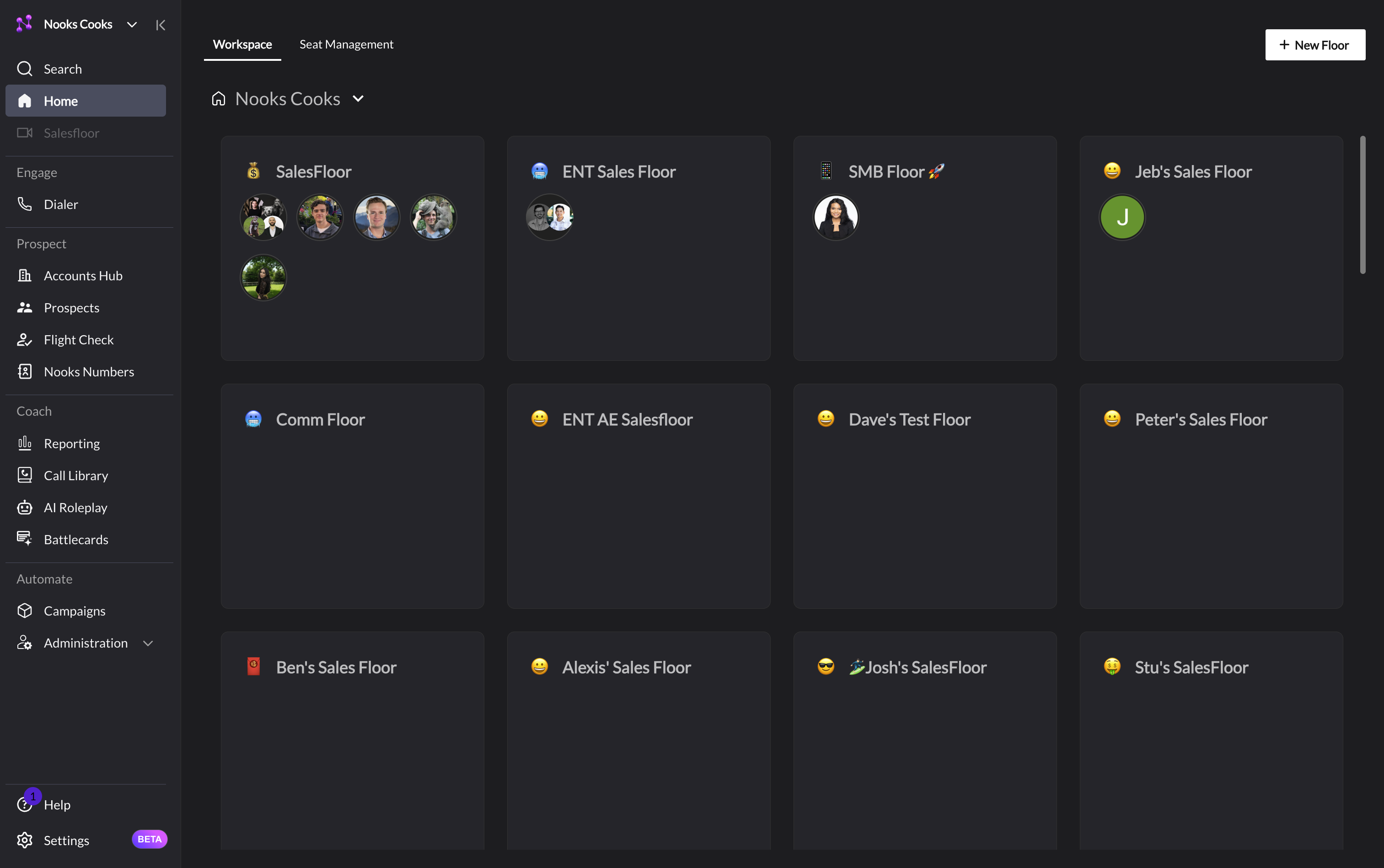
As seen in the above workspace, every Nooks workspace contain 3 major elements, the Application Bar, the Main Menu, and Floors:
Left-side NavBar: the Application Bar
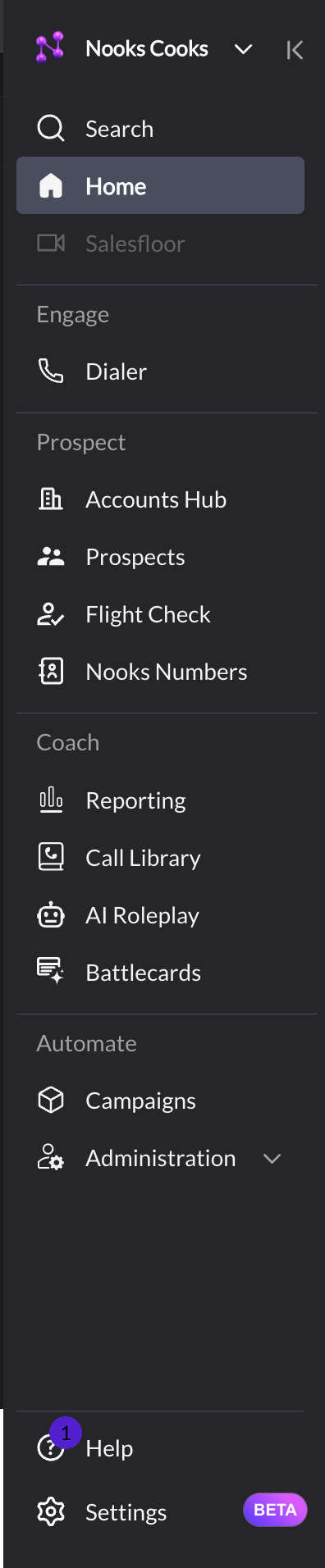
Purpose: contains buttons to access the major applications within the Nooks platform:
the Salesfloor (this is not selectable when in the home of a workspace. It becomes selectable once the user has chosen to enter a floor)
the Dialer (an AI-powered dialer that enhances cold-calling productivity by integrating with your sales engagement tool)
Reporting (a reporting/analytics engine purpose-built for cold-calling ops)
Call Library (an AI-powered call recording/transcript library - think Gong but for cold-calling)
Lower right: the Main Menu
Purpose: the home of all user-specific and admin-specific settings for a given workspace.
Main body of screen: Floors
Purpose: Each floor is a unique virtual co-working space where users can collaborate via web-conferencingcall blitzes (Nooks floors have built-in call-shadowing capabilities purpose-built for team call blitzes)
internal meetings
social / office hours during remote workdays
The Dialer
Because Nooks is a platform built for cold-callers, the dialer has a rich feature set in and of itself.
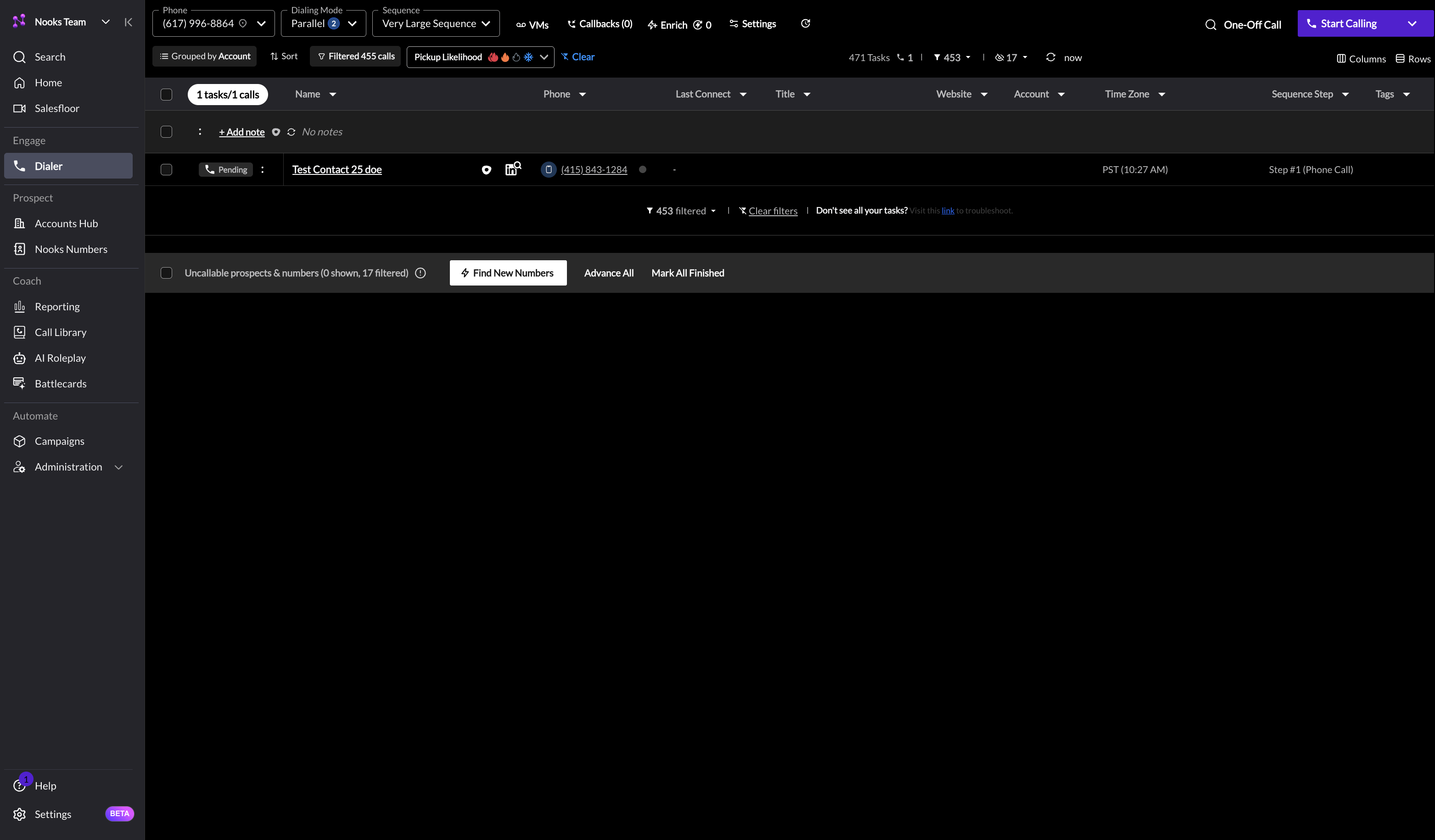
The anatomy of the dialer UX can be simplified into two main sections on the above screen:
Important: After completing a call, you must wait for the call to be fully logged before switching tabs, exiting the Salesfloor, or refreshing Nooks. Navigating away before logging completes will prevent the call from being recorded, transcribed, or counted in reporting metrics. Always click “Log Call” and wait for confirmation before leaving the page.
Across the top of the page: Dialer Settings
Purpose: contains all of the settings to configure your dialing workflow:

Phone number selector (a Nooks user can create up to 10 numbers at once to make outgoing calls with. A best practice is to regularly rotate through these numbers to prevent numbers from getting marked as SPAM and therefore lowering your connect rates)
Sequence/Cadence selector (Nooks will pull sequences/cadences and call tasks from your integrated SEP so that a user can dial prospects with the Nooks parallel dialer)
Voicemail Drop (the capability to pre-record voicemails and choose which recording to leave when a call reaches voicemail. Depending on your integration, Nooks can map voicemail outcomes to the correct voicemail/no-answer disposition or activity outcome.)
Callback Phone Field (when a prospect calls back the Nooks-generated number, Nooks will route this incoming call to whatever phone number the user puts in the Callback Phone Field)
Parallel Dialing Meter (the core feature of the dialer - a Nooks user can decide how many prospects they want to call at once using this feature)
Additional Settings
Battlecards
Toggle "dark/light" mode
toggle ringtone
toggle auto-generation of AI call summaries (vs. manual button)
The rest of the page: Call Task List
Purpose: contains all call tasks for the sequence/cadence selected above. Depending on your connected SEP or CRM, Nooks shows callable tasks that are due, overdue, or otherwise eligible to be dialed from the selected source.
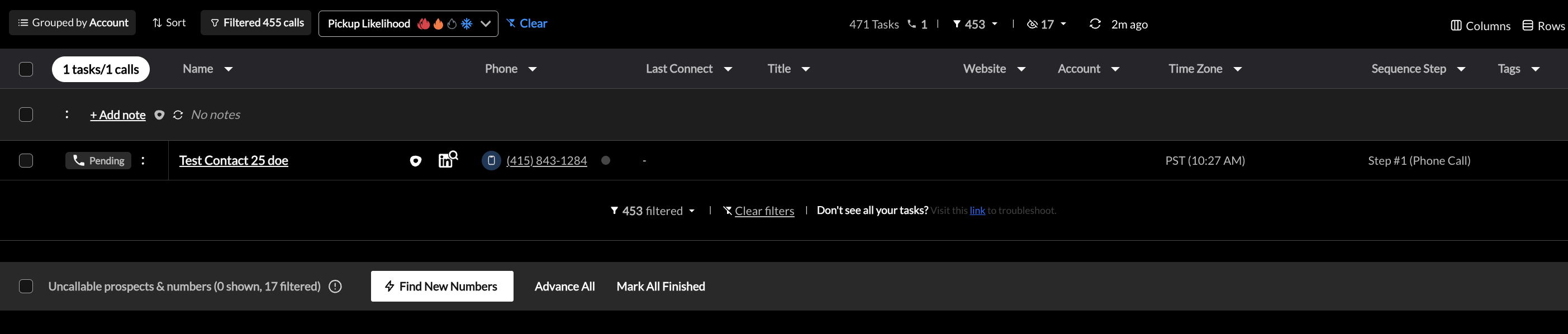
The Task List is home to a large set of features that collectively serve to prepare reps for the increase in conversations that parallel dialing generates. Because parallel dialing the Task List is the most critical area of the Nooks platform, its details and best practices merit its own article which you can view here.
The Salesfloor
The Salesfloor (also known as just a "floor") is also a key part of the Nooks platform that allows remote teams to run virtual call blitzes together and collaborate more effectively.
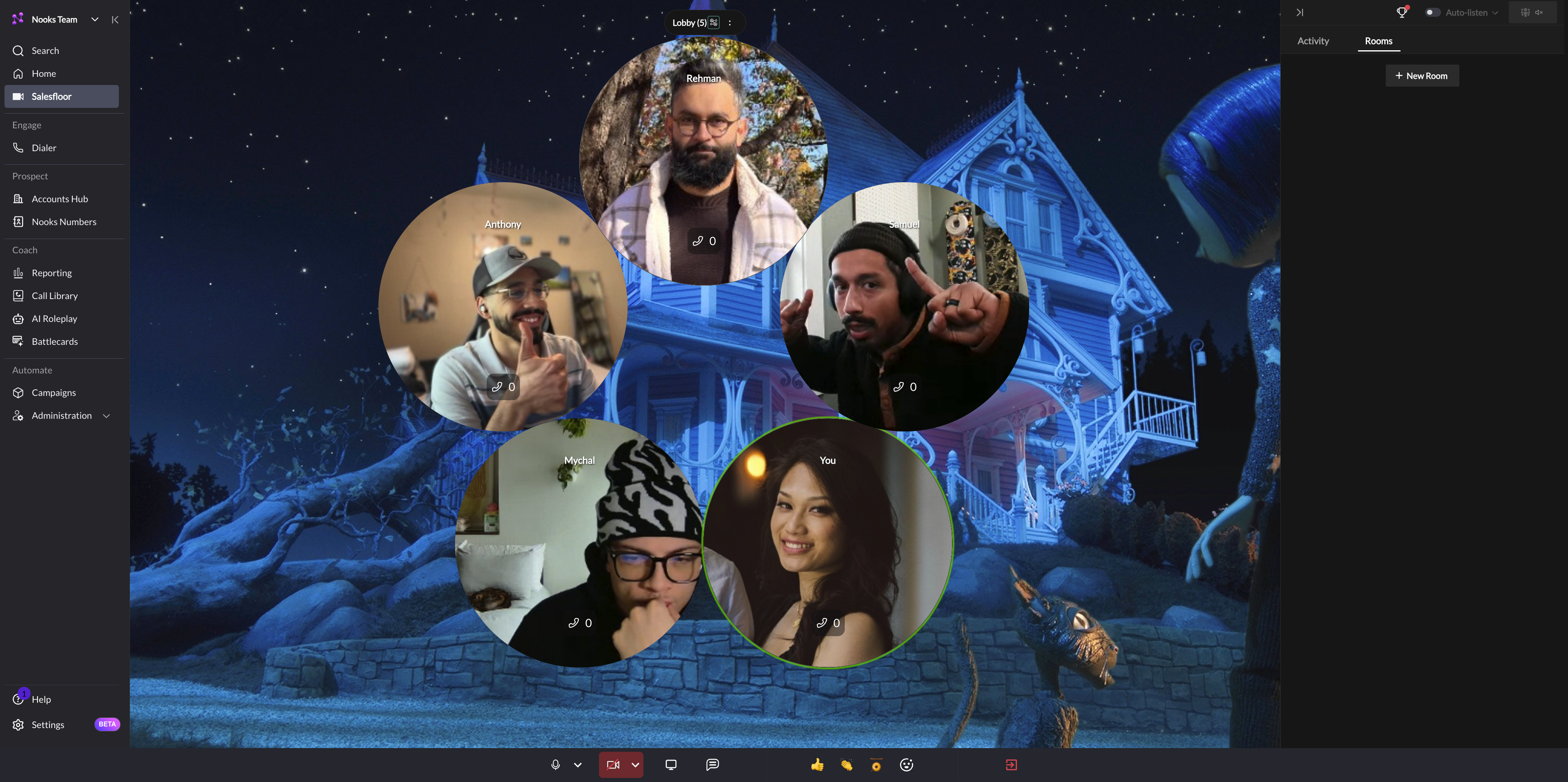
A floor can be broken down to 3 main elements:
Left side of page body: User's current room
Right side of page body: View of other rooms in the floor
Across the bottom of the page: User-level floor options
From left to right:Muting / audio device selection
Toggle for Webcam sharing
Screenshare button
Chat, emoji, and GIF buttons
Exit Nooks
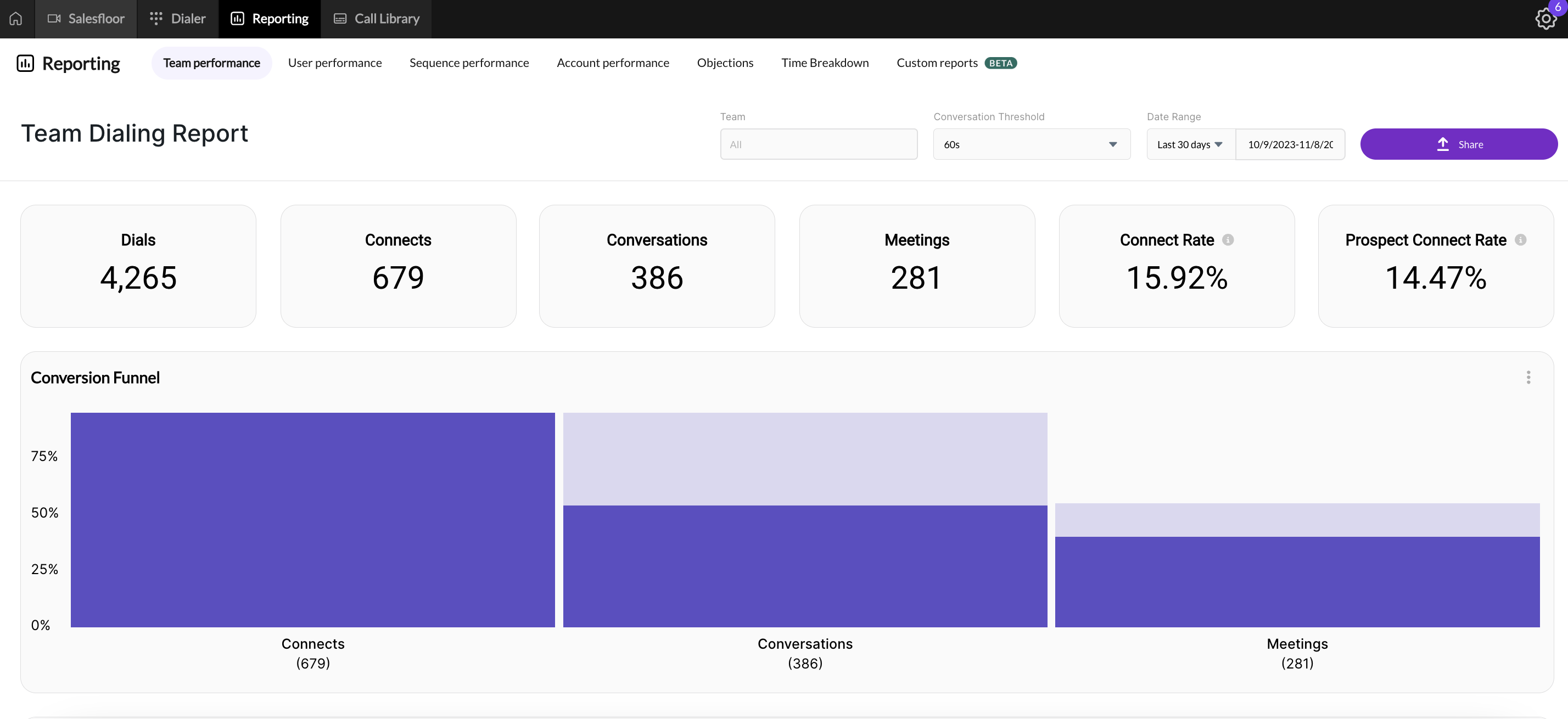
Reporting
The Nooks reporting engine is built to give users and managers/admins access to data-driven insights on cold-calling productivity, account-based performance, and objection-handling analytics.
Note: When using parallel dialing, only completed calls are counted in reporting metrics. Cancelled calls during parallel dialing sessions do not appear in the Reporting page. For example, if you parallel dial 3 prospects and connect with 1, only that 1 connected call will count toward your dial metrics—the other 2 cancelled dials will not be included in your reporting totals. Additionally, you must wait for calls to be fully logged before switching tabs, exiting the Salesfloor, or refreshing Nooks, or the call may not appear in reporting.