How to Integrate Nooks with ChatGPT
Last updated: September 24, 2026
This guide provides an overview of how to use the Nooks MCP to create, deploy, and use a custom Nooks app in ChatGPT. It includes steps for admins and end-users on connecting Nooks to ChatGPT, a description of the Nooks actions user can perform from ChatGPT, and information on data privacy and security when using the Nooks MCP.
Availability: The Nooks MCP is available only to users with a Nooks Sequencing seat, a Nooks Coaching seat, or both.
Background
If you use ChatGPT, you can connect Nooks using a custom MCP app. Doing so enables you to query your Nooks Sequencing and Nooks AI Coaching data without leaving ChatGPT or copying and pasting between tabs.
From ChatGPT, you can:
Pull up your Nooks Sequences to review what steps are due and when.
Enroll people in Nooks Sequences.
Review completed Nooks calls and emails sent via Nooks Sequencing.
Manage your Nooks Sequencing tasks.
Search and review calls made by your team to generate insights and help improve rep performance.
The Nooks <> ChatGPT integration runs on the Model Context Protocol (MCP), an open standard that allows ChatGPT to securely communicate with third-party tools in a structured, read-write way. The Nooks app runs using your existing Nooks user permissions, allowing you to view and access only the records you already have permission to access in Nooks.
The ChatGPT App currently has access to the following data:
Your Nooks Sequencing activity and data, including:
Nooks Sequences
Emails from mailboxes synced with Nooks
Tasks created or completed through Nooks Sequencing
Calls placed through Nooks*
Prospects and accounts synced from your CRM
Your Workspace’s users
The ChatGPT App does not currently have access to the following data:
Tasks from another sales engagement platform (e.g., Outreach, Salesloft, Apollo, Gong Engage, Groove)
Tasks created manually in your CRM
Sequences in another sales engagement platform (e.g., Outreach, Salesloft, Apollo, Gong Engage, Groove)
Note: The searchCalls and getCallTranscript tools only cover calls made by reps who hold an AI Coaching seat. This restriction applies even if the requesting user could otherwise view the call in Nooks. listCalls and getCall follow standard access roles.
Admin Setup: Create a Custom MCP App in ChatGPT
To enable your team to access Nooks Sequencing and AI Coaching data in ChatGPT, you need to add Nooks as a custom ChatGPT app.
Before You Begin
In order to add Nooks as a custom ChatGPT app, you will need:
A Nooks OAuth App created for your custom ChatGPT app. You will need the Client ID and Secret from your Nooks OAuth App. If you have not created an OAuth App for this purpose, refer to the following guides.
How to Set Up a Nooks OAuth App – Contains general instructions on creating a new Nooks OAuth App.
A ChatGPT plan that supports custom apps. ChatGPT supports custom apps on Business and Enterprise/Edu plans. More information on app availability can be found here.
An admin/owner role in your ChatGPT workspace. These permissions enable you to create custom apps and publish them to your workspace so other users can connect to them.
Browser access to chatgpt.com and your Nooks Workspace. Ensure that you are signed into Nooks with the user account to which you want to grant ChatGPT access.
Step 1: Create the Custom ChatGPT App
To begin, create a custom “Nooks” app in ChatGPT. You must be an admin/owner in ChatGPT to complete these steps.
Open ChatGPT.
Enable Developer Mode for your account if it is not already enabled. See this article for guidance based on your ChatGPT plan type.
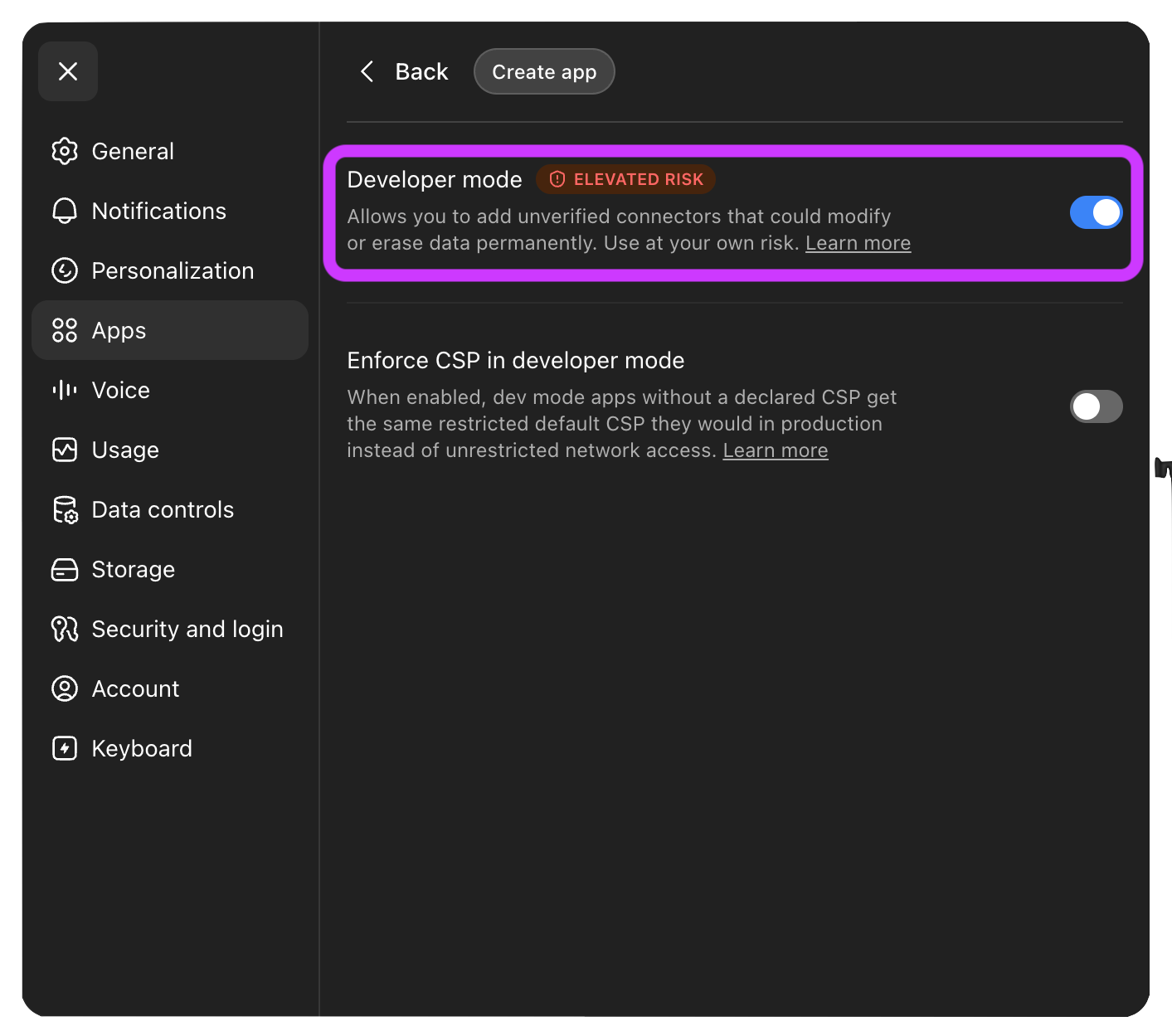
With Developer Mode enabled, go to Workspace Settings → Apps. Then, press + Create.
Fill out the following fields:
Name: Choose a name. We recommend
NooksorNooks MCPto make it easily identifiable.Connection:
https://mcp.nooks.in/mcp
After entering the MCP server URL, ChatGPT should automatically detect that the server uses OAuth for authentication.
Expand Advanced OAuth Settings. Enter the following details from your Nooks OAuth App:
Client ID
Client Secret
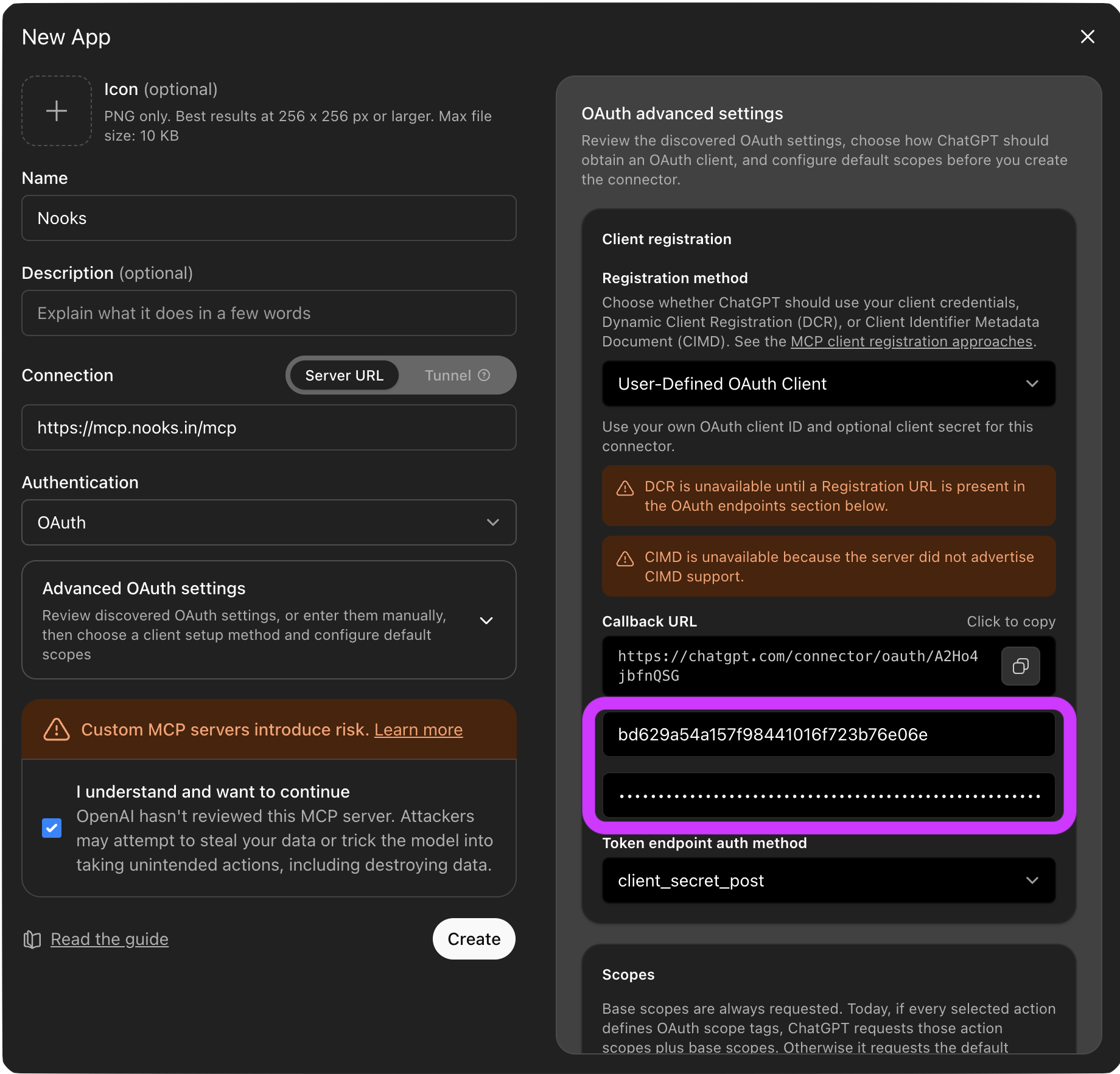
Once the Client ID and Client Secret are added, ChatGPT should automatically set the Token End Point Auth Method to
client_secret_post.Copy the Callback URL, then add it to your Nooks OAuth App through the following steps.
In Nooks, go to Developer.
Switch to the OAuth tab.
Click into the OAuth app you created for the custom ChatGPT app, then switch to the Auth subtab.
Under Redirect URLs, paste the Callback URL from ChatGPT, then press + Add.
Press Save to save your configuration.
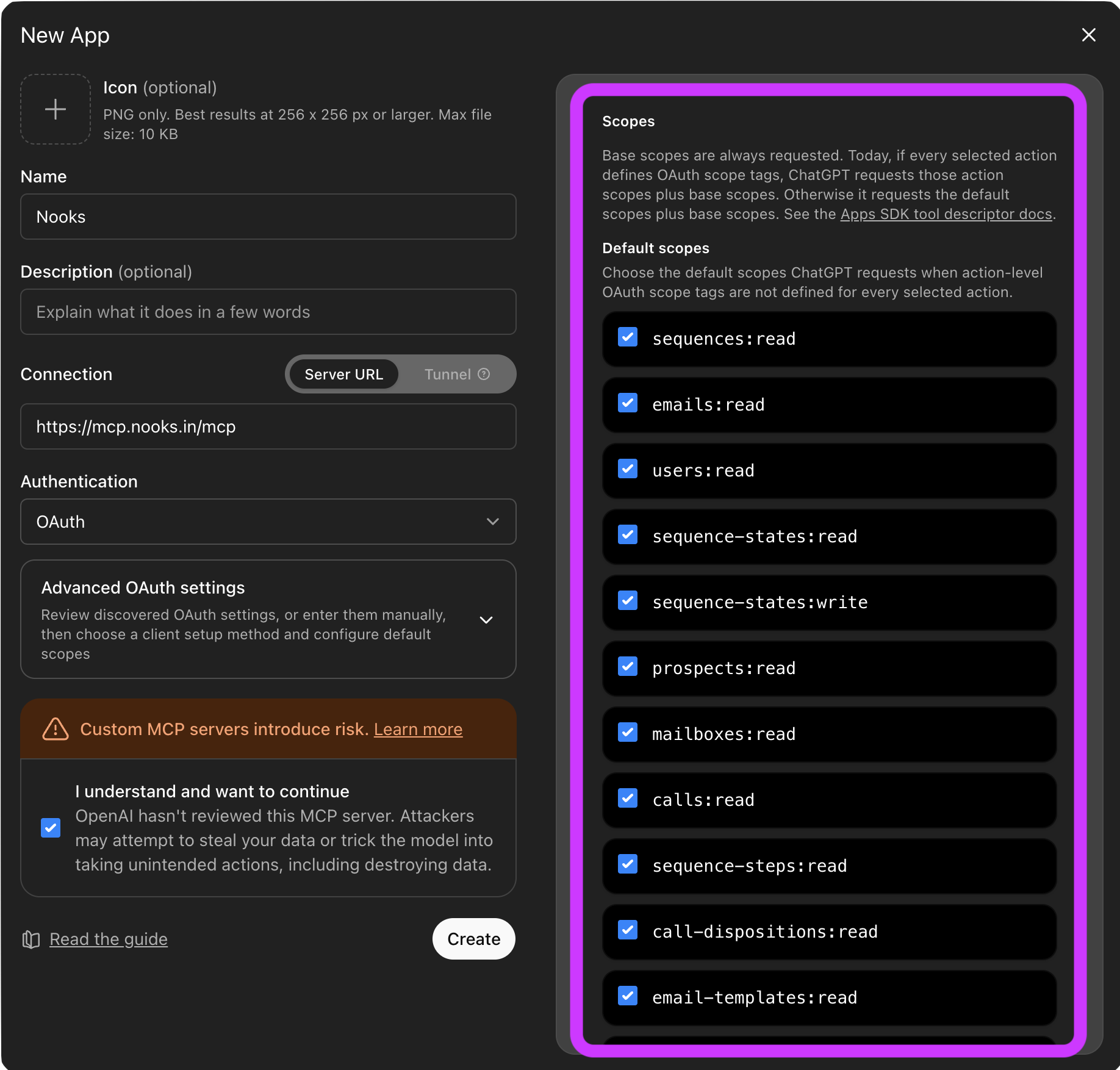
Review the available scopes. The default scopes are recommended, although you may adjust them if your organization requires more restrictive access. Note that Nooks automatically limits the tools available to users based on their Nooks seat assignments.
Accept ChatGPT’s developer risk acknowledgement, then press Create to save the app.
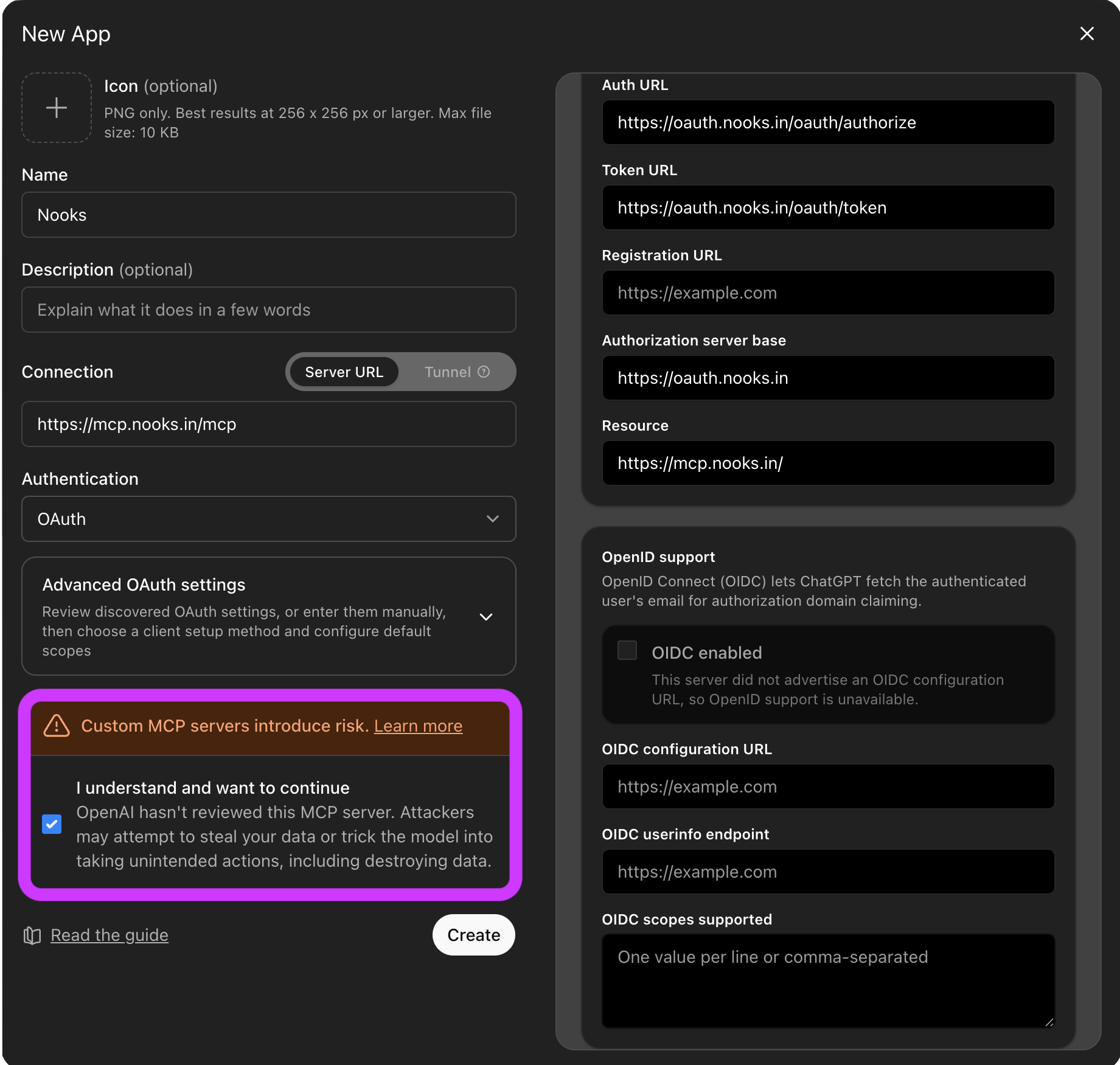
Important: Before creating the ChatGPT app, ensure you have entered the ChatGPT app’s Callback URL has been saved in your Nooks OAuth App as a Redirect URL.
Step 2: Authenticate the Custom ChatGPT App
Once you’ve created the ChatGPT app, you should be redirected to a dialog where you can authenticate with your Nooks account.
Press Connect.
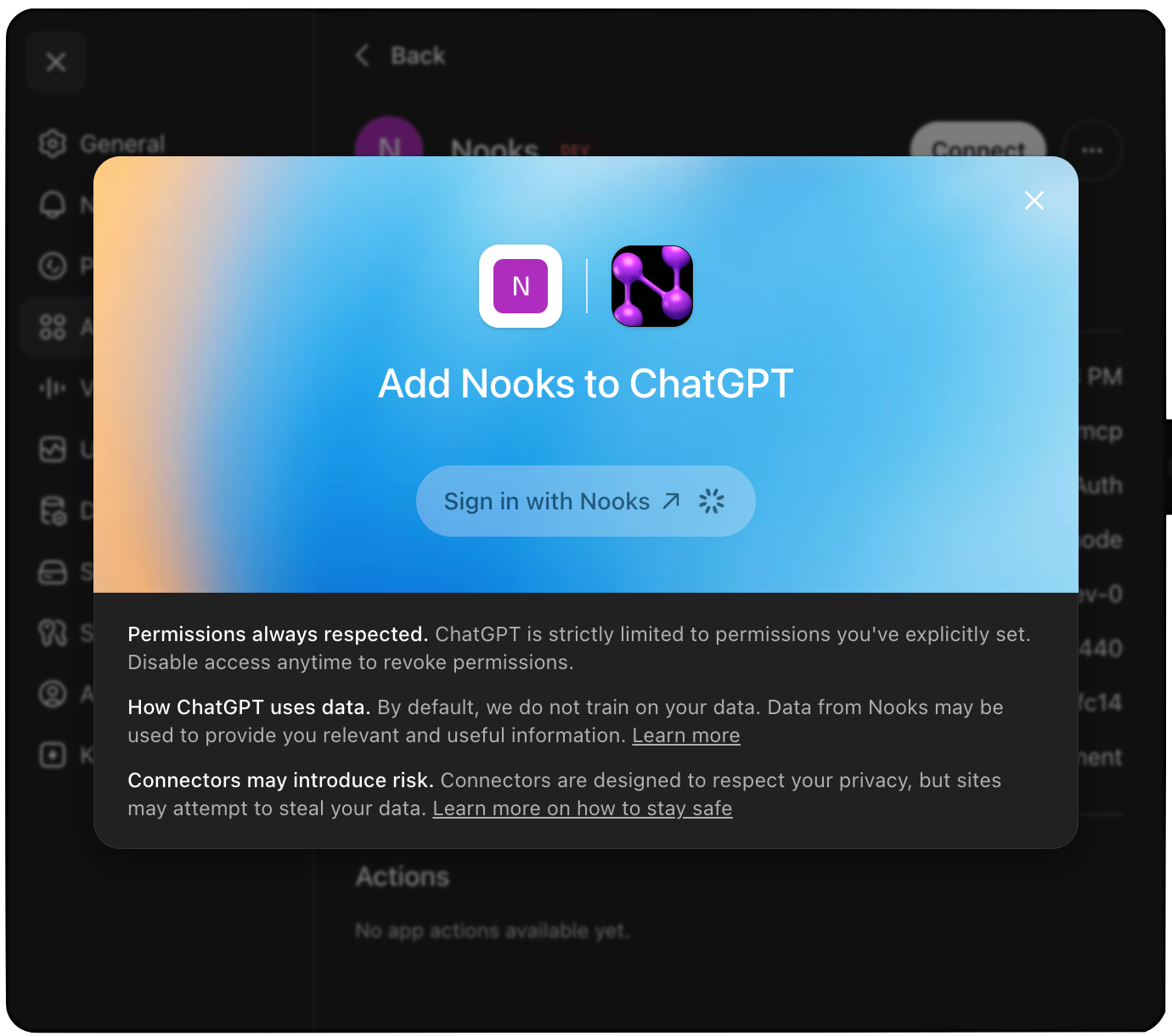
Press Sign in with Nooks.
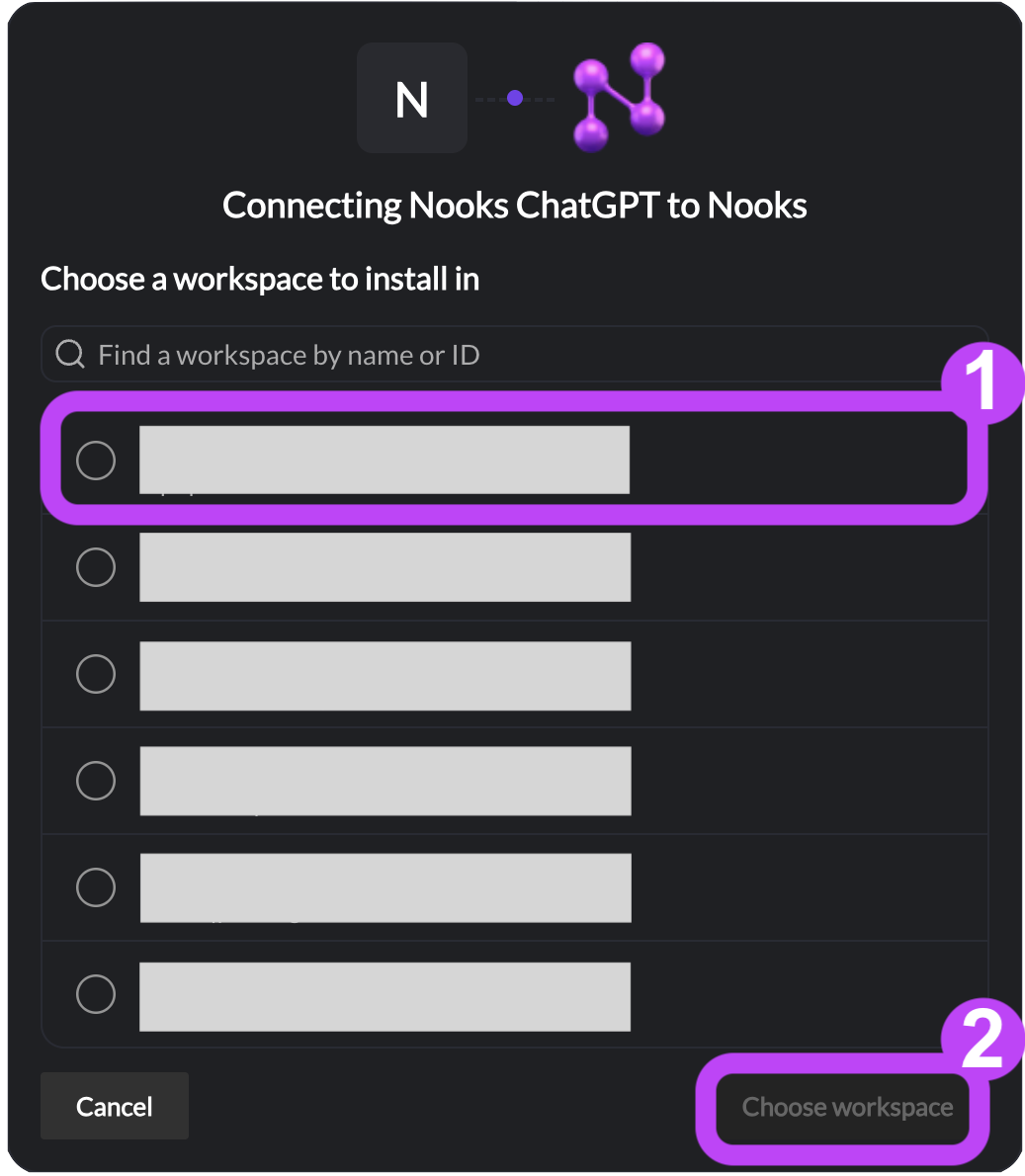
If you belong to more than one Nooks Workspace, select the Workspace you want to connect, then press Choose Workspace.
Review and approve the scopes.
Step 3: Publish the Custom ChatGPT App
Next, publish it to your ChatGPT workspace to make it available for other users to install. These steps require admin/owner permissions in ChatGPT.
Go to Workspace Settings → Apps.
Switch to the Drafts tab.
Press Publish for your Nooks ChatGPT app.
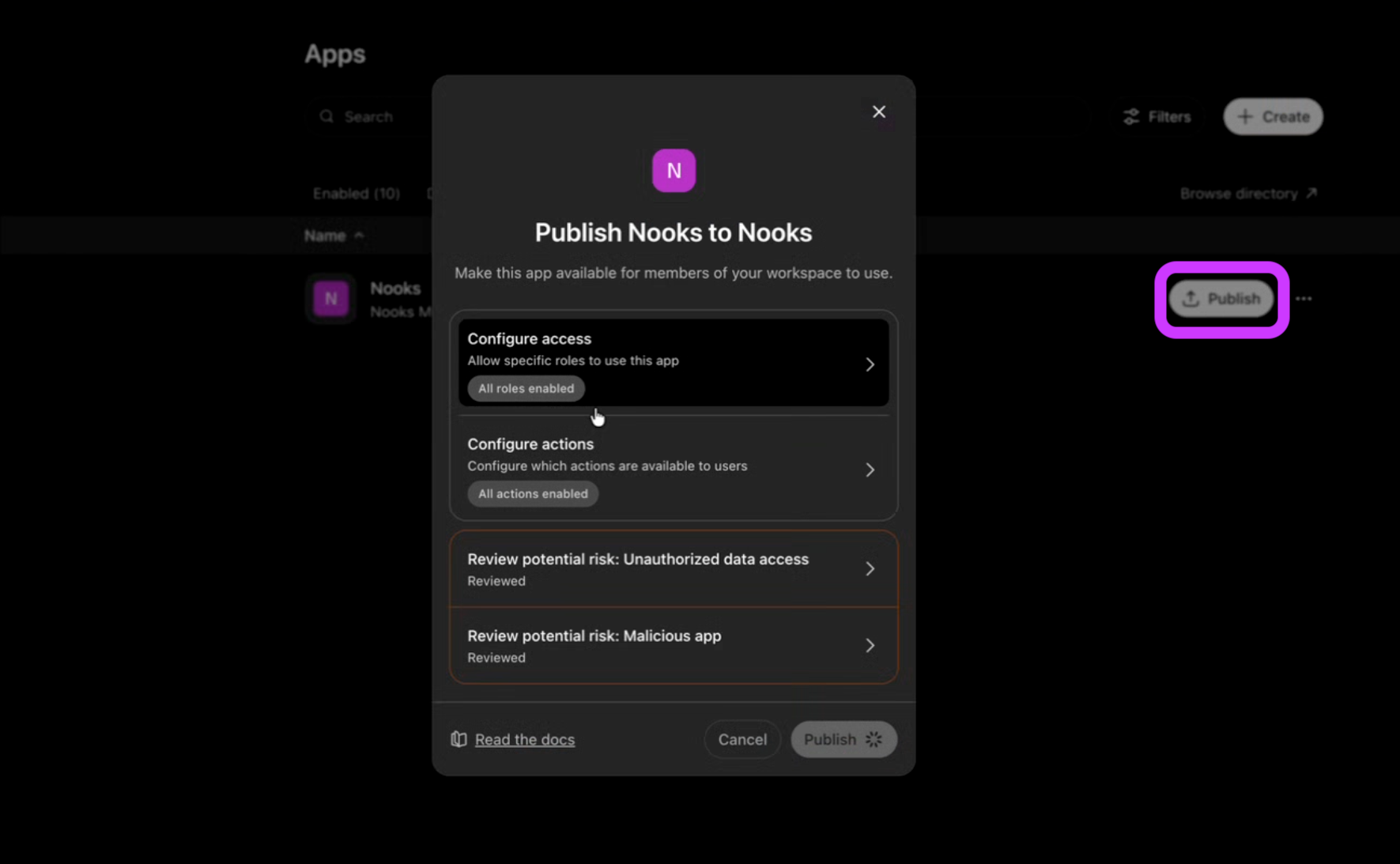
Depending on your ChatGPT plan, you can optionally use the Configure Access option to limit which users in your ChatGPT workspace can connect to the custom ChatGPT app. More information is available here.
Once you publish the custom ChatGPT app, it will appear in your users’ Apps settings with a “custom” label next to it. Each user can then connect to the app to access Nooks data in ChatGPT.
Each user must connect to the custom ChatGPT app individually to access Nooks data in ChatGPT. Just creating and publishing an app in ChatGPT does not connect users to it automatically.
End-User Setup: Connect to the Custom Nooks App in ChatGPT
Once your ChatGPT admin team has created and published a custom Nooks app, you can connect it to access your Nooks data in ChatGPT. Before you begin, double check that you are currently signed into Nooks.
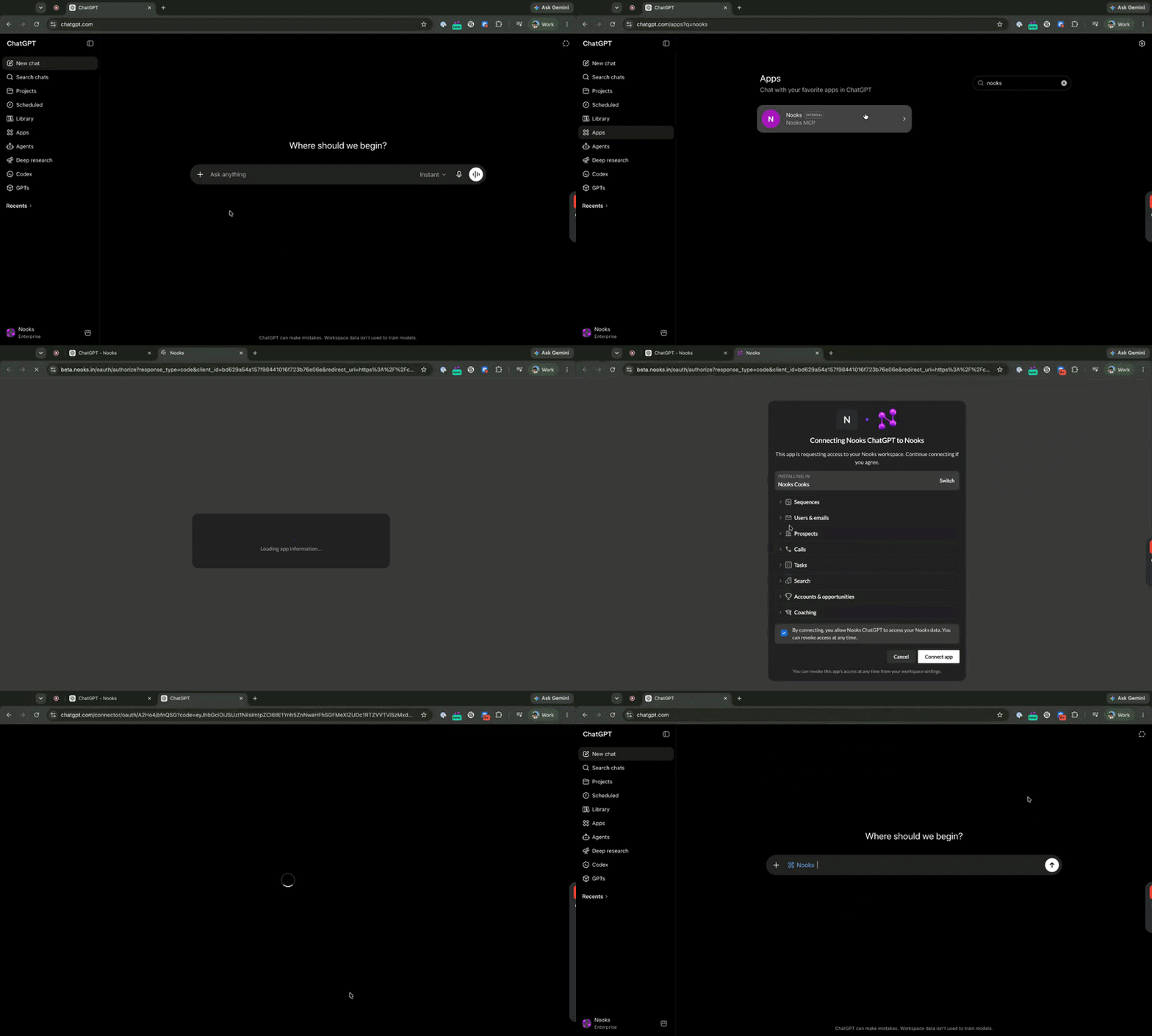
In ChatGPT, go to Apps.
Locate and click into the Nooks app. The exact name of the app will depend on what your ChatGPT admin team named it.
Click Connect, then click Continue to Nooks. You will be redirected to an authorization flow in a new tab.
If you belong to more than one Nooks Workspace, select the Workspace you want to connect to ChatGPT. Then, press Choose Workspace.
Review and consent to the requested scopes, then press Connect App.
You will be routed back to ChatGPT and can begin using Nooks.
Not seeing Nooks in your ChatGPT app list? Your internal Nooks and ChatGPT admin team must create and publish Nooks as a custom app before you can connect to it. Please contact your internal workspace team to verify they have set it up and, if so, what they named it.
Using Nooks on ChatGPT
Once you have connected the Nooks app, you can access Nooks from any ChatGPT conversation. Simply describe what you want to see or accomplish in natural language, and ChatGPT will use your Nooks account to complete the request.
To use Nooks on ChatGPT:
Start a new chat on ChatGPT.
Enable Nooks from the ChatGPT apps picket, enter @Nooks in your prompt, or mention “use Nooks” in your ChatGPT prompt.
Use natural language to describe what you want to see or do.
Submit your response by pressing the Enter or Return key.
For the best results:
Be specific about what you want ChatGPT to access by including specific Sequence names, call criteria, prospect names, and date ranges.
If multiple prospects may share the same name, include their email address for more accurate results.
Review any proposed actions (e.g., modifying task records, enrolling prospects in a Sequence) before approving them.
Send follow-up questions or prompts to refine the results.
When you submit your prompt, ChatGPT will show you any write actions it is about to take. Review the actions and approve, deny, or edit them before it runs.
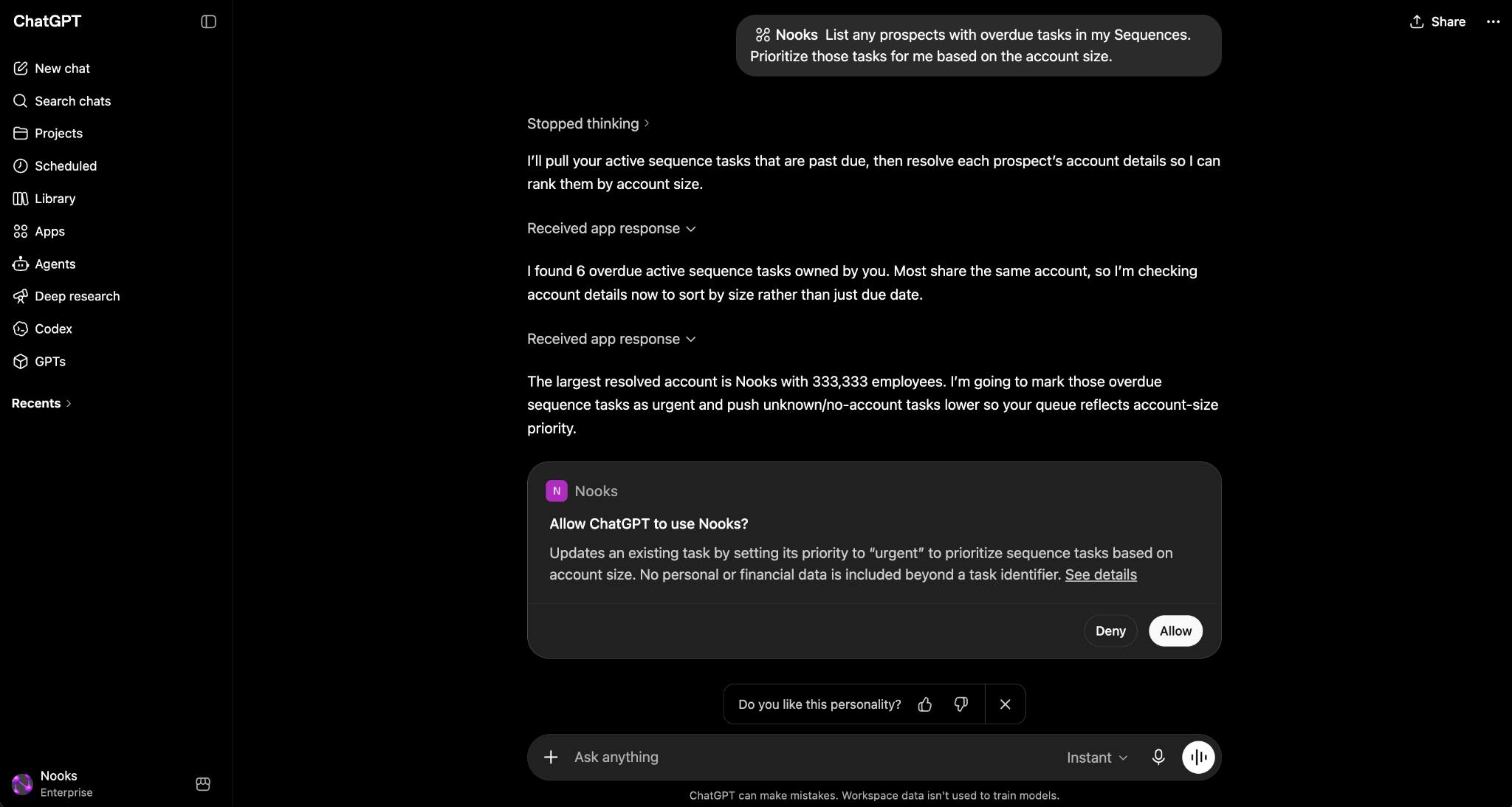
Example Prompts
If you need some inspiration on where to start with the Nooks app in ChatGPT, try out some of the example prompts below.
Use Case | Prompts |
Sequencing: Pipeline Checks | Show me all prospects enrolled in the "Q1 Outbound Campaign" Sequence. |
Sequencing: Daily Planning | Take a look at <Sequence>. What prospects and tasks need action from me today? |
Sequencing: Taking Action | Enroll Carol Jones (carol.jones@acme.com) in the "Q2 Follow-up" Sequence. Create a high-priority follow-up task for Salma Odeh for tomorrow at 10 am. Mark the task to Jeremy Foote as completed. Send a one-off thank-you email to Soren Holloway for taking the time to meet with us today. |
Sequencing: Building and Editing Sequences | Create a new Sequence called "Fall 2026 Renewal Sequence" with a call step, then an email step due two days later. Add an SMS step to the "Q1 Outbound Campaign" Sequence, three days after the last step. Move the LinkedIn step so that it's the first step instead of the third in the "Q1 Outbound Campaign" Sequence. |
Research and Reporting | So far this month, which accounts have we had the most successful calls with? Summarize my calls from yesterday. How many connected and who did I leave voicemails for? Which reps on the EMEA SDR team booked the most meetings this month? |
Coaching: Talk Track Trends | Since last week's training, has anyone actually said "flexible pricing model" on a call? Find every instance and who said it. |
Coaching: Gathering Insights on Competitor Objections | How many of my team's calls this month mentioned our competitor, <competitor name>, by name, and what did prospects say about them? |
Available Tools
The Nooks app exposes 37 MCP tools to ChatGPT. One of these tools, getMe, returns the Nooks user and Workspace for your current connection. It is available to all users regardless of your granted scopes.
The table below lists the remaining tools, grouped by the resource they act upon. The tools available to your user depend on your Nooks user’s seat assignments. For example, someone with only a Sequencing seat will not see Coaching-specific tools, and vice versa. The “Availability” column is defined as follows:
Shared –These tools are available to users with a Nooks Sequencing and/or a Nooks AI Coaching seat.
Sequencing Only – These tools are only available to users with a Nooks Sequencing seat.
Coaching Only – These tools are only available to users with a Nooks AI Coaching seat querying calls made by a user who also has a Nooks AI Coaching Seat.
Resource | Read Tools | Write/Action Tools | Availability |
Accounts |
|
| Shared |
Prospects |
|
| Shared¹ ¹syncProspects is Sequencing only. |
Sequences |
|
| Sequencing only |
Sequence Steps |
|
| Sequencing only |
Sequence States (i.e., Enrollments) |
|
| Sequencing only |
Tasks |
|
| Sequencing only |
Calls |
| – | Shared |
Emails |
|
| Sequencing only |
Email Templates |
| — | Sequencing only |
Mailboxes |
| — | Sequencing only |
Users |
| — | Shared |
Coaching |
| — | Coaching only |
Teams |
| — | Shared |
A description of what each tool does is provided below.
Accounts
listAccounts — Lists accounts (companies) in the Workspace that are synced with the workspace CRM.
getAccount — Fetches a single account by ID.
createAccountNote – Creates a CRM (Salesforce or HubSpot) note on the account.
Prospects
listProspects — Lists prospects synced with the workspace CRM. Filterable by IDs, Sequence enrollment, or account.
getProspect — Fetches a single prospect by ID.
createProspectNote – Creates a CRM (Salesforce or HubSpot) note on the prospect.
syncProspects — Syncs up to 100 prospects from the workspace CRM into Nooks by their CRM IDs. Creates the prospects if they don't already exist in Nooks.
Sequences*
listSequences — Returns a paginated list of Nooks Sequences in the Workspace.
getSequence — Fetches a single Sequence by its unique ID.
createSequence — Creates a new, empty Sequence owned by a specific user. Steps and prospects are added to the Sequence by the createSequenceStep and createSequenceState tools, respectively.
updateSequence — Updates a Sequence's name and/or activation status.
Sequence Steps*
listSequenceSteps — Lists steps within Sequences. Supports filtering by step IDs or by Sequence.
getSequenceStep — Fetches a single Sequence step by its unique ID.
createSequenceStep – Adds a new step to a Sequence (e.g., call, email, SMS, LinkedIn, etc.), with its wait interval before the step becomes due. New steps default to the end of the Sequence unless otherwise specified.
updateSequenceStep – Update san existing step's action, wait interval, name, note, or email content.
deleteSequenceStep –Permanently deletes a step from a Sequence. Nooks automatically handles any in-flight tasks on that step and advances affected enrollments as needed.
reorderSequenceSteps – Reorders all of a Sequence's steps at once, in the order you specify.
Sequence States (Enrollments)*
listSequenceStates — Lists Sequence states. Filterable by Sequence, prospect, account, and state (active/paused/finished).
getSequenceState — Fetches a single Sequence state by ID.
createSequenceState (write) — Enrolls a prospect into a Sequence, creating a new Sequence state.
finishSequenceState (write) — Marks an Sequence state as finished, stopping the prospect's progression through the Sequence.
deleteSequenceState (destructive) — Removes a prospect from a Sequence, deleting the Sequence state and canceling any pending tasks.
Tasks*
A task is one outreach action (call, email, LinkedIn touch, etc.) assigned to a user.
listTasks — Lists tasks. Supports filtering by task owner, Sequence, and task status.
getTask — Fetches a single task by ID.
createTask (write) — Creates a one-off task (not tied to a Sequence). Auto-syncs to CRM.
updateTask (write) — Updates fields on an existing task.
completeTask (write) — Marks a task complete. For Sequence tasks, advances the enrollment to the next step.
skipTask (write) — Skips a task without completing its action. For Sequence tasks, advances to the next step.
deleteTask (destructive) — Permanently deletes a task. If a task originated from a Sequence, the prospect's enrollment is automatically advanced to the next step (or marked "finished" if it was the last step) before the task is deleted.
Calls*
listCalls — Lists calls made via Nooks Sequencing. Filterable by ID and updatedAt range.
getCall — Fetches a single call by ID.
listCallDispositions — Lists Workspace-configured call outcomes (e.g. "Connected", "Voicemail").
getCallDisposition — Fetches a single call disposition by ID.
Emails*
listEmails — Lists emails from mailboxes synced to Nooks. Filterable by ID, prospect, task, status, and updatedAt range.
getEmail — Fetches a single email by ID, including delivery/open/click/reply tracking data.
createEmail (one-off email to a prospect) – Creates a one-off email to a prospect on a Workspace user's behalf. Defaults to a draft for review in Nooks, or sends immediately on request through the user's connected mailbox. Inherits Workspace settings (open/click tracking, unsubscribe footer, send spacing and caps), but do schedule-send features like prospect-timezone delivery.
Email Templates*
getEmailTemplate — Fetches a single email template by ID.
Mailboxes*
listMailboxes — Lists currently connected mailboxes (sending email aliases).
getMailbox — Fetches a single mailbox by ID.
Notes
createAccountNotes — Creates a CRM note on an account.
createProspectNote — Creates a CRM note on the prospect.
Users
listUsers — Lists Workspace members with active seat assignments.
getUser — Fetches a single user by ID.
Coaching
searchCalls – The best tool for finding calls to coach on or review. Narrow down by rep, team, time range, prospect, account, disposition, outcome, or duration, then layer on transcript or speaker-turn keyword search when you need calls where something specific was said. Only available for calls made by reps with an AI Coaching seat.
getCallTranscript – Fetches the full transcript of a single call as speaker-labeled, timestamped turns, plus key call details (rep, contact, duration, disposition, talk radio). Only available for calls made by reps with an AI Coaching seat.
Teams
listTeams – Lists your Workspace's Nooks teams with member counts, so you can look up a team to filter calls by.
getTeam – Fetches a single team's full member list.
*The Nooks app in ChatGPT can currently access data from Nooks Sequencing and Nooks AI Coaching. Sequences, emails, calls, and tasks created/completed in another sales engagement platform are not currently accessible. Any calls placed within Nooks and surfaced within the Nooks Call Library are accessible in ChatGPT through the listCalls and getCall tools. The searchCalls and getCallTranscript tools only work for calls made by a user with a Nooks AI Coaching seat.
Reminder: Your tool list may differ from your colleagues’ depending on the Nooks seats you hold. Granting a tool on the consent screen does not necessarily mean it will be available for you to use.
Scopes Requested
When creating and publishing the custom Nooks app, ChatGPT will ask you to grant one or more of these scopes. We recommend granting all scopes, though you can choose to grant only a subset. If a user makes a request using a tool they specifically do not have access to, the Nooks app will return a specific, descriptive error explaining why.
Scope | What ChatGPT Can Do | New As Of |
| View your accounts | May 2026 |
| View your prospects | May 2026 |
| Update prospects based on data from your CRM | May 2026 |
| Create notes on CRM-backed prospects and accounts | May 2026 |
| View your Nooks Sequences | May 2026 |
| Create, edit, and manage Sequences | August 2026 |
| View Nooks Sequence steps | May 2026 |
| Create, edit, reorder, and delete Sequence steps | August 2026 |
| View Nooks Sequence enrollments | May 2026 |
| Manage your Nooks Sequence enrollments (i.e., enroll prospects, and finish, stop, or delete enrollments) | May 2026 |
| View your tasks created via Nooks Sequencing | May 2026 |
| Create, update, complete, skip, delete Nooks Sequencing tasks | May 2026 |
| View your calls placed via Nooks Sequencing | May 2026 |
| View call dispositions | May 2026 |
| View your emails sent, received, or synced via Nooks Sequencing | May 2026 |
| Send emails on your behalf and log an email activity | August 2026 |
| View Nooks email templates | May 2026 |
| View connected mailboxes | May 2026 |
| View users in your workspace | May 2026 |
| View teams in your workspace | July 2026 |
| View call transcripts and reporting data | July 2026 |
If needed, depending on your ChatGPT plan, you may be able to modify what tools are available via the Nooks MCP app after initial configuration. More details can be found in this guide.
Note: Your Nooks <> ChatGPT connection does not automatically pick up new scopes. To get access to newly added scopes:
Workspace admin: Update the Nooks OAuth app that is being used for ChatGPT to include the new scope(s).
End-users: In ChatGPT, disconnect and reconnect the custom Nooks connector.
If you do not have access to a new scope after disconnecting and reconnecting the Nooks connector, check with your internal Workspace admin if the new scopes have been added to your Workspace's OAuth app.
Data ChatGPT Can Access
Claude can see any Nooks Sequencing, calls, or AI Coaching record (including call transcripts) in your connected Nooks Workspace, scoped to whatever access your Nooks user has. If you can view it in the Nooks app, Claude can read it through the Nooks connector. This access takes into account your user and role access, as well as your user's Permission Profile.
Claude cannot see tasks or sequences created in an external sales engagement platform.
Claude cannot see other Workspaces you belong to, your Nooks password or login credentials, billing or admin-only configuration, or any data from your CRM that hasn't been synced into Nooks yet. To enable the Claude to access data in another Nooks Workspace you belong to, you'd need to connect their Workspace separately.
Claude cannot place calls directly through the connector, as no such call-placing tool is exposed today. This action goes through Nooks' full Sequencing workflow and must be completed from the Nooks web app or Nooks Everywhere side panel.
Privacy & Security
Below are some notes on how Nooks ensures privacy and security when using a custom Nooks MCP app on ChatGPT.
Authentication is OAuth 2.0 with PKCE—industry-standard delegated access. ChatGPT never sees your Nooks password.
Transport is HTTPS-only. The MCP server enforces origin and CORS rules so only chatgpt.com can initiate calls from a browser.
Revocation is immediate. Once you disconnect ChatGPT and remove the OAuth app in Nooks, access is instantly terminated.
No data training. Nooks does not train AI models on the data returned to ChatGPT.
For full data handling details, see the Nooks Privacy Policy and Nooks DPA.
FAQs
Can I use the Nooks MCP on ChatGPT free?
Accessing Nooks on ChatGPT currently requires your team to create a custom MCP app in ChatGPT. Custom MCP apps are currently only available to those on ChatGPT Business and Enterprise/Edu plans.
Can I have multiple Nooks Workspaces connected at once?
Not yet. The Nooks app currently supports one connector instance connecting to one Nooks Workspace. If you need to switch which Workspace the Nooks app is pointing toward, disconnect the Nooks app from within ChatGPT, then reconnect with the other Workspace.
What if my admin has not enabled the integration?
Before you can connect Nooks to ChatGPT, your internal admin team must create and publish a custom Nooks MCP app in ChatGPT. Once published, you and other users can connect the app to your individual Nooks accounts in a couple clicks.
If you do not see a Nooks app in your ChatGPT apps directory, reach out to your internal admin team to inquire about getting the Nooks app set up.
I asked ChatGPT about a prospect and ChatGPT said it could not find them. Why?
Nooks syncs prospects from your CRM. If the prospect was newly added to your CRM less than 15 minutes ago, the sync may not have completed yet. Try again shortly.
If the prospect was not newly added to your CRM, try searching for the prospect by email instead of by name. Names may result in looser matches.
ChatGPT listed prospects from a different Workspace than I expected. Why?
The Nooks connector is tied to the Workspace you selected during OAuth consent. To switch which Workspace is connected, go to Settings → Apps in ChatGPT, click into the Nooks app, then press Disconnect. From there, you can connect again and select a different Workspace to point ChatGPT to.
Why did ChatGPT’s response say a tool returned too much data?
List endpoints default to 25 records. If you send a broad request (such as “all emails last year”), ChatGPT will page through the results automatically but may warn you before fetching a very large result set. You can narrow your query with a date range or specify a Sequence to avoid this.
I revoked access to the custom ChatGPT app but ChatGPT still has a token?
Access tokens can last up to 1 hour while refresh tokens can be rotated. To cut off ChatGPT completely, disconnect the Nooks app in ChatGPT (Settings → Apps → Nooks → Disconnect) and revoke the OAuth app from Nooks (Settings → All Settings → Developer → OAuth Apps tab).
Where do I file bugs or feedback?
You can share any bugs or feedback with support@nooks.in. When writing to our support team, please include the exact prompt you used, the tool response, and roughly when the issue happened.
Learn More
For more information about building and managing apps in ChatGPT, review the following resources.