Understanding Callbacks within Nooks
Last updated: September 24, 2026
Managing Callbacks in Nooks
Where to find callback settings. Callback settings are in two places:
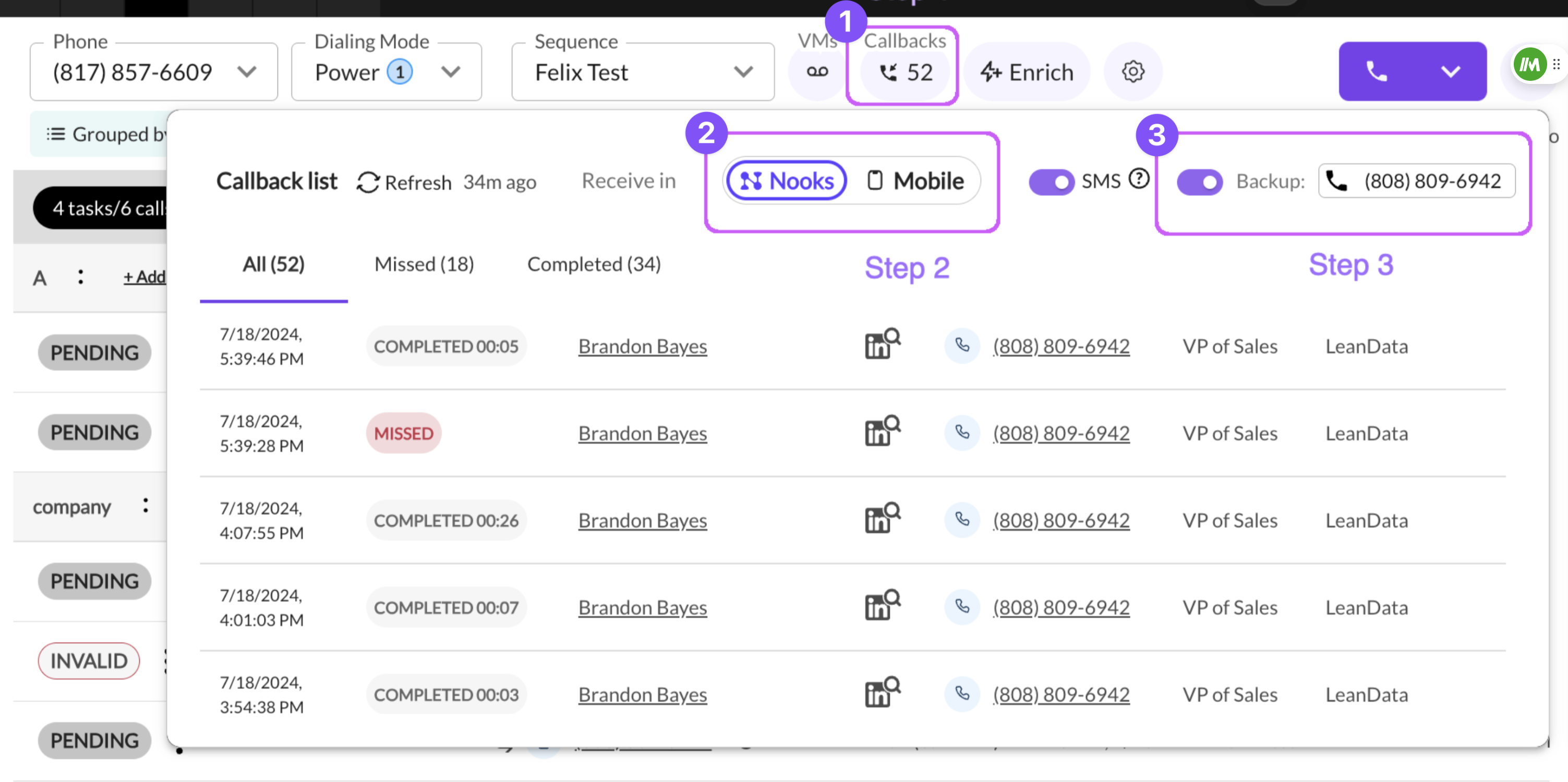
In the dialer: click the Callbacks icon in the toolbar at the top. This opens the Callback list, which has your Receive in choice (Nooks or Mobile), the Backup and SMS switches, and your callbacks under the All, Missed and Completed tabs.
In Settings: go to Settings > Dialer > Preferences > Callbacks. In either place you choose where incoming callbacks ring: in Nooks, or on your mobile phone.
Here is how it works if you choose the "In Nooks" option:
When you are idle in Nooks (not actively making calls):
A prospect calling back triggers a friendly banner accompanied by ringing audio.
You can either accept or decline the call, with declining swiftly removing the banner and audio.
Opting to accept not only removes the banner and audio but also opens up the prospect's information for your immediate attention.
Already on Another Call:
In this scenario, you'll still see the banner, but without the ringing audio to maintain a focused environment.
Accepting the callback will gracefully conclude your current call, seamlessly transitioning to the incoming one.
If you prefer to stay on your ongoing call, simply decline, and the banner will discreetly disappear.
If you receive callbacks in Nooks, turn on Backup and enter your mobile number. Whenever Nooks isn't open or available, callbacks are forwarded to that phone automatically, so you don't need to switch your callback setting to Mobile each time you step away. Keep in mind that a callback can go to your backup phone if Nooks looks unavailable, for example when the Nooks tab is closed.
Finding the Callback Records:
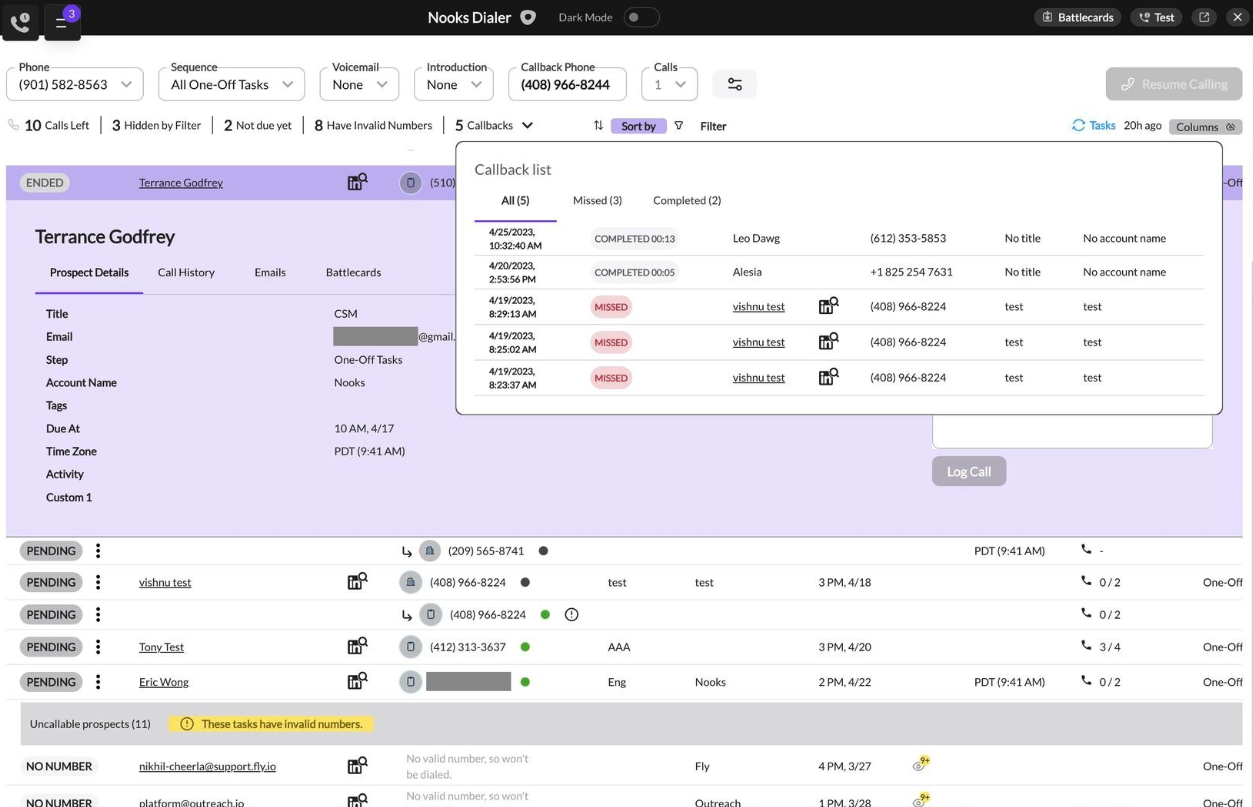
In the 'Callbacks' section, you'll find a clear record of completed (answered) callbacks and missed opportunities, enabling you to follow up effectively later on.
Example of what a callback looks like inside of Nooks

Example of callback lists inside of Nooks
Know who is calling via SMS:
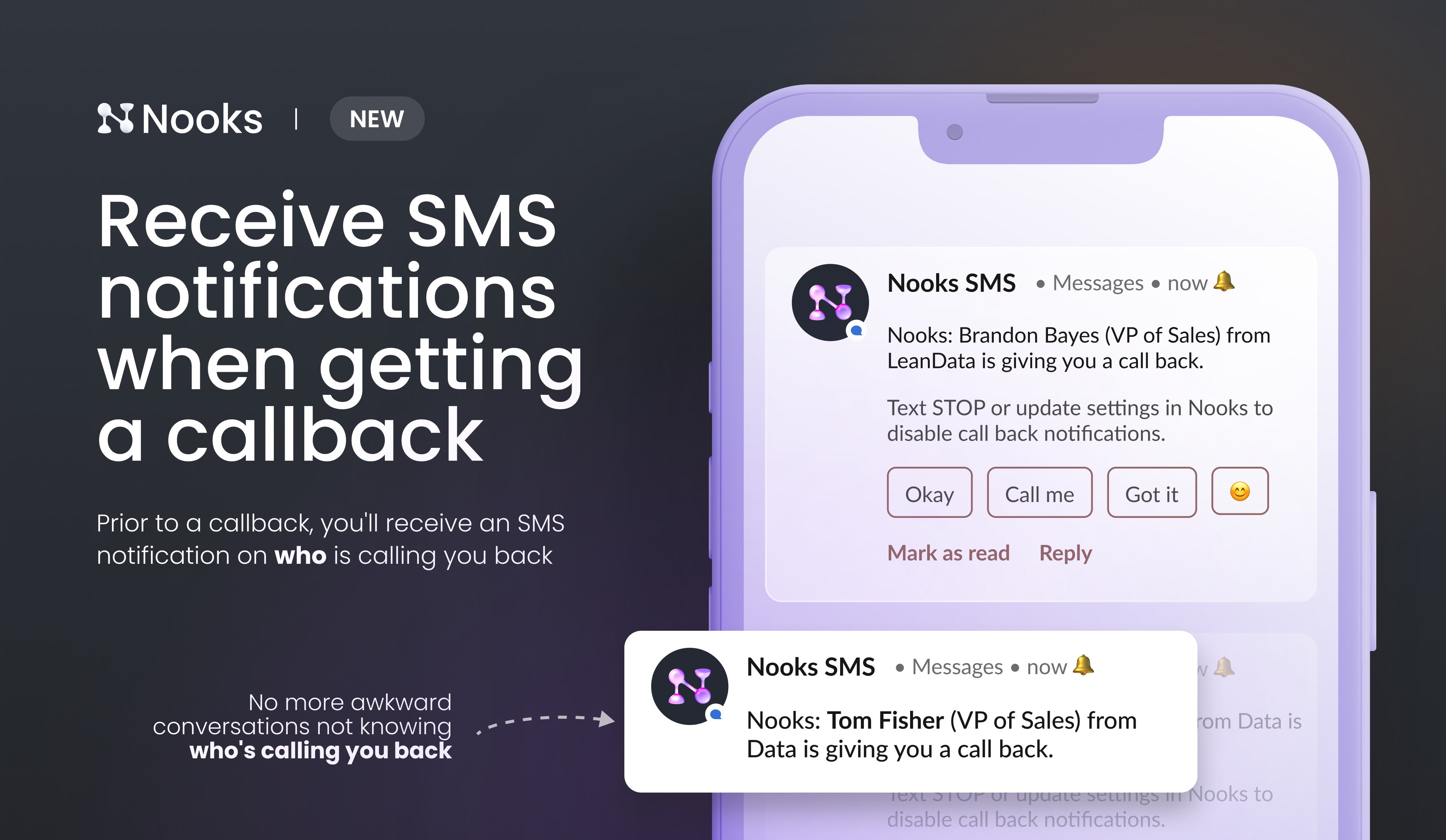
When receiving callbacks to your mobile, a key piece of engaging your prospects is knowing who is calling. We have have developed call back notifications to remind you of the name, title and account of the caller.
How do callbacks notifications work?
When your prospect calls you back to your cell phone (not to Nooks), you can receive a SMS prior to the call to tell you who is calling.
Specifically you will see a message like "Felix Haba (Software Engineer) from Nooks is giving you a call back". (name, title and account).
This does not delay the call, you should read the SMS while the phone rings to prepare yourself for the conversation.
If you want to opt out, you can disable the setting on Nooks.
How can you enable callback SMS notifications?
Open the Callbacks List popover.
Set up a cell phone as backup (if Nooks is closed) or as the main recipient for call backs.
Click on the SMS switch. A model requesting consent will pop up.
Click on Allow to enable SMS notifications. Easily uncheck the switch later if you change your mind.