How To Set Up AI Training Bots
Last updated: September 24, 2026
AI Training Bots are the best way to practice without burning through real prospects. Use them to onboard your team faster, fine tune objection handling, or improve certain parts of your pitch.
Better yet, Nooks AI Training Bots are extremely realistic because of all the custom configuration we offer. Let's see how to set them up!
How to Set Up AI Training Bots
Navigate to Cold Call Training
Click the Cold Call Training tab in the top navigation bar.
Create a New Folder
Click + Create New Folder.
Name your folder.
It’s best practice to create a new folder for every use case. For example, “Opening Pitch” or “Competitors.”
Create a New Bot
Click the + button to create a new bot.
Select the type of bot you want to create: Full Call Practice or Targeted Practice.
If you’re creating a Targeted Practice Bot, choose from:
Opening Pitch Bot
Opener Objection Bot
Objections After Opener Bot
Competitors Bot
Or, request a bot!
Let’s select Full Call Practice for demonstration purposes.
Configure the Bot’s Profile
Name your bot.
You can make up name, maybe one that aligns to your personas and exists in enablement materials, or be specific and replicate a real prospect you are targeting.
Select the bot’s voice.
We offer a selection of male and female American and British voices.
Add a photo.
Click the circle to give the bot a profile image.
Select the persona.
You should have already set up personas in settings > personas to use in the Dialer.
Add the title.
The title should mirror who you sell to, the persona that you want your reps to practice on.
Add the company.
Input one of your target accounts or an existing customer company.
Add the personality.
Choose from: rude, friendly or impossible.
Impossible will be hard to beat and great for beat the bot spiffs!
Add a description.
This provides reps a little blurb of what the bot will help them accomplish. For example, “practicing the entire sales pitch.”
Configure Objections
Select an objection before the pitch. You can choose as many objections as you want. If you choose multiple, the bot will randomly rotate through the different objections. Choose from:
I’m busy
Not interested, take me off your list.
How did you get my number?
I’m in a meeting
I have a meeting in 5 minutes
Or, select all.
Configure Current Solution and Competitors Being Evaluated
Type in the current solutions.
You will want to enter 1-2 of your competitors here. The bot will randomly select one.
Type in the competitors being evaluated.
You will want to enter 4 of your competitors here. The bot will randomly select two.
Pretend like it’s a real deal cycle and your prospect is looking to switch from one of your competitors.
Make sure you choose different competitors than you selected for the current solutions.
Disclaimer: The more competitors you add, the harder it will be to beat the bot. If you are building bots for more novice reps, configure fewer competitors.
Configure Custom Objections After Pitch
Click the AI Generate button.
Make sure you’ve selected a persona. This way the AI will reference all of your historical calls to generate objections that this persona has said on previous calls.
For this feature to work, you need at least 5 calls that are 3+ minutes long with recordings in the Call Library. Training bots learn from your team's recorded calls. If you don't have enough recorded calls in Nooks yet, contact your Nooks CSM or Support and ask them to import your historical calls from your sales engagement platform.
The AI typically takes 30 seconds to generate.
Review and edit AI-generated objections to make sure they make sense. Delete any objections you don’t want to include.
Or, add your own. This is where you can add specific objections that you know your team needs to practice or any objections where you have specific talk tracks you enable.
Troubleshooting: If a box is grey instead of blue, there are fields you’re missing that need to be filled in. Make sure you have entered all of the fields listed above.
Disclaimer: The more objections you add, the harder it will be to beat the bot. If you are building bots for more novice reps, configure fewer objections.
Configure Custom Priorities
Select or add a custom priority.
Custom priorities are a good option if you are building a bot to practice discovery. This is where you could configure certain things this bot might want or need (pain points).
Disclaimer: This is a more advanced feature that may not be necessary to ship v1 of your bot.
Configure Opinions, Responds Favorably To, Knowledge About the Problem, and Company Facts
Give the bot some personality by:
Entering the prospect’s opinions and viewpoints
Entering what topics or approaches the prospect responds well to
Entering what the prospect knows about the problem space
Entering key facts about the prospects company
Disclaimer: This is a more advanced feature that may not be necessary to ship v1 of your bot.
Configure Hang Up Criteria
Click + Add to add a hang up criteria.
Select how many time you want to allow a trigger word or phrase.
Enter your trigger phrases, like “um” or “uh.”
Enter your hang up phrase. This is the phrase the bot will say before hanging up.
Save and Test the Bot!
Click Save.
The bot will appear in the folder you created it in, on the left hand side of your screen.
Click the bot, and hit call.
Practice your pitch!
Practice in Different Languages
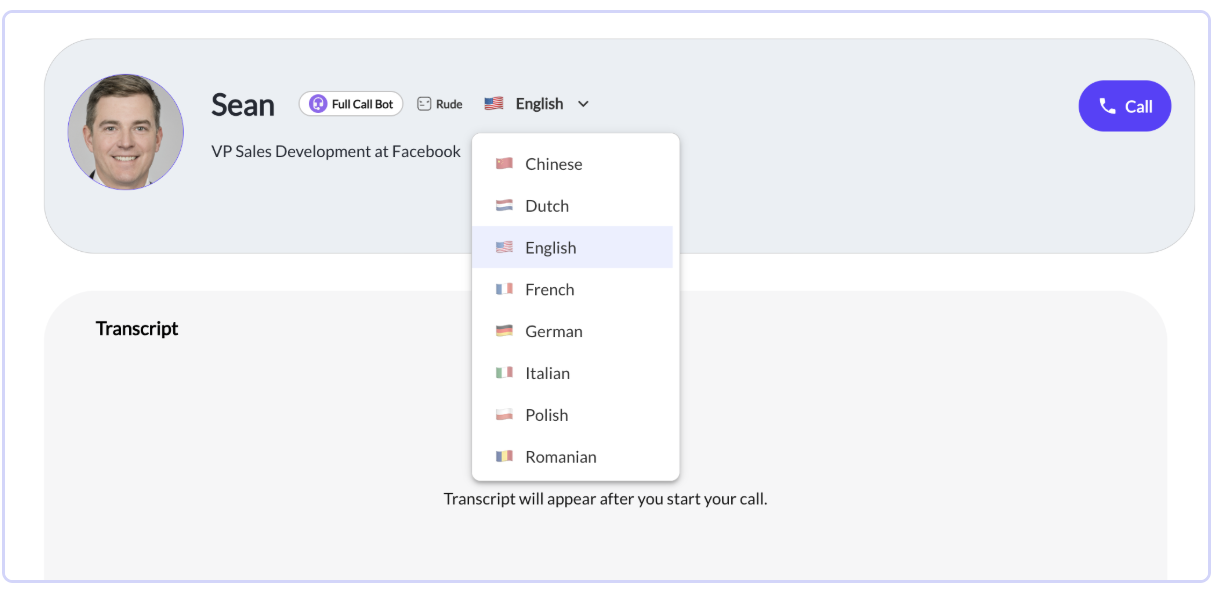
Now that you've created your bot in one language, you can scale the bot's characteristics across different languages. This is a great feature for global teams!
Before calling a bot, click the language dropdown to pick the language the bot will speak (if you don't see the dropdown, multilingual bots aren't turned on for your workspace, contact your Nooks CSM). Training bots currently support: Arabic, Bulgarian, Chinese, Dutch, English, French, Canadian French, German, Hebrew, Hindi, Italian, Japanese, Korean, Portuguese, Russian, and Spanish. This list applies to training bots only. Call transcription and other features support a different set of languages.
Video Tutorial
Or, set up your bot by watching this step-by-step walkthrough: