How to Integrate Nooks with Claude
Last updated: September 24, 2026
This guide provides an overview of the Nooks MCP connector in Claude. It includes steps for admins and end-users on connecting Nooks to Claude, a description of the Nooks actions that can users can perform from Claude, and information on data privacy and security when using the connector.
Availability: The Nooks MCP is available only to users with a Nooks Sequencing seat, a Nooks Coaching seat, or both.
Background
If you use Claude from Anthropic, you can add Nooks as a connector. Doing so will enable you to query your Nooks Sequencing and Nooks Coaching data without having to leave Claude or copy-paste between tabs. From Claude, you can:
Pull up your Nooks Sequences to review what steps are due and when.
Enroll people in Nooks Sequences.
Review completed Nooks calls and emails sent via Nooks Sequencing.
Manage your Nooks Sequencing tasks.
Search and review calls made by your team to generate insights and help improve rep performance.
Build Nooks Sequences from scratch using natural language.
Draft and send one-off emails through Nooks. ne-off emails through Nooks.
The Nooks <> Claude integrations runs on the Model Context Protocol (MCP), an open standard Anthropic uses to let Claude talk to third-party tools in a structured, read-write way. The Nooks connector runs on your existing Nooks user's permissions, enabling you to see and access only the records you can access in Nooks.
The Claude Connector currently has access to the following data:
Your Nooks Sequencing activity, such as:
Nooks Sequences
Emails from mailboxes synced with Nooks
Tasks created or completed via Nooks Sequencing
Prospects and accounts synced from your CRM
Calls placed through Nooks*
Your Workspace users
The Claude Connector does not currently have access to the following data:
Tasks from another sales engagement platform
Tasks created manually in your CRM
*Note: The searchCalls and getCallTranscript tools only cover calls made by reps who hold an AI Coaching seat. This applies even if the requesting user could otherwise view that call in the Nooks app. This restriction is on the call's rep, not on the requesting user's own permissions. listCalls and getCall are unaffected and continue to follow the general access rules.
Installing the Nooks Connector in Claude
Follow the steps below to install and authenticate to the Nooks Connector. Additional information on Connectors can be found in Claude's Connectors guide.
If your team is creating an OAuth app and using Nooks as a custom Claude Connector, follow the steps under Advanced: Custom Nooks Connector Setup.
Step 1 (Claude Organization Owner): Enable the Nooks Connector
Skip to Step 2 if your team is not on a Claude Team or Enterprise plan.
On Claude Team or Enterprise plans, an organization owner must enable the Nooks Connector before anyone on the team can install or use it. Enabling the Nooks Connector makes it available to users at your organization, but each user still needs to install and authenticate individually.
To enable the Nooks Connector as a Claude organization owner:
In Claude, go to Organization Settings → Connectors.
Click Browse Connectors.
Search for and select Nooks, then click Add to Your Team.
Step 2 (End-Users): Add the Nooks Connector and Connect Your Account
You can install the Nooks Connector from Claude's Connector directory. If you are on a Claude Team or Enterprise plan, your team's Claude organization owner must have enabled the Nooks Connector for your instance first (see Step 1).
In Claude, go to Customize → Connectors.
In the Connectors dialog, search for Nooks, then press Connect.
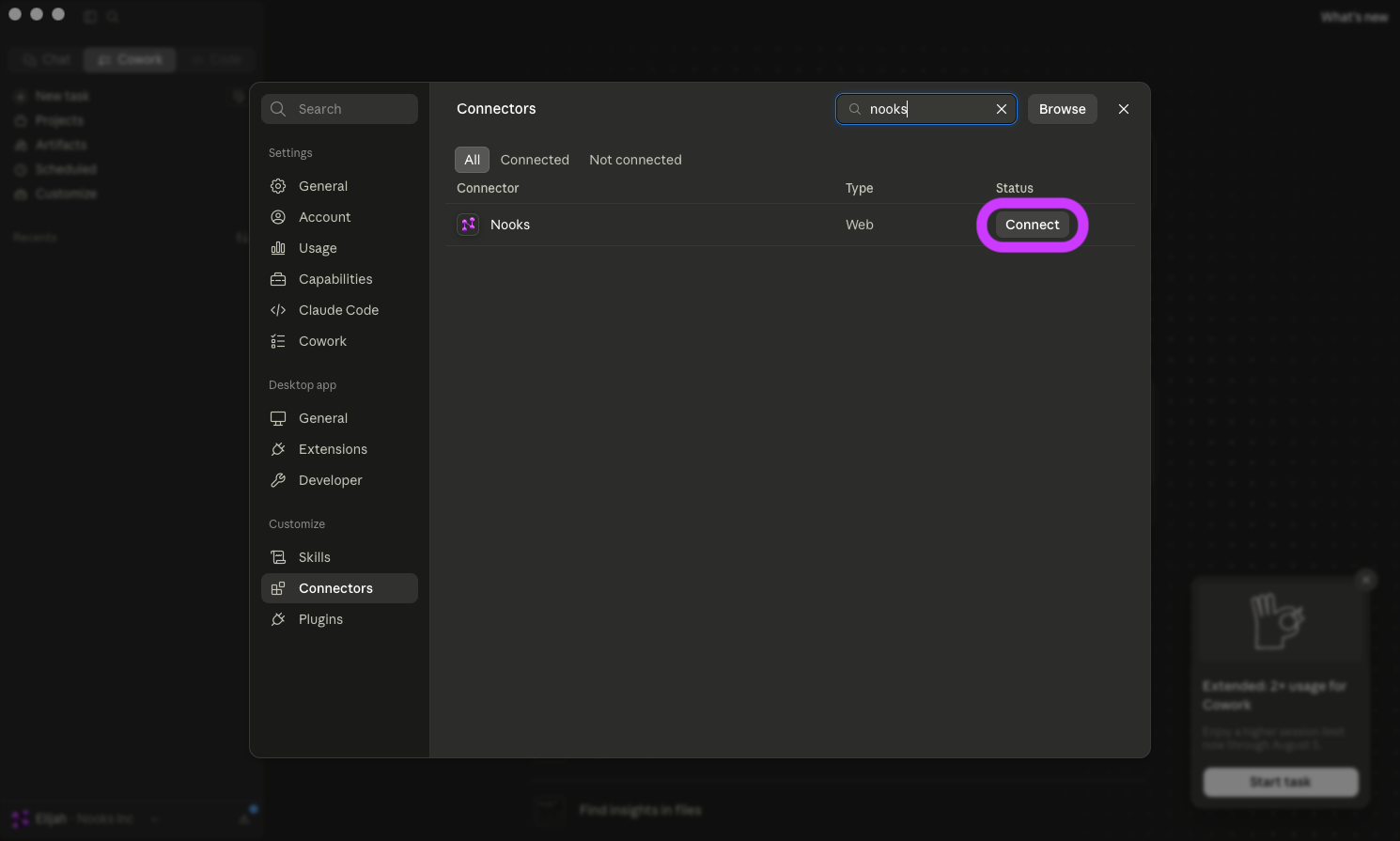
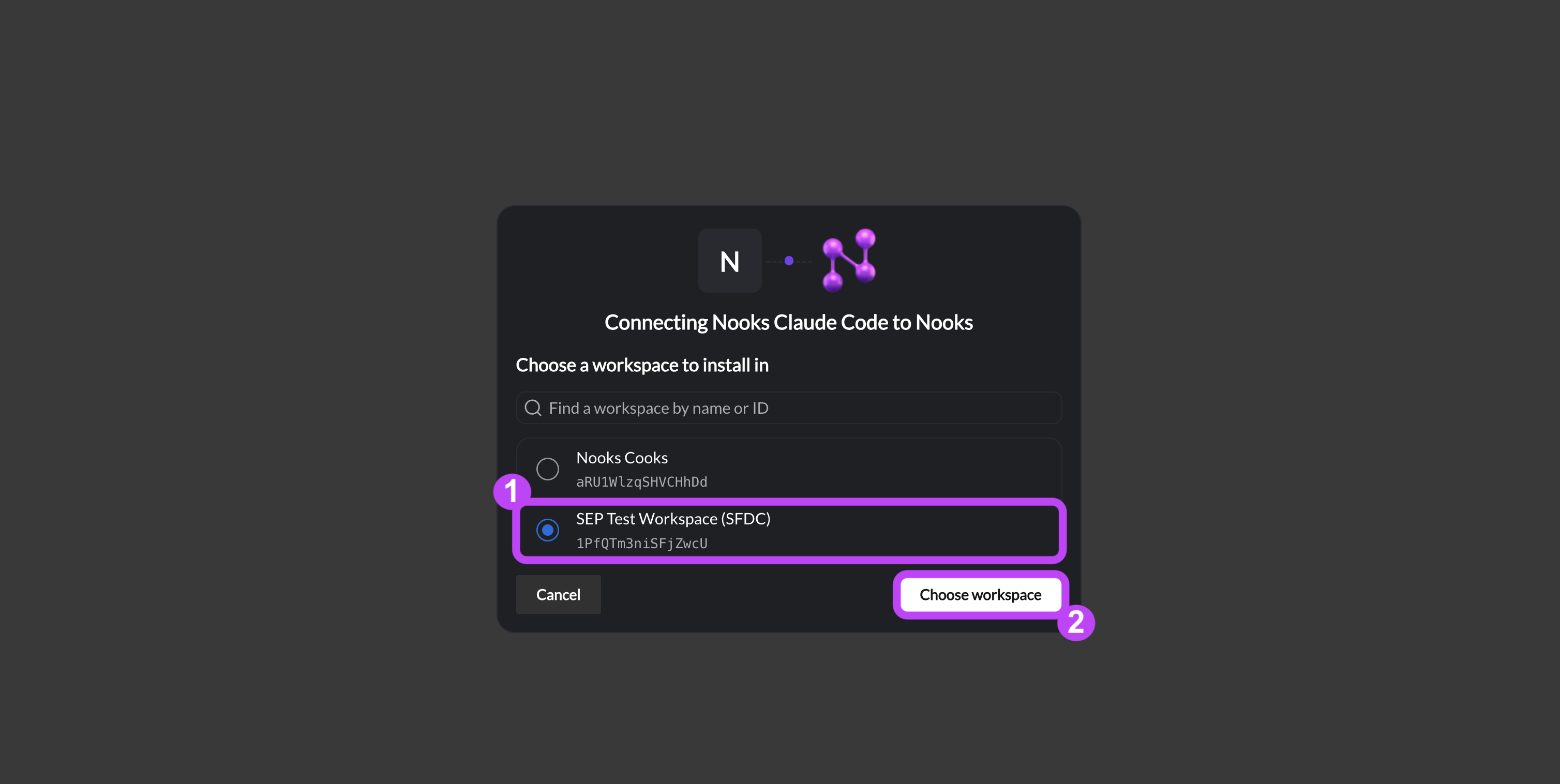
To complete the setup process, authenticate to the Nooks Connector.
Select which Nooks Workspace to connect to if you belong to multiple Nooks Workspaces. Then, press Connect workspace.
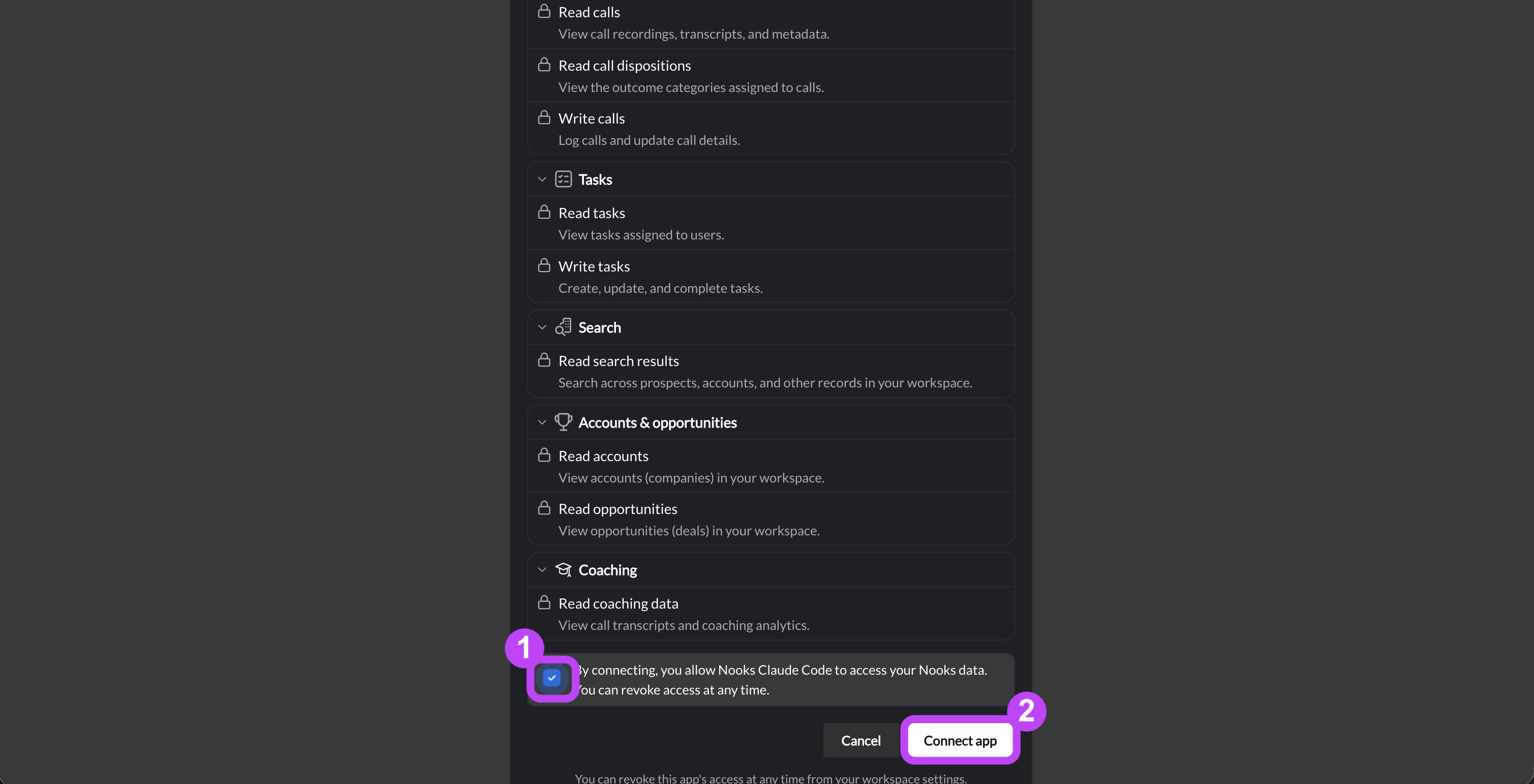
Review and consent to the permissions requested by the Nooks custom Claude connector. Press Connect.
The Nooks Connector will not appear in Claude's Connectors list if you search for it before your organization owner has enabled it for your team.
Using Nooks with Claude
Once you've connected the Nooks connector to Claude, you can begin accessing Nooks in any Claude conversation. Simply describe what you want to see or accomplish in natural language, and Claude will use your Nooks account to complete the request.
To use Nooks on Claude:
Start a new chat on Claude.
Enable Nooks from the Claude tool picker or mention "use Nooks" in your Claude prompt.
Use natural language to describe what you want to see or do. For the best results:
Be specific about what data you want Claude to access by including specific Sequence names, prospect names, and date ranges. Note that multiple prospects may share the same name, so including a prospect's email address may produce more accurate results.
Review any results Claude shares before allowing it to take actions (e.g., enrolling prospects into a Sequence) on your behalf.
Follow up on your initial request to get more specifics on the data you want to see or action.
Submit your response by pressing the Enter or Return key.
When you submit your prompt, Claude will show you which actions it's about to take. You can approve, deny, or edit before it runs.
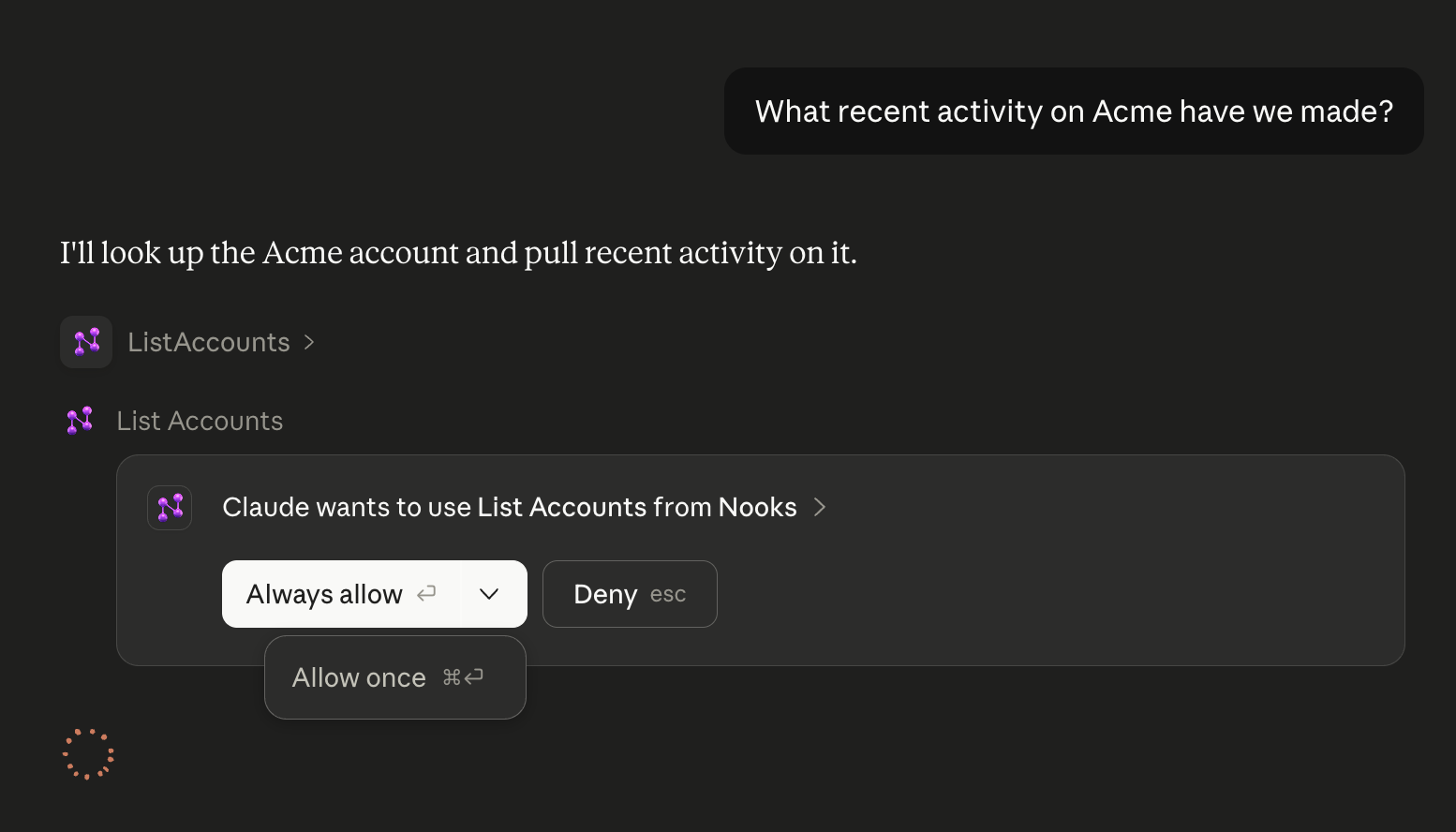
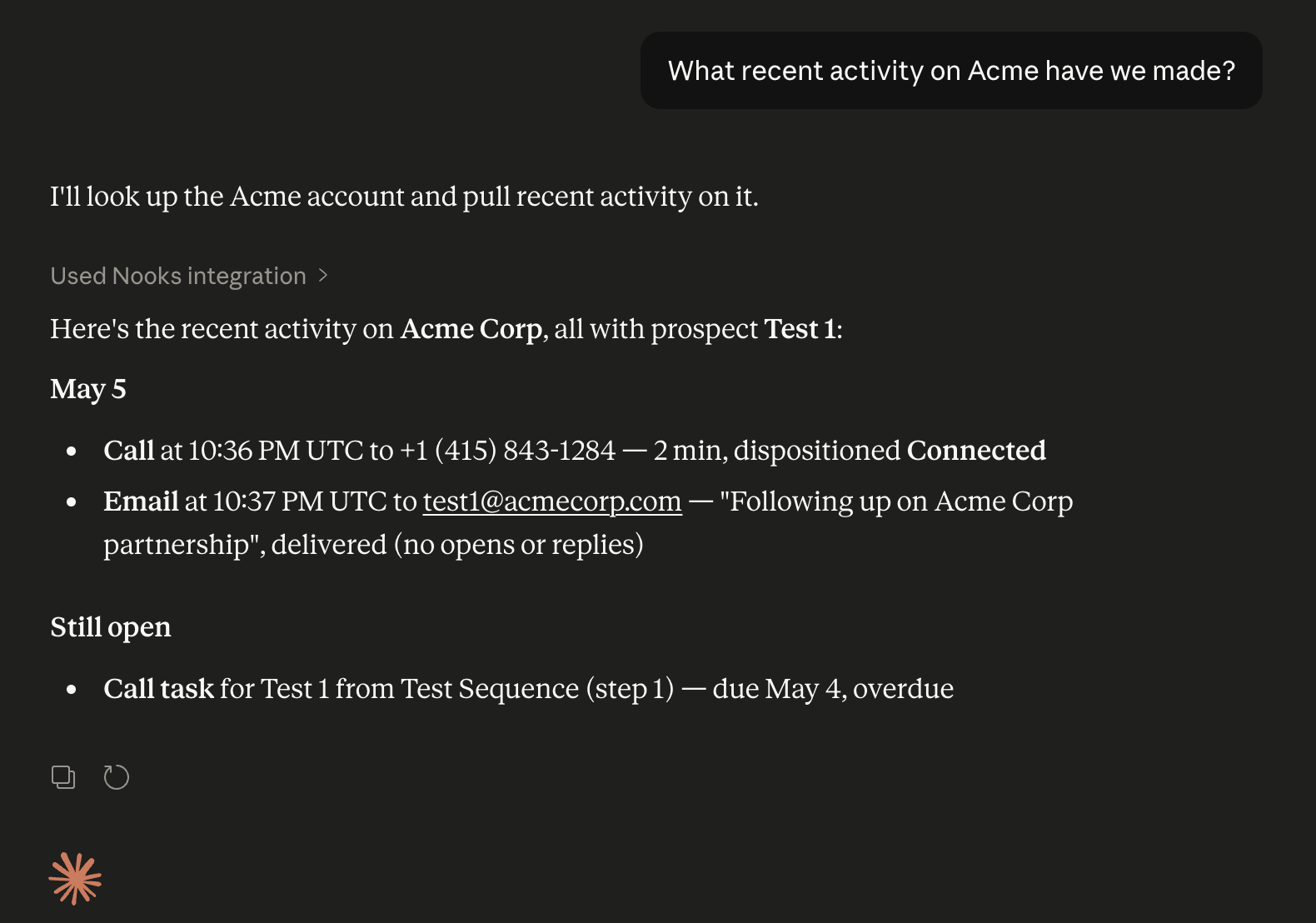
Example Prompts to Try in Claude
If you need some inspiration on where to start with the Nooks connector in Claude, try out one of the example prompts below.
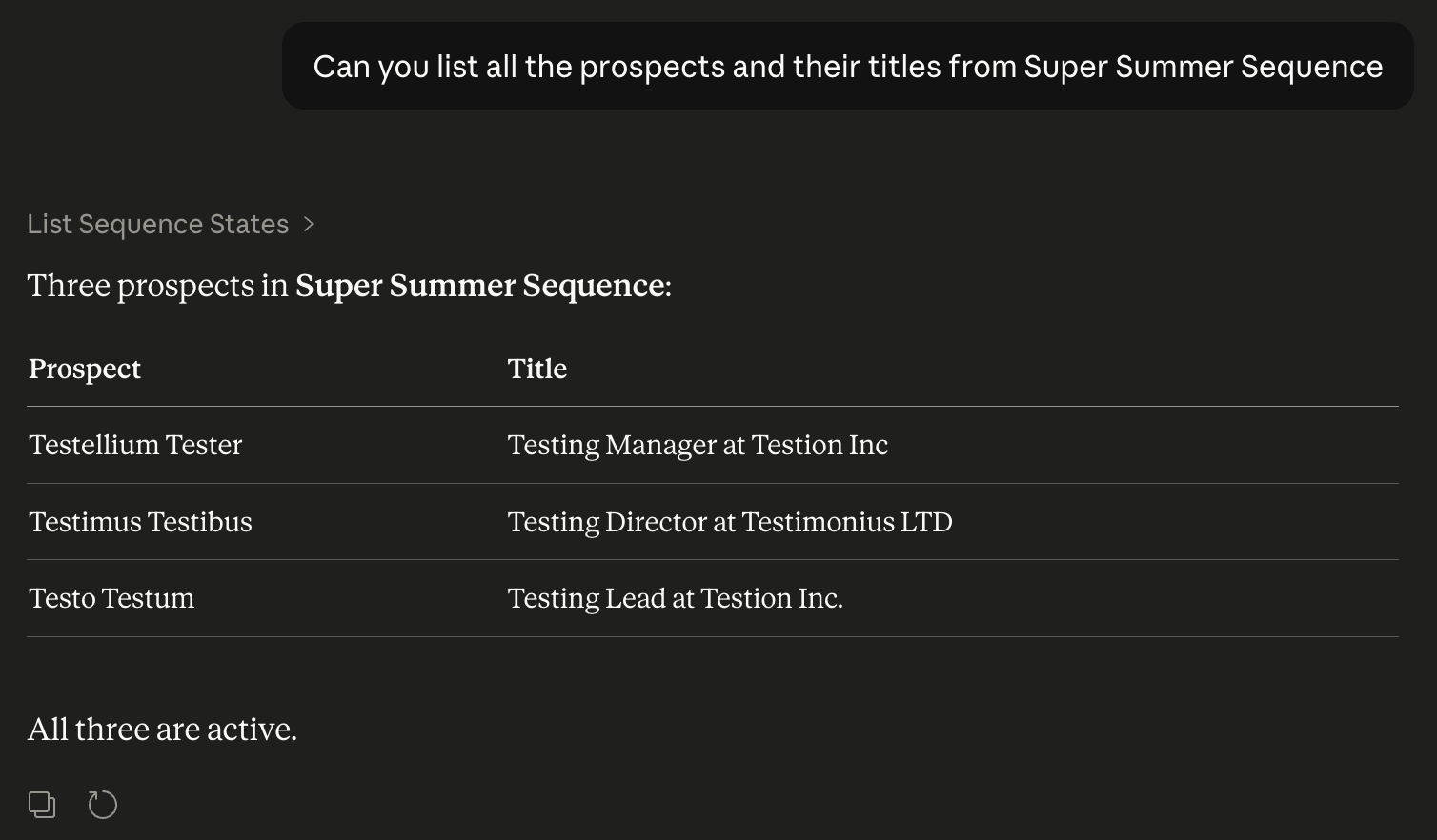
Pipeline Checks
Show me all prospects enrolled in the "Q1 Outbound Campaign" Sequence.
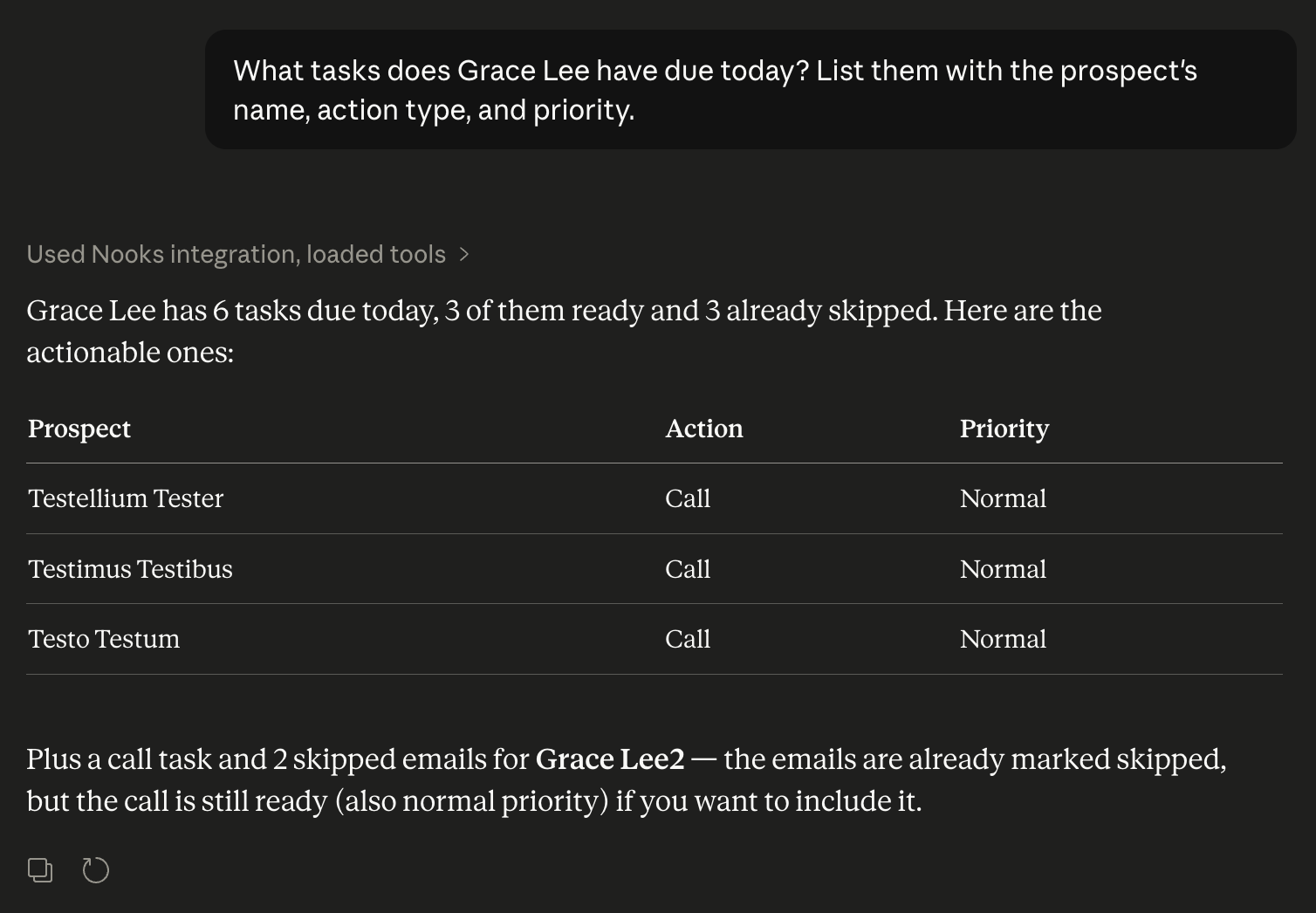
Daily Planning
What tasks does [user] have due today? List them with the prospect's name, action type, and priority.
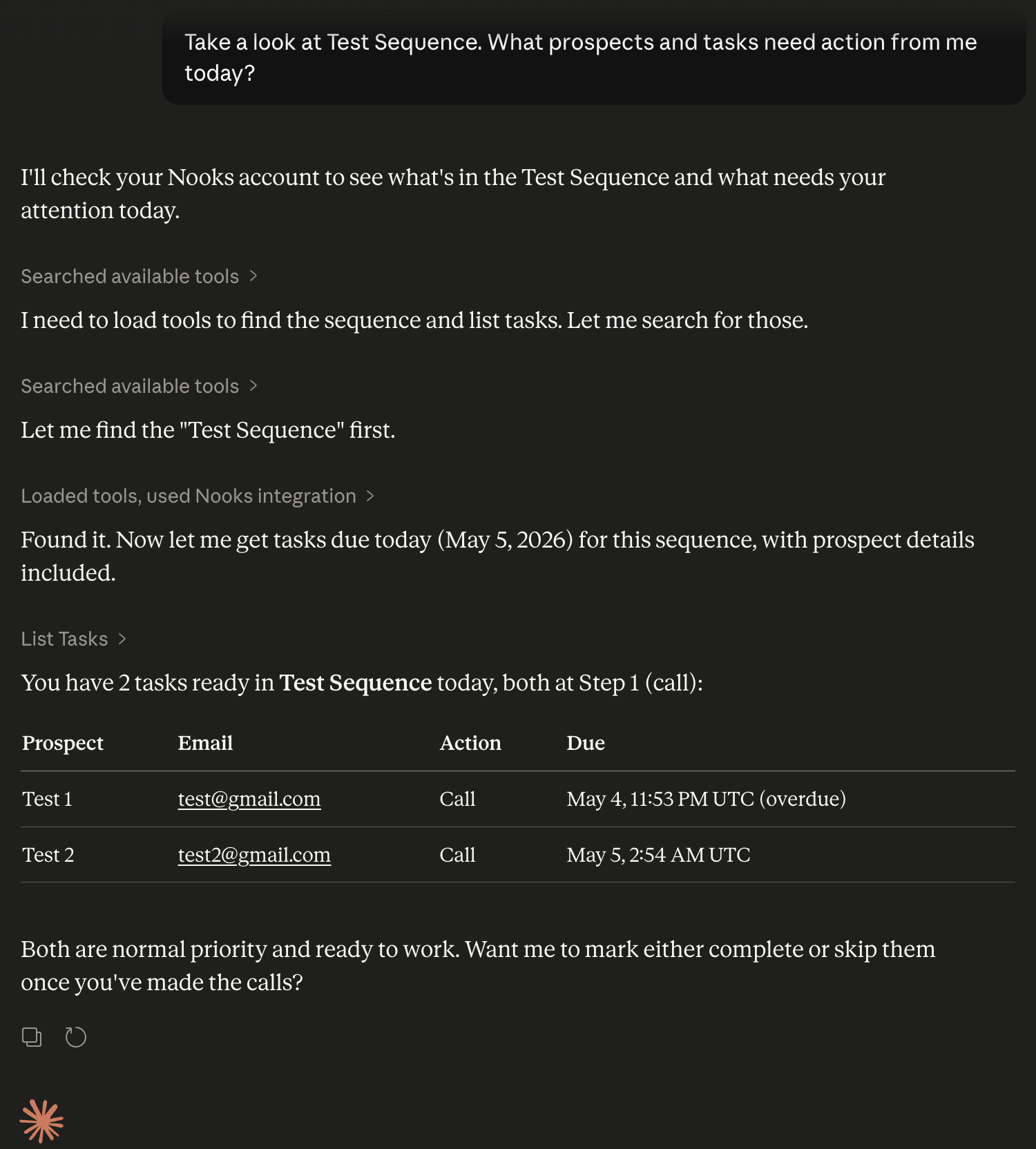
Take a look at [Sequence]. What prospects and tasks need action from me today?
Summarize my calls from yesterday. How many connected and who did I leave voicemails for?
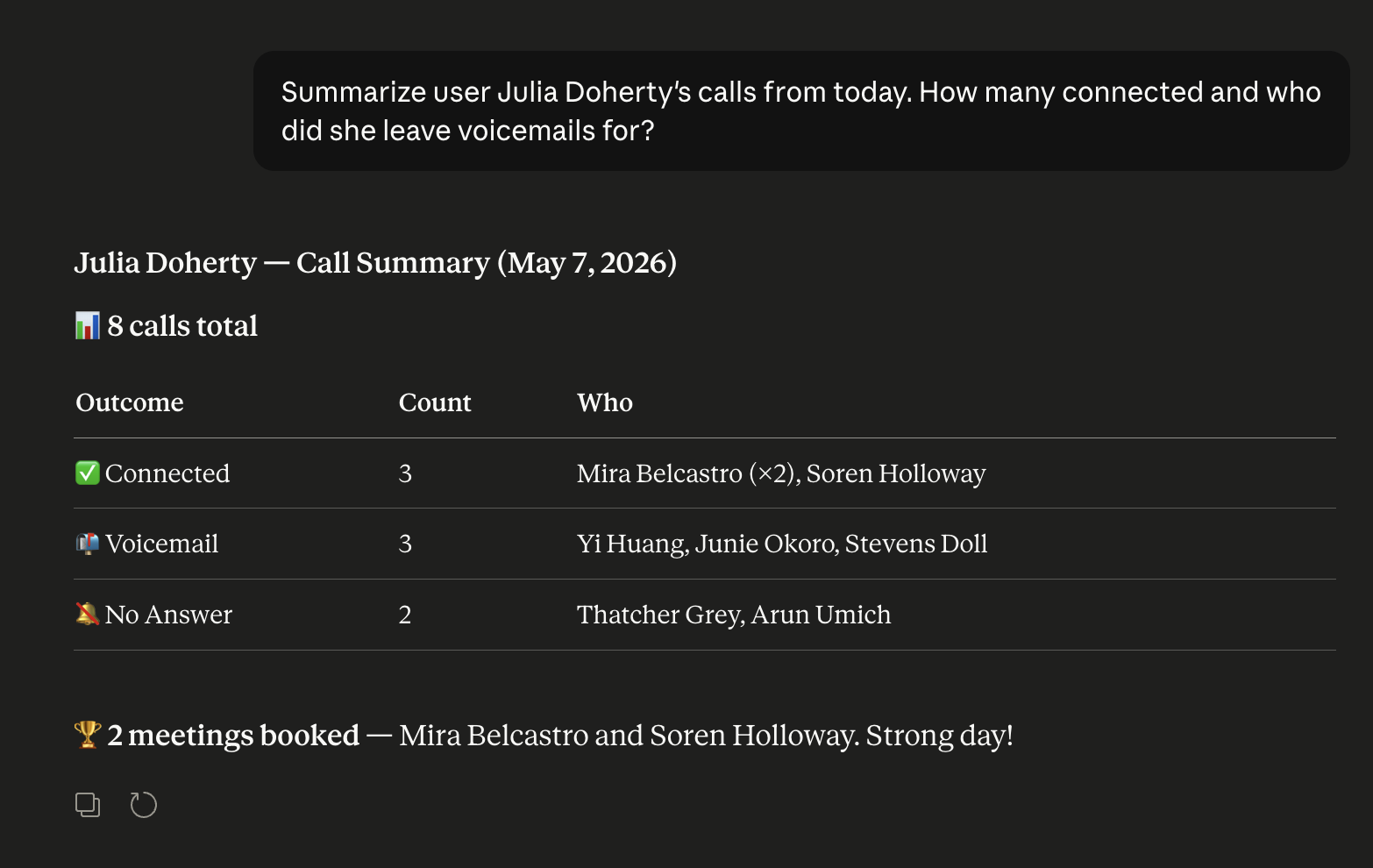
Taking Action
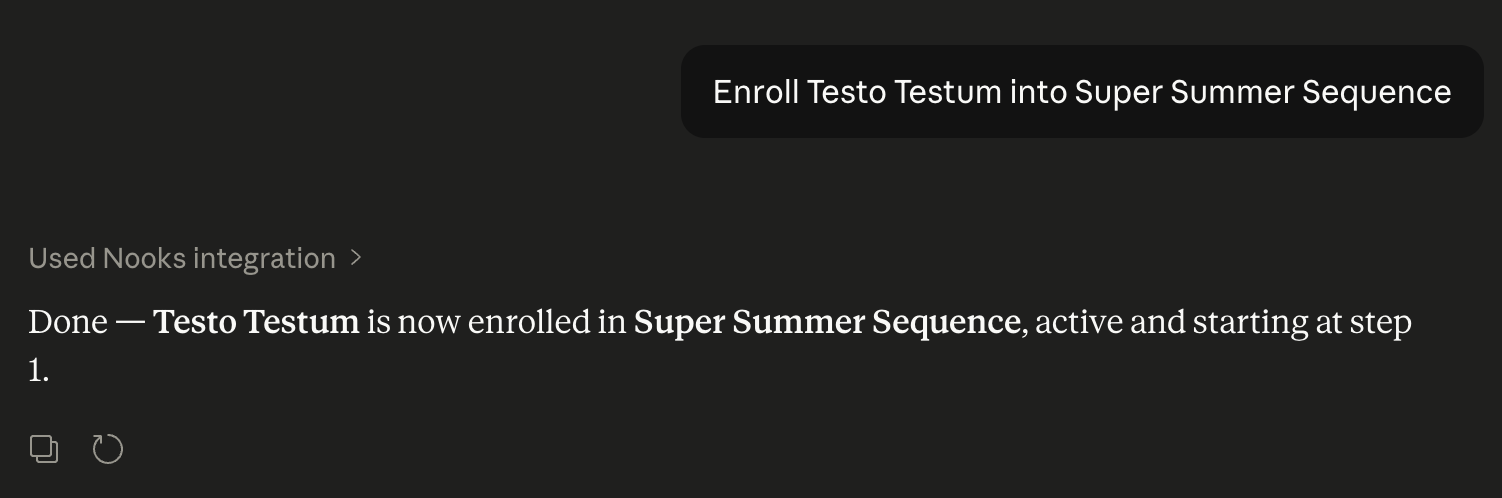
Enroll [prospect name] in the "Q2 Follow-up" Sequence.
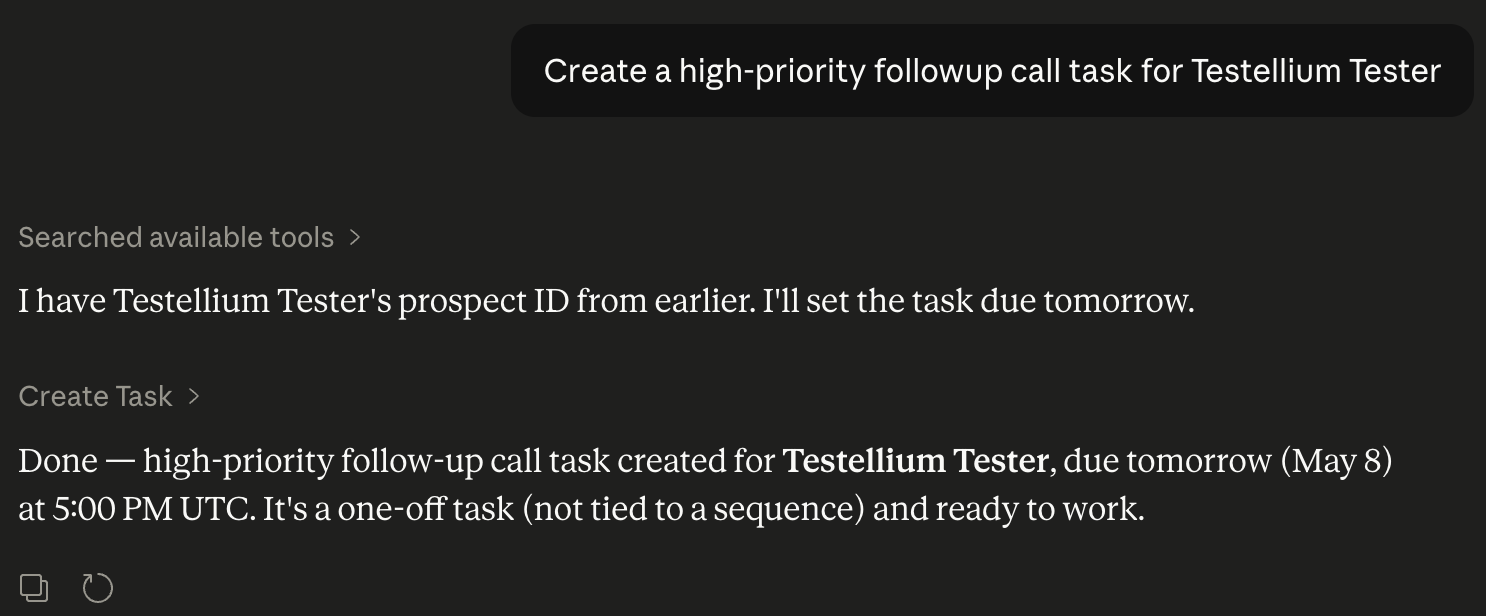
Create a high-priority follow-up task for [prospect name] for tomorrow at 10 am.
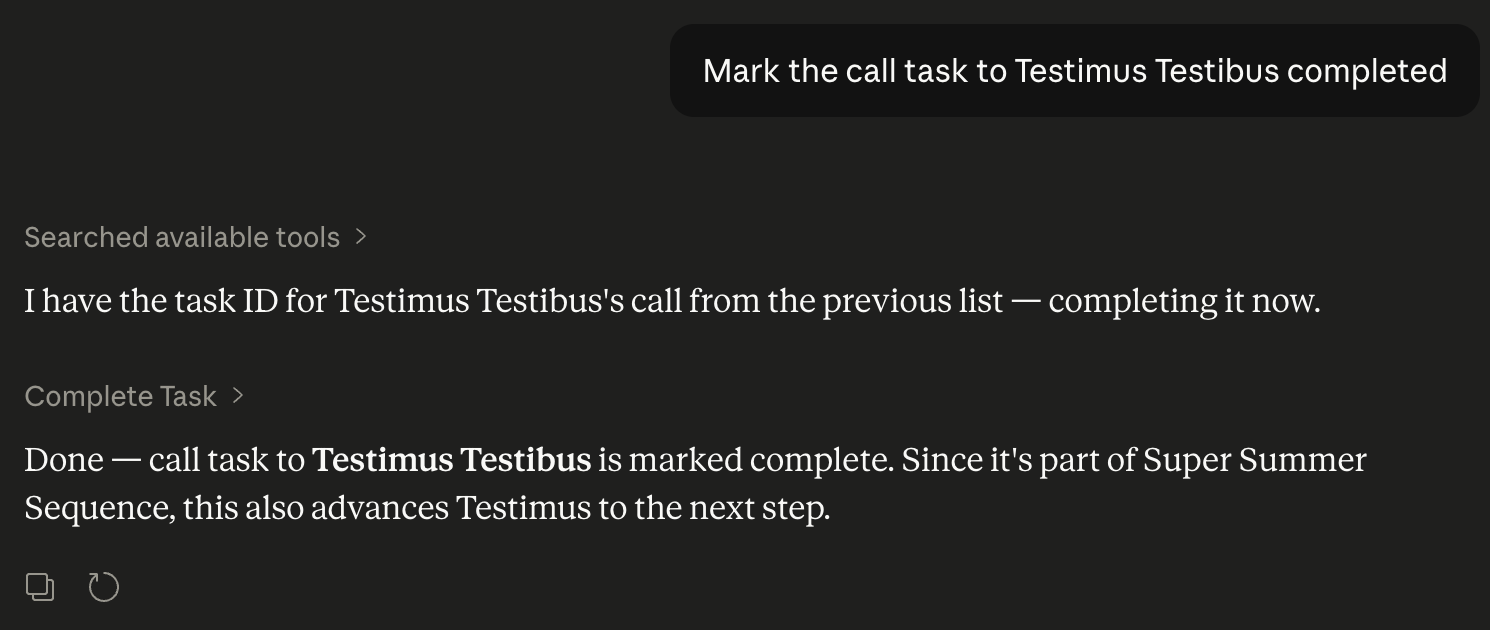
Mark the task to [prospect name] as completed.
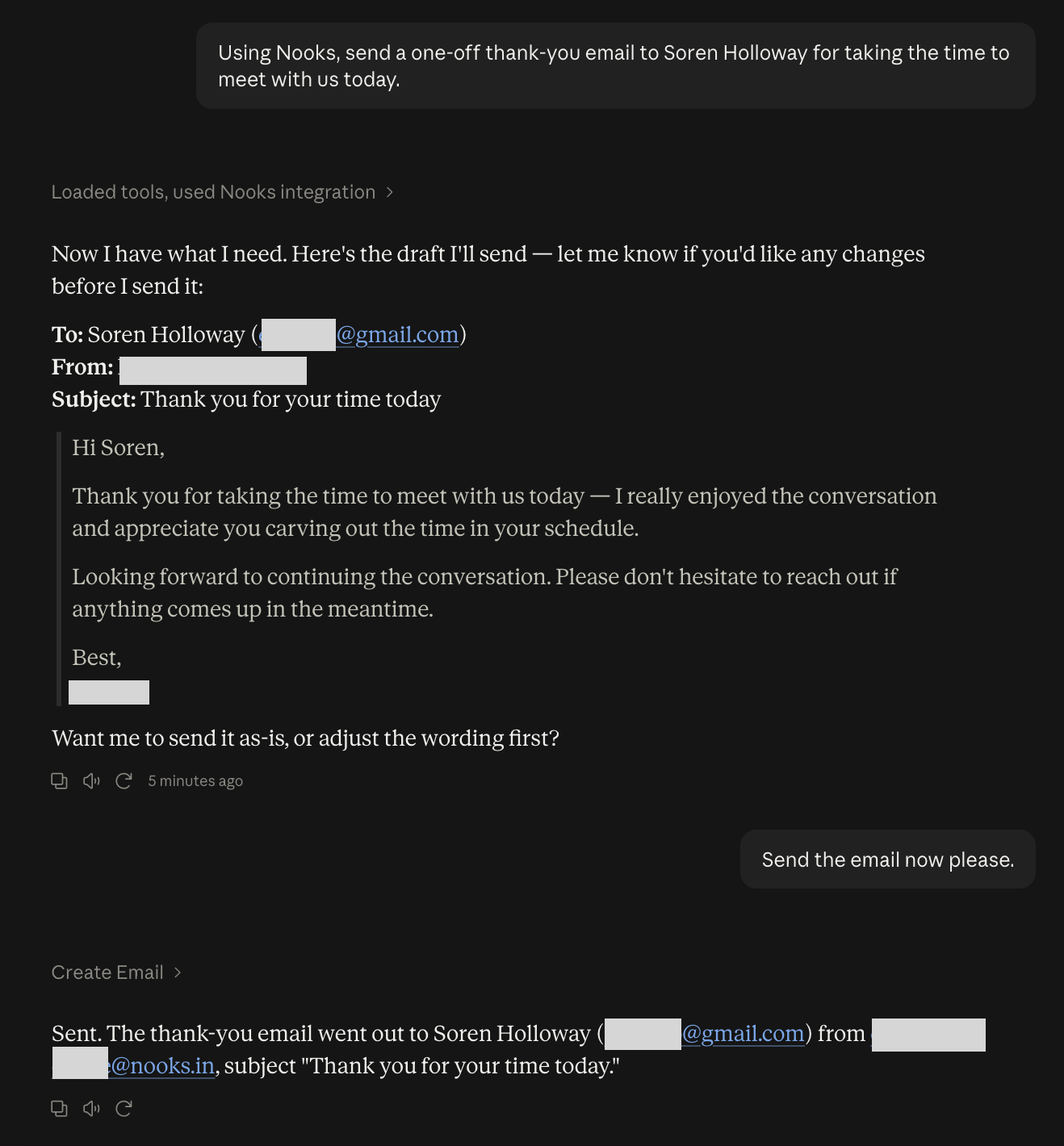
Send a one-off thank-you email to [prospect name] for taking the time to meet with us today.
Research and Reporting
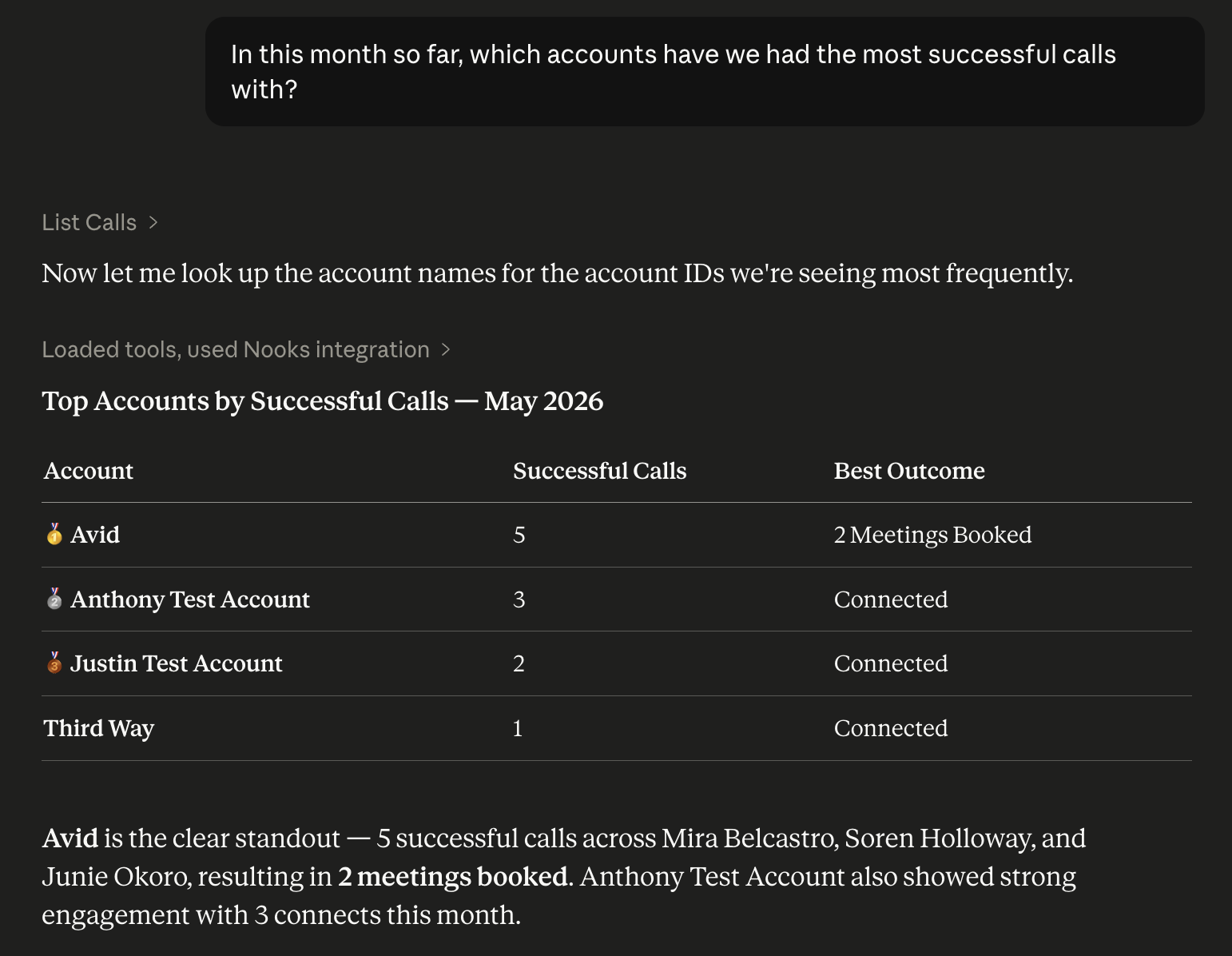
In this month so far, which accounts have we had the most successful calls with?
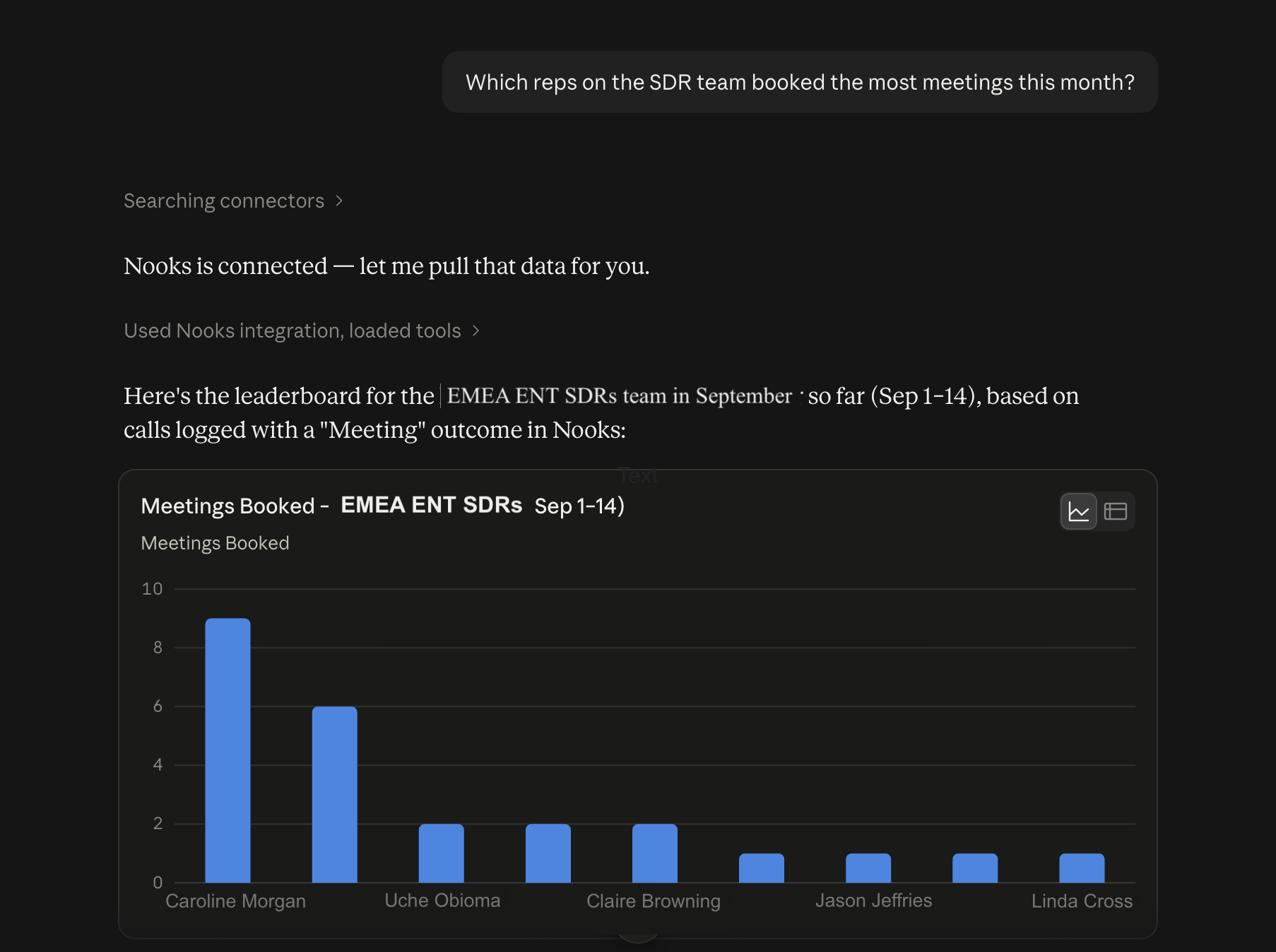
Which reps on the EMEA SDR team booked the most meetings this month?
Building and Editing Sequences
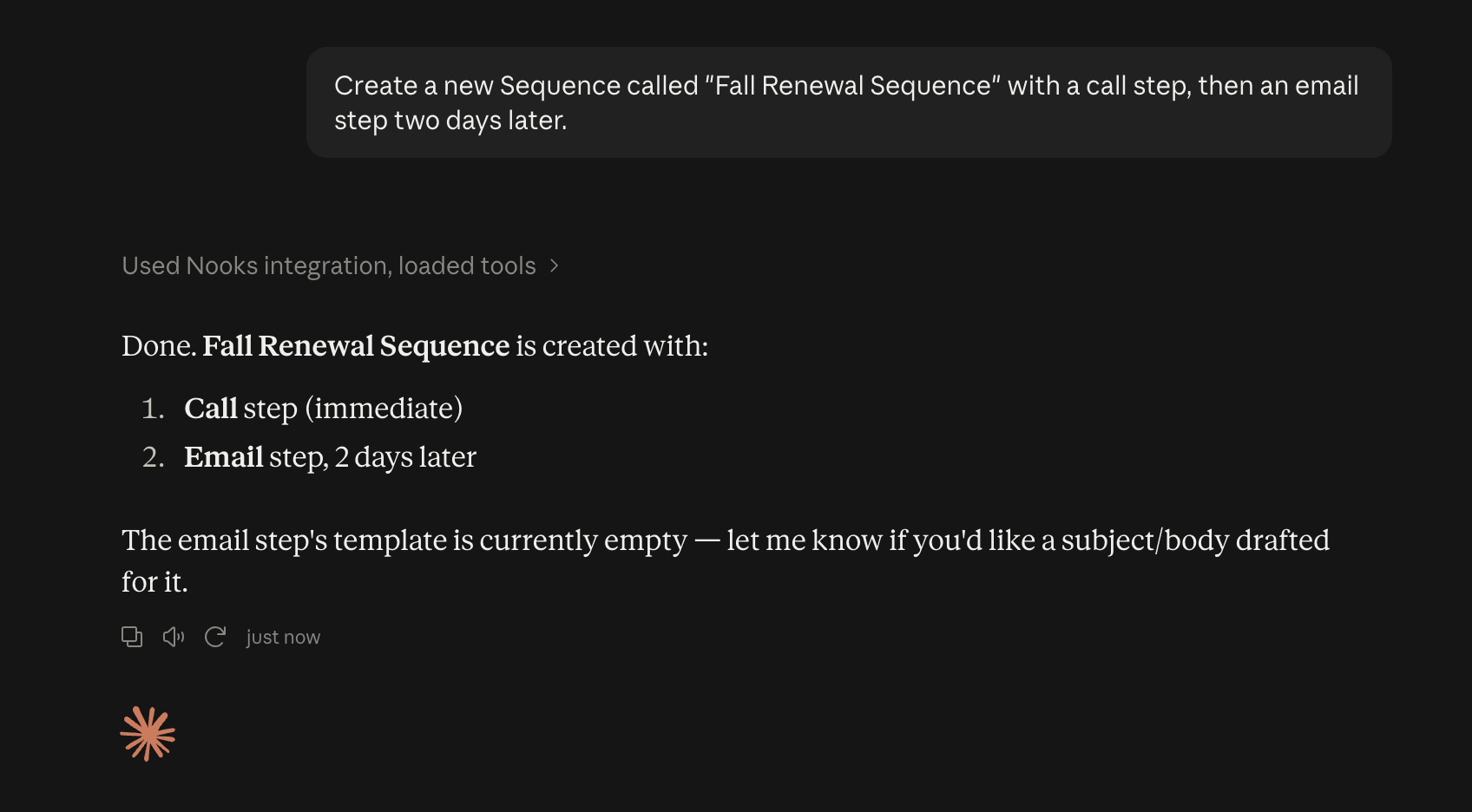
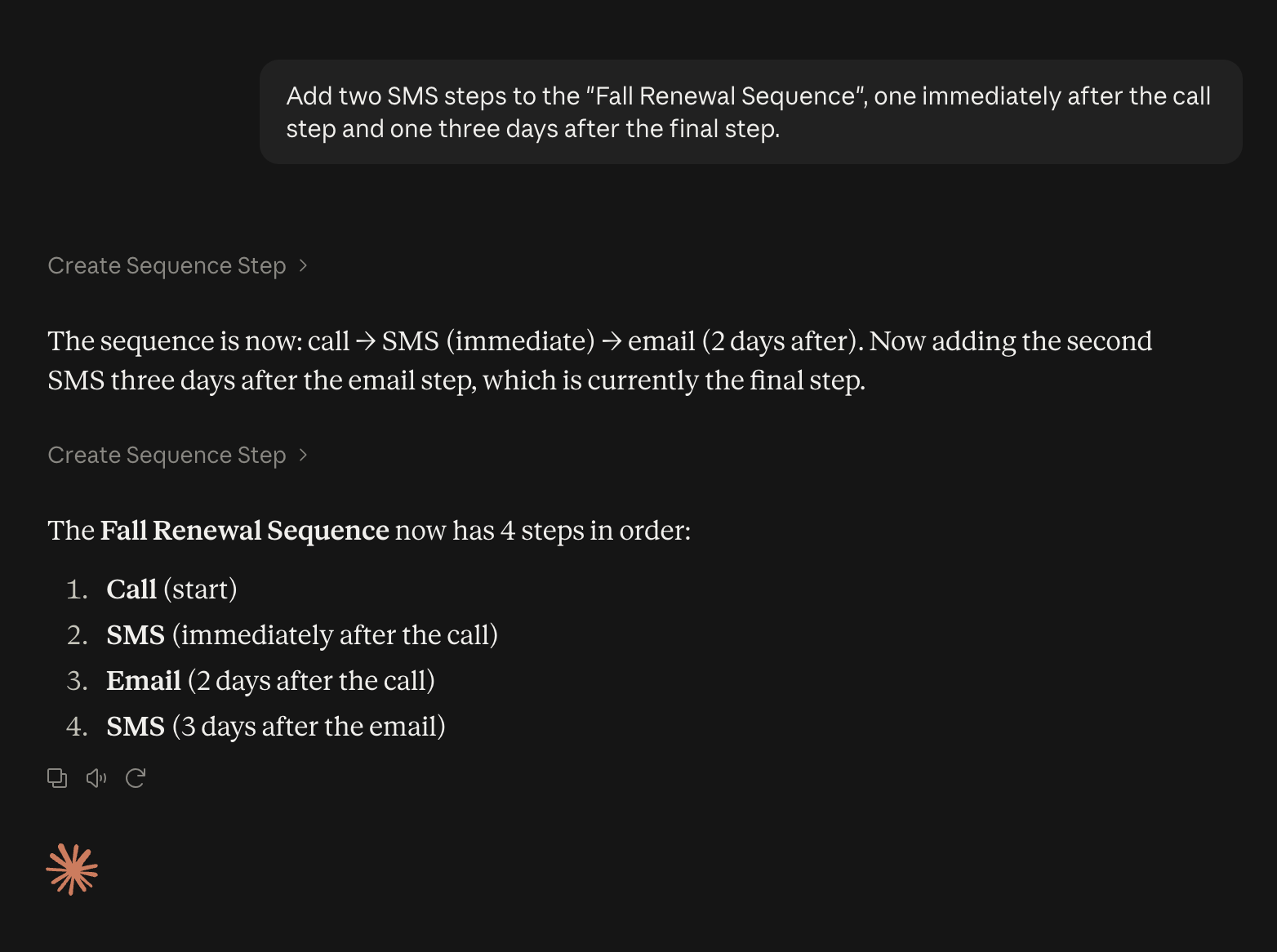
Create a new Sequence called "Fall Renewal Sequence" with a call step, then an email step two days later.
Add an SMS step to the "Q1 Outbound Campaign" Sequence, three days after the last step.
Taking Notes
Add a note to [company name]'s account saying the champion just changed roles.
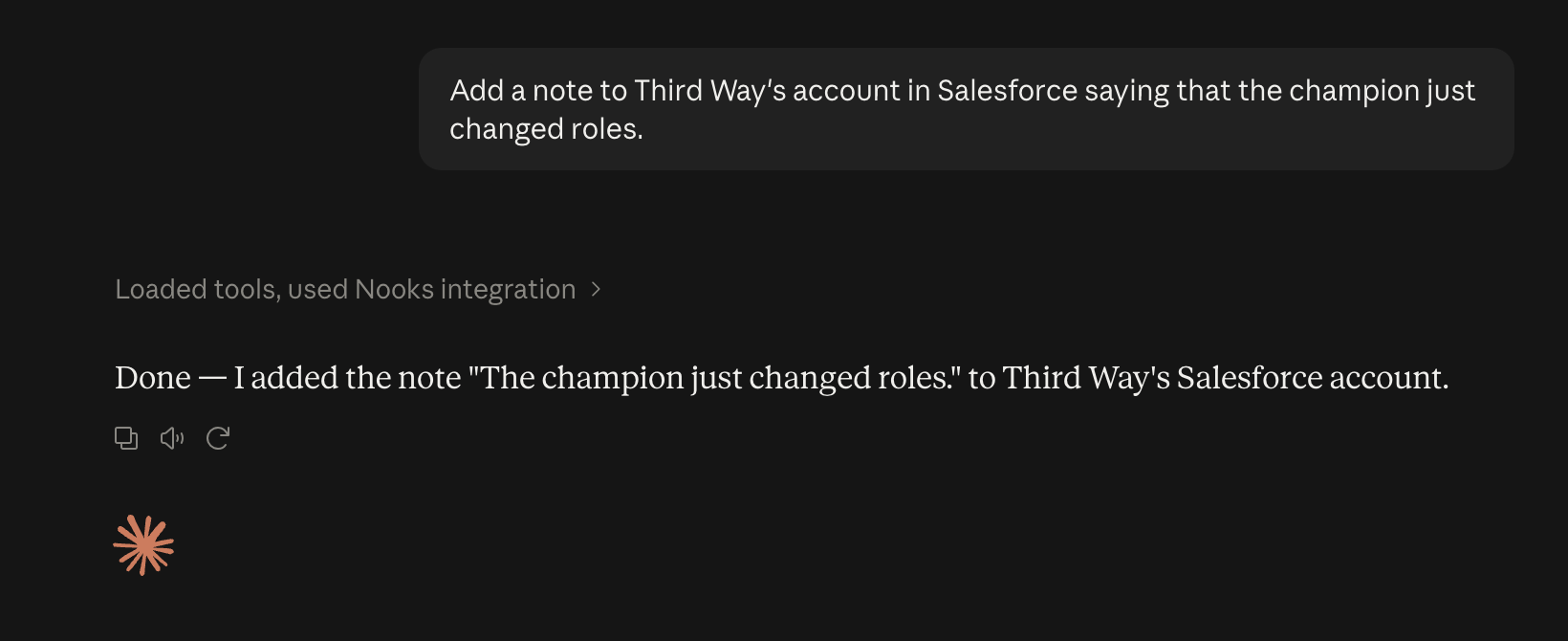
Log a note on [prospect name]'s record summarizing what we discussed on today's call.
Coaching – Talk Track Trends
Since last week's training, has anyone actually said "flexible pricing model" on a call? Find every instance and who said it.
Coaching – Gathering Insights on Competitor Objections
How many of my team's calls this month mentioned our competitor, <competitor name>, by name, and what did prospects say about them?
Available Tools
The Nooks connector exposes 46 tools in Claude. One of these tools is getMe, which returns the Nooks user and workspace corresponding to your current connection. It is available to any authenticated caller regardless of granted scopes.
The table below lists the remaining tools grouped by the resource they act upon. The tools available to a given user depend on which Nooks seat(s) they or their Workspace has. For example, someone with only a Sequencing seat will not see Coaching-specific tools, and vice versa. The "Availability" column is defined as follows:
Shared –These tools are available to users with a Nooks Sequencing and/or a Nooks AI Coaching seat.
Sequencing Only – These tools are only available to users with a Nooks Sequencing seat.
Coaching Only – These tools are only available to users with a Nooks AI Coaching seat.
Resource | Read Tools | Write/Action Tools | Availability |
Accounts |
|
| Shared |
Prospects |
|
| Shared¹ ¹syncProspects is Sequencing only. |
Sequences |
|
| Sequencing only |
Sequence Steps |
|
| Sequencing only |
Sequence States (i.e., Enrollments) |
|
| Sequencing only |
Tasks |
|
| Sequencing only |
Calls |
| – | Shared |
Emails |
|
| Sequencing only |
Email Templates |
| — | Sequencing only |
Mailboxes |
| — | Sequencing only |
Users |
| — | Shared |
Coaching |
| — | Coaching only |
Teams |
| — | Shared |
A description of what each tool does is provided below.
Accounts
listAccounts — Lists accounts (companies) in the Workspace that are synced with the workspace CRM.
getAccount — Fetches a single account by ID.
createAccountNote – Creates a CRM (Salesforce or HubSpot) note on the account.
Prospects
listProspects — Lists prospects synced with the workspace CRM. Filterable by IDs, Sequence enrollment, or account.
getProspect — Fetches a single prospect by ID.
createProspectNote – Creates a CRM (Salesforce or HubSpot) note on the prospect.
syncProspects — Syncs up to 100 prospects from the workspace CRM into Nooks by their CRM IDs. Creates the prospects if they don't already exist in Nooks.
Sequences*
listSequences — Returns a paginated list of Nooks Sequences in the Workspace.
getSequence — Fetches a single Sequence by its unique ID.
createSequence — Creates a new, empty Sequence owned by a specific user. Steps and prospects are added to the Sequence by the createSequenceStep and createSequenceState tools, respectively.
updateSequence — Updates a Sequence's name and/or activation status.
Sequence Steps*
listSequenceSteps — Lists steps within Sequences. Supports filtering by step IDs or by Sequence.
getSequenceStep — Fetches a single Sequence step by its unique ID.
createSequenceStep – Adds a new step to a Sequence (e.g., call, email, SMS, LinkedIn, etc.), with its wait interval before the step becomes due. New steps default to the end of the Sequence unless otherwise specified.
updateSequenceStep – Update san existing step's action, wait interval, name, note, or email content.
deleteSequenceStep –Permanently deletes a step from a Sequence. Nooks automatically handles any in-flight tasks on that step and advances affected enrollments as needed.
reorderSequenceSteps – Reorders all of a Sequence's steps at once, in the order you specify.
Sequence States (Enrollments)*
listSequenceStates — Lists Sequence states. Filterable by Sequence, prospect, account, and state (active/paused/finished).
getSequenceState — Fetches a single Sequence state by ID.
createSequenceState (write) — Enrolls a prospect into a Sequence, creating a new Sequence state.
finishSequenceState (write) — Marks an Sequence state as finished, stopping the prospect's progression through the Sequence.
deleteSequenceState (destructive) — Removes a prospect from a Sequence, deleting the Sequence state and canceling any pending tasks.
Tasks*
A task is one outreach action (call, email, LinkedIn touch, etc.) assigned to a user.
listTasks — Lists tasks. Supports filtering by task owner, Sequence, and task status.
getTask — Fetches a single task by ID.
createTask (write) — Creates a one-off task (not tied to a Sequence). Auto-syncs to CRM.
updateTask (write) — Updates fields on an existing task.
completeTask (write) — Marks a task complete. For Sequence tasks, advances the enrollment to the next step.
skipTask (write) — Skips a task without completing its action. For Sequence tasks, advances to the next step.
deleteTask (destructive) — Permanently deletes a task. If a task originated from a Sequence, the prospect's enrollment is automatically advanced to the next step (or marked "finished" if it was the last step) before the task is deleted.
Calls*
listCalls — Lists calls made via Nooks Sequencing. Filterable by ID and updatedAt range.
getCall — Fetches a single call by ID.
listCallDispositions — Lists Workspace-configured call outcomes (e.g. "Connected", "Voicemail").
getCallDisposition — Fetches a single call disposition by ID.
Emails*
listEmails — Lists emails from mailboxes synced to Nooks. Filterable by ID, prospect, task, status, and updatedAt range.
getEmail — Fetches a single email by ID, including delivery/open/click/reply tracking data.
createEmail (one-off email to a prospect) – Creates a one-off email to a prospect on a Workspace user's behalf. Defaults to a draft for review in Nooks, or sends immediately on request through the user's connected mailbox. Inherits Workspace settings (open/click tracking, unsubscribe footer, send spacing and caps), but do schedule-send features like prospect-timezone delivery.
Email Templates*
getEmailTemplate — Fetches a single email template by ID.
Mailboxes*
listMailboxes — Lists currently connected mailboxes (sending email aliases).
getMailbox — Fetches a single mailbox by ID.
Notes
createAccountNotes — Creates a CRM note on an account.
createProspectNote — Creates a CRM note on the prospect.
Users
listUsers — Lists Workspace members with active seat assignments.
getUser — Fetches a single user by ID.
Coaching
searchCalls – The best tool for finding calls to coach on or review. Narrow down by rep, team, time range, prospect, account, disposition, outcome, or duration, then layer on transcript or speaker-turn keyword search when you need calls where something specific was said. Only available for calls made by reps with an AI Coaching seat.
getCallTranscript – Fetches the full transcript of a single call as speaker-labeled, timestamped turns, plus key call details (rep, contact, duration, disposition, talk radio). Only available for calls made by reps with an AI Coaching seat.
Teams
listTeams – Lists your Workspace's Nooks teams with member counts, so you can look up a team to filter calls by.
getTeam – Fetches a single team's full member list.
*The Claude Connector can currently access data from Nooks Sequencing and Nooks AI Coaching. Sequences, emails, calls, and tasks created/completed in another sales engagement platform are not currently accessible. Any calls placed within Nooks and surfaced within the Nooks Call Library are accessible in Claude through the listCalls and getCall tools. The searchCalls and getCallTranscript tools only work for calls made by a user with a Nooks AI Coaching seat.
Reminder: Your tool list may differ from your colleagues' depending on the Nooks seats you hold. Granting a tool on the consent screen does not necessarily mean it will be available for you to use if you do not have the necessary Nooks seat.
Scopes Requested
When configuring and enabling the Nooks connector, Claude will ask you to grant one or more of these scopes. We recommend granting all scopes, though you can choose to grant only a subset. If you make a request using tools you do not have access to, the Nooks Connector will return a specific, descriptive error explaining why.
Scope | What Claude Can Do | New As Of |
| View your accounts | May 2026 |
| View your prospects | May 2026 |
| Update prospects based on data from your CRM | May 2026 |
| Create notes on CRM-backed prospects and accounts | May 2026 |
| View your Nooks Sequences | May 2026 |
| Create, edit, and manage Sequences | August 2026 |
| View Nooks Sequence steps | May 2026 |
| Create, edit, reorder, and delete Sequence steps | August 2026 |
| View Nooks Sequence enrollments | May 2026 |
| Manage your Nooks Sequence enrollments (i.e., enroll prospects, and finish, stop, or delete enrollments) | May 2026 |
| View your tasks created via Nooks Sequencing | May 2026 |
| Create, update, complete, skip, delete Nooks Sequencing tasks | May 2026 |
| View your calls placed via Nooks Sequencing | May 2026 |
| View call dispositions | May 2026 |
| View your emails sent, received, or synced via Nooks Sequencing | May 2026 |
| Send emails on your behalf and log an email activity | August 2026 |
| View Nooks email templates | May 2026 |
| View connected mailboxes | May 2026 |
| View users in your workspace | May 2026 |
| View teams in your workspace | July 2026 |
| View call transcripts and reporting data | July 2026 |
If needed, you can modify what scopes Claude has access to at any time after configuring and enabling the Nooks connector.
Note: Your Nooks <> Claude connection does not automatically pick up new scopes. To get access to newly added scopes:
Disconnect and reconnect the Nooks Connector in Claude (Settings → Connectors → Nooks → Disconnect, then Connect again).
Approve the updated permissions on the consent screen.
You will keep access to everything you had before. Nothing is removed by reconnecting.
Data Claude Can Access
Claude can see any Nooks Sequencing, calls, or AI Coaching record (including call transcripts) in your connected Nooks Workspace, scoped to whatever access your Nooks user has. If you can view it in the Nooks app, Claude can read it through the Nooks connector. This access takes into account your user and role access, as well as your user's Permission Profile.
Claude cannot see tasks or sequences created in an external sales engagement platform.
Claude cannot see other Workspaces you belong to, your Nooks password or login credentials, billing or admin-only configuration, or any data from your CRM that hasn't been synced into Nooks yet. To enable the Claude to access data in another Nooks Workspace you belong to, you'd need to connect their Workspace separately.
Claude cannot place calls directly through the connector, as no such call-placing tool is exposed today. This action goes through Nooks' full Sequencing workflow and must be completed from the Nooks web app or Nooks Everywhere side panel.
Privacy & Security
Below are some notes on how Nooks ensures privacy and security when using the Nooks Claude connector.
Authentication is OAuth 2.0 with PKCE—industry-standard delegated access. Claude never sees your Nooks password.
Transport is HTTPS-only. The MCP server enforces origin and CORS rules so only claude.ai or claude.com can initiate calls from a browser.
Revocation is immediate. Once you disconnect Claude and remove the OAuth app in Nooks, access is instantly terminated.
No data training. Nooks does not train AI models on the data returned to Claude and, per Anthropic's connector policies, Claude does not train on third-party connector data.
For full data handling details, see the Nooks Privacy Policy and Nooks DPA.
Advanced: Custom Nooks Connector Setup
You do not need this section unless your organization is using a Custom Nooks Connector instead of the official Nooks Connector from Claude's Connector directory. Most organizations should install the official Nooks Connector by following the steps at the beginning of this article. If you are unsure which setup applies to you, consult your Nooks representative.
Admin Configuration: Configure the Nooks Custom Connector
The steps below cover how to create a custom Nooks Connector in Claude. These steps require you to be a Nooks admin and a Claude organization owner.
Prerequisites
In order to add Nooks as a custom Claude connector, you will need:
A Nooks OAuth App created for your custom Claude connector. If you have not yet created an OAuth App, refer to the following guides.
How to Set Up a Nooks OAuth App – Contains general instructions on creating a new Nooks OAuth app. You will need the Client ID and Secret from your OAuth app during the Claude Connection process.
Setting Up a Nooks OAuth App for Custom Claude Connectors – Contains additional configurations required for creating a Nooks OAuth App intended for use as a Claude Model Context Protocol (MCP) connection.
Organization owner permissions in Claude. Only organization owners can add a new custom connector to their Claude workspace.
A Claude plan that supports custom connectors. Claude supports custom connectors on the Claude Pro, Max, Team, and Enterprise plans. Custom connectors are not supported on the free tier.
Browser access to claude.ai (or the Claude desktop app) and to app.nooks.in. Ensure that you are signed into Nooks with the user account to which you want to grant Claude access.
Step 1: Add Nooks as a Custom Connector in Claude
To begin, add Nooks as a custom connector in Claude. To do so:
As an organization owner in Claude, open Settings > Connectors.
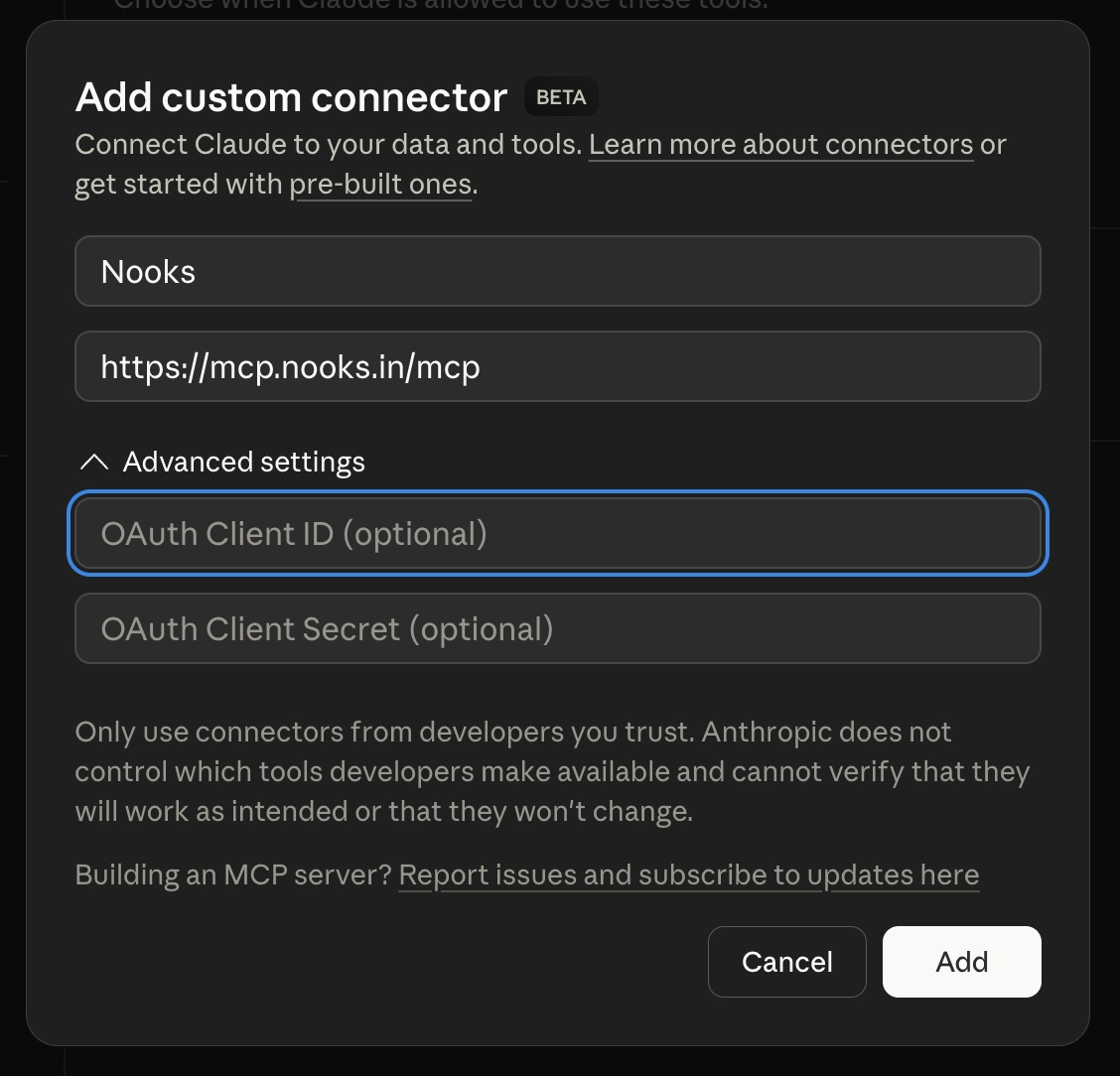
Click Add custom connector.
Fill in the following fields:
Name: Nooks
Description: Sales engagement — prospects, sequences, calls, tasks
Client ID and Client Secret: Based on your Nooks OAuth App (configured through these steps).
The connector will not work if you leave these fields blank or enter incorrect information.
Click Connect. Claude will redirect you to beta.nooks.in for authorization.
Step 2: Authorize access from your Nooks Workspace
After redirect, you'll see a Nooks consent screen where you can finish configuring your Nooks custom Claude connector. To complete the setup process:
Select which Nooks Workspace to connect to if you belong to multiple Nooks Workspaces. Then, press Connect workspace.
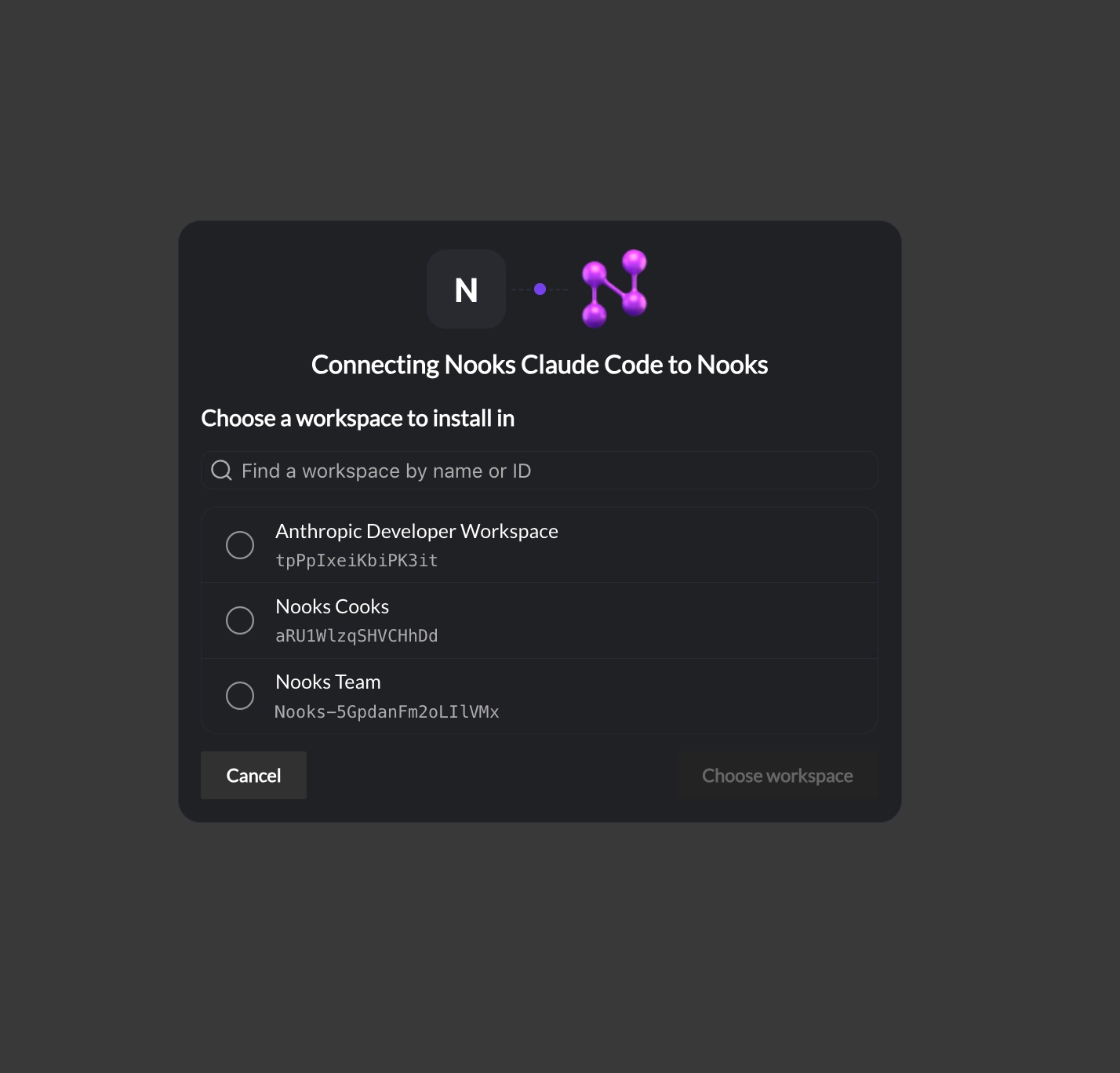
Review the scopes Claude is requesting (e.g., View your prospects, Manage Sequences enrollments, etc.). Click Approve. You'll be redirected back to Claude, and the connector will show as "Connected".
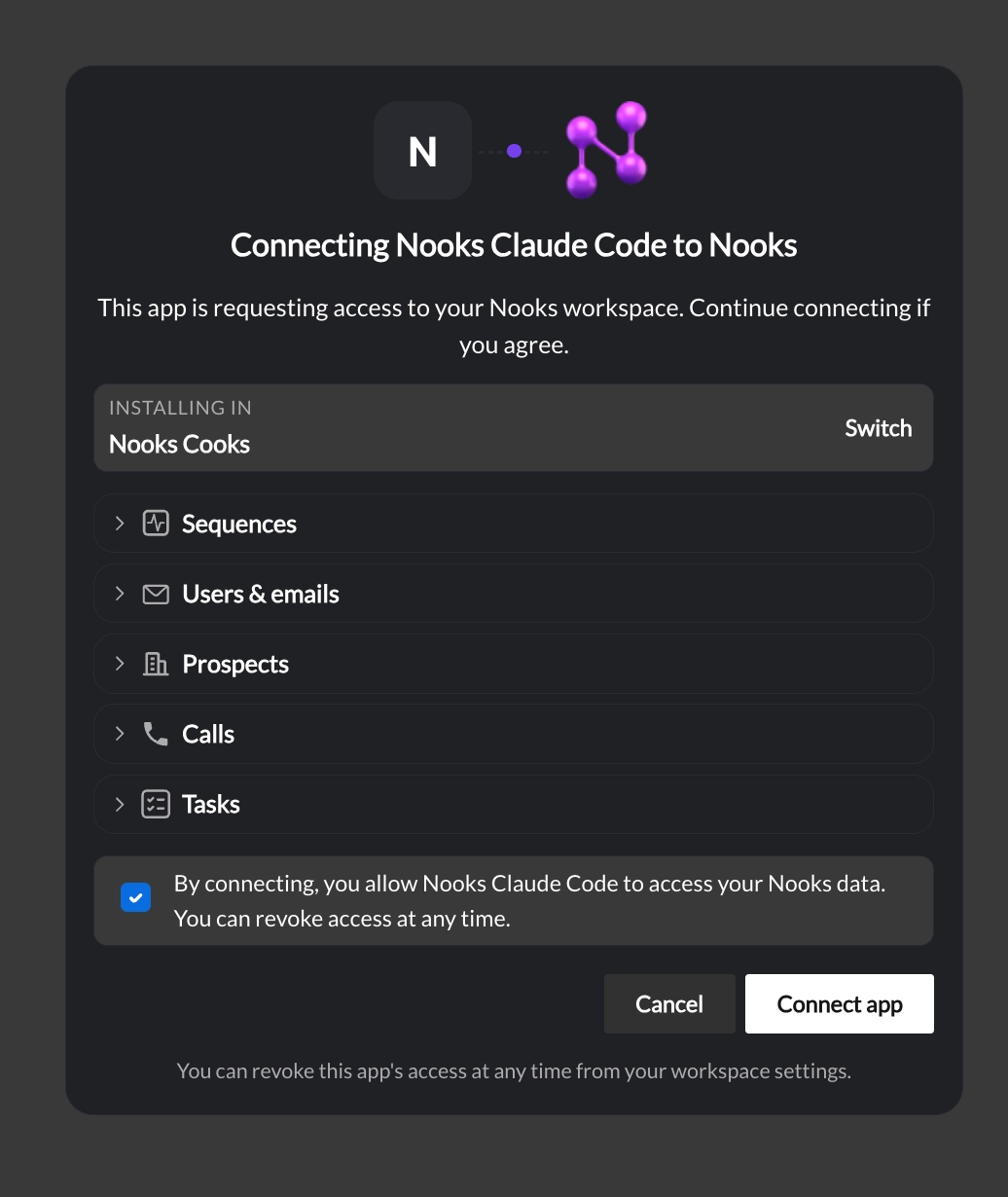
Once you've completed these steps, other Nooks team members will be able to enable the Nooks connector for their Claude instance.
Note: The Nooks custom connector is configured and created at the Workspace-level but must be enabled by each individual end-user. Admins cannot enable the Nooks connector on their end-users' behalf after configuring the connector.
End-User Setup: Connect to the Nooks Connector in Claude
Once your admin has configured the Nooks Connector for your Workspace, you can connect to the Nooks Connector to your Claude instance. To do so:
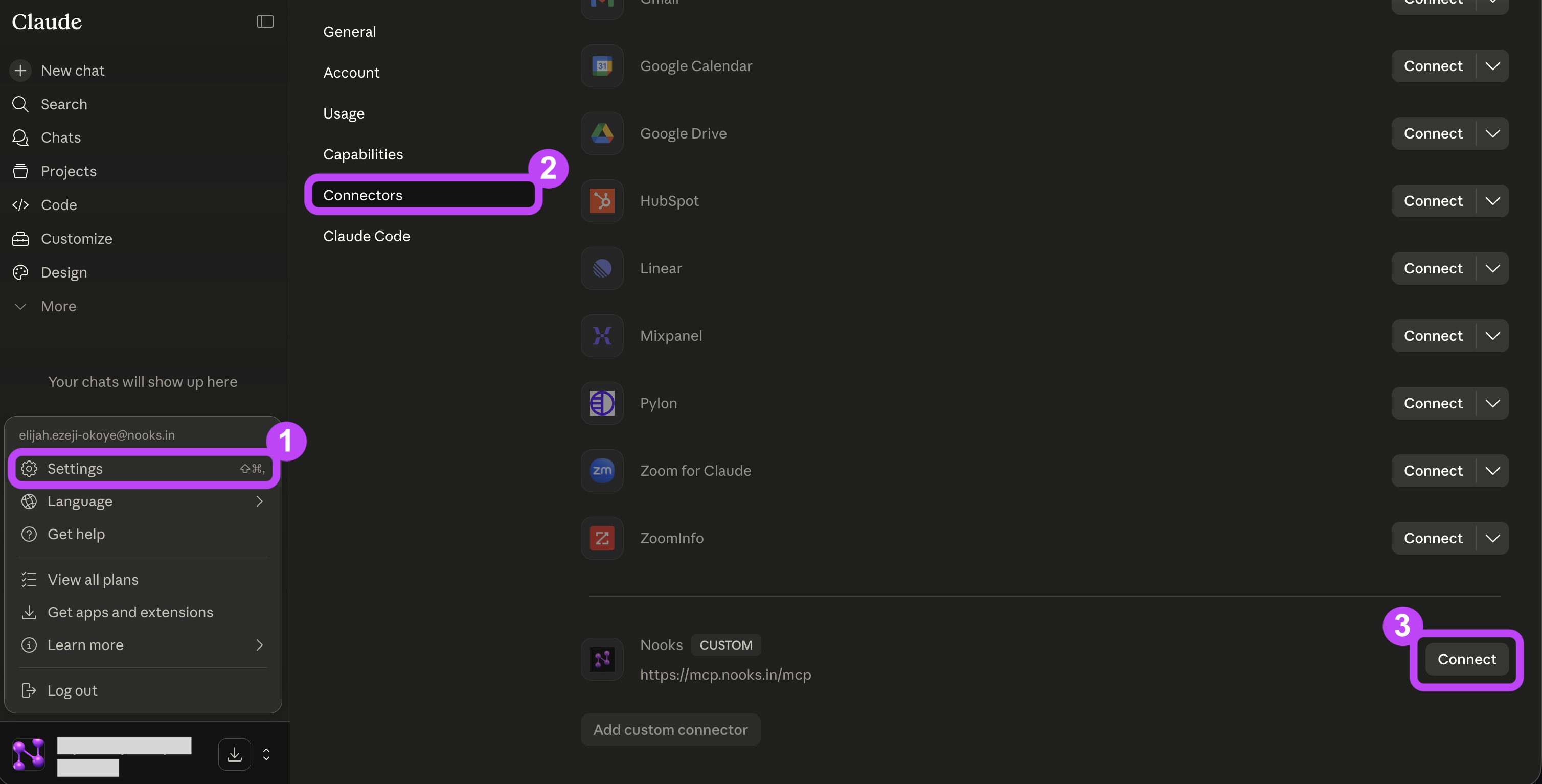
In Claude, open Settings > Connectors. Find Nooks, then press the Connect button on the right-hand side.
In the new tab that opens, review and consent to the permissions requested by the Nooks custom Claude connector. Press Connect app.
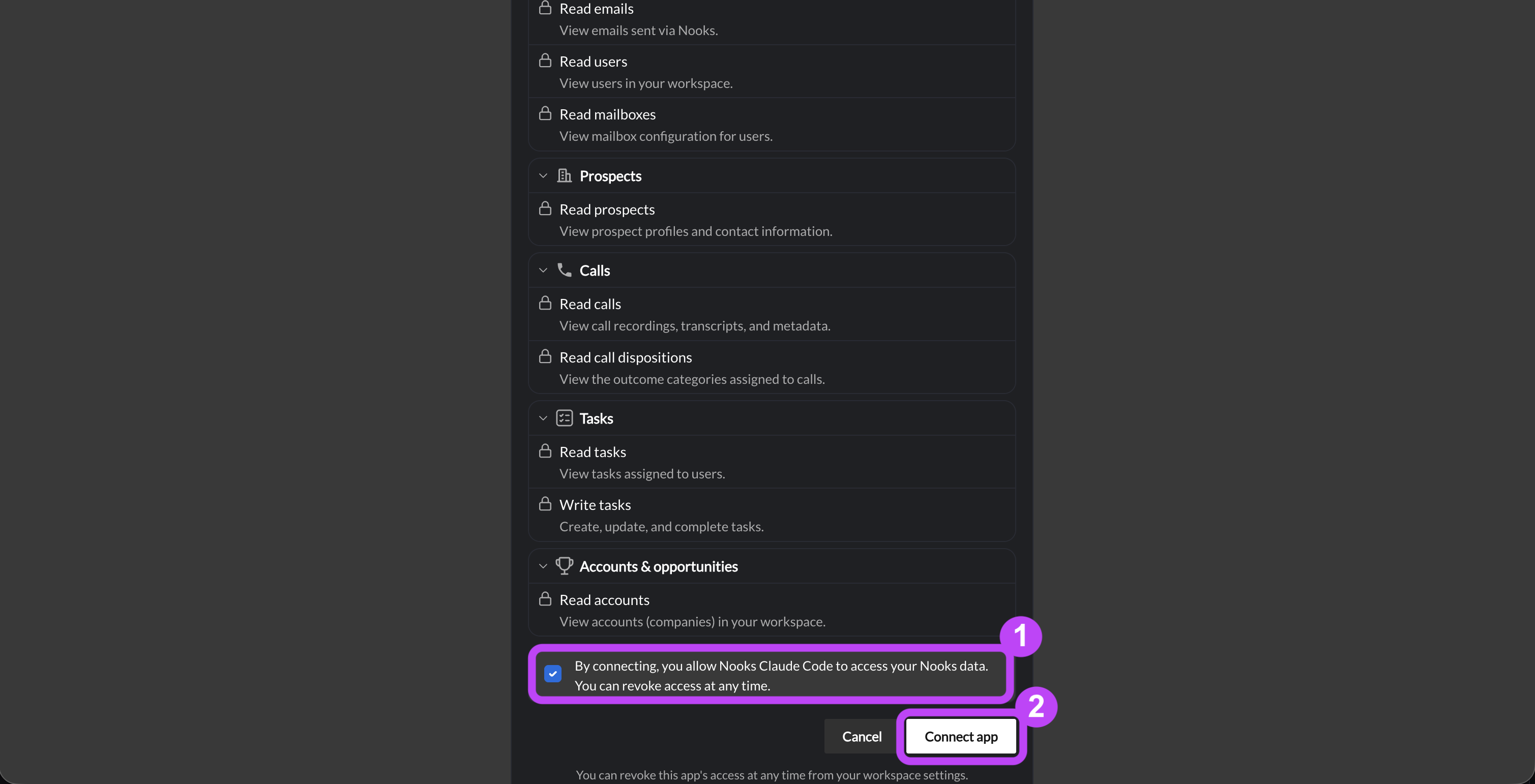
After connecting, you will be redirected to Claude, where you can begin using the Nooks Connector to pull, query, and review your Nooks data.
Not seeing the Nooks in your available connector list? Your internal Nooks admin must have added Nooks as a custom connector for your workspace before you can enable it. Please contact your internal Nooks admin team if you do not see Nooks as an available connector.
FAQs
Can I use the Nooks MCP on Claude free?
If you are on Claude Free, you can install the official Nooks Connector from Claude's Connector directory. Custom connectors are a paid-feature on Claude, so only teams on Claude Pro plans and above would be able to follow those steps.
Does the Nooks connector work with Claude Code/Claude API, too?
Yes! Both the official Nooks Connector and the custom Nooks Connector work with Claude Code and Claude API.
In the case of the Custom Nooks Connector, the same https://mcp.nooks.in URL works as an MCP server for any MCP-compatible client. Claude Code, the Anthropic API, Claude Desktop, and third-party MCP clients all connect the same way.
Can I have multiple Nooks Workspaces connected at once?
Not yet. The Nooks connector currently supports one connector instance connecting to one Nooks Workspace. If you need to switch which Workspace the Nooks connector is pointing toward, disconnect the Nooks connector from within Claude, then reconnect with the other Workspace.
What if my admin hasn't enabled the integration?
If your organization is on a Claude Team or Enterprise plan, a Claude organization owner must enable the Nooks Connector for your organization before you can add it to your account. If you do not see the Nooks Connector in Claude's Connector directory, reach out to your internal admin team for assistance.
If your organization uses Claude Free, Pro, or Max plan, there is no required admin setup before you can install the official Nooks Connector. Simply search for it in the Claude Connector directory to add it.
If your team is setting Nooks up as a custom Claude Connector, only Nooks Workspace admins can authorize the OAuth app the first time for a Workspace. Ask your admin to connect once, and all users in the Workspace can use their own custom Claude connector tied to the same Nooks Workspace.
Is there an API key option instead of OAuth for the advanced Custom Nooks Connector setup?
For automation use cases, Nooks also offers API-key authentication. For Claude specifically, we recommend OAuth. OAuth ties access to a specific user and is easy to revoke. API keys are Workspace-wide and better suited for backend integrations.
I asked about a prospect and Claude said it couldn't find them.
Nooks syncs prospects from your CRM. If the prospect was newly added in your CRM less than 15 minutes ago, the sync may not have completed. Try again shortly.
If the prospect was not newly added to your CRM, try searching for the prospect by email instead of by name. Names may result in looser matches.
Claude listed prospects from a different Workspace than I expected.
The Nooks connector is tied to the Workspace you selected during OAuth consent. To switch which Workspace is connected, go to Settings > Connectors > Nooks in Claude, then click Disconnect. From there, you can reconnect and will be able to select which Workspace you want connected again.
Claude's response says a tool returned too much data.
List endpoints default to 25 records. If you send a broad request (such as "all emails in the last year"), Claude will page through results automatically but may warn you before fetching a very large result set. You can narrow the query with a date range or specify a Sequence to avoid this.
I revoked access to the custom Claude connector but Claude still has a token.
Access tokens last up to 1 hour while refresh tokens can be rotated. To cut Claude off completely, disconnect the Nooks Connector in Claude's UI (from Settings > Connectors > Nooks) and revoke the OAuth app from in Nooks (Settings > All Settings > Developer > OAuth Apps tab).
Where do I file bugs or feedback?
You can share any bugs or feedback with support@nooks.in. When writing to our support team, please include the exact prompt you used, the tool response, and roughly when the issue happened.