ZoomInfo Enrichment Integration
Last updated: July 16, 2026
This guide covers the ZoomInfo Enrichment Integration in Nooks. It will walk through the steps to connect ZoomInfo to Nooks, discuss how the enrichment feature works, and cover some of the frequently asked questions about the integration.
Background
Nooks Enrichment helps users quickly find new mobile numbers and email addresses for their prospects. This tool helps reps save time, increase coverage, and improve connect rates.
The ZoomInfo integration enables reps to leverage ZoomInfo for enriching prospect phone numbers and emails within Nooks. Reps can either use ZoomInfo as a standalone provider or as part of a Waterfall Enrichment process, which sequentially searches multiple providers for new phone numbers.
Nooks supports two types of direct integrations with ZoomInfo: an OAuth integration and an API passthrough integration. The two integrations have slightly different setup steps, but they function the same once connected.
If your team’s ZoomInfo plan does not include Copilot or Enterprise API access, Nooks can still ingest ZoomInfo enrichment data if it is being synced to your CRM via ZoomInfo Enrich. If this applies to your team, please see the “Alternative Enrichment Workflow: Leveraging ZoomInfo Data via CRM” section at the end of this guide for setup recommendations.
Steps to Connect the ZoomInfo Integration
The ZoomInfo integration setup steps differ depending on what ZoomInfo plan your team has. Follow the setup steps that apply to your team’s current ZoomInfo access.
To connect to the ZoomInfo OAuth Integration, you must have ZoomInfo Copilot.
To connect to the ZoomInfo API Key integration, you must have Enterprise API access in ZoomInfo.
Setup Method 1: OAuth Integration Setup Steps
The following steps apply to teams on ZoomInfo Copilot.
Setup Requirements
To complete the OAuth integration setup steps, you will need to:
Have the ZoomInfo Copilot plan
Be an admin in ZoomInfo
Be an admin or manager in Nooks
Step 1: Connect to ZoomInfo via OAuth
To connect the Nooks <> ZoomInfo Copilot integration, one admin user needs to connect their ZoomInfo account to Nooks.
Open the Nooks web app.
In the left-hand navigation menu, click Settings → All Settings. Then, click Nooks Enrichment or Nooks Numbers (under the Integrations section).
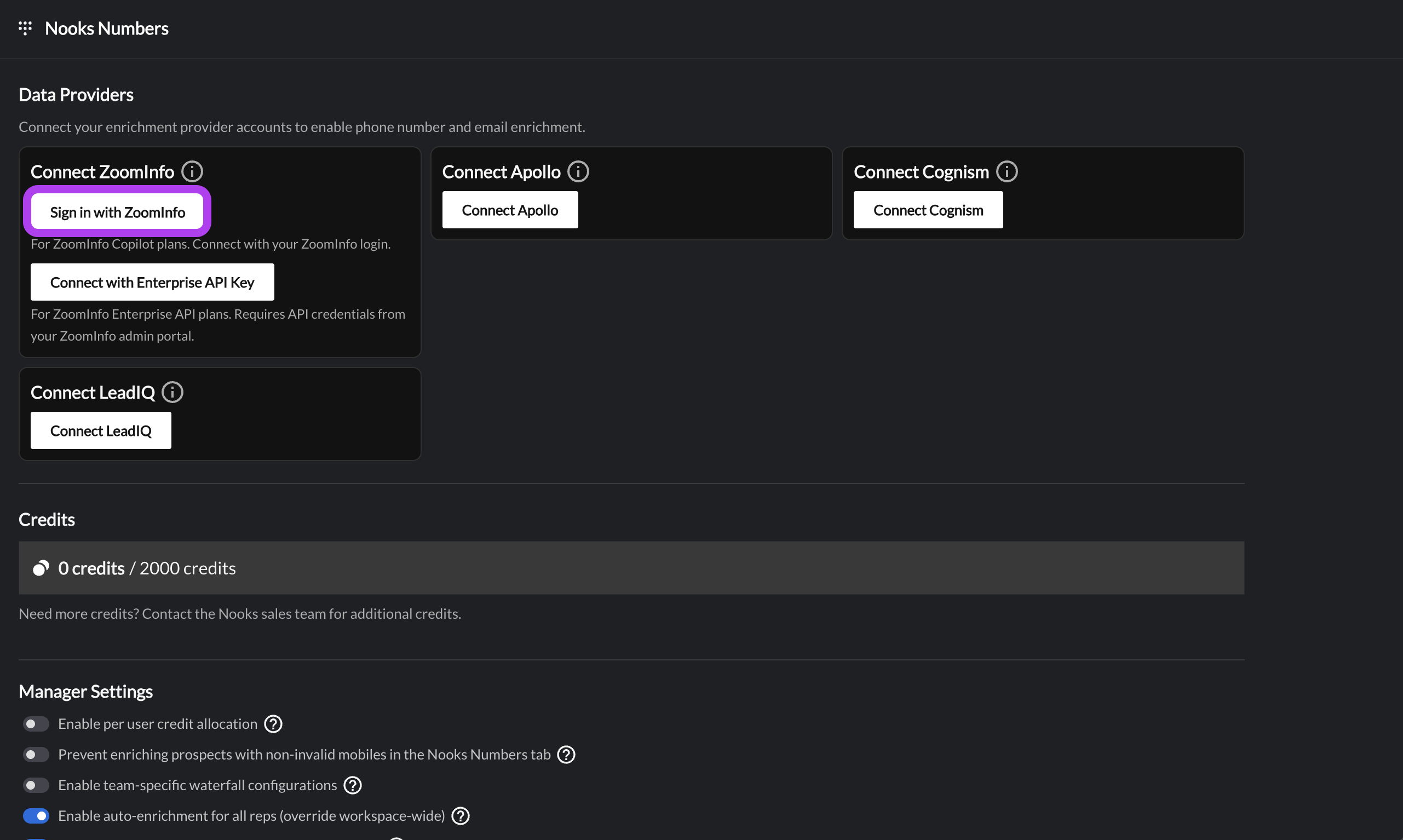
Under Connect ZoomInfo, click the Sign in with ZoomInfo button.
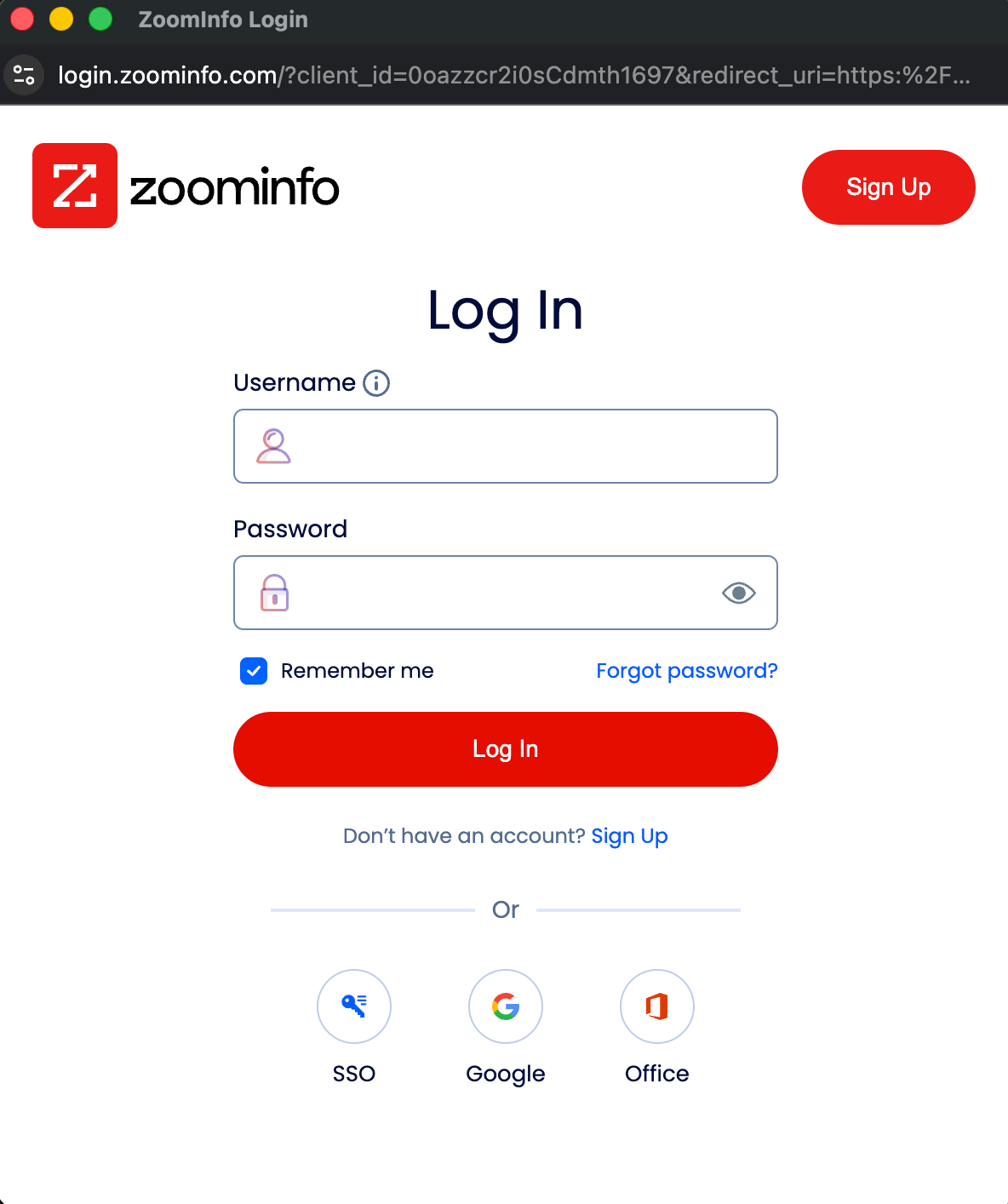
In the pop-up window, sign into ZoomInfo with your credentials, via SSO, or via your email provider.
You should see a success message when the sign-in completes.
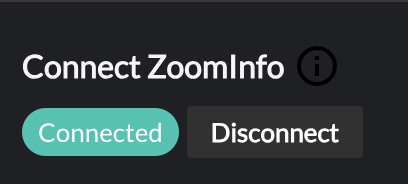
After connecting the ZoomInfo OAuth integration, you should see a “Connected” message under the Connect ZoomInfo section of Nooks Enrichment settings.
Step 2: Audit Your OAuth User's Bulk Credit Limit in ZoomInfo
To ensure users can enrich prospects with ZoomInfo in Nooks, verify that the ZoomInfo user used to connect has sufficient bulk enrichment credits. Every ZoomInfo enrichment performed in Nooks consume credits from this OAuth user's credit limit.
To review your OAuth user's credit limit in ZoomInfo:
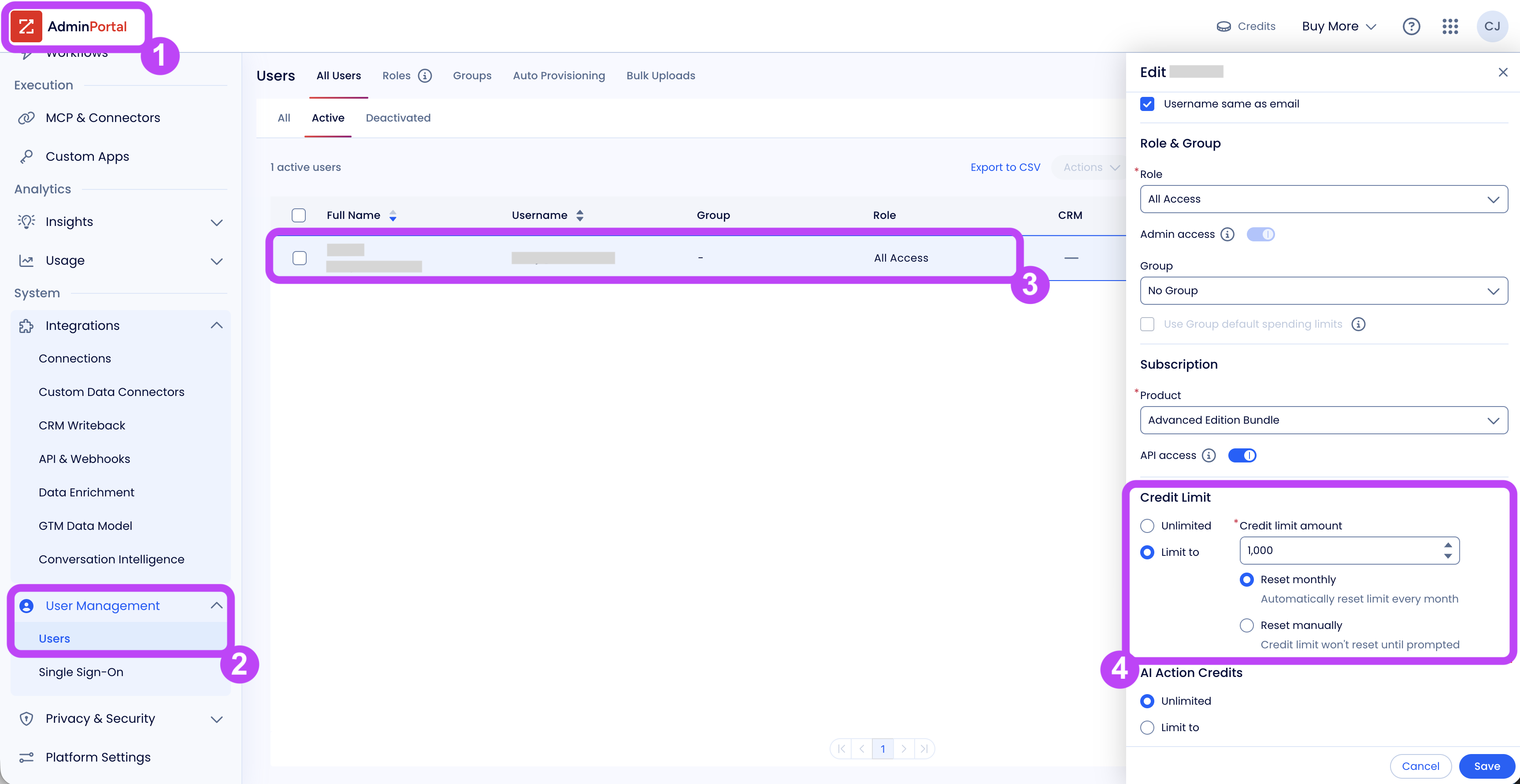
As a ZoomInfo admin, open the ZoomInfo Admin Portal.
Navigate to User Management → Users.
Select the user you used to connect the ZoomInfo integration to Nooks to open the Edit User panel.
Review and, as needed, update the user's Credit Limit.
If the OAuth user reaches its credit limit in ZoomInfo (whether from enrichments performed in Nooks or from other bulk enrichment activity using the same ZoomInfo user), all future ZoomInfo enrichments in Nooks will be blocked until credits become available again.
Note: The OAuth user's credit limit in ZoomInfo is separate from the per-user credit limits you can configure in Nooks.
OAuth User's Credit Limit in ZoomInfo: Determines how many bulk credits the connected ZoomInfo user can consume across all activity. This includes any enrichments performed in Nooks and any other applications or workflows.
Per-User Credit Limits in Nooks: Determine how many of the connected OAuth user's ZoomInfo credits each individual Nooks user can consume when enriching prospects in Nooks. For more information, see Setting Per-User Credit Limits in Nooks.
Setup Method 2: Enterprise API Key Integration Setup Steps
The following steps apply to teams with the Enterprise API plan in ZoomInfo.
Setup Requirements
To complete the ZoomInfo API Key integration setup steps for your Workspace, you will need to:
Have Enterprise API Access in ZoomInfo
Be an admin in ZoomInfo
Be an admin or manager in Nooks
Step 1: Generate ZoomInfo API Key
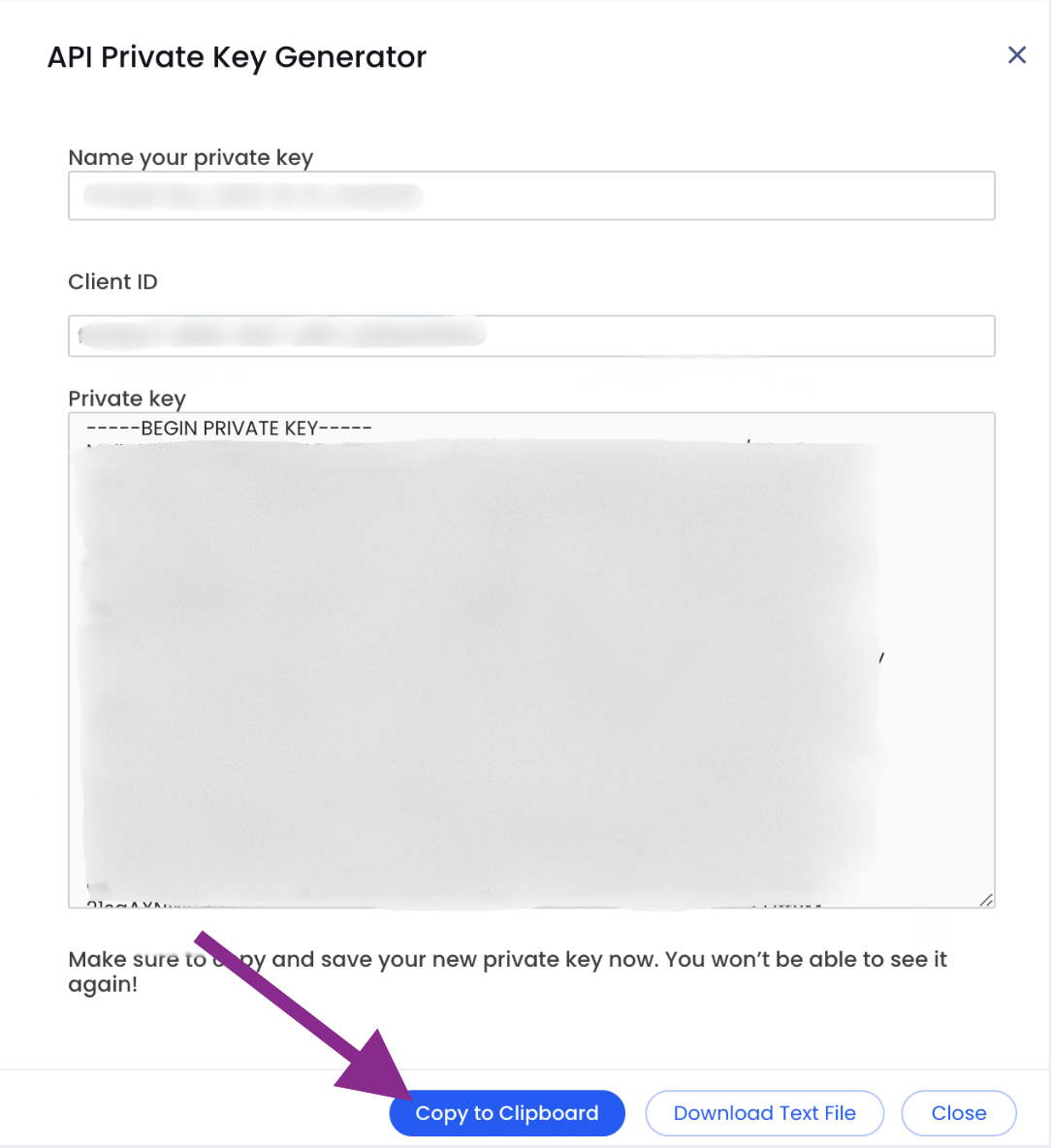
To connect ZoomInfo to Nooks, you need to obtain a Client ID and Private Key in ZoomInfo. To do this:
Log in to the ZoomInfo GUI using admin credentials with API access.
Go to Admin Portal → Integrations → API & Webhooks and click Generate New Token. You are provided with a Client ID and Private Key.
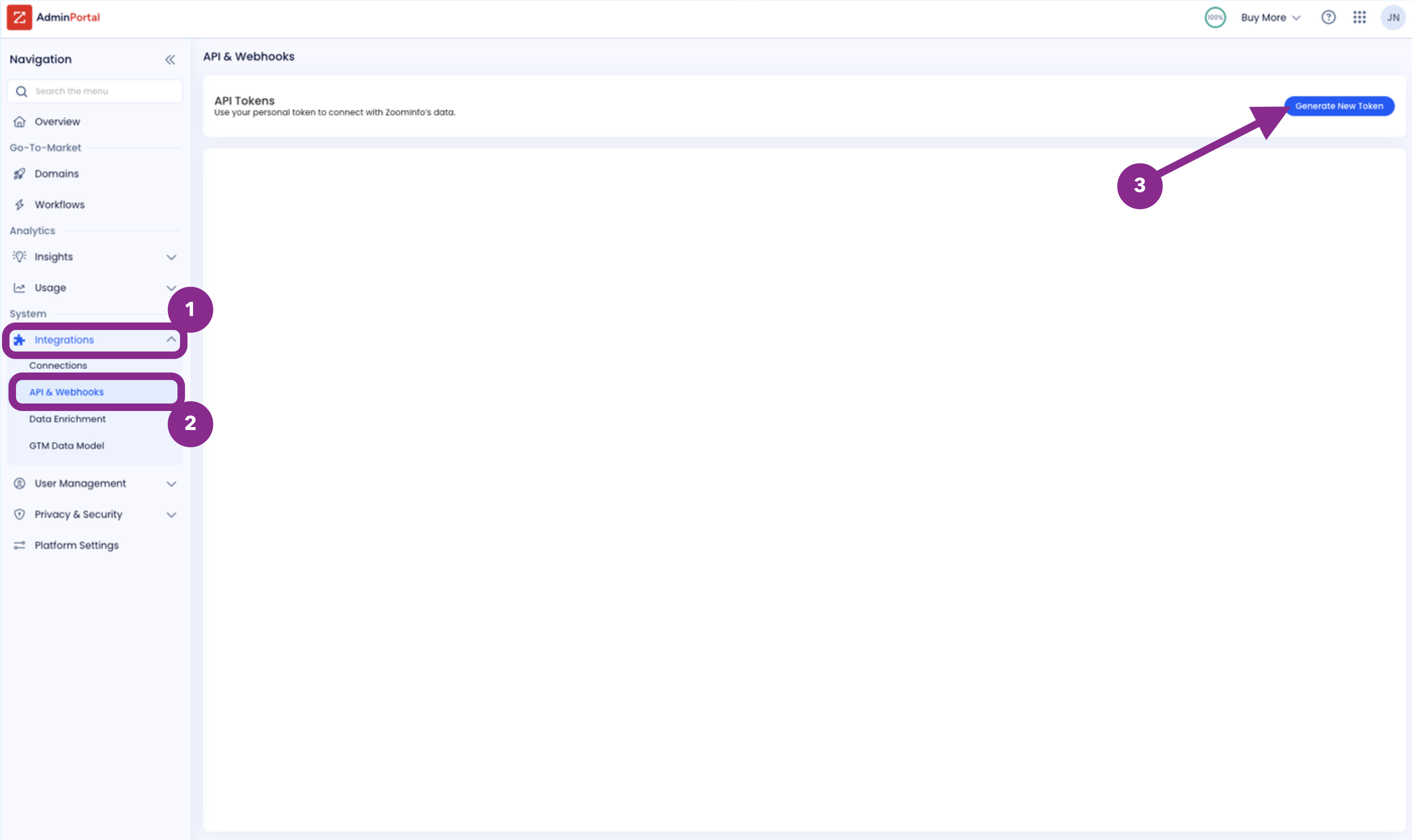
If you do not see a place in the ZoomInfo admin portal to generate an API Key, you may not have the required Enterprise API access.
Step 2: Enter ZoomInfo API Key in Nooks
Once you have the Client ID and Private Key, head to the settings page in Nooks to connect the ZoomInfo integration. To do this:
Open the Nooks web app.
In the left-hand navigation menu, click Settings → All Settings. Then, click Nooks Enrichment or Nooks Numbers (under the Integrations section).
Under Connect ZoomInfo, click the Connect with Enterprise API Key button.
In the pop-up window, enter your user name, the Client ID, and the Private Key.
User Name: Enter the email address or username that a ZoomInfo admin uses to sign in to ZoomInfo directly. This is not your Nooks username or a custom label for the integration.
Client ID: Copy the Client ID you generated in ZoomInfo to your clipboard, then paste it into this field.
Private Key: Use the Copy to Clipboard button to copy the Private Key you generated in ZoomInfo, then paste it into this field in Nooks. The key that you paste into Nooks should begin with
-----BEGIN PRIVATE KEY-----and end with-----END PRIVATE KEY-----.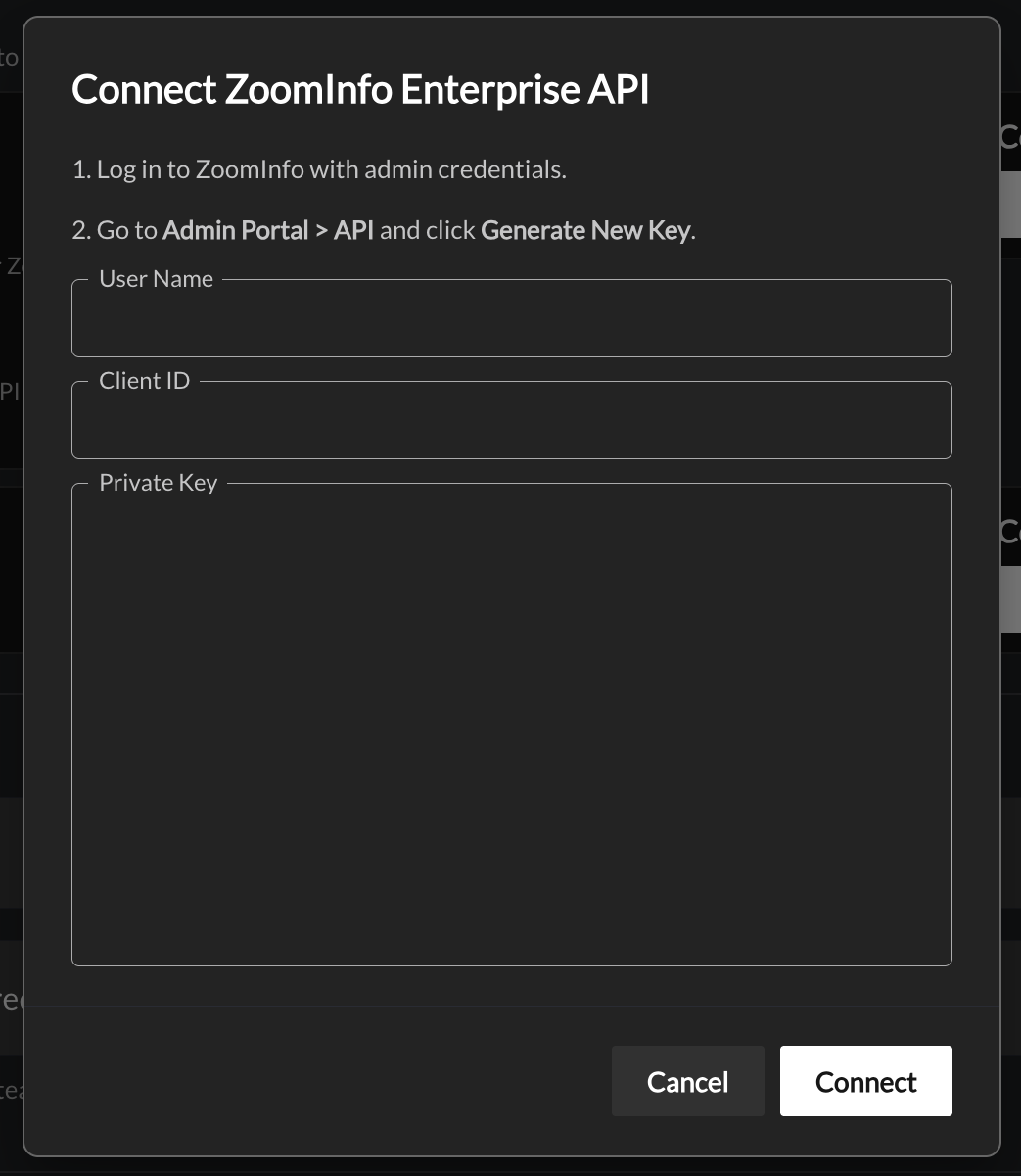
Press the Connect ZoomInfo button in the lower-right of the pop-up.
You should see a success message when the sign-in completes.
Troubleshooting API Passthrough Integration Connection Errors
If you receive a Failed to authenticate. Please double check your ZoomInfo credentials error, please ensure that you entered the correct information into the User Name, Client ID, and Private Key fields.

The User Name field should be an admin's user name in ZoomInfo directly, typically an email address. This field should not be filled with an admin's user name in Nooks not a custom label for the API integration.
The Private Key that you paste into Nooks must with -----BEGIN PRIVATE KEY----- and end with -----END PRIVATE KEY-----. Omitting these pieces from the Private Key will result in an error. To avoid copying errors, use the Copy to Clipboard button to copy the key from ZoomInfo instead of copying manually or via shortcut.
Configuration Options after Connecting to ZoomInfo
Once the ZoomInfo integration is connected (through either method), users will be able to use ZoomInfo to find new phone numbers in Nooks.
If your team is using a custom Waterfall Enrichment or syncing Nooks phone enrichment results to fields in your CRM, you can now configure those settings for ZoomInfo.
Phone Number Enrichment with ZoomInfo
When using ZoomInfo for prospect phone number enrichment, Nooks prioritizes finding a new mobile number. If no new mobile numbers are found, Nooks will then search for a new direct number.
If your team has configured successful enrichments to map to a field in your CRM, Nooks will map the mobile or direct number found in ZoomInfo to that field on the corresponding prospect’s CRM record. Nooks does not support mapping mobile and direct numbers from ZoomInfo into two separate CRM fields.
Email Enrichment with ZoomInfo
Nooks Enrichment attempts to enrich emails by checking each provider in the waterfall, one at a time. To ensure high deliverability, Nooks filters out any email addresses that have bounced within the last 90 days.
Successfully enriched email addresses are written back to the standard email field in your CRM.
ZoomInfo Credit Usage
When Nooks enriches a number using ZoomInfo, credits will be deducted from your organization’s shared bulk credits in ZoomInfo. Credits are not deducted from individual reps’ monthly credit allotment.
If your organization connected the ZoomInfo enrichment integration using OAuth, every enrichment performed in Nooks consumes bulk enrichment credits from the connected OAuth user's bulk credit limit in ZoomInfo. Ensure this user has sufficient available credits in ZoomInfo, as all ZoomInfo enrichments performed in Nooks count toward this shared limit. See Audit Your OAuth User's Bulk Credit Limit in ZoomInfo for more information.
More information on credits in ZoomInfo can be found here.
Setting Per-User Credit Limits in Nooks
After connecting the ZoomInfo enrichment integration, you can limit the number of bulk ZoomInfo credits each user can use via the ZoomInfo enrichment integration. To do so:
In Nooks, go to Settings → All Settings.
Under Integrations, select Enrichment.
In the ZoomInfo enrichment card, click Set per-user limit.
Toggle on Enable per-user cap.
Enter the number of bulk credits users can use from ZoomInfo on Nooks enrichments.
Optionally, toggle on Refill Monthly for users' credit limit to be reset to your Workspace's selected limit at the beginning of each month.
The limit is a blanket user that applies equally to all users. Nooks does not support setting different limits for different users.
What Happens When the Per-User Credit Limit Is Reached
When a user reaches their configured per-user credit limit, they can no longer perform new ZoomInfo enrichments in Nooks until one of the following occurs:
An administrator or manager increases the per-user credit limit.
Their available credits reset at the beginning of the month, if Refill Monthly is enabled.
Users who hit their limit receive an error message along the lines of:
Provider Limit Reached
ZoomInfo has 1 enrichment remaining for this rep, but this enrichment would use 2 enrichments.
Select fewer prospects or ask a manager to raise this provider limit in Phone Data settings.
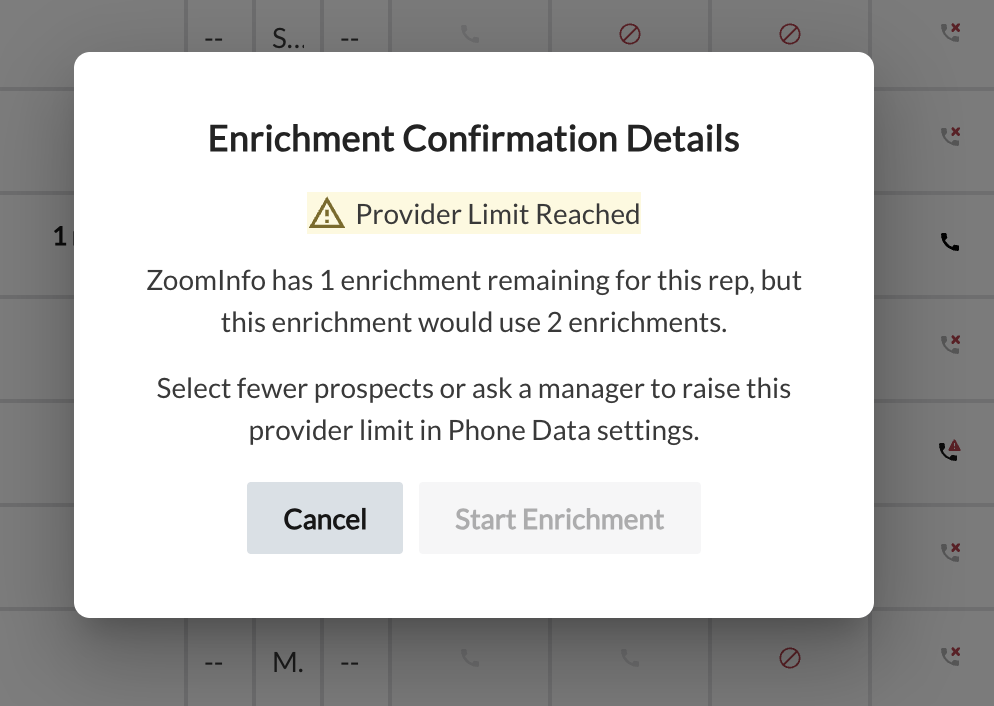
Users can unblock themselves from this error by:
Selecting fewer prospects to enrich with ZoomInfo (if there are sufficient credits to enrich some prospects in the batch).
Choosing a different data provider to enrich with.
Asking a Workspace admin or manager to increase the per-user credit limit.
ZoomInfo Enrichment Integration Health Monitoring
Nooks will alert you if an error is detected with your ZoomInfo API passthrough integration. There are two potential errors that will appear.
ZoomInfo credentials are no longer working. Enrichments using ZoomInfo will fail – contact an admin or manager to reconnect.
Where this error appears: This error will appear at the top of the Nooks Numbers page and at the top of the Nooks Enrichment or Nooks Numbers settings page. A "Credentials Error" chip will also appear next to ZoomInfo in the Data Providers section of the Nooks Enrichment or Nooks Numbers settings page.
How to resolve this error: This error indicates Nooks has lost connection to the integration, most often because your ZoomInfo API key has expired or been deleted. To resolve this error, try reconnecting to the ZoomInfo enrichment integration.
ZoomInfo enrichment credits are exhausted. Contact an admin or manager to purchase more credits.
Where this error appears: This error will appear at the top of the Nooks Numbers page and at the top of the Nooks Enrichment or Nooks Numbers settings page. A "Credentials Error" chip will also appear next to ZoomInfo in the Data Providers section of the Nooks Enrichment or Nooks Numbers settings page.
Steps to resolve this error: This error indicates that your team has run out of credits in ZoomInfo. To resolve this error, purchase additional credits through ZoomInfo.
FAQs
Can Nooks sync and use users’ monthly credit allotment when they enrich with ZoomInfo?
When a number is enriched in Nooks via ZoomInfo, credits are deducted from your organization’s shared bulk credit allotment. The Nooks <> ZoomInfo integration is an API integration. Currently, ZoomInfo only supports the use of bulk credits for API enrichment.
Is there a way to cap how many bulk credits are used from ZoomInfo?
Nooks currently displays when your team has exhausted your ZoomInfo bulk credits. However, there is not currently a way to cap the number of credits used from ZoomInfo.
Alternative Enrichment Workflow: Leveraging ZoomInfo Data via CRM
If your current ZoomInfo plan does not include Copilot or Enterprise API access, you can still seamlessly enrich prospects created by Nooks with ZoomInfo’s phone and email data. By using your CRM as the central hub, Nooks can automatically capture and use ZoomInfo-enriched phone and email data.
How This Workflow Works
This configuration uses a reliable data sync to ensure your newly-created prospects are up to date with enriched phone and email data.
Record Created in CRM: Nooks creates the new prospect record in your CRM.
CRM Enrichment: ZoomInfo Enrich identifies the new record and automatically enriches it with email and phone data. These enrichment results are saved directly in your CRM.
Nooks Automatic Sync: Nooks detects that the prospect record has been updated during its standard sync interval (approximately every three minutes) and pulls the enriched data into Nooks.
Setup Requirements
To enable this workflow, ensure your team has the following components active and configured:
ZoomInfo Enrich: This workflow requires the ZoomInfo Enrich add-on to enrich prospect records directly in your CRM.
CRM Integration: ZoomInfo Enrich must be connected to your team’s CRM. See ZoomInfo’s guides for integrating ZoomInfo Enrich with Salesforce or HubSpot.
Included in Enrichment Settings: Configure Instant Enrich or your Scheduled Enrich jobs in ZoomInfo to target records created by Nooks or to include records created by Nooks in your current target.
Timing
While the direct OAuth and API passthrough ZoomInfo integrations offer instantaneous enrichment results, this method may require more time for enriched data to make it into Nooks. Because the prospects are created in the CRM by Nooks, are enriched by ZoomInfo, then are updated in Nooks via the Nooks data sync, additional time is required for the full cycle to complete.
To expedite the timeline for enriched data to surface in Nooks, consider using ZoomInfo Instant Enrich instead of ZoomInfo Scheduled Enrich.