LeadIQ Enrichment Integration
Last updated: September 30, 2026
This guide covers the LeadIQ Enrichment Integration in Nooks. It will walk through the steps to connect LeadIQ to Nooks, how the enrichment feature works, and some frequently asked questions about the integration.
Background
Nooks Enrichment helps users quickly get new mobile numbers and email addresses for their prospects. This tool helps reps save time, increase coverage, and improve connect rates by streamlining the data enrichment process.
The LeadIQ Enrichment integration enables reps to use LeadIQ to enrich prospect phone numbers and email addresses in Nooks. Once the integration is connected, reps can use LeadIQ either as a standalone provider or as part of a Waterfall Enrichment process, which sequentially searches multiple providers for new phone numbers and emails.
Setup Requirements
The Nooks <> LeadIQ integration requires you to be a LeadIQ Data Hub customer. If your team is on a different LeadIQ plan, you will be unable to complete the integration setup steps.
To complete the setup steps, you will need to be an admin user in LeadIQ and an admin or manager in Nooks.
Integration Setup Steps
Follow the steps below to set up the LeadIQ <> Nooks enrichment integration.
Step 1: Generate LeadIQ API Key
To connect LeadIQ to Nooks, you need to obtain a Secret Base64 API Key in LeadIQ. To do this:
Log in to LeadIQ using user admin credentials.
Go to Profile > Settings > API Keys.
Create your API Key.
Choose and copy the Secret Base64 API Key.
Do not navigate away from this page until you have entered the API Key into Nooks.
Step 2: Enter the API Key in Nooks
Once you have the Secret Base64 API Key, head to the settings page in Nooks to connect the LeadIQ Enrichment integration. To do this:
Open the Nooks web app.
In the left-hand navigation menu, click Settings > All Settings.
Under Integrations, click Nooks Enrichment or Nooks Numbers.
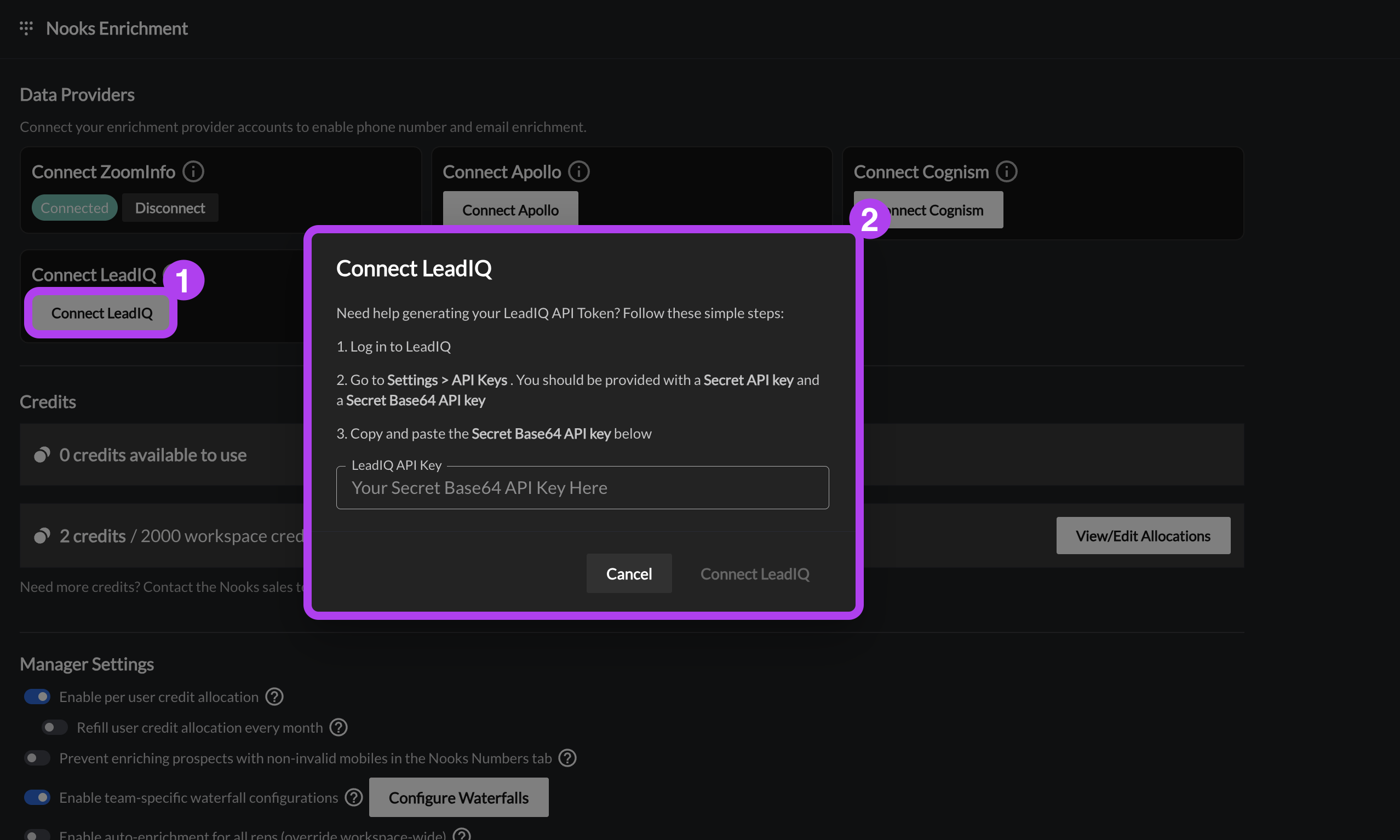
Click the Connect LeadIQ button.
In the pop-up window, enter the Secret Base64 API key you copied from LeadIQ.
Press the Connect LeadIQ button in the lower-right of the pop-up.
Once the LeadIQ integration is connected, users can use LeadIQ to find new phone numbers and email addresses in Nooks. If your team is using a custom Waterfall Enrichment or syncing Nooks phone enrichment results to fields in your CRM, you can now configure those settings for LeadIQ.
Phone Number Enrichment with LeadIQ
When using LeadIQ for prospect phone number enrichment, Nooks attempts to find a net-new mobile phone number for the prospect. Nooks will not use LeadIQ to look for new work phone numbers for the prospect.
If your team has configured successful enrichments to map to a field in your CRM, Nooks will map enriched mobile numbers found in LeadIQ to that field your team has designated on the corresponding prospects' CRM records.
Note: The enrichment writeback configuration is separate from any custom field mapping you may have set up between Nooks and your CRM. Custom field sync primarily pulls data from your CRM into Nooks for reading, while enrichment writeback is configured separately in the enrichment provider's settings to write enriched data back to your CRM. You can configure your SEP / CRM write back settings by going to Settings → Nooks Enrichment / Nooks Numbers > Enrichment Results Sync.
DNC List Screening during Phone Number Enrichment
The Nooks <> LeadIQ API passthrough integration helps ensure that Do Not Call screening is applied during enrichment. Nooks is not a data provider, but a vehicle for enrichment integration partners, such as Lead IQ, to enrich in Nooks. Nooks reflects the logic and suppression rules already established in LeadIQ to identify and suppress restricted numbers at the time of enrichment in Nooks. Nooks solely relies on LeadIQ’s API to filter these contacts before they are surfaced in Nooks.
This guide in the LeadIQ help center contains more information on how LeadIQ handles DNC suppression
Email Enrichment with LeadIQ
When the LeadIQ enrichment integration is connected, LeadIQ is added as a provider to your Workspace’s email enrichment waterfall. Nooks uses this waterfall to find and enrich prospect email addresses.
Nooks Enrichment enriches emails by checking each provider in the waterfall, one at a time. To ensure high deliverability, Nooks filters out any email addresses that have bounced within the last 90 days.
Successfully enriched email addresses are written back to the standard email field in your CRM.
LeadIQ Credit Usage
When Nooks enriches a phone or email using LeadIQ, credits will be deducted from your organization’s LeadIQ Data Hub credits. This guide from LeadIQ's help center contains more information on how LeadIQ credits work.
Setting Per User Credit Limits
After connecting the LeadIQ enrichment integration, you can limit the number of Data Hub credits each user can use via the enrichment integration. To do so:
In Nooks, go to Settings → All Settings.
Under Integrations, select Enrichment.
In the LeadIQ enrichment card, click Set per-user limit.
Toggle on Enable per-user cap.
Enter the number of bulk credits users can use from LeadIQ on Nooks enrichments.
Optionally, toggle on Refill Monthly for users' credit limit to be reset to your Workspace's configured limit at the beginning of each month.
The limit is a blanket user that applies equally to all users. Nooks does not support setting different limits for different users.
What Happens when the Per-User Credit Limit Is Reached
When a user reaches the per-user credit limit, they can no longer use LeadIQ for new enrichments in Nooks until the per-user credit limit is raised by an admin/manager, or their credit limit resets at the beginning of the month (if the monthly refill option is enabled).
Users who hit their limit receive an error message along the lines of:
Provider Limit Reached
LeadIQ has 1 enrichment remaining for this rep, but this enrichment would use 2 enrichments.
Select fewer prospects or ask a manager to raise this provider limit in Phone Data settings.
Users can unblock themselves from this error by:
Selecting fewer prospects to enrich with LeadIQ (if there are sufficient credits to enrich some prospects in the batch).
Choosing a different data provider to enrich with.
Asking a Workspace admin or manager to increase the per-user credit limit.
LeadIQ Enrichment Integration Health Monitoring
Nooks will alert you if an error is detected with your LeadIQ API passthrough integration. There are two potential errors that will appear.
LeadIQ credentials are no longer working. Enrichments using LeadIQ will fail – contact an admin or manager to reconnect.
Where this error appears: This error will appear at the top of the Nooks Numbers page and at the top of the Nooks Enrichment or Nooks Numbers settings page. A "Credentials Error" chip will also appear next to LeadIQ in the Data Providers section of the Nooks Enrichment or Nooks Numbers settings page.
How to resolve this error: This error indicates Nooks has lost connection to the integration, most often because your LeadIQ API key has expired or been deleted. To resolve this error, try reconnecting to the LeadIQ enrichment integration.
LeadIQ enrichment credits are exhausted. Contact an admin or manager to purchase more credits.
Where this error appears: This error will appear at the top of the Nooks Numbers page and at the top of the Nooks Enrichment or Nooks Numbers settings page. A "Credentials Error" chip will also appear next to LeadIQ in the Data Providers section of the Nooks Enrichment or Nooks Numbers settings page.
Steps to resolve this error: This error indicates that your team has run out of credits in LeadIQ. To resolve this error, purchase additional credits through LeadIQ.
FAQs
Is there a way to cap how many credits are used from LeadIQ when enriching with Nooks Enrichment?
Nooks currently displays when your team has exhausted your LeadIQ universal credits. However, there is not a way to cap the number of credits used from LeadIQ.