Your microphone is inaccessible
Last updated: September 24, 2026
Introduction
While it's uncommon, you may occasionally encounter an issue where our application is unable to access your computer's microphone (ie. you may be dialing and then suddenly receive a "Faced an unexpected error connecting to the conference." error). This can happen for a variety of reasons, such as browser permissions, device settings, or unique headset configurations. If you're experiencing this problem, don't worry! Here are a few steps you can take to resolve the issue:
Update your Chrome Version
Please make sure your Chrome version is up to date! You can find steps on how to do this here
Reset your Chrome microphone permissions
Resetting Chrome's microphone permissions can help resolve issues where the browser has accidentally blocked or restricted access to the microphone
1. In Google Chrome, click on the three dots in the upper right corner of the browser window.
2. Go to "Settings" and then scroll down to "Privacy and security."
3. Click on "Site settings" and then "Microphone."
4. Find Nooks in the list and click on the trash can icon to remove the current permissions.
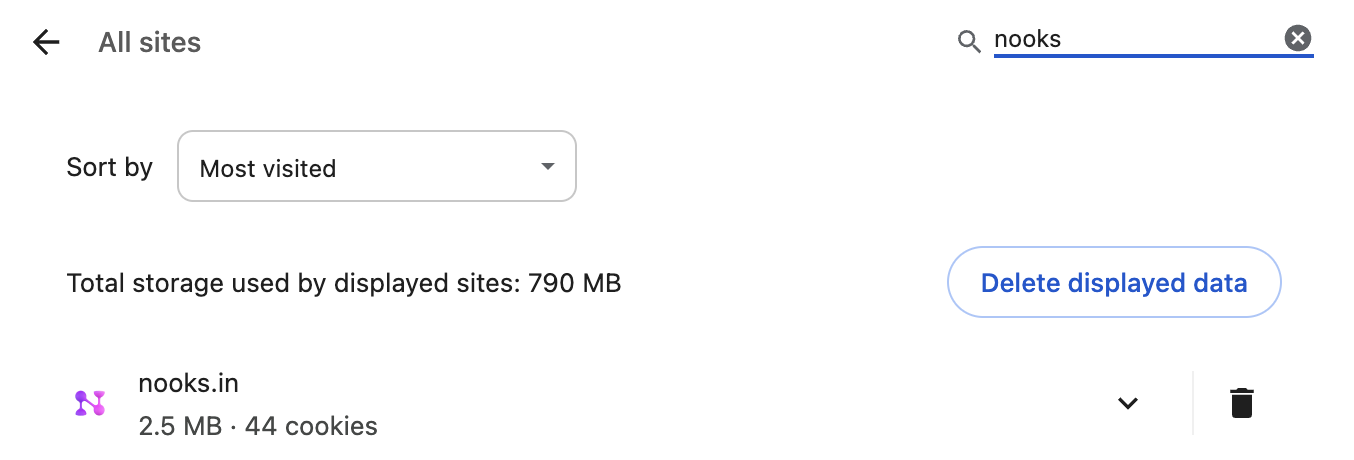
5. Refresh Nooks and grant microphone access when prompted.
Changing Permission from Ask to Allow:
While on the Nooks page, click the site information icon (to the left of the web address in Chrome's address bar), then select Site settings and make sure Microphone is set to Allow.
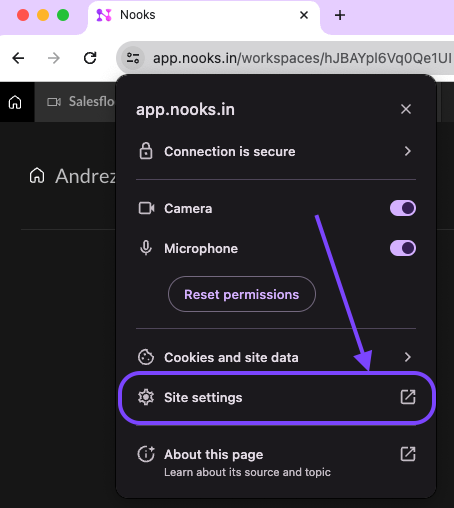
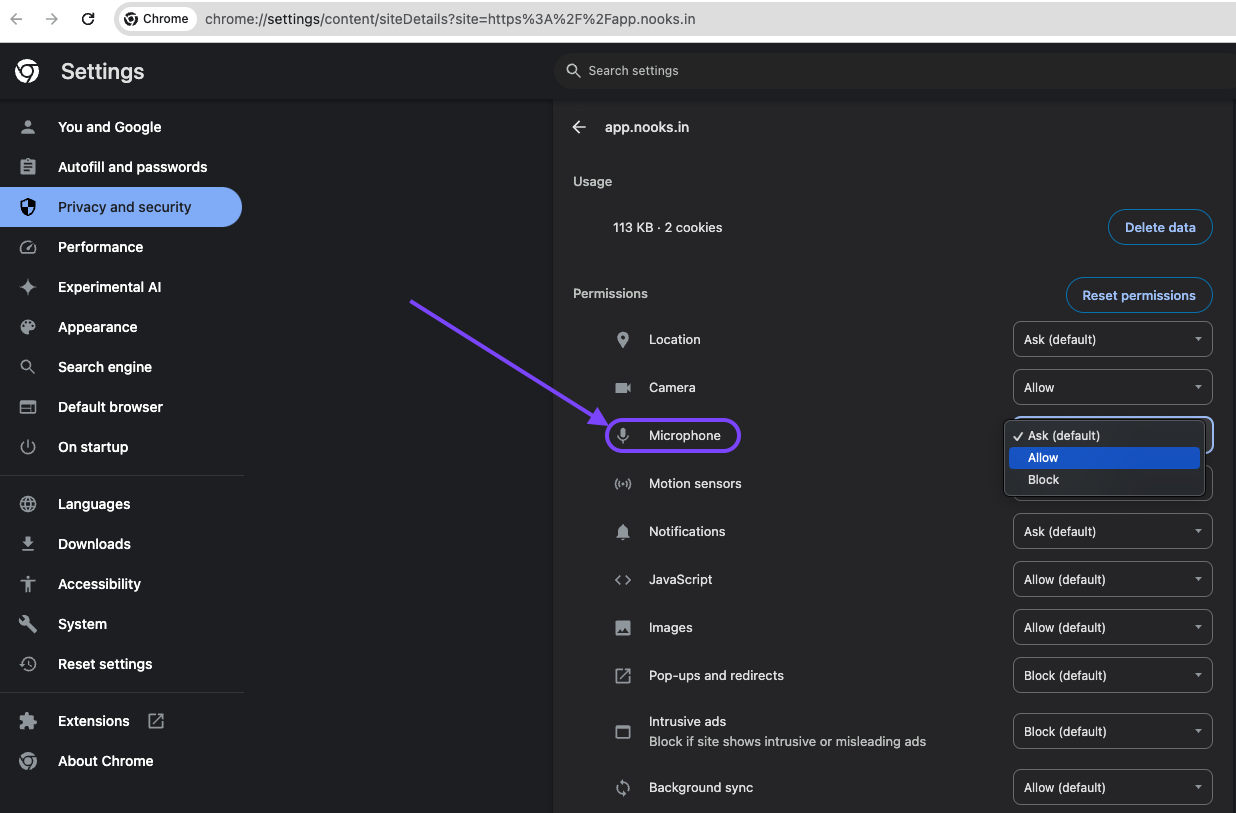
Head back to the Nooks tab and reload the page. You should now have full access to your devices to be used on Nooks!
Verify your microphone settings in your computer settings
Checking your computer's microphone settings ensures that the correct microphone is selected and that the input volume is sufficient for our application to detect your voice.
For Windows:
1. Open the Start menu and click on the gear icon to open Settings.
2. Click on "System" and then "Sound."
3. Under "Input," ensure your desired microphone is selected and the volume is turned up.
For Mac:
1. Click the Apple menu and select System Settings (System Preferences on macOS 12 and earlier).
2. Click Sound in the sidebar, then open Input.
3. Choose your headset or microphone. Also check System Settings > Privacy & Security > Microphone and make sure Google Chrome is turned on.
Test your microphone in Nooks while joining the Salesfloor
Testing your microphone directly within our application can help verify that your microphone is working properly.
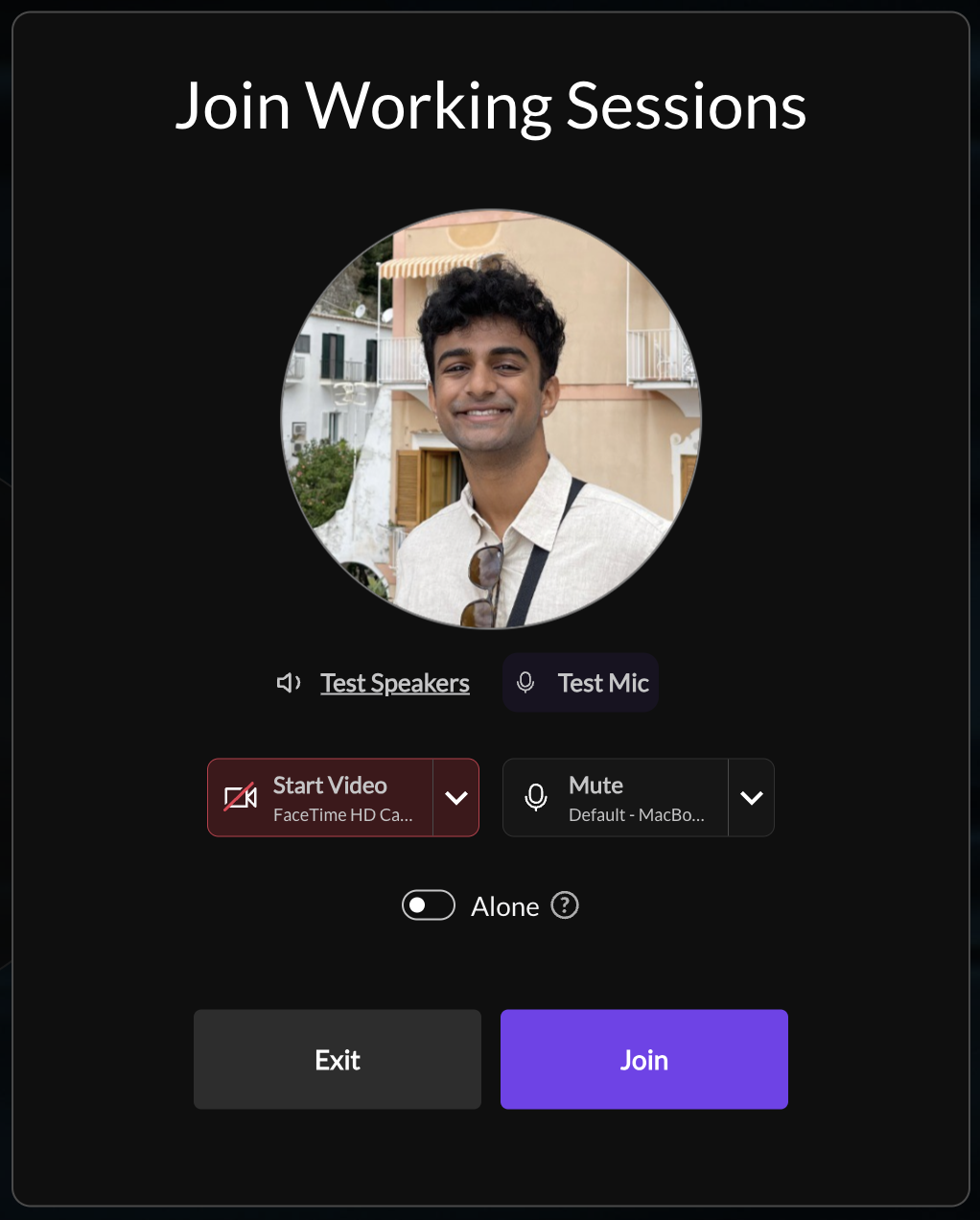
1. Navigate to the Salesfloor in Nooks, and try to Join a floor
2. In the floor's waiting room, you can test your microphone
3. Speak into your microphone and check if Nooks was able to hear you.
If you're still having issues after trying these troubleshooting steps, please don't hesitate to reach out to the Nooks support team!