Salesforce Reports and Fields
Last updated: September 22, 2026
Nooks has a direct integration with Salesforce that allows teams to benefit from functionality not possible with existing SEP integrations.
See Closed Lost notes and other Salesforce account/opportunity fields directly in the dialer
Call contact and lead lists directly from Salesforce Reports
Get alerts when customers change jobs to boost your pipeline with hot leads
How to get access
If you have already connected with another integration (ie Outreach, Salesloft, Apollo), then you will need to reach out to your CSM or AE to get access.
Setup Instructions
Connect Salesforce
1. Connect Salesforce
After your team has been granted access, go to the bottom left settings icon (⚙). Under Integrations, you will now see an option to Connect Salesforce. Each user in your workspace will have to connect to their own Salesforce account.
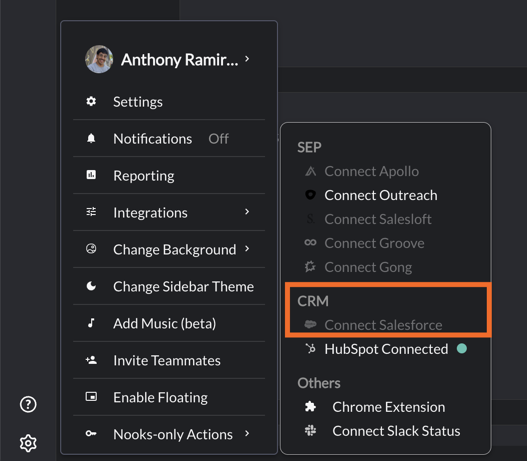
You may have to refresh Nooks in order for the Integrations menu to update. Once it is successfully connected, you'll see Salesforce Connected when you hover Integrations.
Dial From Reports
Once Salesforce is connected and you've been mapped to a user, any Reports that the user has access to will be visible from the sequence selector within the Dialer.
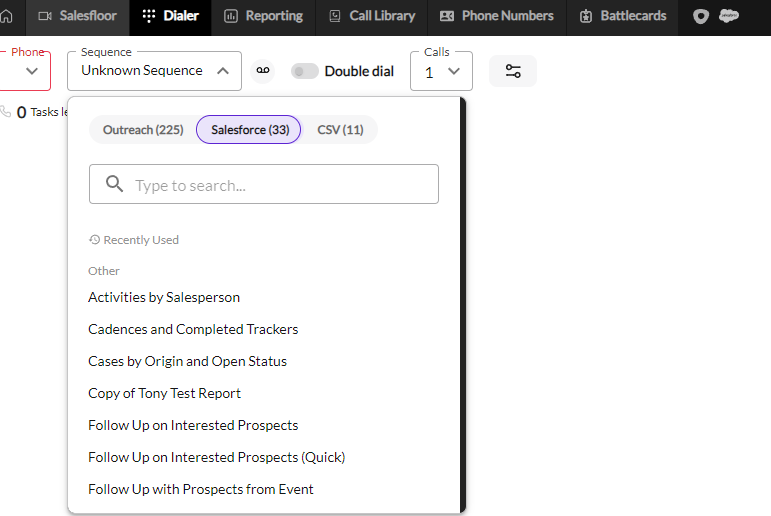
These sequences will then be loaded into the Dialer and callable as usual. By default, Nooks loads each Contact's or Lead's standard Phone field as a Work number and Mobile field as a Mobile number. Admins can add more Salesforce phone fields, including custom fields, so they also appear in the dialer: go to Settings > CRM Settings > Salesforce, open Contact Mappings or Lead Mappings, and select the Dialer & Phone Fields tab. Under Custom Contact Number Fields or Custom Lead Number Fields, click Add Dialer Field, pick the Salesforce field (search by label or API name), and choose its Phone Type. You can add up to 20 fields per object.
If your workspace does not use Nooks sequences, the same Custom Contact/Lead Number Fields section is at the bottom of Settings > Salesforce. Numbers appear in this order: Phone, then Mobile, then your added fields in the order listed. These fields apply to Salesforce Reports, Campaign reports, List Views, and Cadences alike. Note: Other Phone and Home Phone are not loaded unless you add them as dialer fields.
Salesforce Fields from within the Dialer
In order to show Account and Opportunity fields within the dialer, the following setup process must be followed.
1. SFDC Accounts should be synced to your SEP if possible.
If you do not have SFDC accounts synced to your SEP, talk to your RevOps or SEP admin.
Without this, we use exact name matching to link SFDC Accounts to SEP Accounts (which may not match exactly depending on your team's SEP / SFDC setup).
2. Fields must be enabled under Nooks Settings -> Salesforce
Specify which fields you want to be visible within the Dialer.
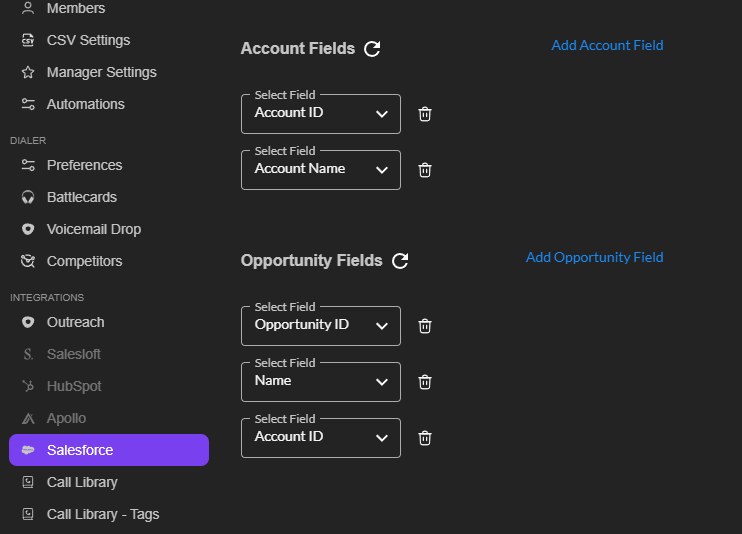
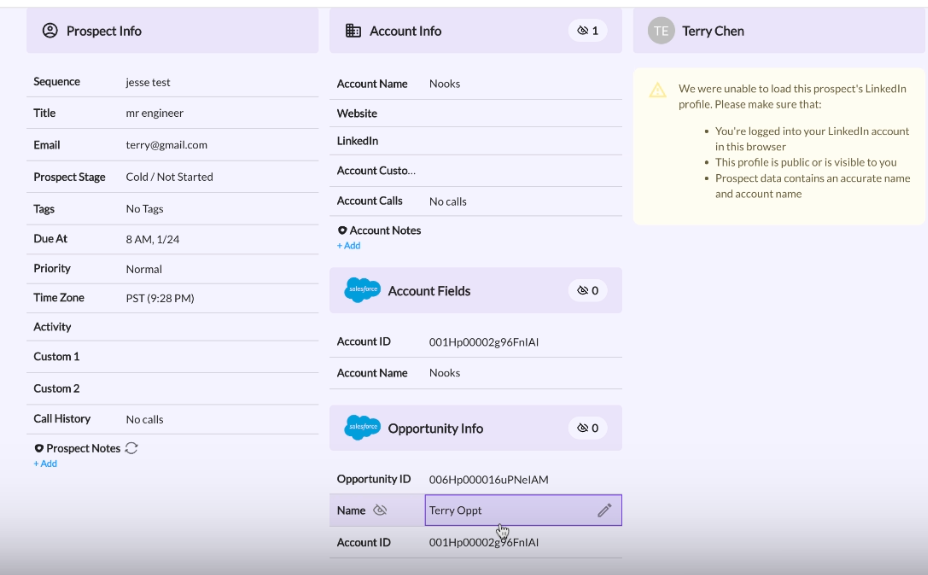
If you've completed both steps correctly, you should now see SFDC Account and Opportunity fields within the Dialer when you click into a Prospect.
Appendix: How it works / Scopes
Nooks connects to Salesforce using OAuth. Each connection is unique to a user, and inherits their edit/visibility permissions. This means that the Nooks integration will never give a user unauthorized access to any reports, objects or other SFDC entities.
We use the following scopes..
Access unique user identifiers (openid)
This allows Nooks to see the SFDC identifiers for Contacts, Leads and Accounts. We use this scope to enable directly linking to Salesforce from within the dialerManage user data via APIs (api)
This scope allows Nooks to log call Tasks when dialing from reports, so that activity is properly tracked and available within Salesforce. Some existing reports may not be configured to reflect Nooks activity; In this case, use the reporting from within Nooks via the Reporting tab.Perform requests at any time (refresh_token, offline access)
This scope is required so that users don't have to log in to Salesforce every time they open Nooks.