Getting Started with Salesforce (SFDC)
Last updated: April 16, 2026
Overview
This set up guide explains how to connect Salesforce to Nooks. For more details about how the integration works after connecting, please see our full guide here: https://nooks.help.usepylon.com/articles/4503347328-salesforce-sfdc-guide
Sep 2025 Update: Installing Nooks as a Trusted App in SFDC
In September 2025, Salesforce made security changes regarding which apps can be connected to Salesforce (via OAuth) by individual reps. This can impact Nooks users who are connecting to Salesforce for the first time, or reconnecting Salesforce. They might see an "OAuth Error" like this:
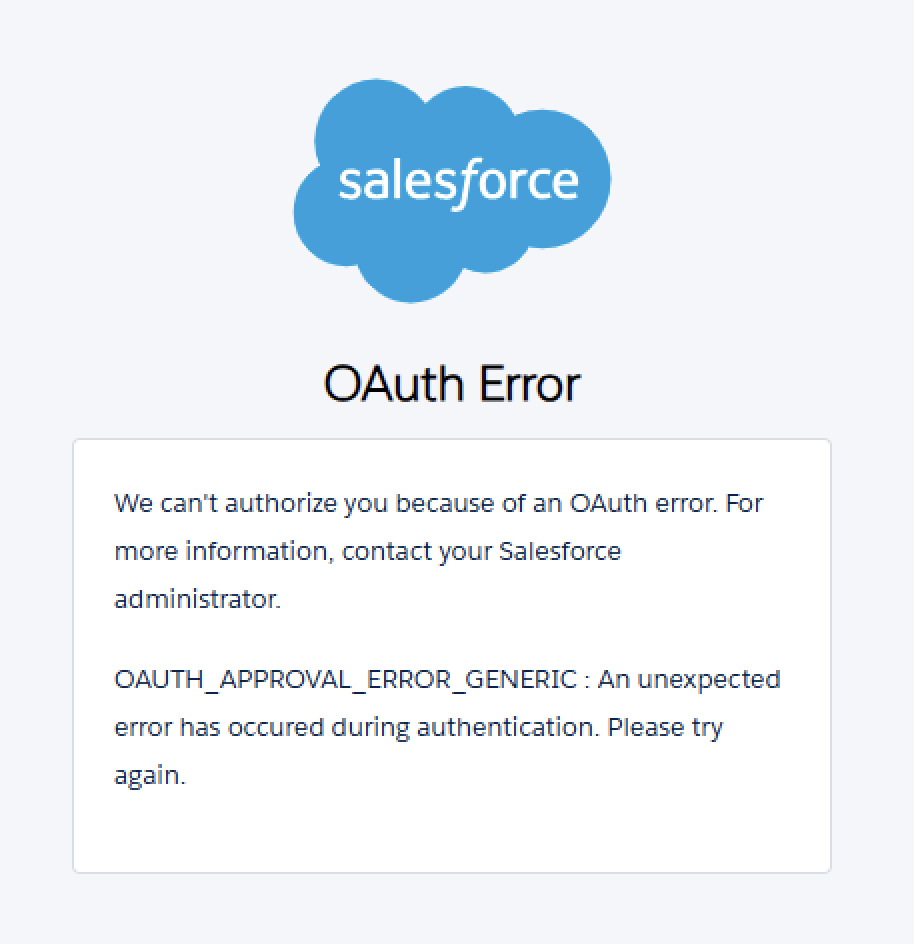
Here is the Salesforce help guide about this issue and is a good, detailed reference for Salesforce admins looking to fix this error. Below is an abbreviated "Nooks" version:
1. Connect Nooks
(For new Nooks workspaces) When first setting up your Salesforce connection to Nooks, a Salesforce admin will connect by going to Settings > Integrations > Connect Salesforce
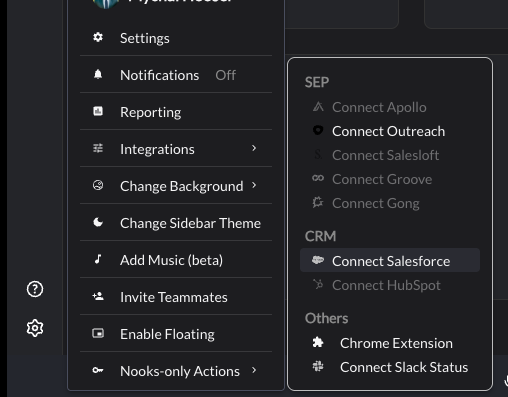
You'll be prompted to log into your Salesforce. Once you've done so, the integration will be connected! After that, individual users will also individually connect (in the same way as the screenshot above, or from the dialer page) in order to benefit from the Salesforce connection.
2. Install Nooks as an OAuth app
After an SFDC admin connects Salesforce to Nooks for the first time, Nooks should appear as an app in the Salesforce Setup settings in the "Connected Apps OAuth Usage" section. This is a list of all apps that are connected to your Salesforce instance with OAuth.
Click "Install" to grant you access to manage permissions for the Nooks app.
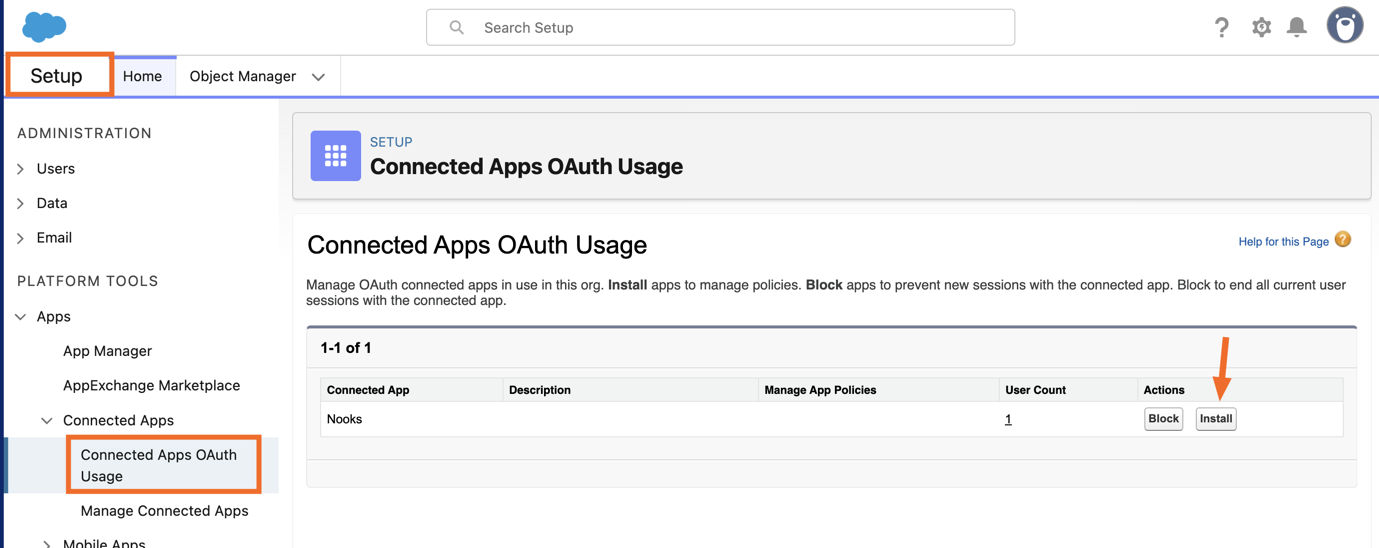
3. (Optional) Manage the permissions for the installed Nooks app
Nooks will now show in the "Manage Connected Apps" section, and you can set the permissions for who can connect to this app.
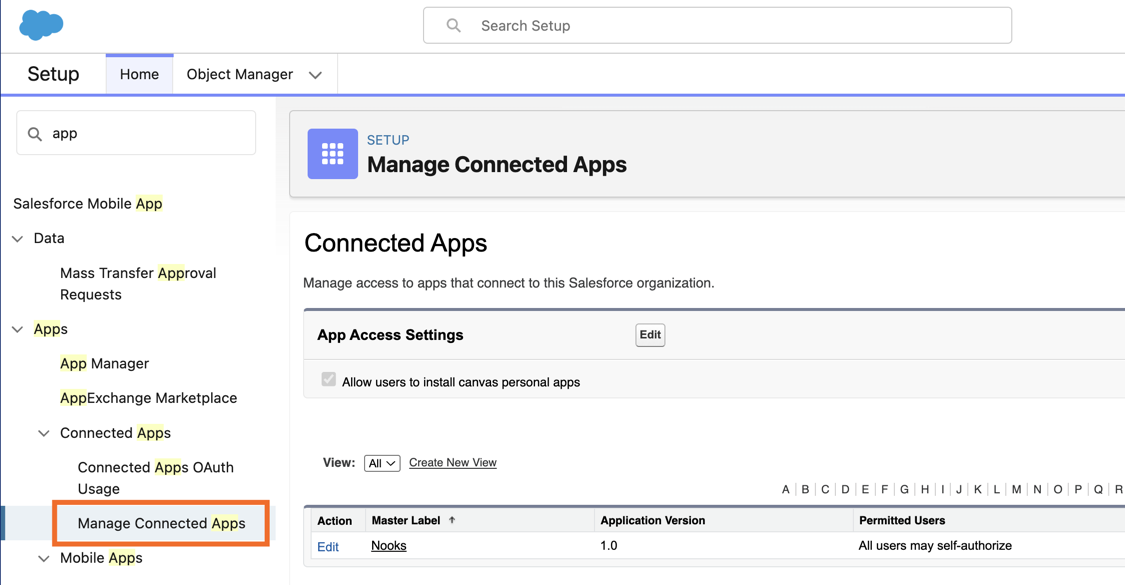
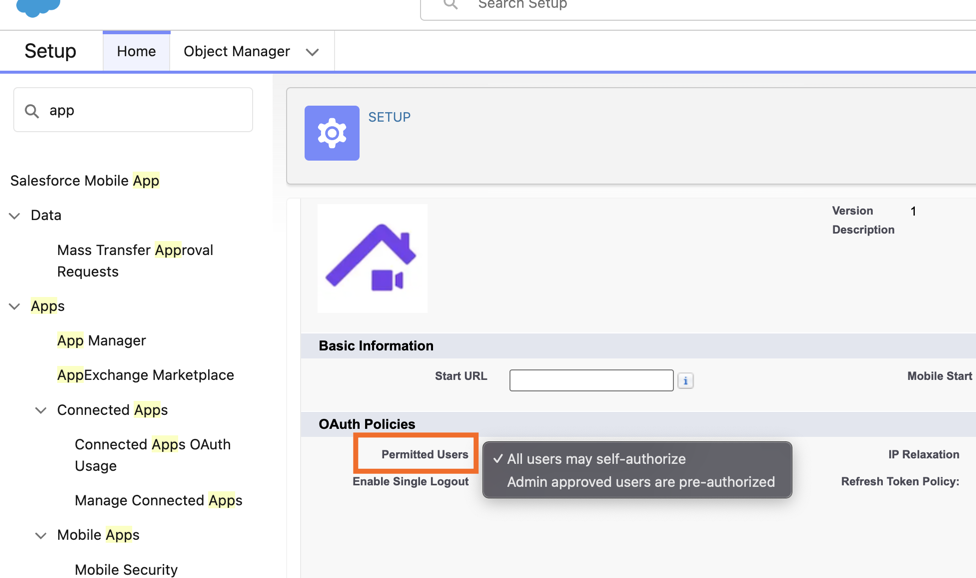
Clicking "Edit" next to Nooks will open the permissions settings. By default, Salesforce will grant "All users may self-authorize" permission to your installed OAuth apps, but if you want more granular control you can choose "Admin approved users".
Other SFDC Requirements
Note: Salesforce field configuration is only available to users with the Admin or Manager role in Nooks.
Salesforce Versions
Access to the Salesforce API is required to use the Nooks integration.
Salesforce Editions with API Access
Enterprise Edition
Unlimited Edition
Developer Edition
Performance Edition
Salesforce Editions without API Access
Group Edition
Essentials Edition
Professional Edition (can be purchased as an add-on)
Salesforce Permissions model
The Nooks Salesforce integration uses OAuth to connect. All permissions are inherited from Salesforce roles; the user will only be able to see or interact with any Contacts, Leads, Accounts, Reports, Fields or Views that they are able to see or interact with on Salesforce.com
Multi-Integration
Multi-Integration teams are connected to both an SEP and their CRM. This allows teams to call out of both Sequences and Reports at the same time, while also leveraging useful information like Closed Lost Notes, Latest Campaign and other details from your CRM.
If you would like to connect both your SEP (Outreach, Salesloft, Apollo) and SFDC, reach out to your CSM or AE and they will enable multi-integration for your workspace.
Single-Integration
No action is needed for teams to connect directly to Salesforce without an SEP.