Salesforce (SFDC) Guide
Last updated: September 22, 2026
Nooks has a direct integration with Salesforce that allows teams to
Dial through contact, lead, account, and task reports, list views, and cadences (High Velocity Sales) directly from Nooks.
See Closed Lost notes and any Salesforce account/opportunity/campaign fields directly in the dialer. Sort, group by and filter your dialing tasks by any Salesforce field.
See full Salesforce activity history directly in the Nooks dialer.
Getting Started with Salesforce + Nooks
Last updated: June 2025
Getting Started: Admin Setup Checklist
For a more detailed setup guide for connecting SFDC and Nooks, please see our guide here.
Before your team starts dialing:
✅ Connect your Salesforce instance via the Nooks Settings > Integrations page
✅ Ensure Salesforce users have API access
✅ Ensure Salesforce users have read permissions for Leads, Contacts, Opportunities, and Accounts, and read + write permissions for Tasks
✅ Confirm access to High Velocity Sales features (Cadences, Step Tracking)
✅ Map fields for call outcomes, voicemails, and call recordings on the Account Settings page
🔧 Configurable Settings in Nooks
In Nooks > Settings > Integrations > Salesforce you can access the settings described below. These allow you to control how Nooks syncs data back into Salesforce. Below we'll walk through each section of settings.
Connection Settings
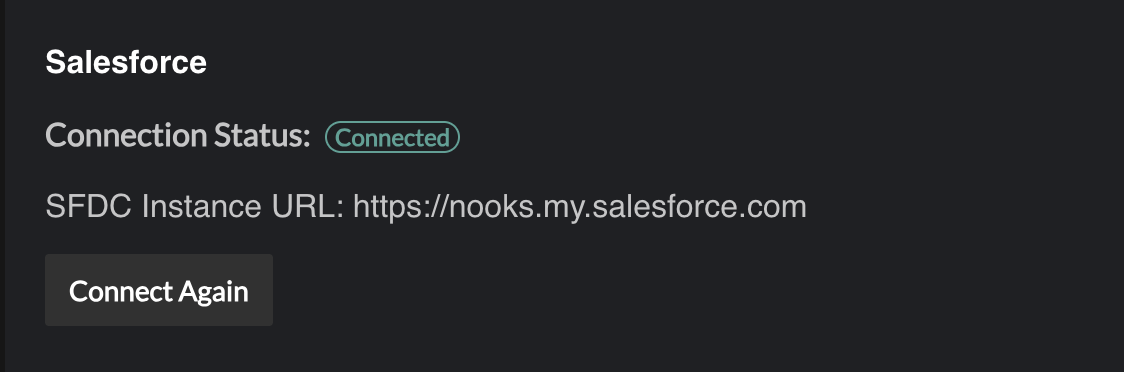
At the top of your Nooks → Salesforce settings page, you’ll see your connection status:
Connected (green badge): your SFDC session is active.
Not Connected (red badge): your token has expired—click Connect Again to reauthenticate.
SFDC Instance URL: the base URL for all API requests (e.g.
https://your-org.my.salesforce.com).
Manager Settings
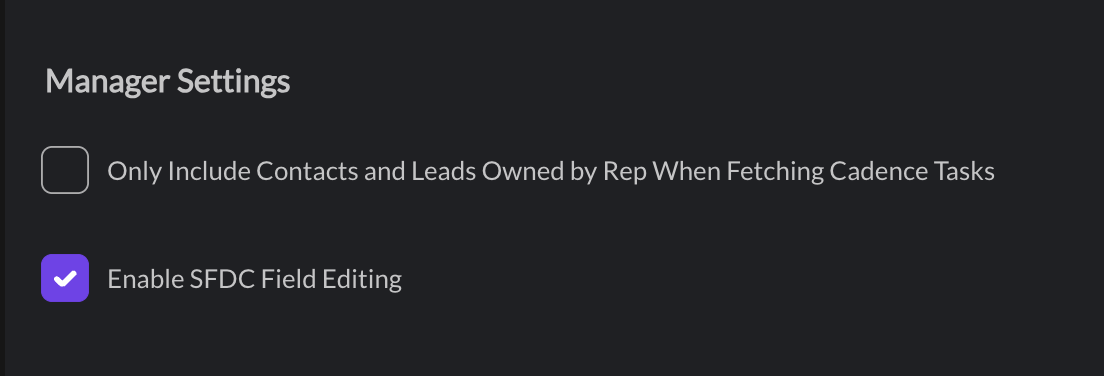
In Manager Settings, you’ll find two toggles:
Cadences:
When enabled, Nooks will fetch only the due cadence tasks owned by each rep (based on your SFDC user ↔ Nooks user mapping).
SFDC Field Editing:
When enabled, any editable Salesforce field exposed in the dialer can be updated by reps—and those changes will be written back to SFDC.
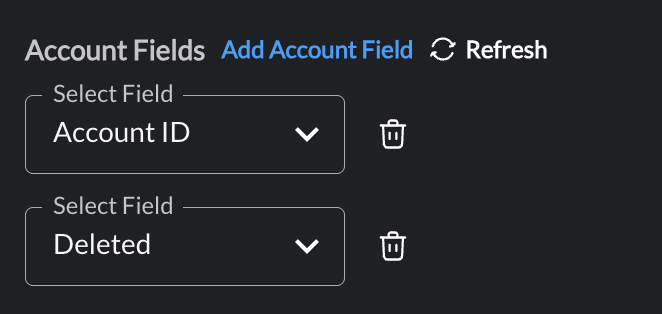
Field Mappings
These will allow you to map any Account, Opportunity, Contact, Lead, or Campaign field into Nooks:
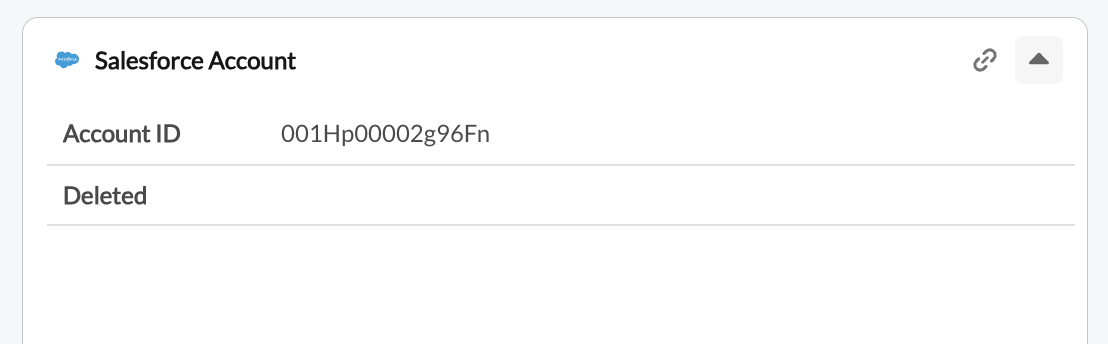
Card view in the dialer: The mapped fields will show when expanding a contact or lead in the Nooks dialer.
Columns View: in the dialer, you can select which mapped fields appear as columns in your dialer list. These can be filtered and re-ordered too. Here's a quick video on how to enable these columns and sort them
Dialer Mappings
Note on Parallel Dialing and Reporting: When using parallel dialing, only completed calls are counted in Nooks reporting. If you parallel dial 3 prospects and connect with 1, the other 2 cancelled dials will not appear in your reporting metrics or dial counts.
Automatically assign dispositions based on call events—such as no answer or voicemail drop—without any manual input. For example, if you are dialing in Nooks and a prospect does not answer, the call will auto-disposition as whatever is mapped to the No Answer disposition here:

Dispositions
Unlike some other Sales Engagement Platforms, such as Outreach, Salesforce doesn’t not have their own concept of “Dispositions.” These will need to be created and edited within Nooks.

In the Dispositions section you can:
Add new dispositions
Edit existing names
Delete unwanted entries
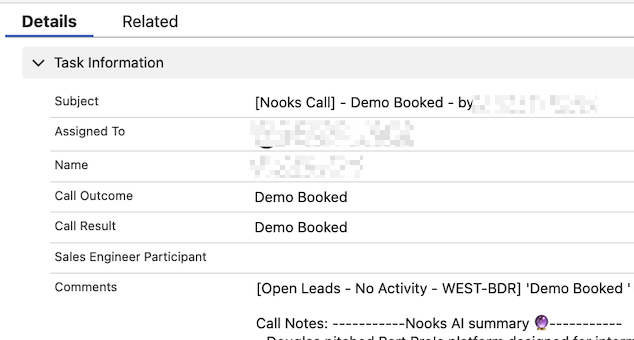
Map each disposition to a connection result (this drives your Nooks reporting). When a call is logged, Nooks writes that value into the Task’s SFDC CallDisposition attribute and appends the disposition text to the Task’s Title in Salesforce. For example, the call below was dispositioned as "Demo Booked" in Nooks:
Make sure your values accurately reflect your team’s reporting needs, as the connection result impacts your data in Nooks reporting!
Custom Call Logging Fields
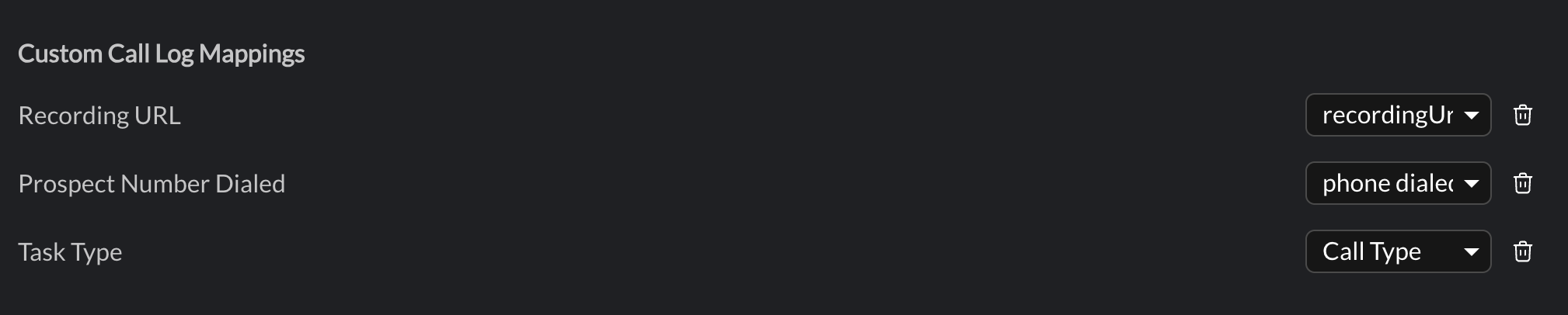
You can optionally map any Task field in Salesforce to receive values from Nooks—by default we support the Nooks Recording URL, the Prospect Number Dialed, and the Task Type. These mappings are completely optional; if you choose not to map a particular field, it will simply remain blank in Salesforce and Nooks will skip it.
Make sure each field you select is both editable and visible to your reps on the Task object; if it isn’t, Nooks won’t be able to populate it.
How to verify a field is editable & visible:
Go to Setup → Object Manager → Task → Fields & Relationships.
Click the field’s label (e.g.
Call_Recording__c).Under Field-Level Security, ensure Visible is checked for every Profile that needs to see/edit it.
Under Page Layouts, confirm the field appears on your Task page layout and isn’t marked Read-Only.
Member Mapping
In Nooks > Settings > Members , map each Nooks user to their corresponding Salesforce user. This mapping is crucial for accurate reporting and ensures that each rep only sees—and can act on—the tasks assigned to them. Be sure that every rep has the necessary permissions to view and interact with the Salesforce objects they’ll use in Nooks.
In the screenshot below, we can see Jesse is properly mapped to his SFDC user.

Bringing Tasks into Nooks
Nooks lets you load dialing lists (we treat them as "call tasks” in Nooks) from Salesforce in several ways. Below are the most common methods, how to set each up in Salesforce and Nooks, and key limitations to keep in mind.
1. Salesforce Report-Based Lists
Use case: Reps need a filtered list of Leads, Contacts, Opportunities, or Campaign Members.
Recommended: If multiple reps are calling the same shared reports, we recommend setting the report to "My" scope instead of "Organization" scope in SFDC to allow Nooks to load those call tasks significantly faster.
NOTE: If you are calling from any of these report types (Lead, Contact, Opportunity, Campaign Member), you do not also need to create call tasks. Nooks will create tasks automatically upon call completion and link them to the object of the report. For example, if you are calling a lead report, Nooks will create a task and link it to the lead when the call is completed.
Setup in Salesforce | 1. Build a Tabular or Joined report on Leads/Contacts/Opportunities/Campaign Members. |
2. Include Phone fields and any custom columns you want to display. | |
3. Save the report to a shared folder with read access for your integration user. | |
Configure in Nooks | 1. In Dialer > CallList, choose Salesforce Report. |
2. (Optional) Map extra fields into your dialer columns. | |
Limitations | - Max ~2,000 rows per report (API limits). |
- Report filters aren’t dynamic mid-session—you must reload. | |
- Joined reports only support certain objects. |
2. Salesforce List Views
Use case: Quickly dial any standard List View on Leads or Contacts.
NOTE: If you are calling from any of these list types, you do not also need to create call tasks. Nooks will create tasks automatically upon call completion and link them to the Lead or Contact.
Setup in Salesforce | 1. Create a List View on Leads or Contacts. |
2. Add filters (e.g. | |
3. Ensure “Visible” for relevant profiles. | |
Configure in Nooks | 1. In Dialer > CallList, choose Salesforce List View |
Limitations | - Only standard objects (Lead/Contact). |
- Cannot include custom objects or joined data. | |
- Cannot page beyond 2,000 records per view. |
3. Campaign Member Lists
Use case: Dial everyone in a specific Campaign.
NOTE: You do not also need to create call tasks. When you log a call, Nooks creates a completed Call task in Salesforce on the Lead or Contact behind the campaign member (the task's Name). If the campaign member list is based on existing Salesforce Tasks, Nooks may complete or update the existing Task instead of creating a new one. If an Opportunity is selected when logging, or the Lead has been converted, the task is also related to that Opportunity. Tasks are not attached to the Campaign or Campaign Member record, and Nooks does not change the Campaign Member Status.
Setup in Salesforce | 1. Add Leads/Contacts as Campaign Members. |
2. (Optional) Use Campaign Member Status or custom fields for filtering. | |
Configure in Nooks | 1. In Dialer > CallList, choose Salesforce Campaign Report |
Limitations | - No support for cross-Campaign “OR” filters. |
- Filtering only on Member Status or basic Campaign fields. |
4. Cadence Tasks
Use case: Call through your due SFDC cadence tasks in Nooks.
Setup in Salesforce | 1. Enable High-Velocity Sales in your org. |
- If it’s not enabled: | |
1. Go to Setup → High-Velocity Sales Settings → check Enable High-Velocity Sales. | |
2. Assign the High-Velocity Sales User permission set (or equivalent) to each rep. | |
2. Assign users to Sales Cadences (via the Cadence setup screen). | |
3. Grant your integration user access to the ActionCadenceTracker and ActionCadenceStepTracker objects: | |
4. In Setup → Profiles or Permission Sets, find the integration user’s profile. | |
5. Under Object Settings, enable Read (and Create/Edit if Nooks should write steps) for both objects. | |
Configure in Nooks | In Dialer > Call List, select the desired Sales Cadence. We pull in all cadence steps that are due and assigned to your user. On call completion, we will automatically advance the prospect to the next step in the cadence. |
Limitations | Nooks processes one cadence step at a time. Branching logic within cadences (e.g. conditional paths) and exit automations currently do not work. This is a Salesforce limitation and we have an open thread with them but no ETA on a fix. In the meantime, you can configure a Salesforce flow to handle exit automations. See below on how to set this up. |
Walkthrough of how to set up a Salesforce flow to manage cadence exit automations - Link
5. Salesforce Task Reports
Use case: Reps need to dial out on Tasks filtered by Salesforce reports (e.g. follow-up tasks, call reminders).
Setup in Salesforce | |
1. Build a Tabular report on the Task object. | |
2. Filter out completed tasks: set | |
3. Add columns for the phone field, plus any task fields you’d like to surface (Subject, Due Date, Custom Fields). | |
4. Save the report in a shared folder and grant Read access to your integration user. | |
Configure in Nooks | 1. In Dialer > CallList, choose Salesforce Task Report |
Limitations | - Maximum ~2,000 rows per report (Salesforce API limits). |
- Report filters aren’t dynamic mid-session—you must reload to pick up filter changes. | |
- Ensure your filters prevent duplicate tasks: Nooks only logs the first call for any given task—if you call the same task twice, the second attempt won’t be recorded. To handle repeat outreach on the same contact or lead, set up a cadence rather than redialing the same task. |
⚠ Key Nooks Limitations & Considerations
Row Limits: Most SFDC APIs cap at ~2,000 records per call; large lists require segmentation.
Cadence automations: Salesforce Cadence exit criteria/automations will not work via Nooks calls due to API limitations.
Field Support: Only standard picklists, text, number, and date fields; complex types (e.g. rich text, objects) aren’t supported.
Loading in the Nooks dialer: Salesforce-sourced lists are fetched when the dialer is loaded, and Nooks call tasks can be refreshed from the Dialer.
Object Scope: Only Lead, Contact, Opportunity (via report), Campaign Member, and Task objects are supported as sources.
Cadence Reports: To progress Cadence tasks, load the Salesforce Cadence as your dial list in Nooks, not a report. Dialing from a Salesforce Report of Cadence tasks will not advance or complete those Cadence tasks due to Salesforce API limitations. Only dialing from the actual Cadence in Nooks does.
Technical FAQs
How will Nooks connect to Salesforce and which scopes will be required?
Nook users can connect their Nooks account to Salesforce via OAuth. For each connection, the Nooks service receives a token that is used to make calls to the Salesforce API. These tokens follow the access roles and permissions granted to the connecting user. Users will only be able to access, view and objects within Nooks that they are already able to access within SFDC.
Nooks requests the following scopes.
Access unique user identifiers (openid)
This allows Nooks to see the SFDC identifiers for Contacts, Leads and Accounts. We use this scope to enable directly linking to Salesforce from within the dialer. This scope also supports Nooks's Account Research features.Manage user data via APIs (api)
This scope allows Nooks to log call Tasks when dialing from reports, so that activity is properly tracked and available within Salesforce. Some existing reports may not be configured to reflect Nooks activity; In this case, use the reporting from within Nooks via the Reporting tab.Perform requests at any time (refresh_token, offline access)
This scope is required so that users don't have to log in to Salesforce every time they open Nooks.
What data permissions are required?
Nooks uses the standard SFDC data models and inherits access roles from Salesforce directly. Custom fields will be retrieved based on user permissions; Nooks users will only be able to see fields that they are able to see on Salesforce itself. For a seamless Nooks experience, please ensure that all Nooks users who are connecting to Salesforce have access to the following objects below.
Object | Documentation Link |
Lead | |
Contact | |
Account | |
Opportunity | |
Report | |
Task | |
User |
Will this require the installation of a managed package into Salesforce?
No
Do we have an estimate on the total number of API calls per day? Are there any concerns related to rate limits?
This is largely based on your team's calling volume and task loading volume since most of our API usage comes up logging calls to Salesforce and pulling tasks and associated task objects such as lead, contact, account, and opportunity data. We are happy to work with your team on estimating this if you are a larger workspace and foresee this being an issue.
Any bulk data jobs we run will first check rate limits. Nooks will poll the Salesforce API hourly to keep track of how many API calls are available within a 24 hour period. If less than 20% of the API limit is available, then we will throttle any bulk data jobs.
Will new objects or records be added to Salesforce through this integration?
The only new records that will be created are task objects. Users will have to option to edit Salesforce records directly from Nooks, but that can be disabled by a workspace admin.
What version of Salesforce is required?
Access to the Salesforce API is required to use the Nooks integration.
Salesforce Editions with API Access
Enterprise Edition
Unlimited Edition
Developer Edition
Performance Edition
Salesforce Editions without API Access
Group Edition
Essentials Edition
Professional Edition (can be purchased as an add-on)