Wiza Enrichment Integration
Last updated: July 16, 2026
This guide covers the Wiza Enrichment Integration in Nooks. It will walk through the steps to connect Wiza to Nooks, discuss how the enrichment feature works, and cover some of the frequently asked questions about the integration.
Background
Nooks Enrichment helps users quickly get new mobile numbers and email addresses for their prospects. This tool helps reps save time, increase coverage, and improve connect rates by streamlining the data enrichment process.
Nooks Enrichment partners with Wiza as a data enrichment provider out of the box. When Wiza is used without the Wiza API passthrough enrichment integration having been connected, Nooks Enrichment credits are consumed.
By connecting the Wiza enrichment integration, teams that are current Wiza customers can use their Wiza credits (instead of Nooks Enrichment credits) to enrich prospect phone numbers and emails in Nooks. Users can use Wiza as a standalone provider or as part of a waterfall enrichment process, which sequentially searches multiple providers for new phone numbers.
Setup Requirements
The Nooks <> Wiza integration requires you to be a current Wiza customer on the Team Plan to configure this integration. If your team is on a different Wiza plan, you will be unable to complete the integration setup steps.
To complete the integration setup steps, you will need to be an admin or manager in Nooks.
Integration Setup Steps
Follow the steps below to connect the Wiza <> Nooks Enrichment integration.
Step 1: Generate a Wiza API Key
To connect Wiza to Nooks, you need to obtain an API Key in Wiza. To do this:
Log in to Wiza.
Click on your profile icon in the upper-right corner, then select Settings.
Click API in the left-hand navigation bar.
In the API User dropdown, select the user you want to use to create the API Key.
Leave the Webhook URL field blank. Nooks supplies its own callback per request.
Keep the Send updates for all lists setting disabled.
Click the Generate button in the bottom-right corner.
Press the clipboard icon on the right of the API key to copy the API key to your clipboard.
Do not navigate away from this page until you have pasted your API key in Nooks.
Step 2: Enter the Wiza API Key in Nooks
Once you have an API Key from Wiza, head to the settings page in Nooks to connect the Wiza enrichment integration. To do this:
Open the Nooks web app.
In the left-hand navigation menu, click Settings > All Settings.
Under Integrations, click Nooks Enrichment or Nooks Numbers.
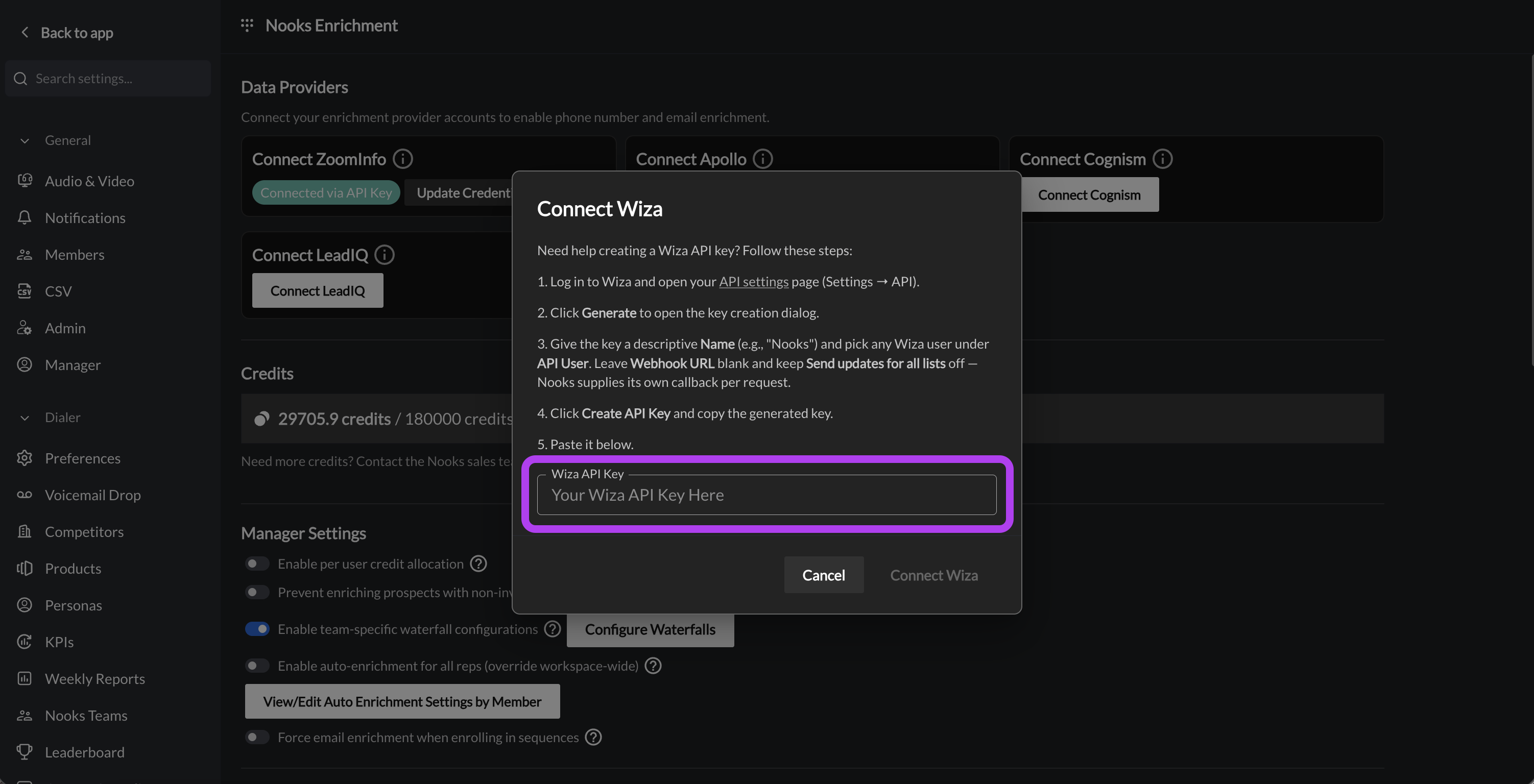
Click the Connect Wiza button.
In the pop-up window, paste your API Key. Press the Connect Wiza button in the lower-right of the pop-up.
Press the Connect Wiza button to connect the integration.
Once the Wiza integration is connected, users will be able to use Wiza credits to enrich phone numbers and email addresses in Nooks. You can also choose to update your waterfall enrichment order and/or where your Nooks Enrichment phone number results sync for Wiza enrichments, if desired.
Phone Number Enrichment with Wiza
When using Wiza for phone number enrichment, Nooks prioritizes finding a new mobile number for the prospect.
If your team has configured successful enrichments to map to a field in your CRM, Nooks will map the new mobile found in Wiza to that field on the corresponding prospect’s record in your CRM.
Email Enrichment with Wiza
When using Wiza as part of your team’s email enrichment waterfall, Nooks will look for any email address match for the prospect. Nooks prevents invalid email addresses from being returned by checking if the matching email address has bounced in the last 90 days.
If an email address that has not recently bounced is found, it will be returned and written back to the standard email field on the corresponding prospect’s record in your CRM.
Wiza Credit Usage
When Nooks enriches a number or email address using Wiza, credits will be deducted from your organization’s credit balance in Wiza.
When the Wiza API Passthrough Integration has not been connected and Nooks is used to enrich a number with Wiza, credits will be deducted from your team’s Nooks Enrichment credit balance. Connecting the Wiza API passthrough enrichment integration shifts credit usage from your team’s Nooks Enrichment credits to your team’s credits in Wiza.
Setting Per User Credit Limits
After connecting the Wiza enrichment integration, you can limit the number of Wiza credits each user can use via the enrichment integration. To do so:
In Nooks, go to Settings → All Settings.
Under Integrations, select Enrichment.
In the Wiza enrichment card, click Set per-user limit.
Toggle on Enable per-user cap.
Enter the number of bulk credits users can use from Wiza on Nooks enrichments.
Optionally, toggle on Refill Monthly for users' credit limit to be reset to your Workspace's configured limit at the beginning of each month.
The limit is a blanket user that applies equally to all users. Nooks does not support setting different limits for different users.
What Happens when the Per-User Credit Limit Is Reached
When a user reaches the per-user credit limit, they can no longer use Wiza for new enrichments in Nooks until the per-user credit limit is raised by an admin/manager, or their credit limit resets at the beginning of the month (if the monthly refill option is enabled).
Users who hit their limit receive an error message along the lines of:
Provider Limit Reached
Wiza has 1 enrichment remaining for this rep, but this enrichment would use 2 enrichments.
Select fewer prospects or ask a manager to raise this provider limit in Phone Data settings.
Users can unblock themselves from this error by:
Selecting fewer prospects to enrich with Wiza (if there are sufficient credits to enrich some prospects in the batch).
Choosing a different data provider to enrich with.
Asking a Workspace admin or manager to increase the per-user credit limit.
Wiza Enrichment Integration Health Monitoring
Nooks will alert you if an error is detected with your Wiza API passthrough integration. There are two potential errors that will appear.
Wiza credentials are no longer working. Enrichments using Wiza will fail – contact an admin or manager to reconnect.
Where this error appears: This error will appear at the top of the Nooks Numbers page and at the top of the Nooks Enrichment or Nooks Numbers settings page. A "Credentials Error" chip will also appear next to Wiza in the Data Providers section of the Nooks Enrichment or Nooks Numbers settings page.
How to resolve this error: This error indicates Nooks has lost connection to the integration, most often because your Wiza API key has expired or been deleted. To resolve this error, try reconnecting to the Wiza enrichment integration.
Wiza enrichment credits are exhausted. Contact an admin or manager to purchase more credits.
Where this error appears: This error will appear at the top of the Nooks Numbers page and at the top of the Nooks Enrichment or Nooks Numbers settings page. A "Credentials Error" chip will also appear next to Wiza in the Data Providers section of the Nooks Enrichment or Nooks Numbers settings page.
Steps to resolve this error: This error indicates that your team has run out of credits in Wiza. To resolve this error, purchase additional credits through Wiza.
FAQs
Is there a way to cap how many credits are used from Wiza?
Nooks currently displays when your team has exhausted your Wiza credits. However, there is not a way to cap the number of credits used from Wiza.