Seat Management: Inviting Users and Managing Permissions
Last updated: August 14, 2026
This guide covers how to manage user access from Seat Management in Nooks. It details how to invite new users to Nooks, what the invited user experience looks like, and how to update existing users' access.
Accessing Seat Management
Note: Only Nooks Admins can access Seat Management.
To manage your Nooks seats, go to the Home screen of your Nooks workspace by clicking the Home button at the top left-hand corner and then clicking Seat Management.
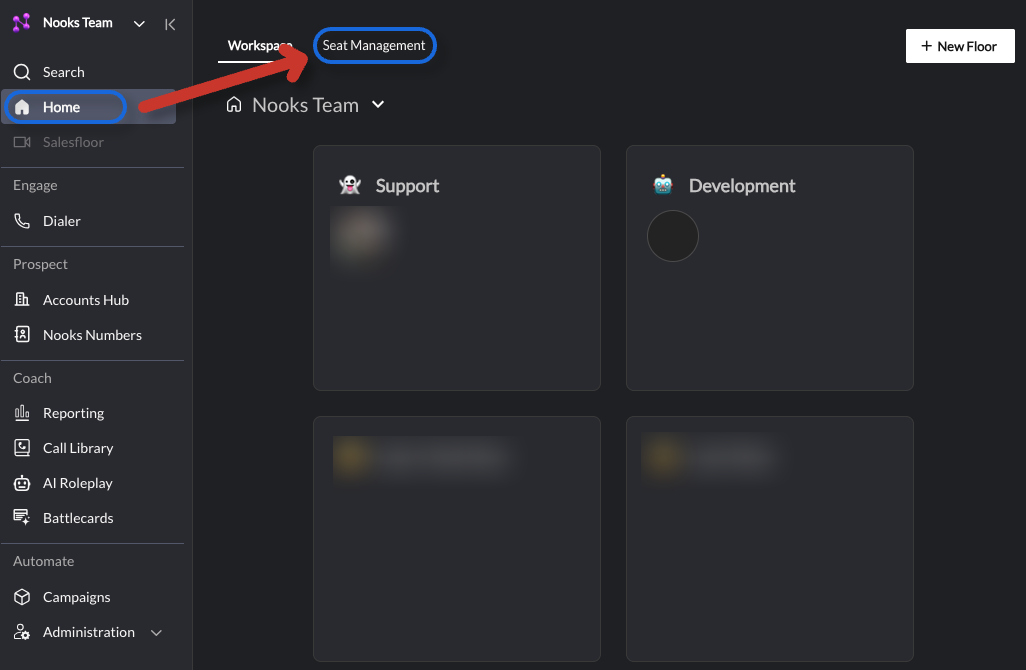
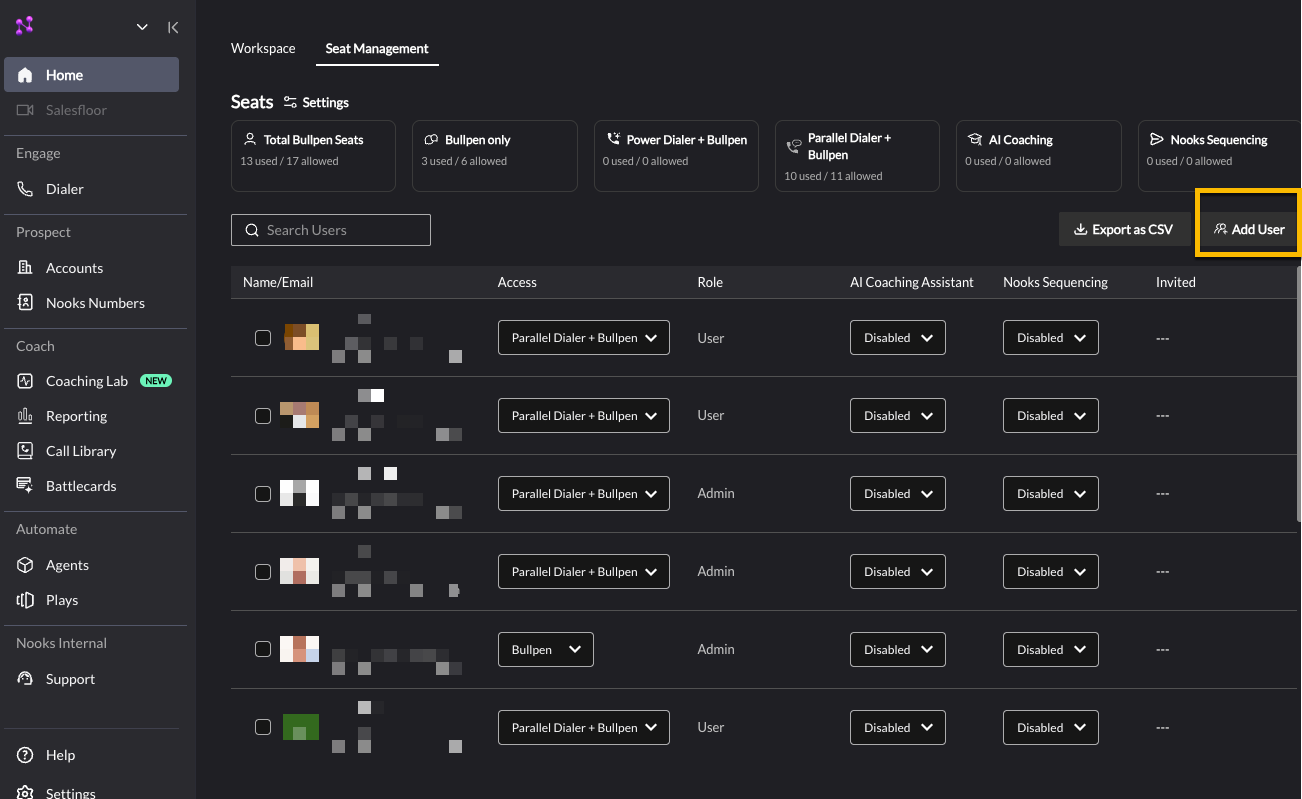
On the Seat Management page, you will see your seat count and currently used seats. If you need more seats, please notify your Nooks CSM/Account manager.
Adding / Inviting Users
You can see your available seats at the top of the Seat Management page. If you do not have enough seats to add a new user, please reach out to your Nooks customer success manager to request more.
Click the Add User button in the top right-hand corner
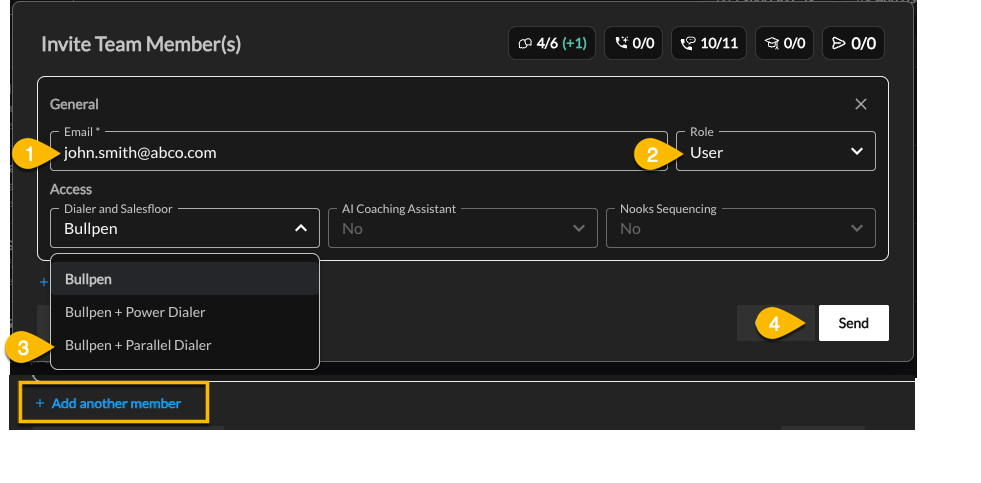
Add the user's email address, select the user's Role (User, Manager or Admin), and assign their Access (Bullpen, Bullpen + Power Dialer, or Bullpen + Parallel Dialer), as well as any other features (AI Coaching, Nooks Sequencing), and then send the invite.
Click Send to invite new users or click + Add another member to invite additional users before clicking send.
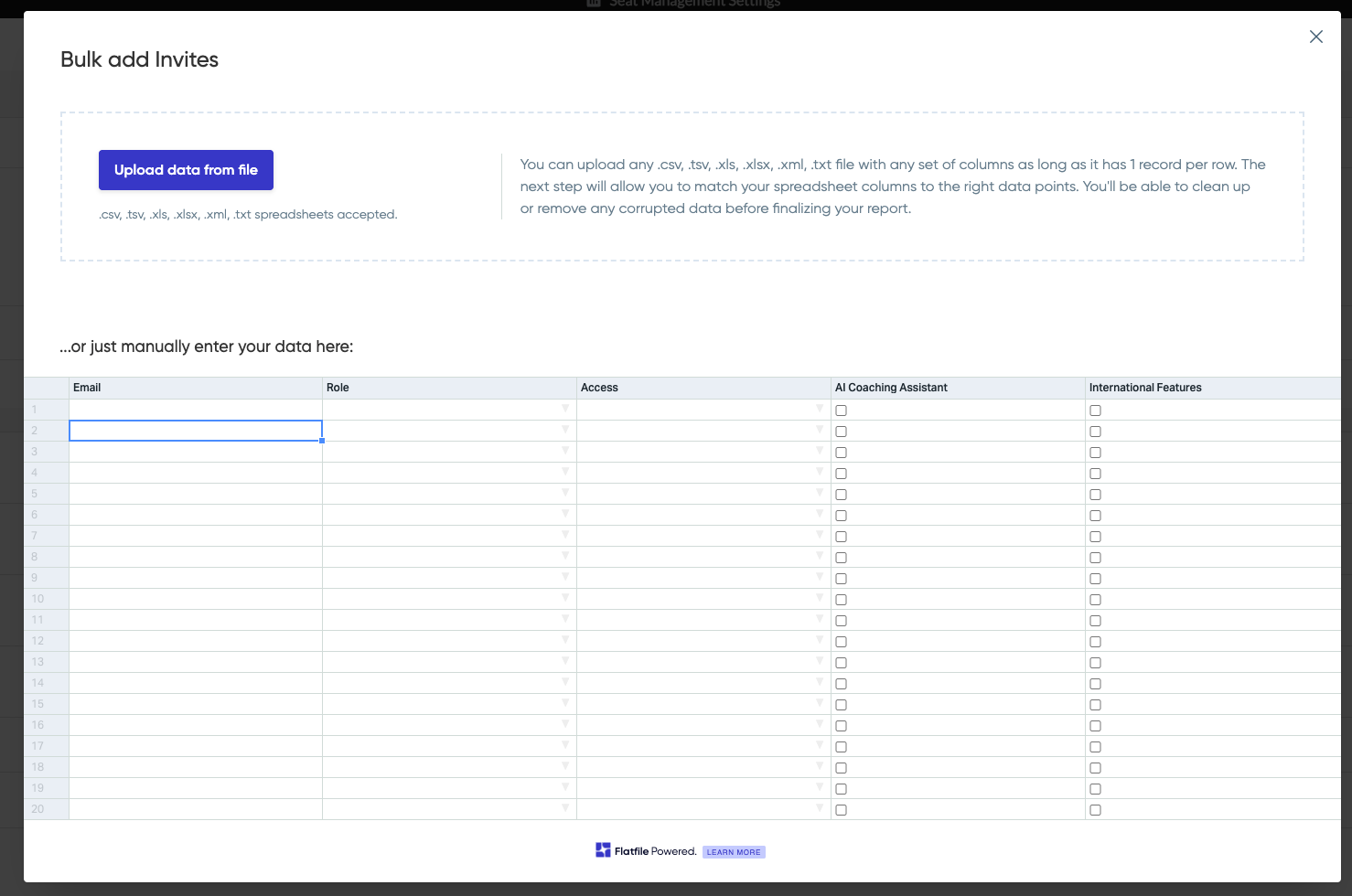
Optional: Bulk invite allows Admins and Managers to send out invites to entire teams, if needed. You can either enter them manually or upload a file.
Invited User Experience
After you send the invitation, the invited user(s) will receive an email. They need to click the blue Accept button in the body of the email to sign into Nooks.
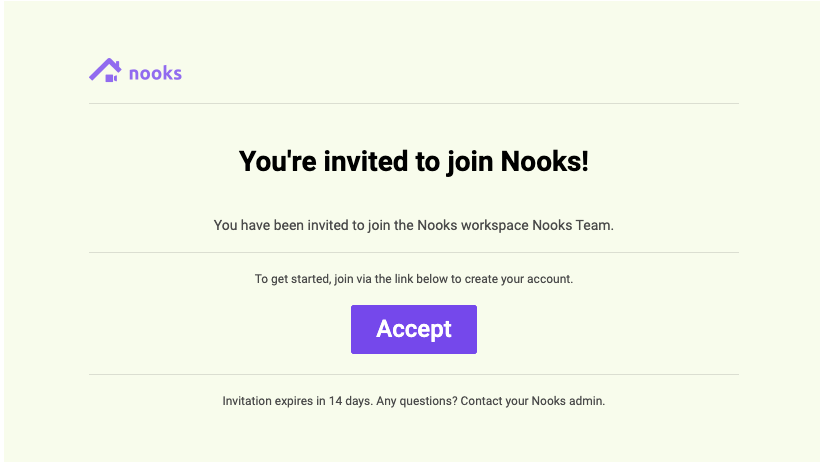
Note: Invitations expire after ~24 hours so if the link in the email doesn’t work, please resend the invitation from Seat Management.
Deleting a user
To delete a user from Nooks:
Navigate to Seat Management by clicking Home in the lefthand navigation menu, then selecting Seat Management in the top-left corner of the Home page.
Click the checkbox to the left of the user's name.
Click the Delete button that appears in the header.
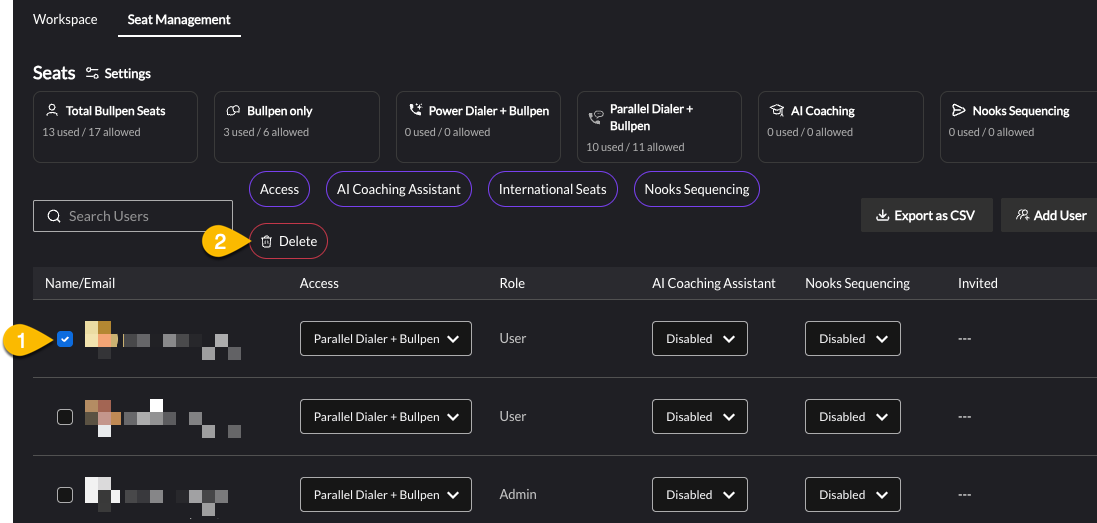
Note: Deleting a user will not remove their historical call data in Nooks reporting.
Pending Invitations
Invited users who haven't clicked "Accept" on the invite email sent show up at the top of the Members table in Seat Management.
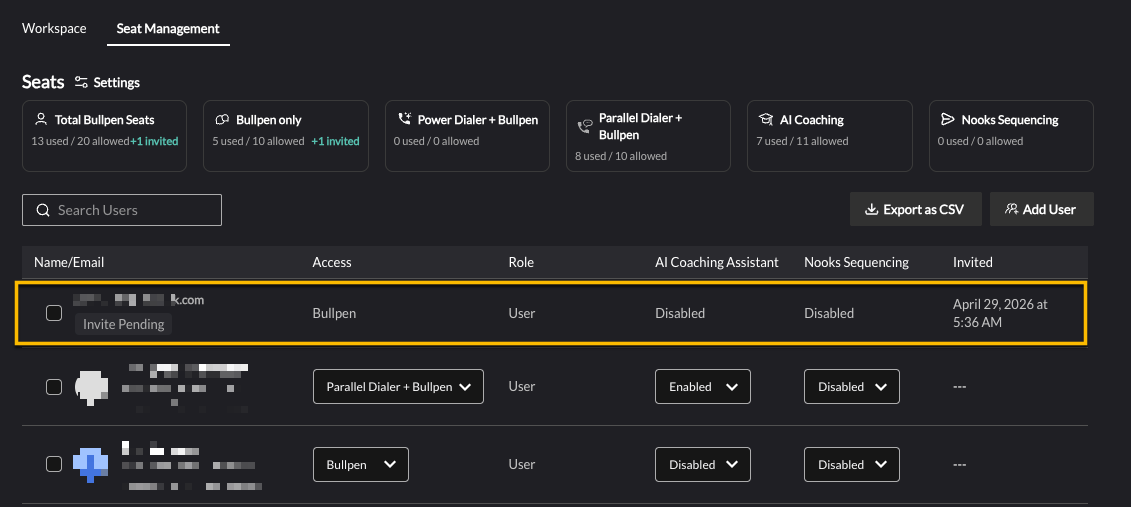
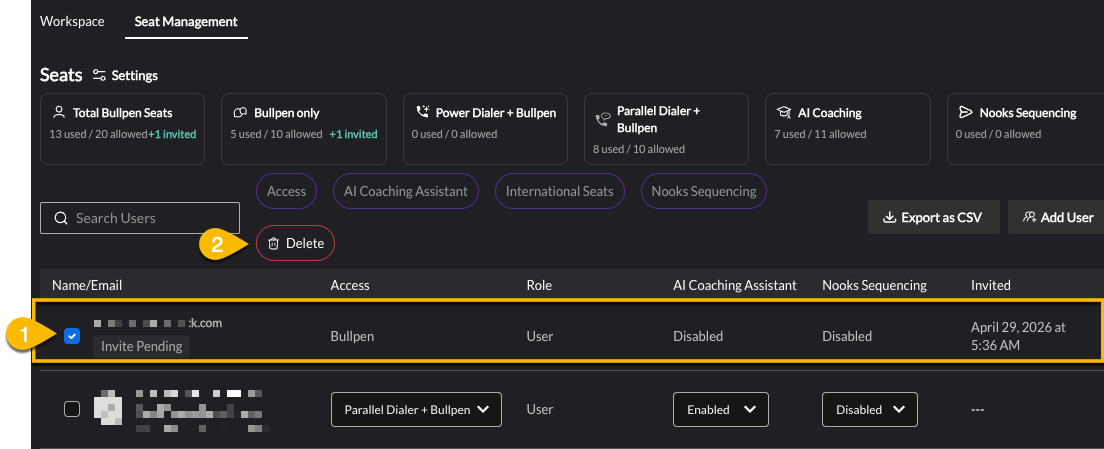
These invites can be rescinded by clicking the checkbox to the left of the user's name and clicking the Delete button that appears in the header
Adjusting the Access or Role of an Existing User
Adjusting Access permissions can be done in Seat Management by selecting a different value from the dropdown list in the "Access" fields.
Adjusting Role permissions can be done from Settings → All Settings → User Management → Members by selecting a different value from the dropdown list in the "Role" fields.
Access Options
None: No access
Bullpen: Access to the Sales Floor functionality only (no Dialer access). This is useful for managers or admins that need to listen to live calls on the Salesfloor, view reporting, access the Call Library, and wish to interact with their team on Nooks. These users cannot make dials using Nooks.
Power Dialer + Bullpen: Access to the Dialer but limited to Power Dialing only (calling one prospect at a time). This user will also have Bullpen access, as well (see above).
Parallel Dialer + Bullpen: Access to the Dialer and ability to Parallel dial up to 5 prospects at a time. This user will also have Bullpen access, as well (see above).
Role Options
Admin: Nooks user with access to all customer facing workspace settings
Manager: Nooks user with access to a subset of customer facing workspace settings
User: Nooks user with access to their individual user level settings/preferences only