Configuring Competitors in Nooks
Last updated: May 15, 2026
This guide explains the Competitors feature in Nooks, including how managers can configure it for their team, how it powers real-time coaching and call intelligence, and how it informs AI-generated content.
Background
The Competitors feature in Nooks is a Workspace-level list of rival companies that your team sells against. Once your team adds the names for these companies in Nooks Settings, Nooks uses them as the foundation for several features, such as:
Tagging calls in your Call Library when a competitor is mentioned, enabling you to analyze how often they come up and how your team handles them;
Improving how competitor names are transcribed from call recordings;
Enabling Nooks’ AI tools (such as Email Agents and the AI Assistant) to reference your competitors list to generate more relevant, competitive content; and,
Allowing you to leverage AI to generate Competitor and Product Live Battlecards.
Setting up your Workspace’s Competitors list takes just a few minutes and unlocks features that help reps stay sharp, consistent, and confident in competitive conversations.
How to Configure Competitors
This section explains how managers and admins can add competitors to their Workspace.
Prerequisites
Only users with the Manager or Admin role in Nooks can configure Competitors. Standard users cannot add or remove competitors from their Workspace’s settings.
Steps to Add Competitors
Adding a competitor to your Workspace takes just a few clicks. Once added, Nooks immediately begins using that name across all features.
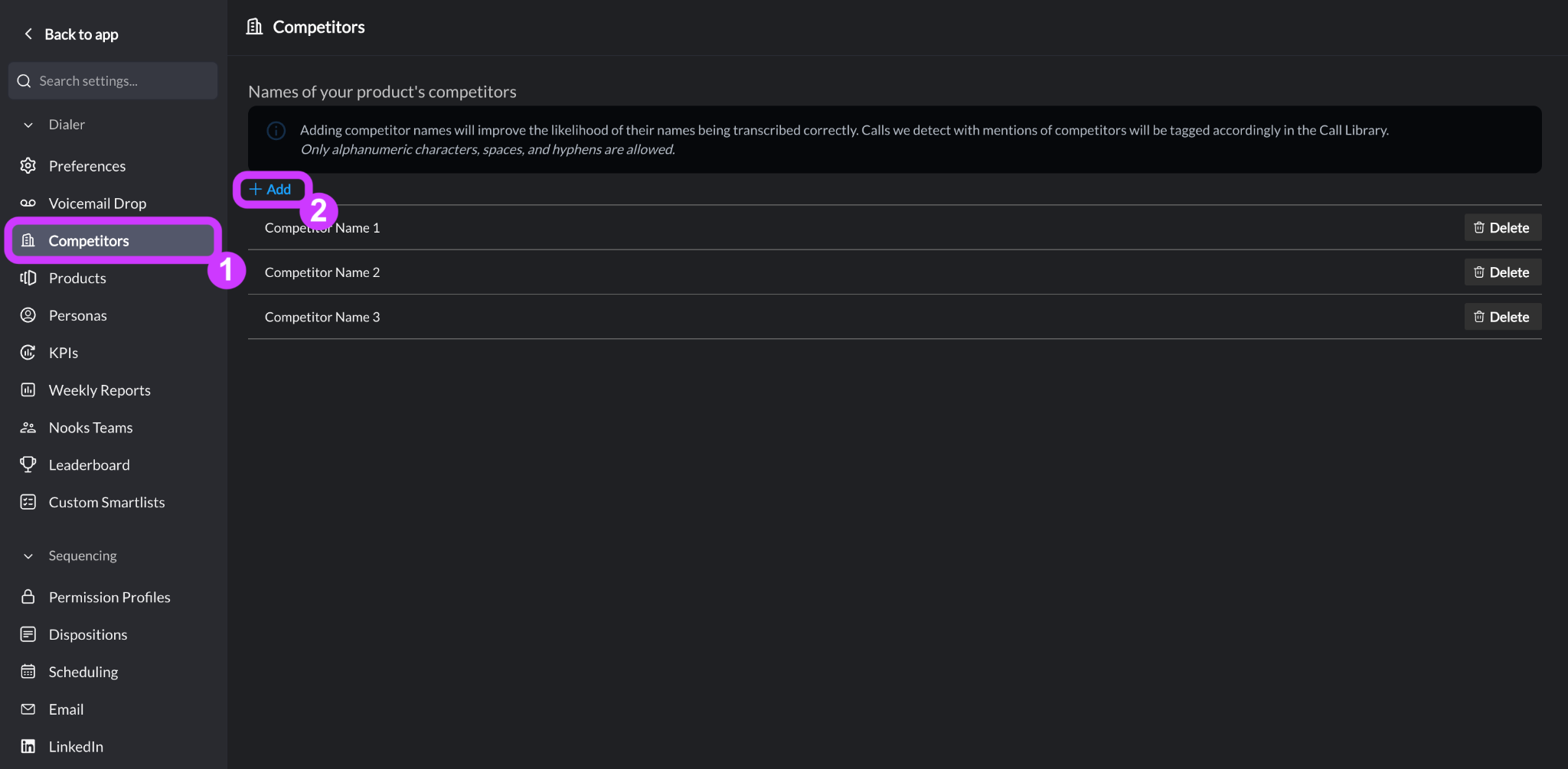
Go to Settings > All Settings.
Under Dialer, select Competitors.
Click the + button to add a new competitor.
Type in the competitor’s name. Names may only contain letters, numbers, spaces, and hyphens.
Click Save.
Important Notes when Adding Competitors
When configuring your team’s Competitors, keep the following things in mind.
Your Workspace can have a maximum of 30 competitors. If your company has more than 30 competitors, prioritize adding your biggest competitors.
If you delete a competitor and re-add it later, Nooks will restore it rather than creating a duplicate.
The Competitors list is shared across the entire Workspace, so all users benefit as soon as a new Competitor is added.
Steps to Remove a Competitor
Removing a competitor from your Workspace’s list is also a straightforward process.
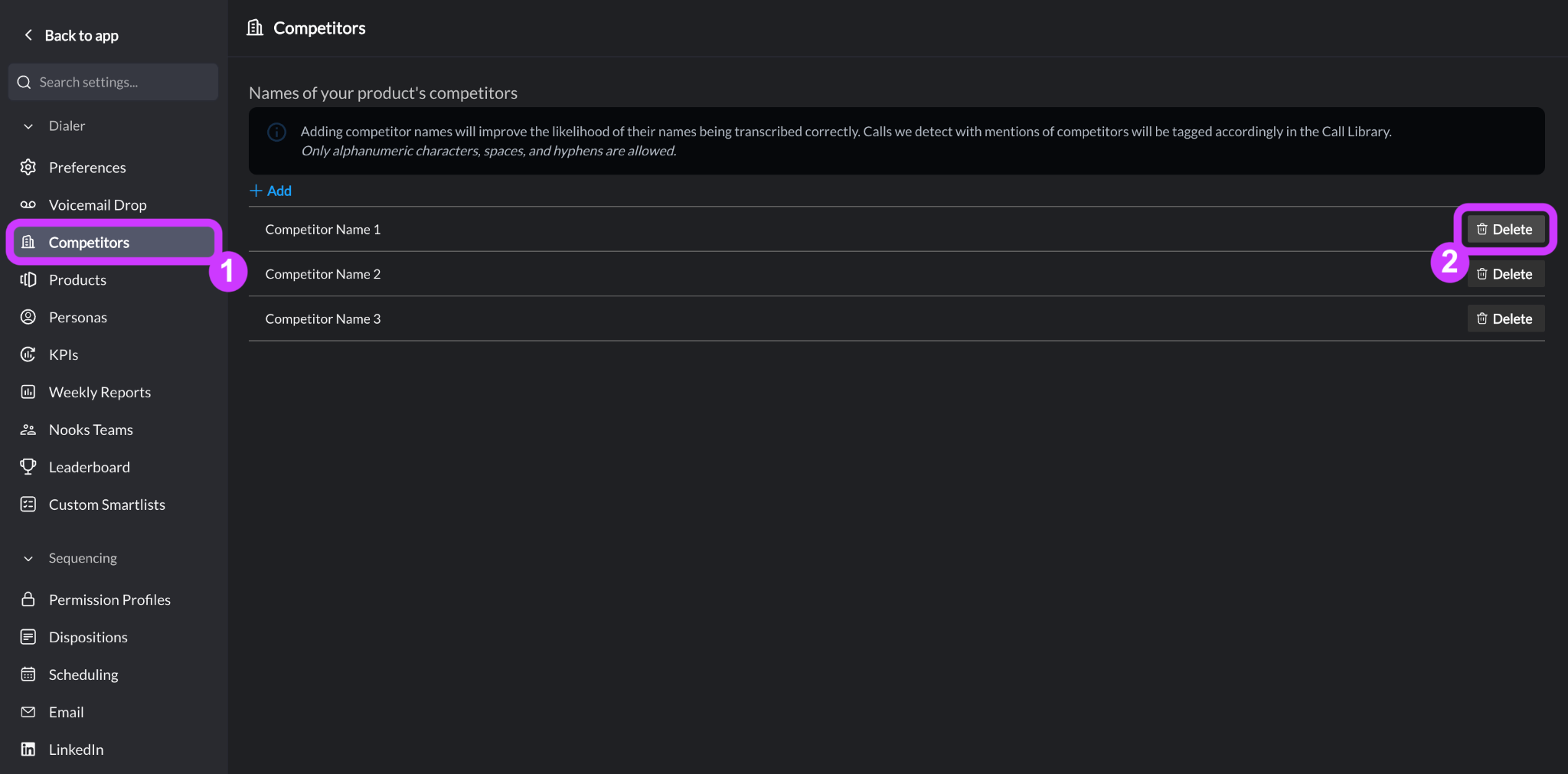
Go to Settings > All Settings.
Under Dialer, select Competitors.
Press the Delete button to the right of the competitor you want to remove.
How Competitors Are Used in Nooks
Competitors touch several parts of the Nooks platform. Below is a high-level breakdown of each area they impact.
Call Library Tagging
Every time a competitor name is mentioned on a recorded call, Nooks automatically tags that call in the Call Library. This tagging makes it easy to filter, review, and learn from competitive conversations across your team.
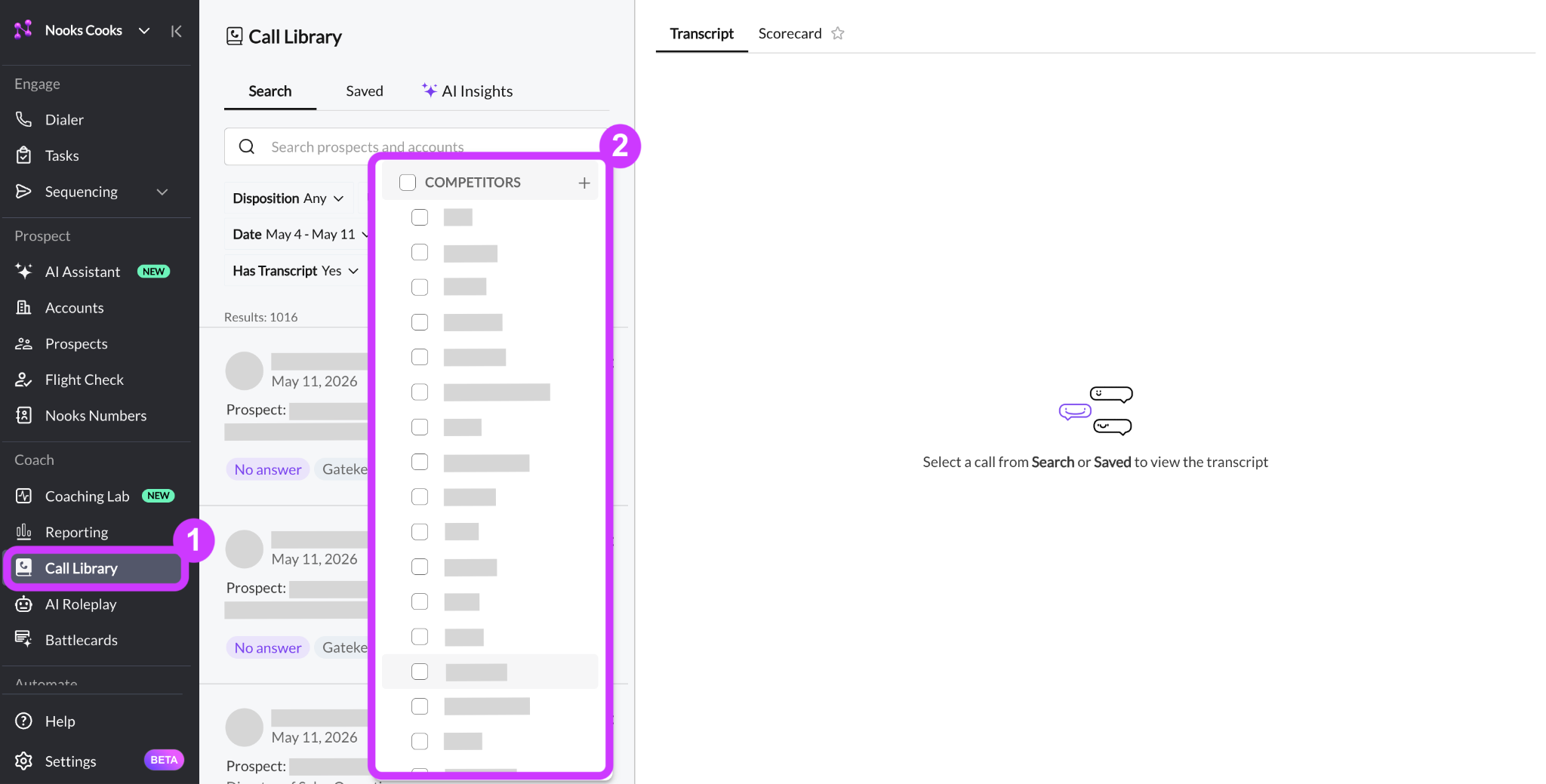
To find tagged calls, go to the Call Library, open the Tags filter, then scroll to the Competitors section.
Note: Tags fire when either the rep (i.e., the Nooks user) or the prospect mentions a competitor's name. They cannot be restricted to apply only when a prospect mentions a competitor's name.
Call Transcription Accuracy
Adding competitor names to your Competitors list also improves how company names are transcribed during live and recorded calls. Nooks references your Competitor keywords during transcription to boost accuracy, which is especially helpful for companies with unusual or technical names.
Live Battlecards (Real-Time Coaching)
When a prospect mentions a competitor by name during a live call, Nooks can automatically surface a Competitor Battlecard. Battlecards are pre-built response cards with talking points, key differentiators, and scripted responses to help reps handle the moment confidently.
Your team’s Competitor Battlecards work alongside your Competitors list by providing the punchy content that helps differentiate you from competing companies and products. You can also use the competitors in your Competitors list to AI-generate Live Competitor Battlecards.
AI Email Writing
AI Email Agents are included with Nooks Sequencing and AI Prospector Suites. To use them, end-users must have a Nooks Sequencing or AI Prospector seat.
When an AI Email Agent drafts outbound emails, the Competitors your team has defined in Settings flow into those agents through three separate channels. Each channel provides unique context. The three channels are:
Competitors data source — Provides the agent with the alphabetical list of competitor names configured in your Workspace settings. This data source gives the agent baseline awareness of who you compete against.
Battlecard data source — Provides the agent with actual competitive messaging (such as talk tracks, differentiators, and objection-handling content) from your Competitor Battlecards. Learn more about creating battlecards here.
Signals data source — Provides account-level buying signals, including “Uses Competitors”, which tells the agent that a specific prospect account has been identified as using a competing product. Learn more about creating Signals here.
When composing emails, Nooks’ AI Email Agents generally focus on one competitor rather than referencing multiple in a single email, keeping the messaging sharp and relevant rather than generic. Competitor context is also available in the AI Assistant.
AI Prospecting and Signals
Competitors can also be added as a data source to power agentic account intelligence signals, helping to automatically generate account insights or identify high-priority accounts. When the Competitors data source is selected, Nooks references your Competitors list and looks across other enabled data sources (e.g., job descriptions, Nooks calls, Gong transcripts, CRM data, etc.) to identify whether a competitor is mentioned. Examples of signals that would benefit from the Competitors data source include "Upcoming Renewal with Competitor" or "Uses Competitor" signals.
Plays can also trigger on competitor-based signals, automatically enrolling prospects at the account into a Sequence when a given signal is detected and automatically generating AI email steps that incorporate competitive content.
This guide contains additional information on creating Signals.
FAQs
How many competitors can I add?
Your Workspace can have a maximum of 30 competitors at a time.
What characters are allowed in competitor names?
Competitor names can only contain letters, numbers, spaces, and hyphens. Special characters, like apostrophes, periods, and slashes, are not supported.
Can I apply competitor tags to calls that were recorded before I added a competitor?
Yes. When you add a new competitor in Settings, Nooks retroactively scans existing call records and applies the new competitor tag where relevant. This process typically takes a few minutes.
Why are competitor tags appearing on calls where the rep (i.e., Nooks user) mentioned the competitor, not just the prospect?
Call tags fire whenever anyone on the call says the competitor’s name. Nooks does not currently differentiate between the rep or the prospect saying the competitor’s name.
Can I export competitor tags to my CRM?
No. Competitor tags exist only within the Nooks Call Library and cannot be exported to HubSpot, Salesforce, or other CRMs. If you need to add competitor data to your CRM, that information would need to be added manually.
Is there a report showing which competitors are mentioned most often?
Not currently. You can filter the Call Library by competitor tag to see calls where a competitor name came up, but there isn’t a dedicated analytics dashboard or ranking of top-mentioned competitors.