Managing Mobile Virtual Assistants in Nooks
Last updated: September 24, 2026
A guide explaining how Nooks detects, organizes, and optimizes calls answered by mobile virtual assistants to improve rep efficiency and connect rates.
Overview
Nooks helps Sales Reps efficiently navigate calls answered by mobile virtual assistants (like voicemail or voice assistants). By detecting these interactions and providing tailored features, Nooks ensures users spend their time connecting with live prospects while still delivering messages to high-value contacts.
This document explains how Nooks manages virtual assistants, how users can leverage these features, and how to customize them.
Settings and Customization
Enabling or Disabling Remember Virtual Assistants
These controls are user-specific and can be customized individually. When enabled, the feature remembers calls answered by voice assistants and moves them to a dedicated section for power dialing, helping reps focus on high-value prospects while avoiding time spent on numbers that can’t be reached immediately. If you want virtual assistant numbers to stay in the main callable list by default instead of being grouped separately, turn Remember Virtual Assistants off. If you want Nooks to continue separating known virtual assistant numbers, leave it on.
Navigate to Settings > Dialer Preferences in your Nooks workspace.
Find the
Remember Virtual Assistantstoggle: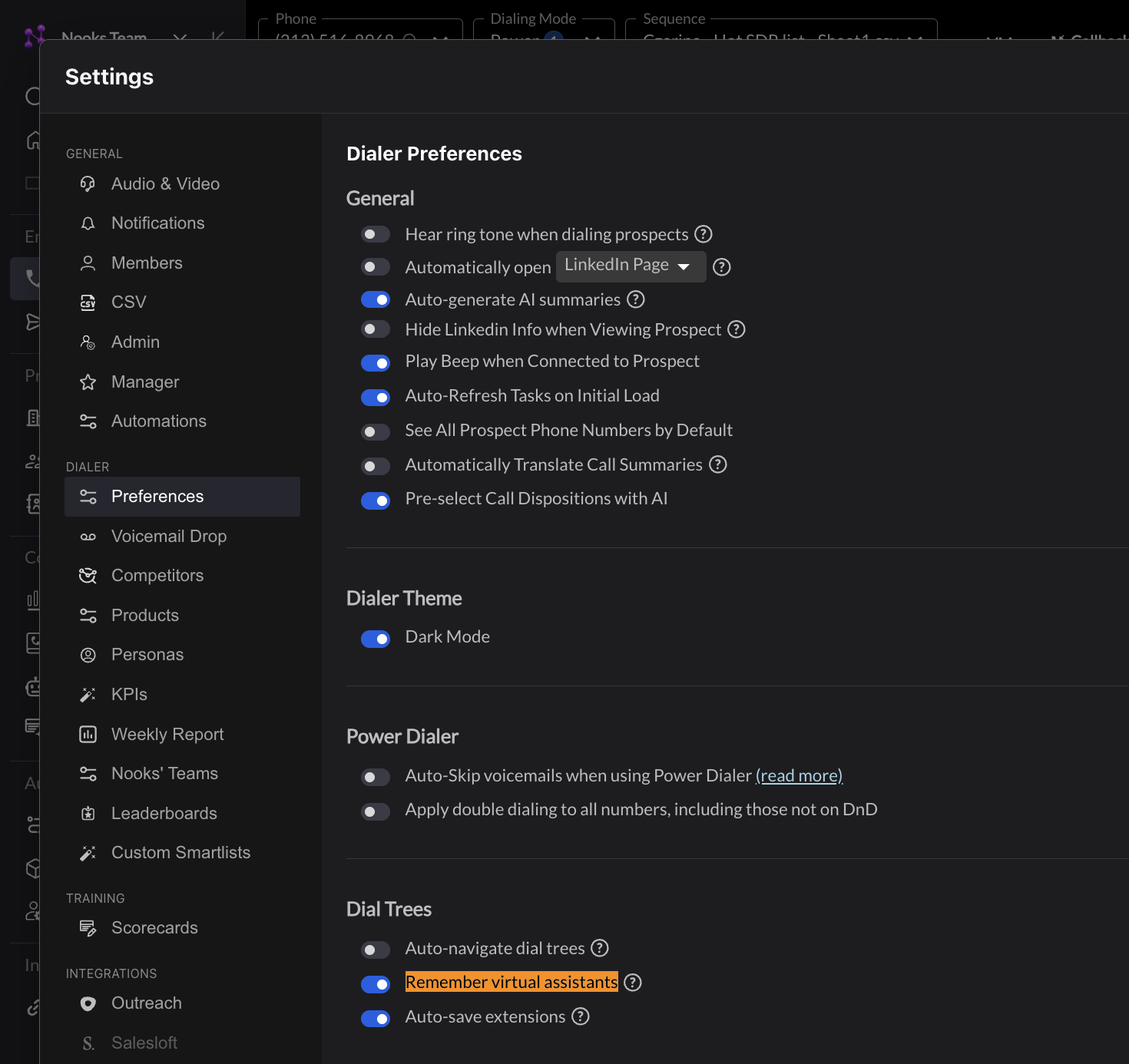
Toggle ON to skip calls answered by virtual assistants.
Enabling or Disabling Virtual Assistant Interface in the Dialer
These controls are also user-specific and can be configured individually by each user. Look for the option to enable Voice Assistant Navigation. This feature is particularly useful if your team frequently encounters iOS or Android voice screening systems.

Detection and Categorization
Nooks automatically detects when a call is answered by a virtual assistant. Once detected:
These calls are categorized into a separate section of the Dialer.
Reps can handle virtual assistant calls differently from live calls, ensuring their workflow remains efficient.
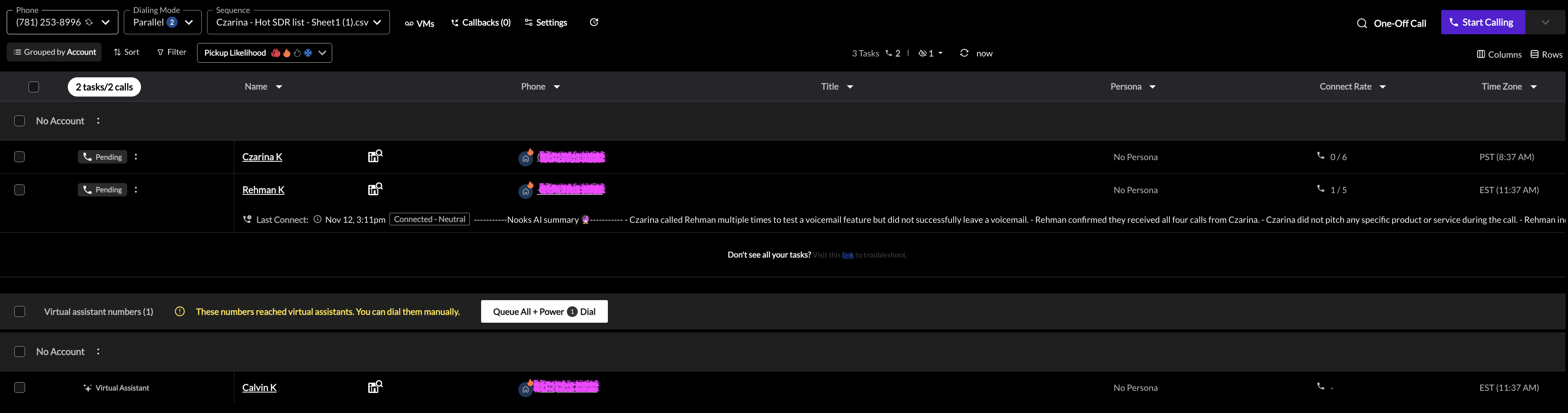
If you'd like to Power Dial down a list of numbers recognized as virtual assistant numbers, you can click Queue All + Power in the Virtual assistant section to move all of these numbers into your queue and power dial them one by one. Or simply keep them in the Virtual assistant number category and Click-to-Dial to manually dial each number.
Navigating Virtual Assistant Interface
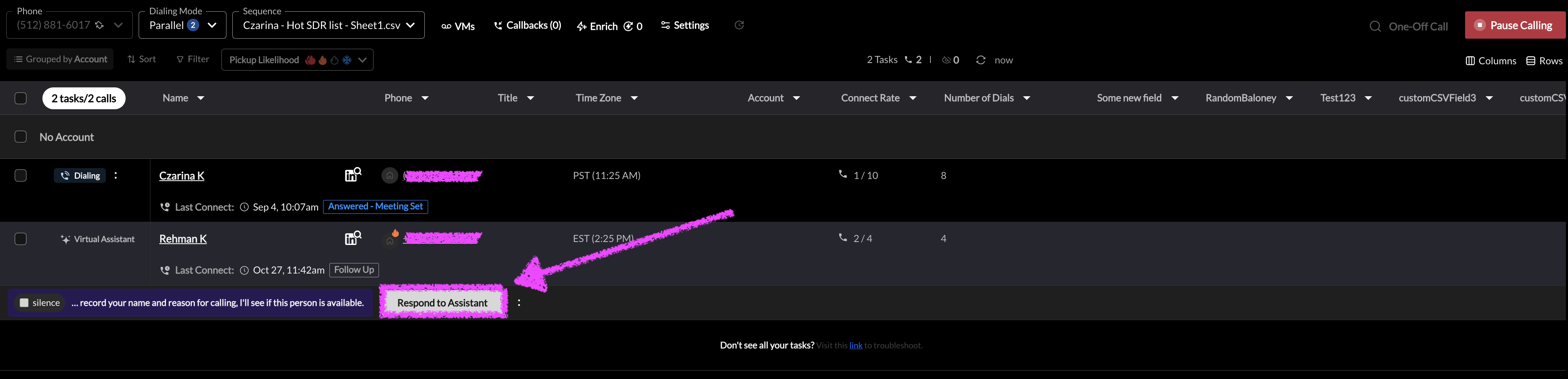
Enables reps to interact directly with voice assistants (like iOS call screening or Google Assistant) during parallel dialing without disrupting their workflow. This feature ensures compliance by requiring live human interaction and is especially useful for teams that frequently encounter call screening systems.
Click
Respond to Assistantto leave a live voice recording .
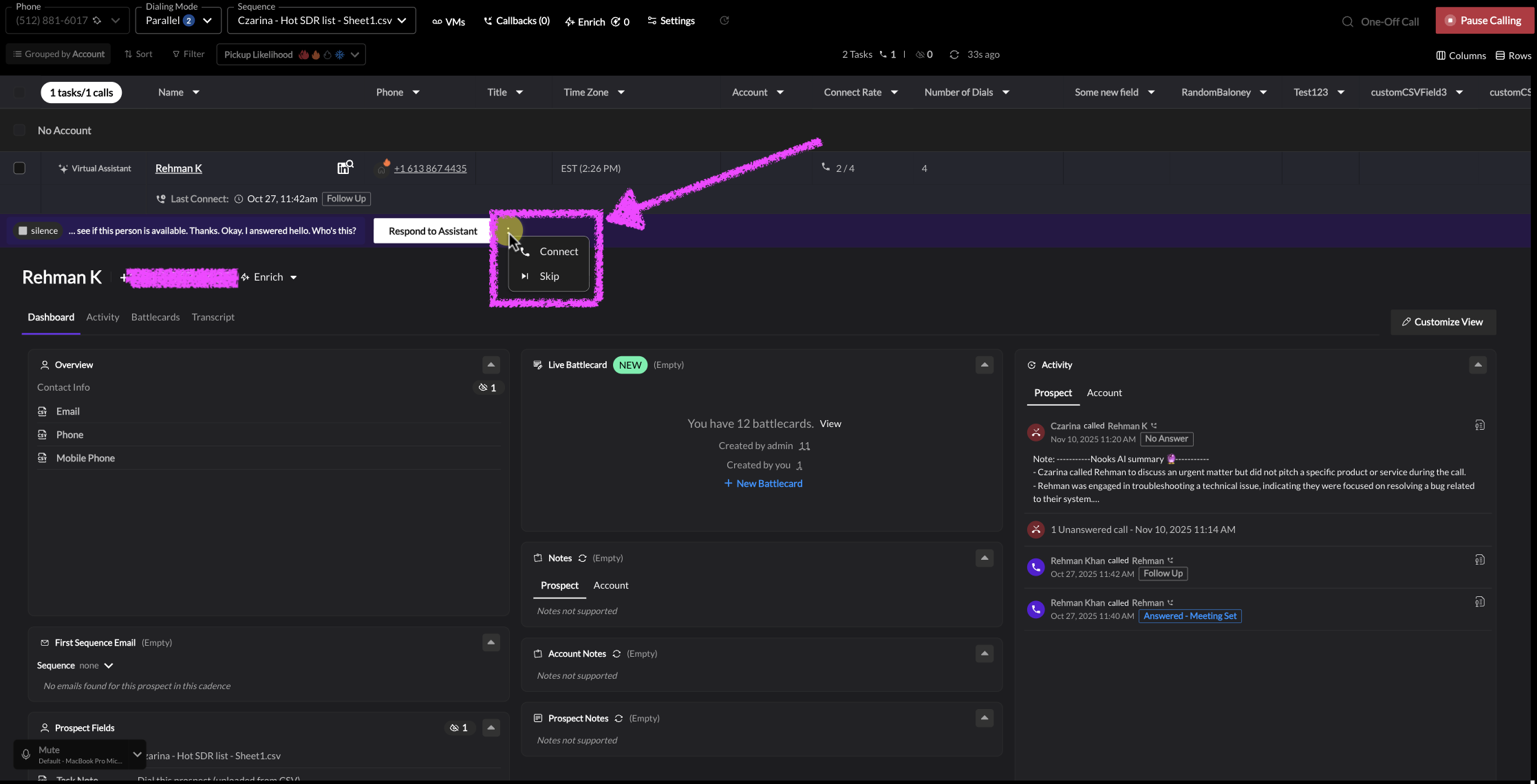
If you pass the screening, navigate to call options by clicking
:and thenConnectto continue the call.
Best Practices
Use Remember virtual assistants to keep these numbers out of your parallel dialing queue. If your team wants to engage numbers answered by virtual assistants while parallel dialing, turn on Virtual Assistant Interface.
Reinforce call personalization — relevance and a strong opener remain key differentiators.
Track connect rate trends before and after enabling features to ensure minimal workflow disruption.
Nuances
Pre-recorded messages cannot interact with call screeners; a live representative must speak to comply with legal requirements.