Preparing Contact Lists and Sequences in HubSpot
Last updated: September 25, 2026
HubSpot Sequences
HubSpot sequences allow you to create multiple steps for reaching out to contacts. Nooks pulls in due and overdue call tasks created by HubSpot sequences. As of February 2026, Hubspot Professional is required for sequence creation.
When you complete a HubSpot sequence call task in Nooks, Nooks marks the corresponding task complete in HubSpot so the contact can move to the next sequence step.
If that call task is the last step in the sequence, completing it in Nooks completes the sequence work for that contact and HubSpot handles the contact’s sequence status.
When dialing from a HubSpot sequence in Nooks, make sure you are selecting the sequence task list, not a general HubSpot segment, so Nooks can complete the correct HubSpot task after the call.
When creating a sequence in HubSpot, there are some default options to configure for unenrolling contacts from the sequence:
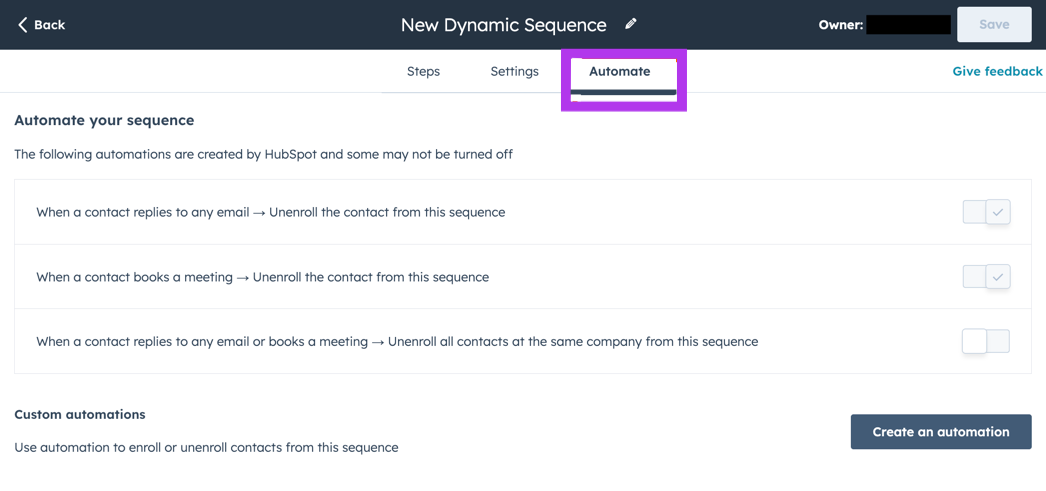
Unenrolling/Removing a Contact from a Sequence for Certain Call Dispositions
By default, HubSpot will unenroll contacts from a sequence if they book a meeting via a HubSpot meeting link, or if they reply to an email.
Some users may want more automations than these. For example, let's say you have a call disposition "Not Interested" and you want that call disposition to remove contacts from the sequence.This requires additional custom set up with HubSpot automations.
While every workspace is unique, one workflow that some Nooks users have used is outlined in this HubSpot community post from user Kmust on Sep. 26 2024.
Best Practices when Creating Sequences
Add Custom Task Titles
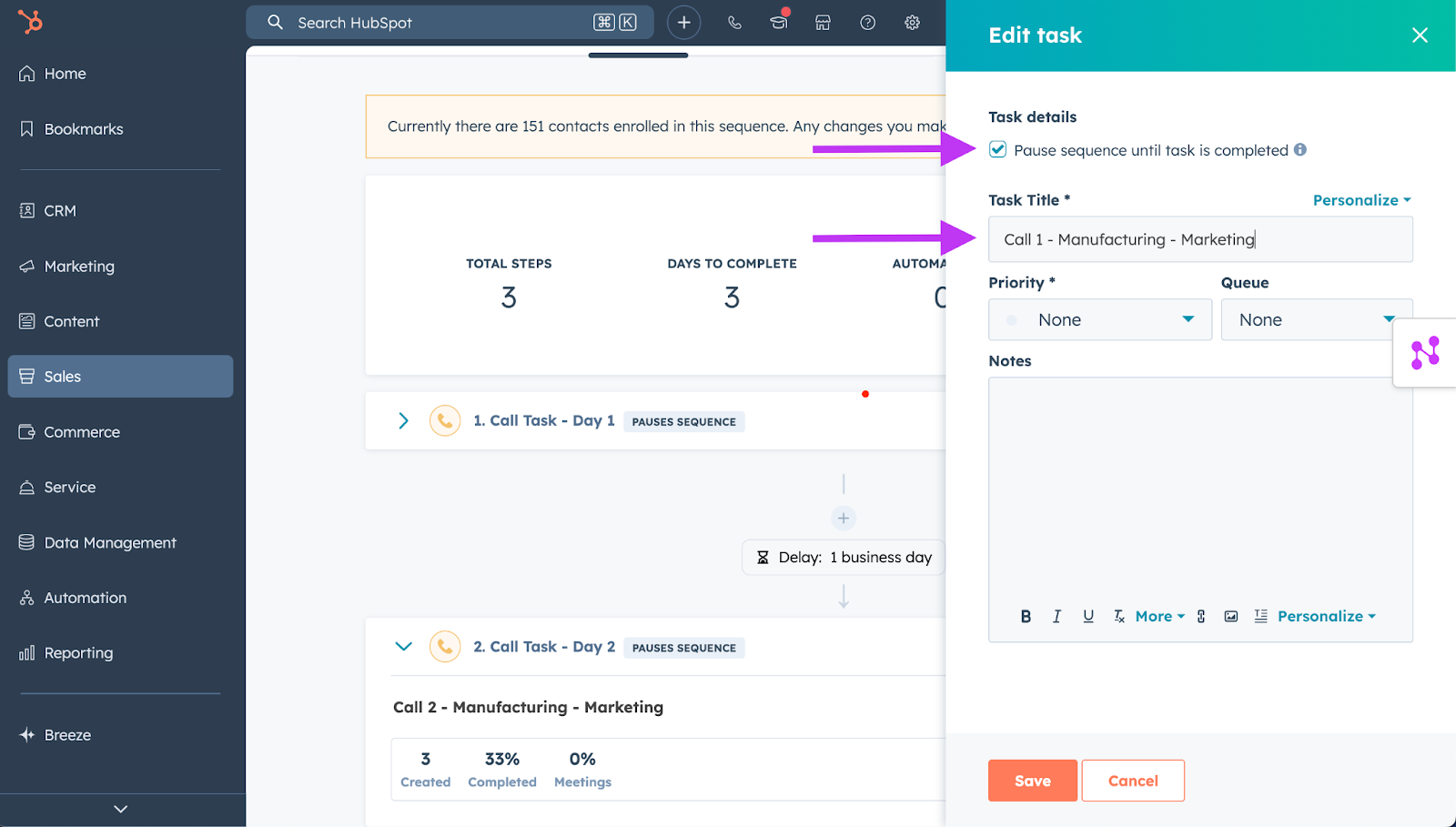
Due to HubSpot API limitations, Nooks cannot pull in the specific sequence step a prospect is in. As a simple workaround, users can add Task Titles to their call steps, which are pulled into the Task Name field in Nooks. Custom Task Titles can be used for sorting, grouping, and filtering tasks in Nooks.
How to: When viewing your sequence, click on the Actions button on the sequence step, then Edit task, then add a custom Task Title.
Pause Sequences Until Tasks Are Completed
When this box is checked, the sequence will be paused until the specific task is marked as complete. This prevents a buildup of overdue call tasks for the same prospect, helping teams avoid calling the same prospect more than once in a given timeframe.
How to: When viewing your sequence, click on the Actions button on the sequence step, then Edit task, then click the checkbox for Pause sequence until task is completed.
HubSpot Segments (Call Lists)
Choose the Type of HubSpot Segment
Nooks can bring in prospects from both Static and Active Contact Segments from HubSpot. Nooks pulls in HubSpot contact-based segments/lists, not lead-based segments/lists. If a segment is not appearing or appears empty in Nooks, confirm in HubSpot that the segment is contact-based and that it contains contacts.
Static segment: Does not update as new contacts meet or existing records no longer meet the criteria
Active segment: Automatically updates contacts so new records will join the list whenever they meet the set criteria and leave the list when they no longer meet the criteria (recommended)
We highly recommend that reps dial from Active Segments so that prospects can be added and removed from the list based on criteria such as Call Outcome.
Create Call Segments (Lists) in HubSpot
Note that creating Segments in your HubSpot instance may depend on your current user roles and permissions. Either:
sales reps can generate their own individual lists, or
managers will need to create unique lists for them using
Contact Ownerfor whom they want to own the tasks.
Steps to Create a New Segment
Follow the steps below to create a new call list in HubSpot:
Navigate to CRM, and under the dropdown select Segments (Lists).
In the top-right, select Create Segment.
Select Contacts and hit Next.
If using an active segment, add your filters (see recommended filters below).
Name your segment.
Click Next and save your segment as an active or static segment.
Removing/Unenrolling Contacts from Segments Based on Call Outcome (Disposition)
To remove contacts from a segment based on a call outcome:
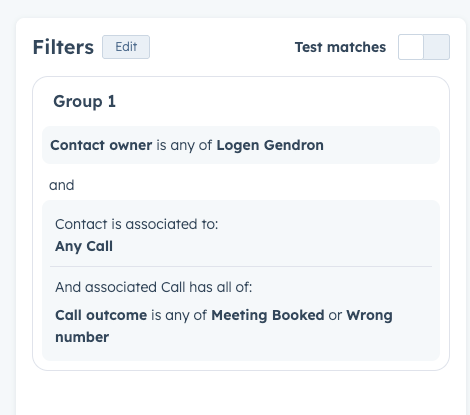
Set up an active segment of contacts who have been previously called, where the associated call includes the call outcome that will trigger the prospects removal from the list.
For example, this segment includes contacts that were previously called with a “Meeting Booked” or “Wrong Number” call outcome. These are the call outcomes that we want to trigger a prospects removal from our call list.
Use the segment you just created as an exclusion segment for any Active call list you create by clicking the Exclude contacts button in the segment builder and choosing this exclusion segment.
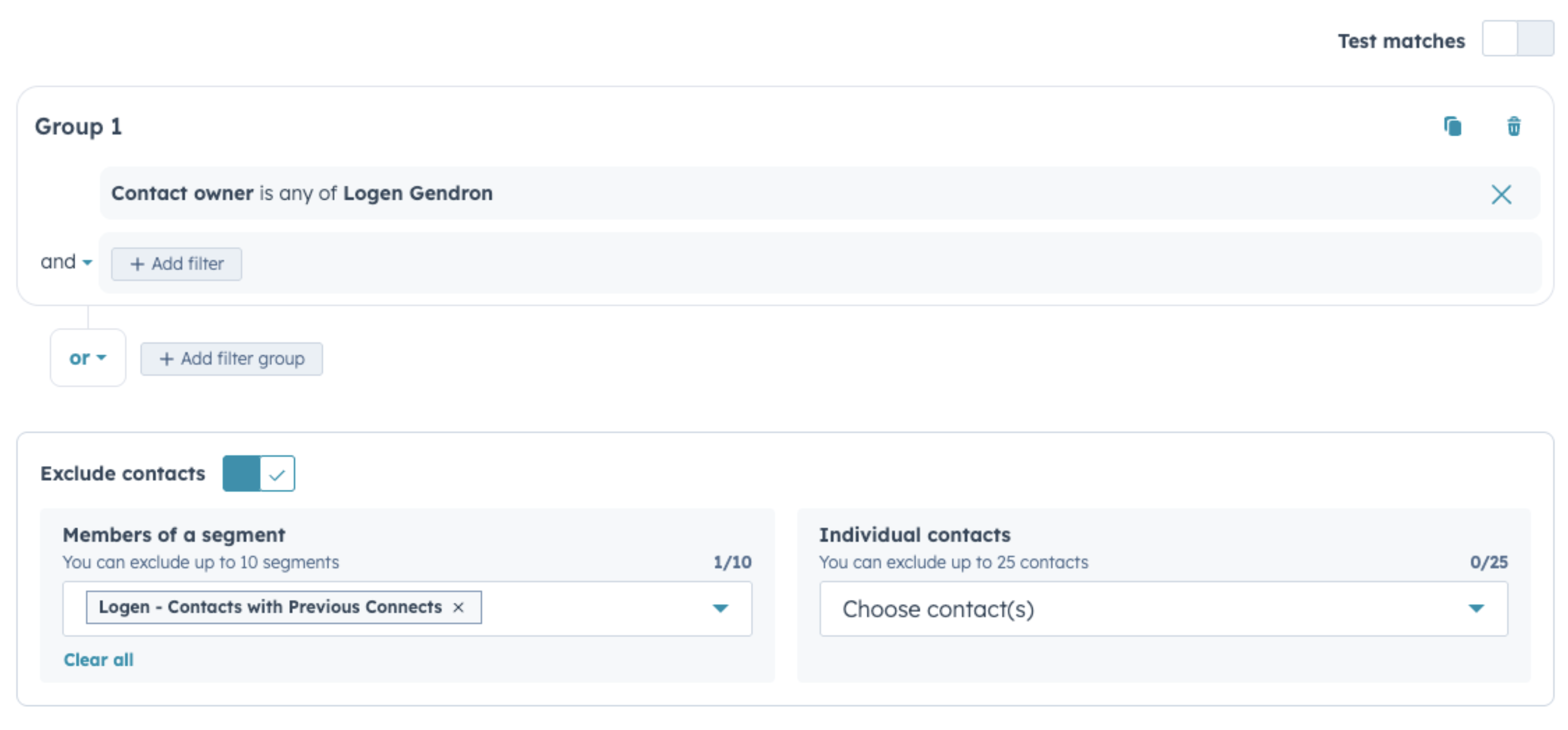
By adding this exclusion segment to newly created call segments, you can effectively remove prospects from your call segments based on call outcomes.
Recommended Filter for Active Segments:
Contact owner: This will ensure that the list of contacts will have been assigned to you or the specific sales rep
Last Activity Date: The most recent time there was any activity with this contact, including emails, calls, and meetings
Exclude contacts: Add an exclusion segment as described above that will remove prospects from your call list based on call outcomes.
Video Walkthrough
Calling from Your HubSpot Sequences and Segments in Nooks
Once you’ve created a HubSpot sequence or segment and prospects have been added to it, you can execute your call tasks in Nooks. In Nooks:
Open the Dialer from the left-hand navigation menu
Click into the Sequences dropdown
Search for and select your sequence or segment
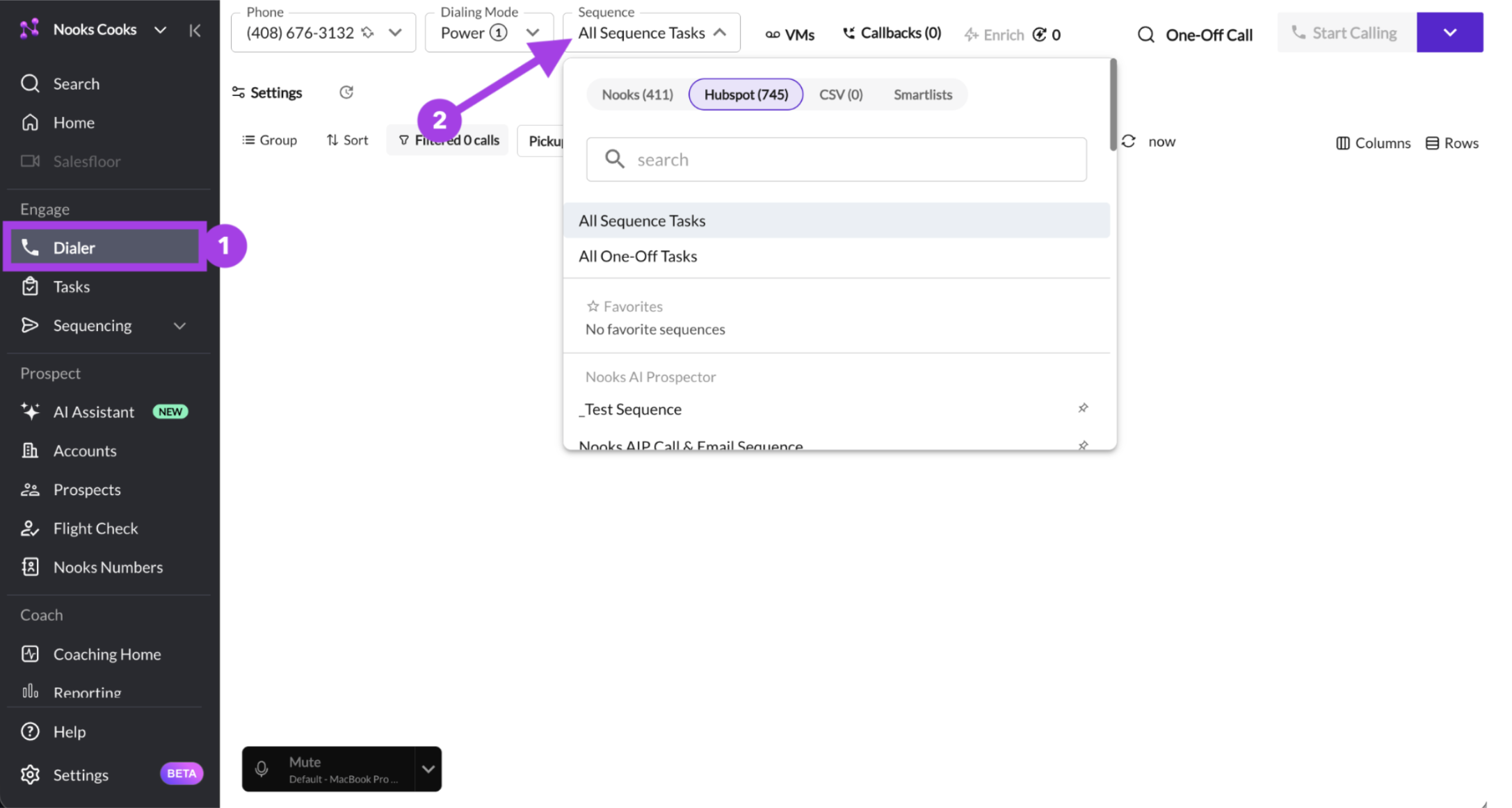
Depending on whether you're working from a sequence or a segment, you'll see the following call tasks populate in Nooks after making your selection.
Sequence: Any due or overdue call tasks assigned to you.
Segment: The contacts in the segment, loaded up to 2,000 at a time. If the segment has more contacts, hover over the task count at the top of the dial list and use the load-more option to pull in the next batch.
For more tips on dialing from Nooks, check out this guide on getting started with the Nooks Dialer.