Gong Engage + Nooks Integration
Last updated: December 17, 2025
How to Set Up the Gong Engage + Nooks Integration
The Gong Engage + Nooks integration gives reps everything they need to execute faster outbound workflows without losing precision.
This guide walks you through the exact steps to connect Nooks and Gong Engage, plus important setup tips, known limitations, and how to get the most out of the integration.
Why It Matters
Gong Engage is a powerful sales engagement platform that helps teams sequence outreach at scale. Nooks is an AI-powered dialer that helps reps power through call blocks and have more human conversations.
With this integration, you can:
Load call tasks from Gong Engage directly into Nooks
Use AI-powered dialing to reach 3–5x more prospects
Automatically log notes, outcomes, and updates back to Gong Engage and your CRM
Close the feedback loop between calls, coaching, and prospecting
Let’s get you set up!
Setup Instructions
In Gong
1. Connect Your CRM to Gong
Gong pulls prospect information from your CRM (e.g., Salesforce). To connect:
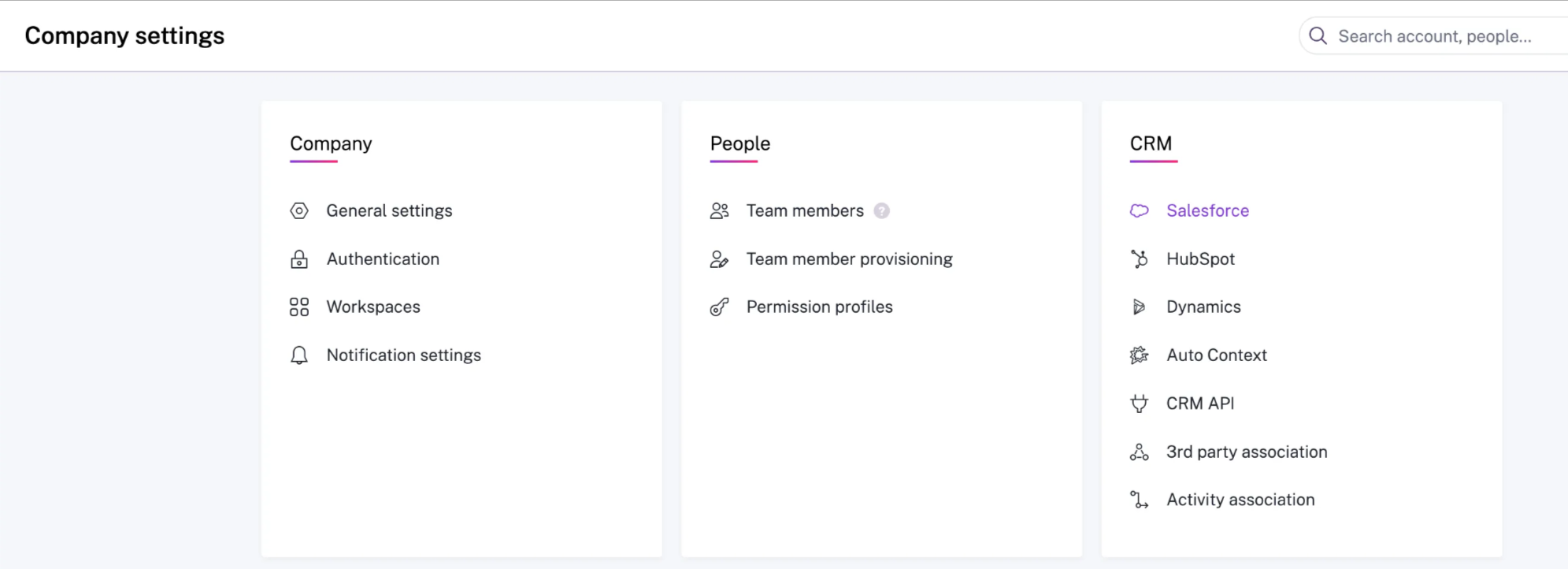
Go to Company Settings > CRM > Salesforce
Click Connect
2. Enable Telephony Calls
In order to log calls, users need the "Telephony Calls" setting enabled in Gong.
Navigate to Company Settings > Team Members > Click User > Scroll to "Data Capture"
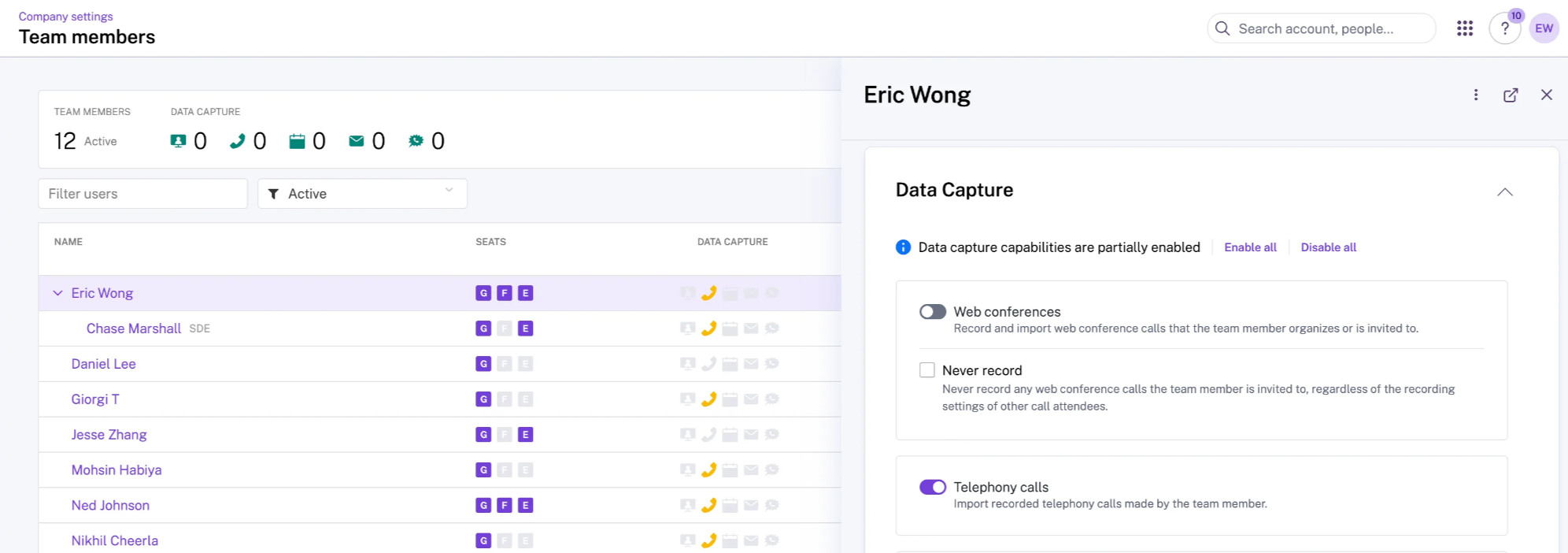
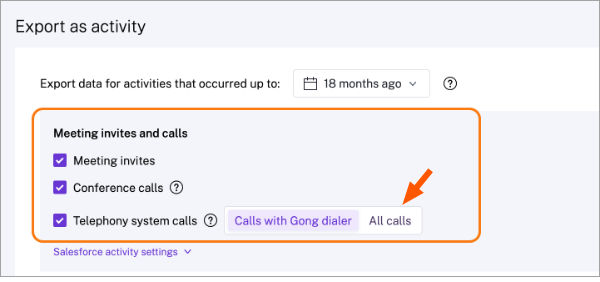
(Optional - if you're also using Salesforce/SFDC and you want Gong Engage calls to log to SFDC, you'll need to enable this setting in Gong Engage and choose "All Calls")
3. Set Up Your Flows in Gong Engage
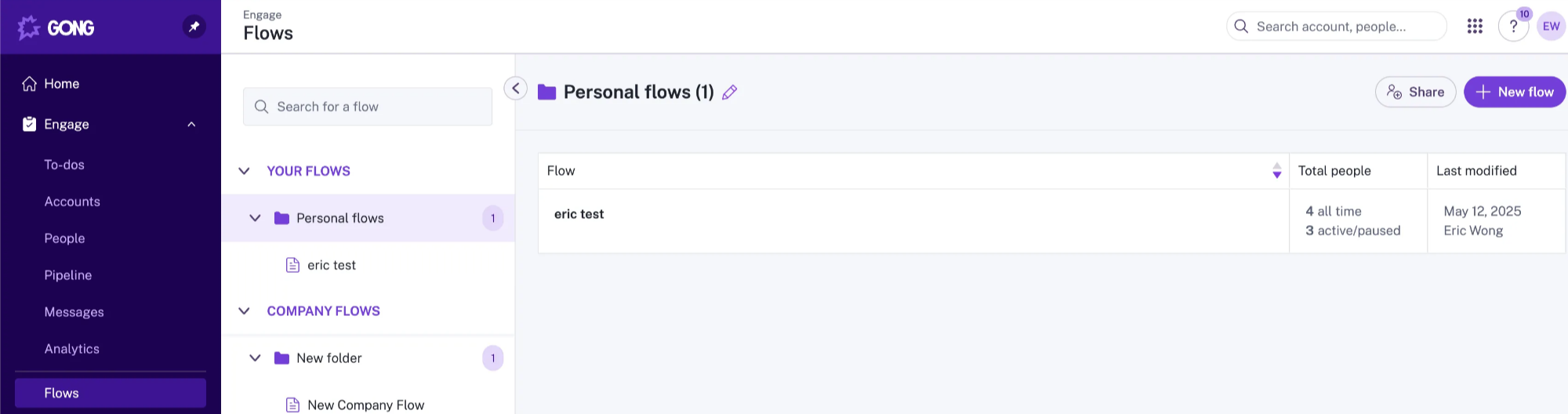
Navigate to Engage > Flows > Personal Flows > New Flow
Add flow steps as needed
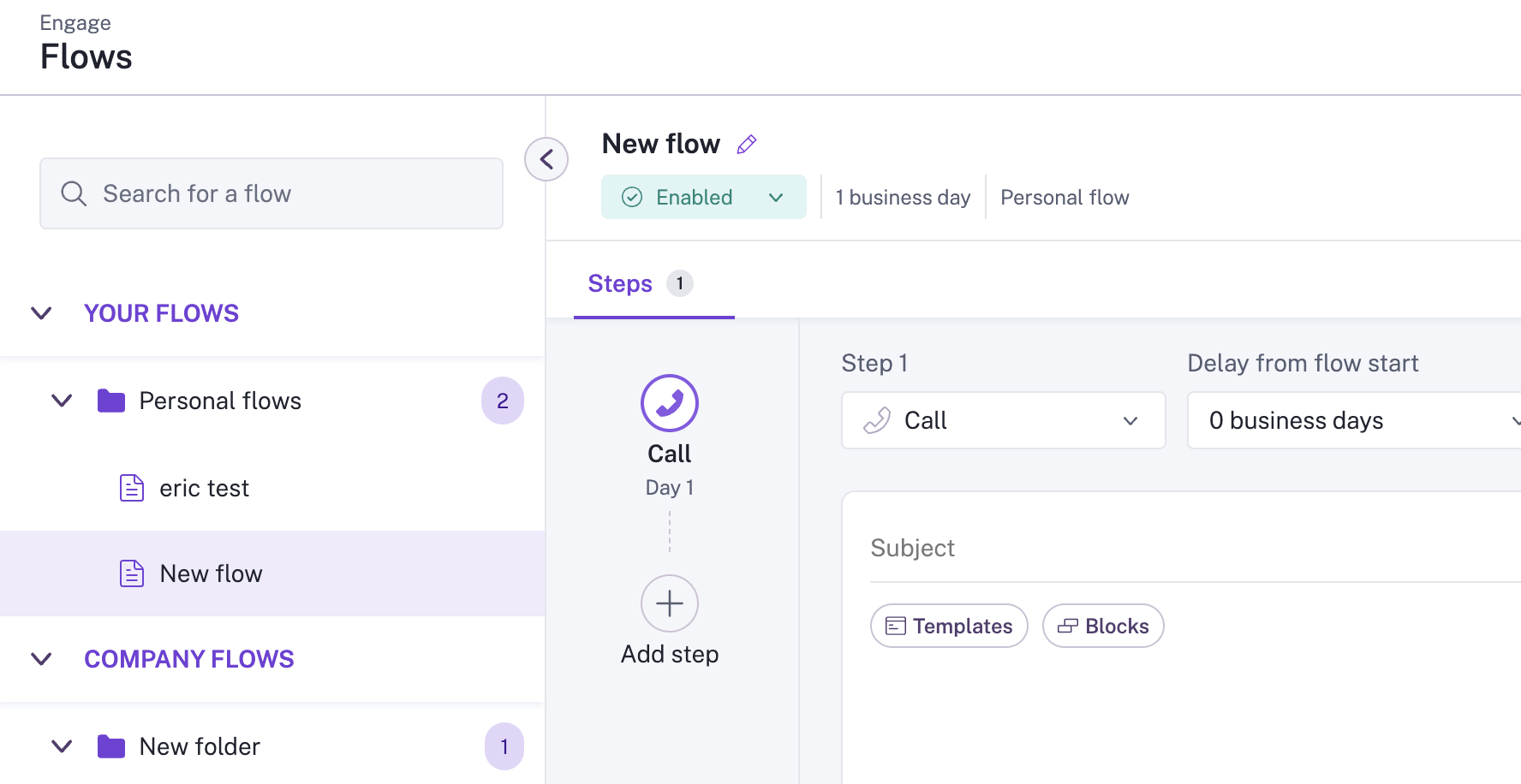
Add prospects to a flow via Engage > People > Add to Flow
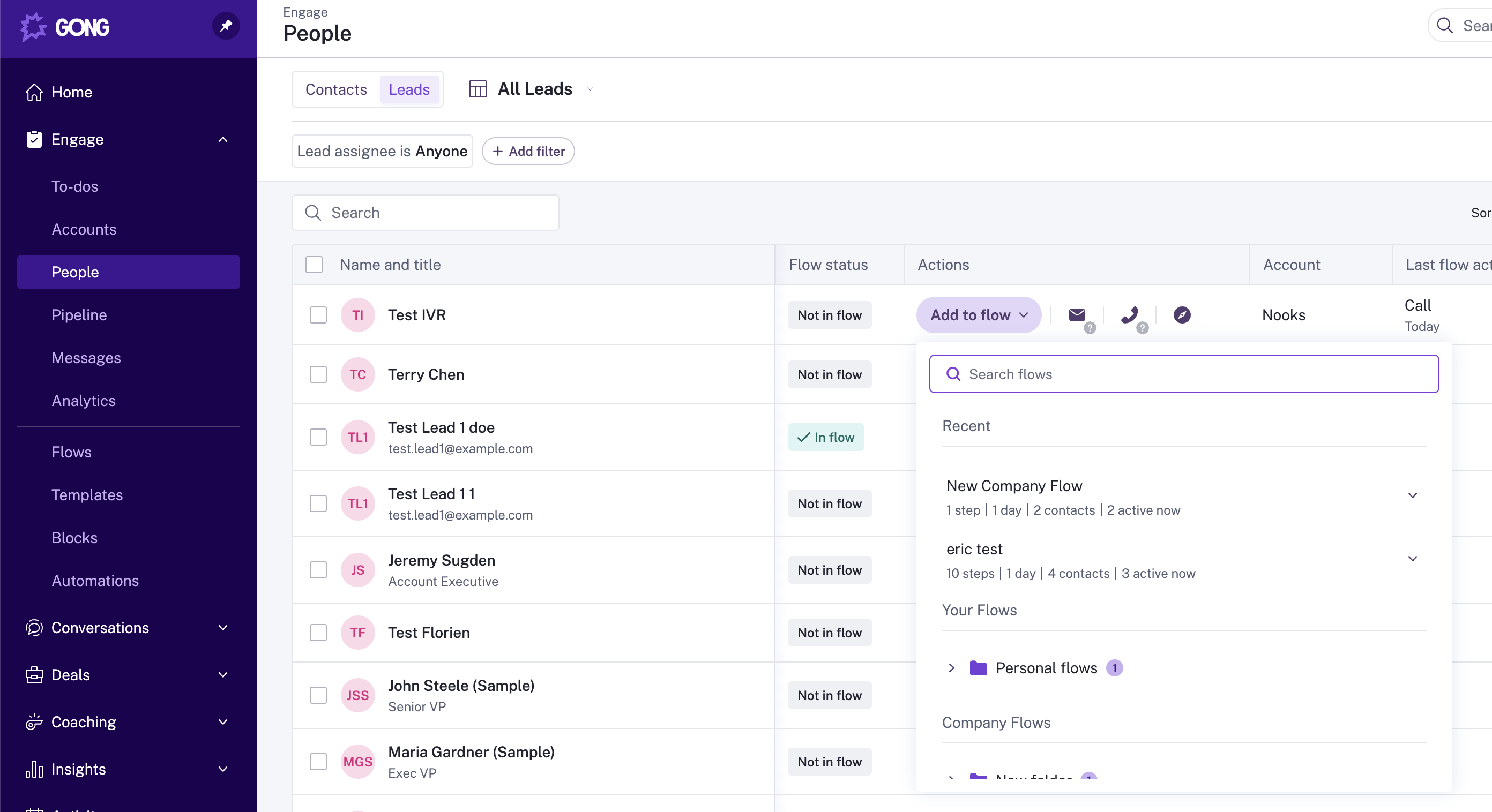
Note: Personal flows are only visible to the user who created them. Company flows are shared across the org.
4. Map Phone Numbers in Gong
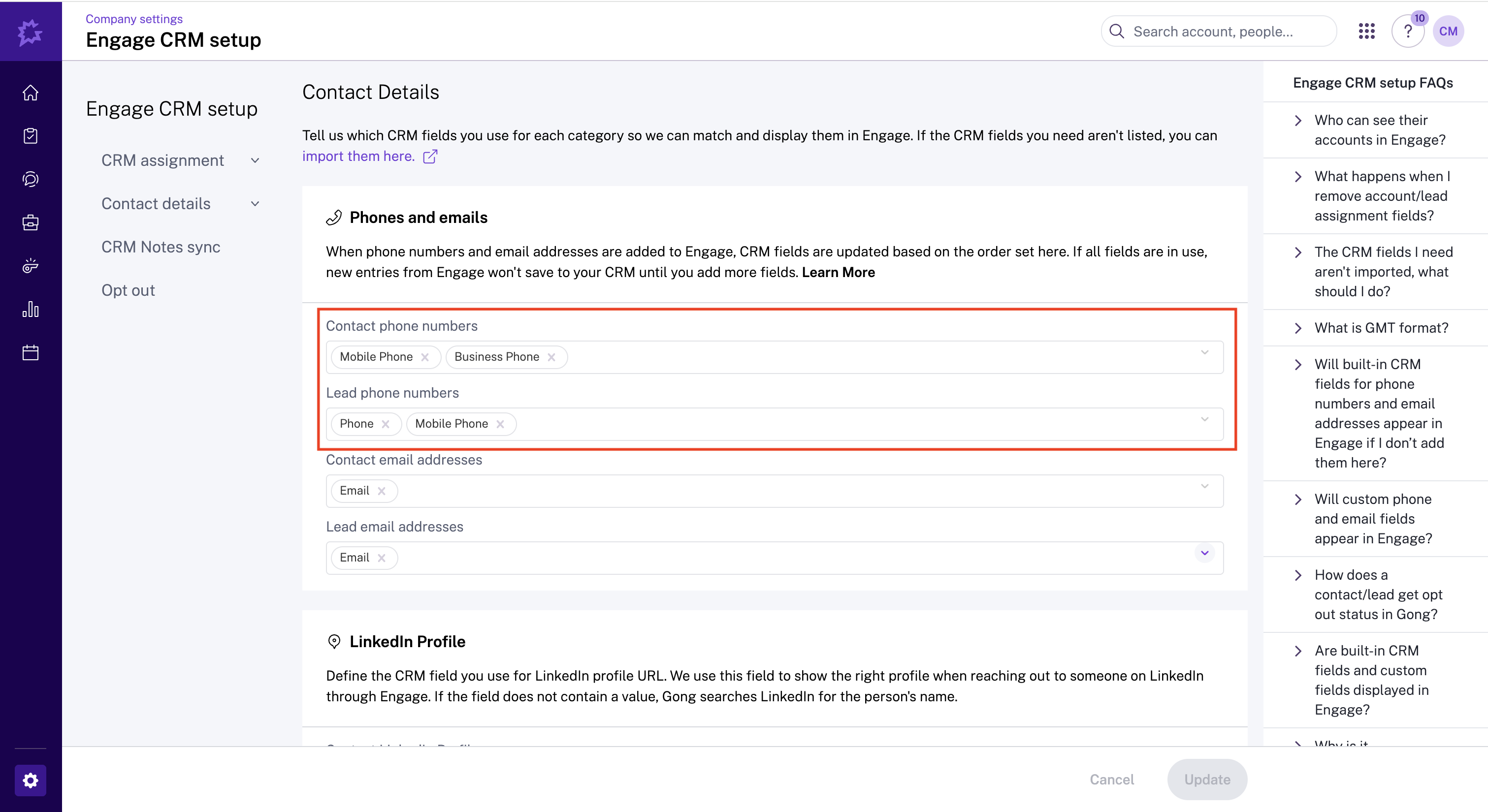
To make sure phone numbers populate correctly in Nooks:
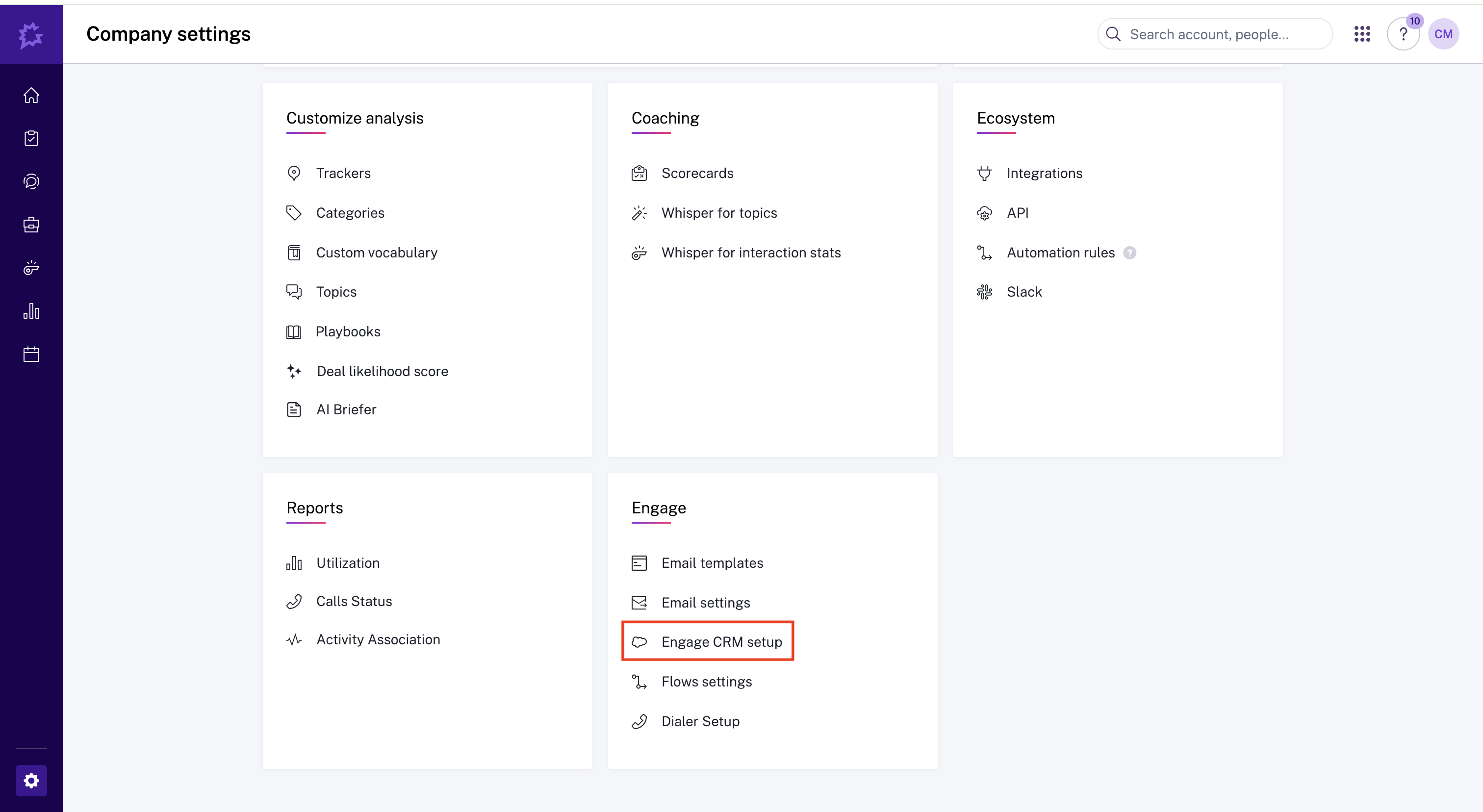
Go to Company Settings > Engage CRM Setup
Configure phone number fields for both Contacts and Leads
In Nooks
1. Enable the Gong Integration
Click the Gear Icon (top-right) in Nooks to connect to Gong via OAuth. The first user to connect Nooks to Gong should be a "Technical Admin" in Gong (more info here).
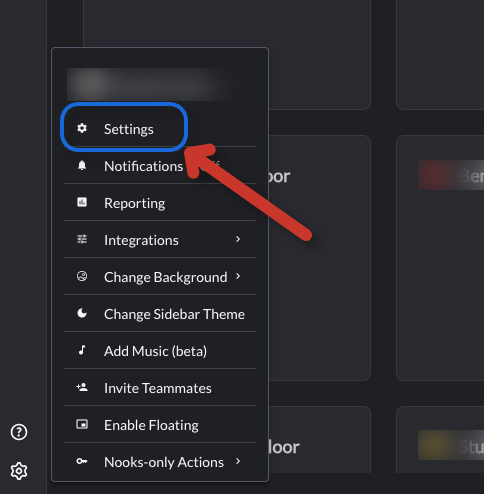
Note: The Nooks + Gong Engage integration is not the same as the legacy Gong integration. You may see both in your Settings menu in Nooks.
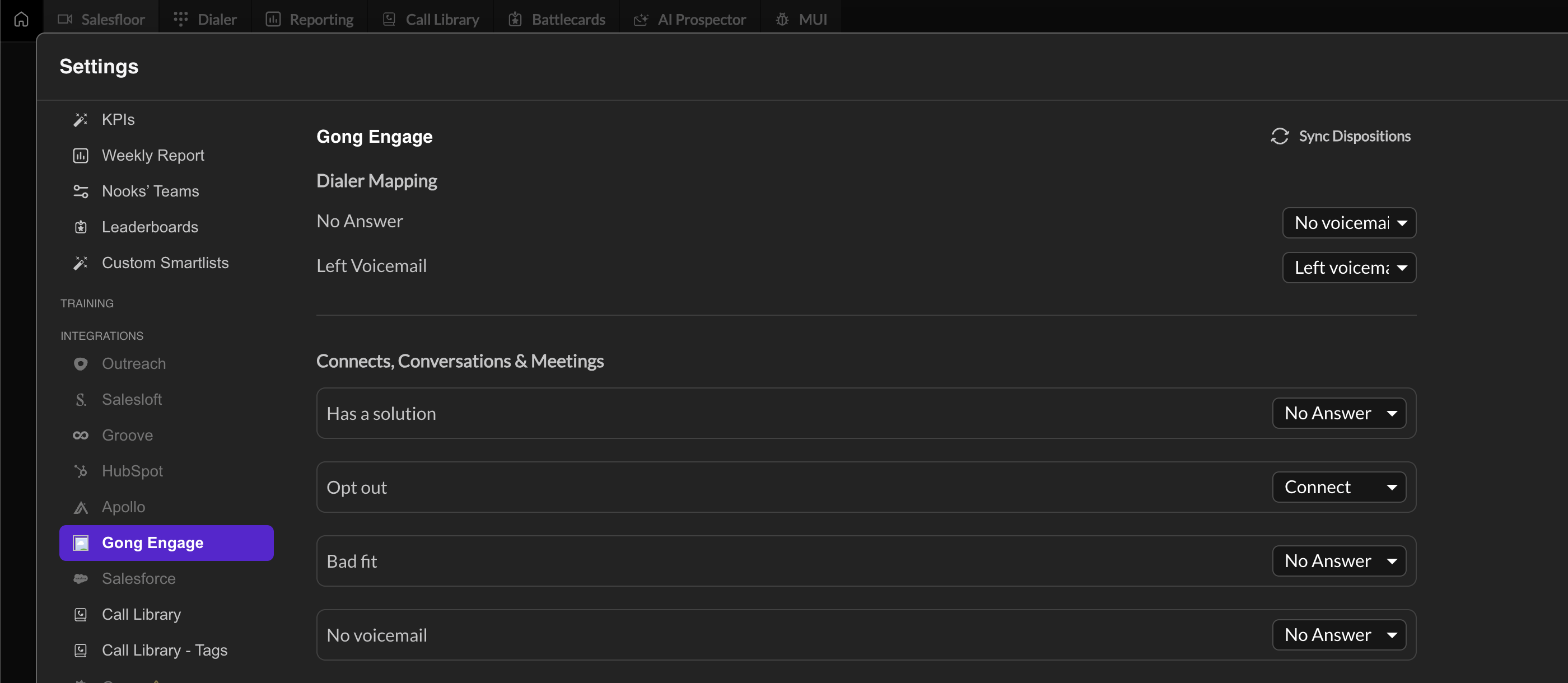
2. Check Gong Settings in Nooks
Once connected, Gong Engage will appear under Settings > Integrations, just like other integrations (Salesforce, Outreach, etc.)
3. Multi-Integration Setup (Recommended)
Connect your CRM (e.g., Salesforce) to Nooks as well
This enables custom field hydration for better targeting and reporting
Note: This is a Nooks only action. Contact your CSM can enable multi-integration.
Key Nuances to Know
Call Logging
First dialed number will log against the task and complete the task
Additional numbers will only log against the prospect
Gong Engage automations may not work because only the disposition on the first dialed number will apply.
Some calls may not log due to Gong API issues or call recording fetch failures
Recordings
Gong requires recordings for call logs
Disabling recordings is not allowed while Gong is connected. Coming soon.
Multi Integration (SFDC Required)
Gong does not return custom fields
Connect CRM to load custom prospect/account fields into Nooks
If you want to auto log Gong Engage calls to SFDC, you'll need to enable this setting in Gong Engage to be "All Calls"
Voicemail Mapping
You can map voicemails to sequences
It is not possible to map to specific steps due to API limitations
Rate Limits
The Gong API has strict rate limits
Larger teams may experience issues; Gong support can increase limits on request
Sequences + Flow Access
Gong does not expose user-workspace associations
You may see other users’ flows in Nooks, but can only load tasks assigned to you
Company flows and "All Tasks" work normally
Nooks only pulls sequences from Gong’s default workspaceId
What It Looks Like In Action
Need Help?
Reach out to support@nooks.in or your CSM for troubleshooting help.