Salesloft Integration Technical Overview
Last updated: September 22, 2026
Overview
Reps can connect their Nooks accounts to their Salesloft via OAuth to access Cadences, Tasks and Prospects directly from the Nooks Dialer.
Reps must connect their accounts individually.
Once connected, Cadences will appear in the sequence dropdown.
Tasks will only appear when they are due or overdue.
OAuth Connection
Nooks uses OAuth to connect their Nooks account with an associated Salesloft account. For each connection, the Nooks service receives an API key that is used to make calls to the Salesloft API.
List of scopes required for connection:
users.all
calls.all
accounts.all
webhooks.all
teams.all
prospects.all
mailboxes.all
phoneNumbers.all
callDispositions.all
events.all
tasks.all
mailings.all
sequences.all
sequenceTemplates.all
sequenceSteps.all
sequenceStates.all
Occasionally, these API keys will expire and Nooks may prompt the user to re-connect.
For more details and documentation on the SalesLoft API: https://developers.salesloft.com/docs/api
Steps to Connect Your Salesloft Account to Nooks
After signing into Nooks, you can connect your Salesloft account to Nooks through the following steps.
Click Settings at the bottom of the left-hand navigation menu.
In the pop-up menu, click Integrations.
Select Connect Salesloft.
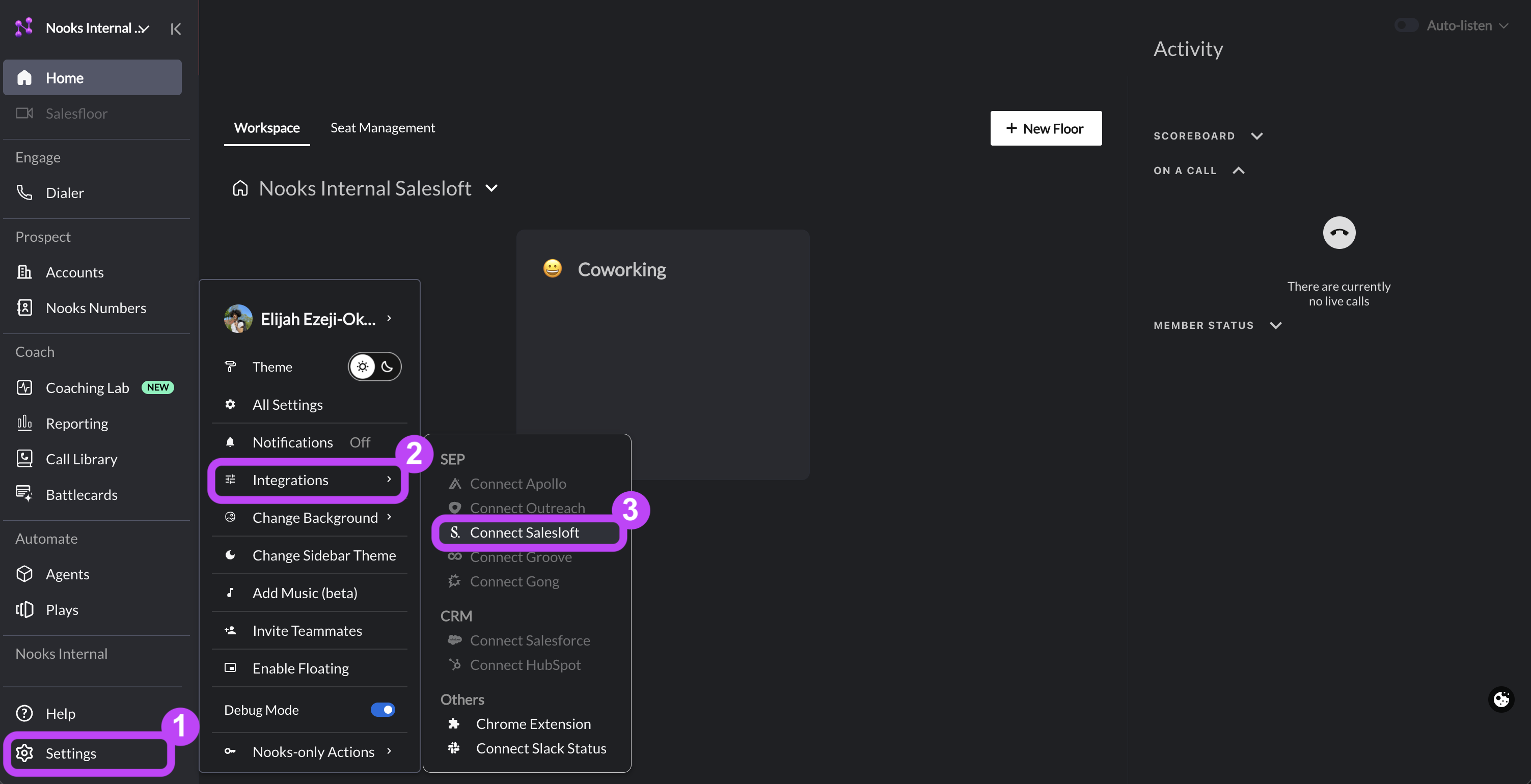
You'll be brought to Salesloft in a new tab, where you can sign in with your Salesloft account to authorize the sync. Once you've completed the Salesloft sign-in flow, you should see a "success" message. Afterwards, you may close that tab and return to Nooks.
Data Flow: Just-in-time access
In order to ensure data is up-to-date from Salesloft, Nooks adopts a “just-in-time” access model to Salesloft data.
Here's how Nooks uses this access model to load a user’s tasks and make calls.
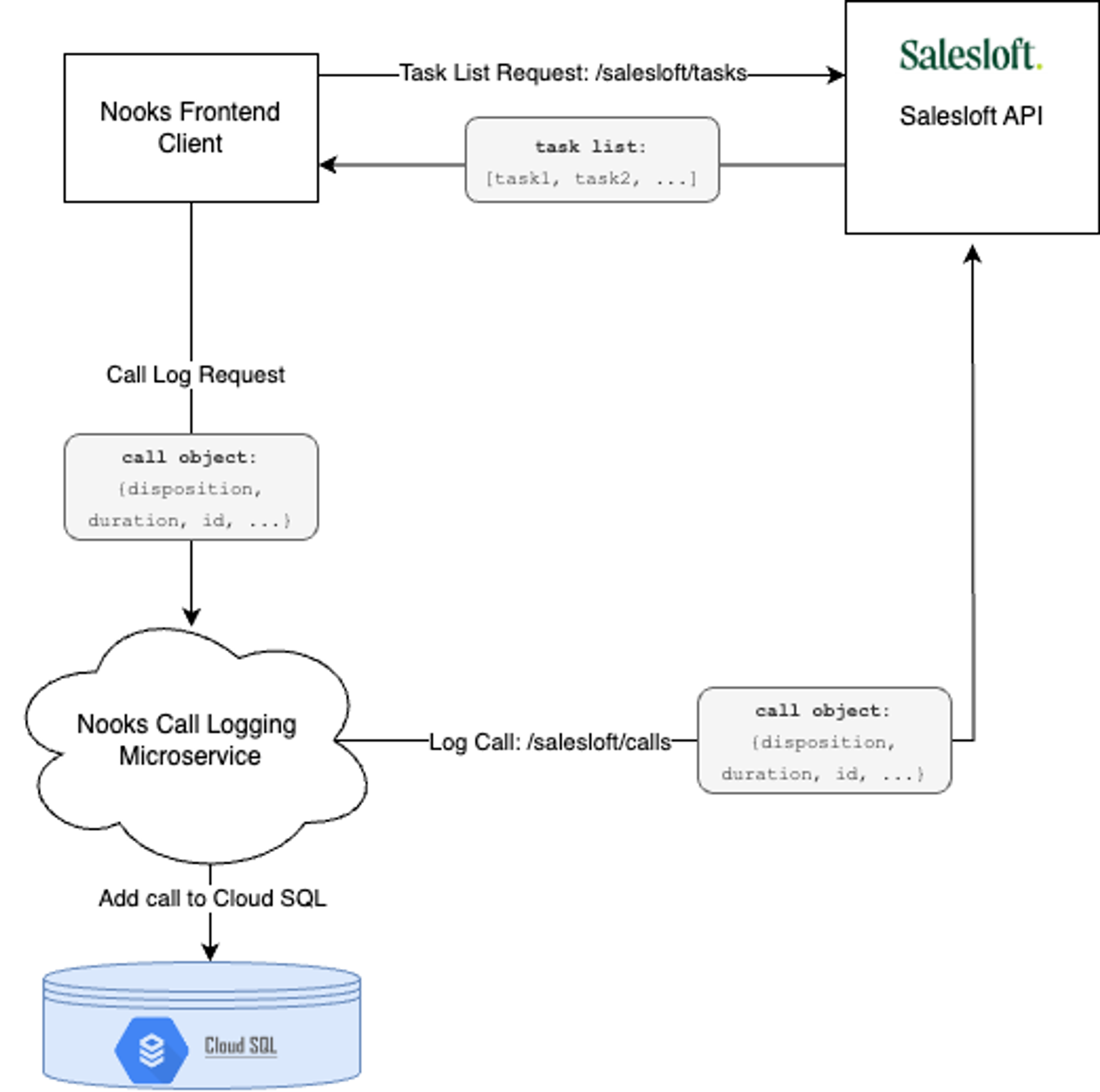
The frontend client makes a request to Salesloft using its API to load the list of tasks. As the client performs calls on each of these call tasks, the client submits a request to log these requests to our call logging microservice. This microservice handles logging this call for internal reporting as well as back to Salesloft for proper activity logging.
Calls logged back to Salesloft from Nooks use the same sentiments and dispositions as calls logged within Salesloft. If needed, these sentiments can be edited within the Salesloft tab of the Nooks Settings, or within Salesloft itself.
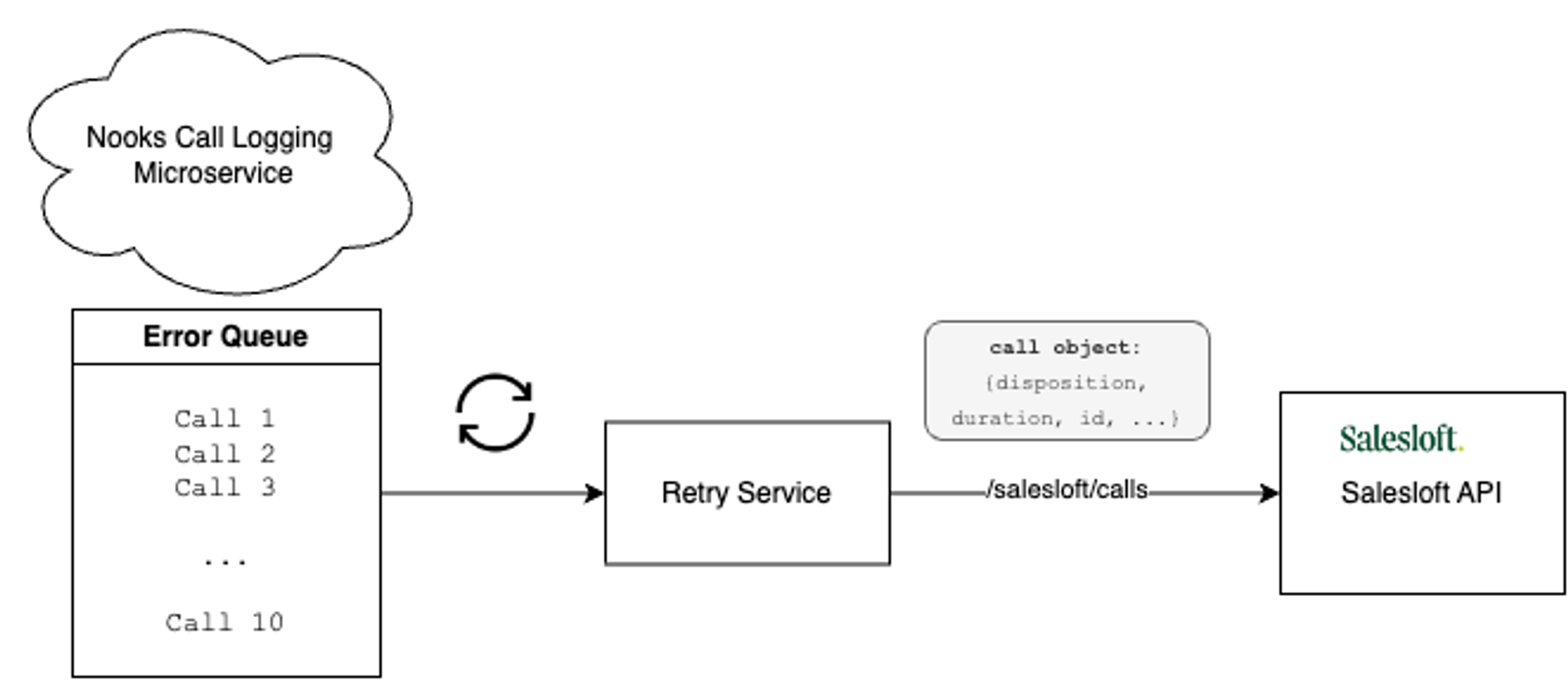
Occasionally the SalesLoft API may rate limit the Nooks client from being able to log calls. In the event Nooks receives a rate limit error, our call logging microservice will add the call attempt to an error queue that will be retried at a later time.
Each failed attempt will be retried a total of up to five times.
Data Objects
The data model for information pulled via the Salesloft API closely mirrors Salesloft’s data model. All data objects pulled from Nooks are designed with the “Restricted classification” and follows the according internal security model and permissions.
Data Element | Description |
.prospect | Prospect details |
.account | Account details |
.sequence | Sequence names and ids |
.disposition | Dispositions |
.call | Call objects |
.task | Task ids |
.sentiment | Sentiment |
Call Logging
When logging a call, the following properties are written back to Salesloft Tasks.
Data Element | Type |
prospect_id | number |
disposition_id | number |
sentiment_id | number |
notes | text |
task_id | number |
duration | number |
time | date |
to | number |
Due to a limitation within the Salesloft API, recording URLs are inserted into the note of the call for easy access.
For more information see full documentation on the call logging API call here: https://developers.salesloft.com/docs/api/activities-calls-create.
Troubleshooting Call Logging Issues
If calls are not logging to Salesloft despite waiting for the AI summary and clicking “log”, check the following common causes:
Internet disconnection or high latency - Network interruption or poor network performance during the logging process causes the call to be lost
Navigating away from the call logging page - Closing the dial before the logging process completes
Multiple Nooks tabs open - Having multiple dialer tabs open simultaneously can cause conflicts
Network Requirements
Nooks requires the following minimum network specifications for reliable call logging:
Internet speed: at least 50 Mbps download and 50 Mbps upload (100 Mbps recommended).
Jitter: under 30 ms.
Latency (round-trip time): under 200 ms recommended; above 400 ms, Nooks will warn about call quality.
Packet loss: under 1%.
To diagnose network‑related issues, run these speed tests when experiencing call logging problems:
Note: Since Nooks uses multiple API calls across integrations (CRM, Twilio, etc.), it typically requires greater bandwidth than other browser‑based applications.