Nooks Microsoft Entra SSO Integration
Last updated: December 17, 2025
This document shows how to configure Microsoft Entra (formerly: Azure AD) SSO with Nooks, so users in your organization can sign in and start using Nooks with Entra-managed credentials.
Configuration Steps
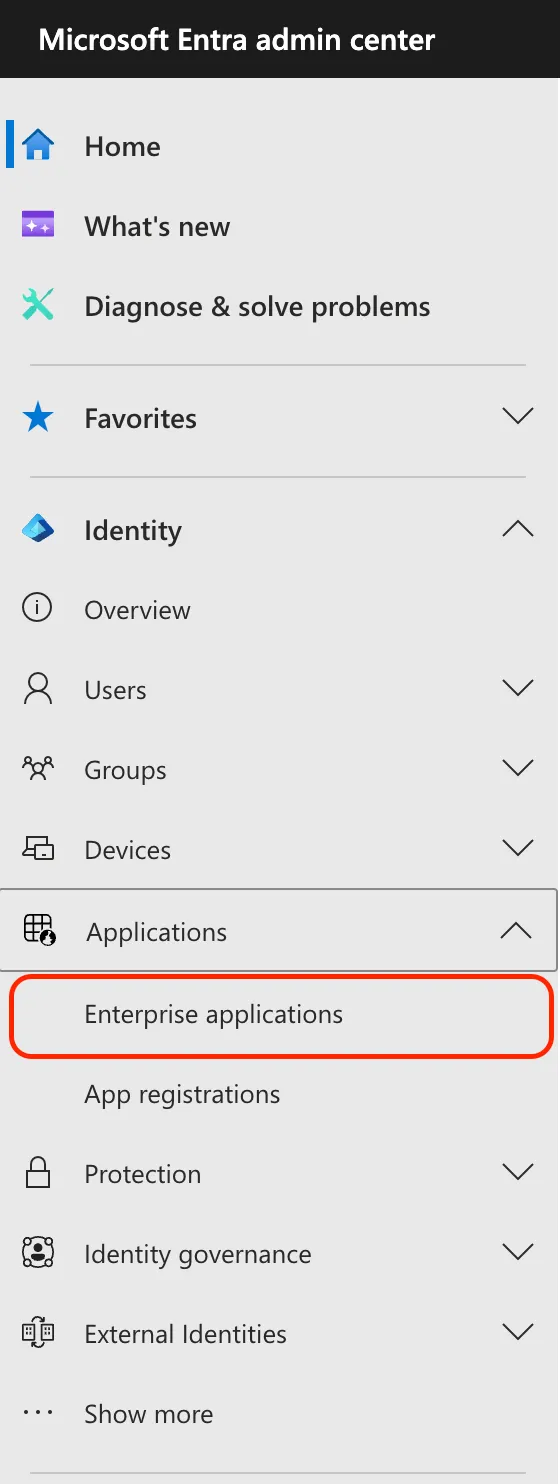
Under Identity → Applications, click Enterprise Applications
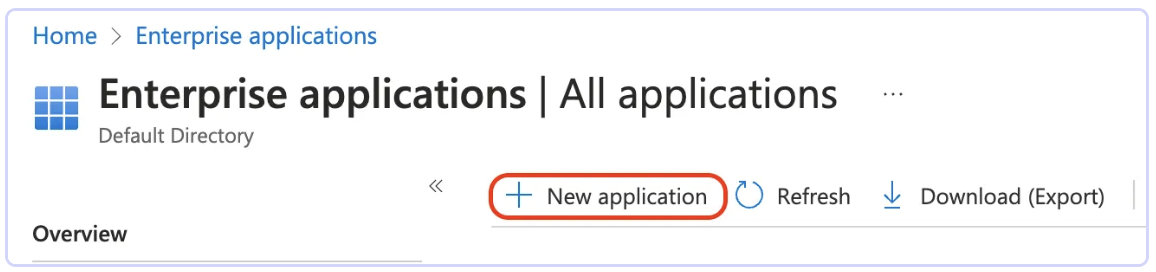
Select + New Application at the top of the panel
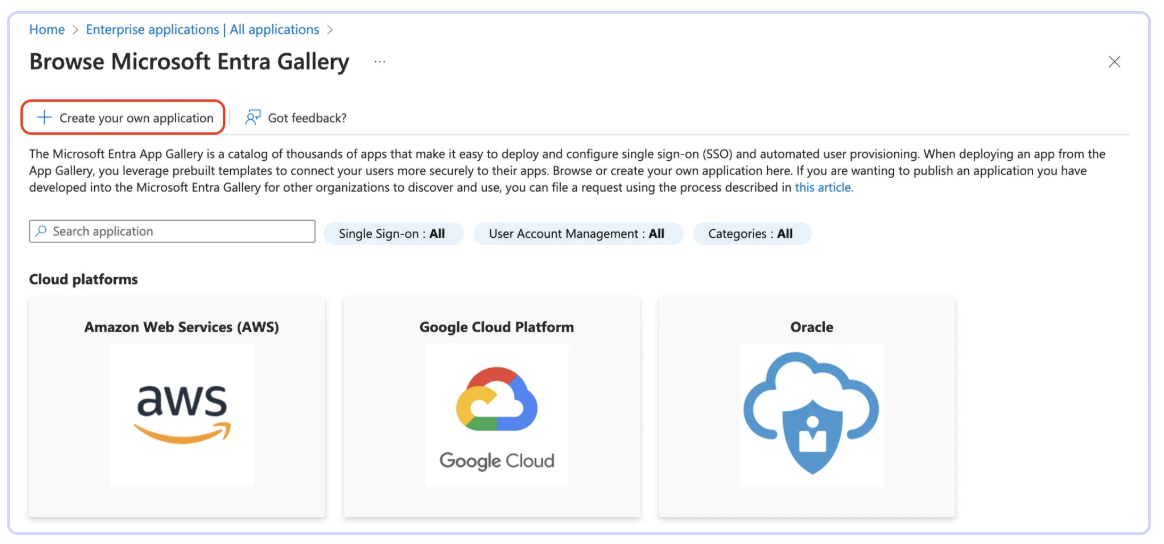
Click + Create your own application
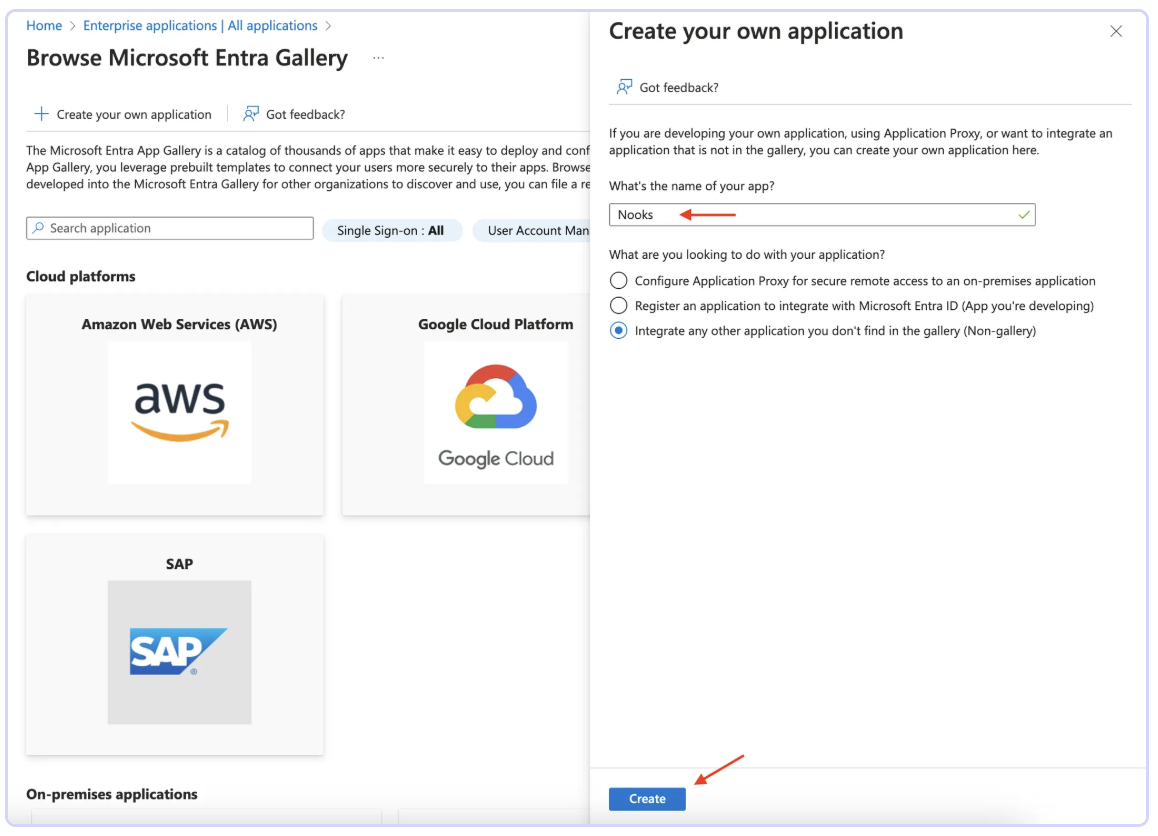
Name it “Nooks” and click the Create button at the bottom
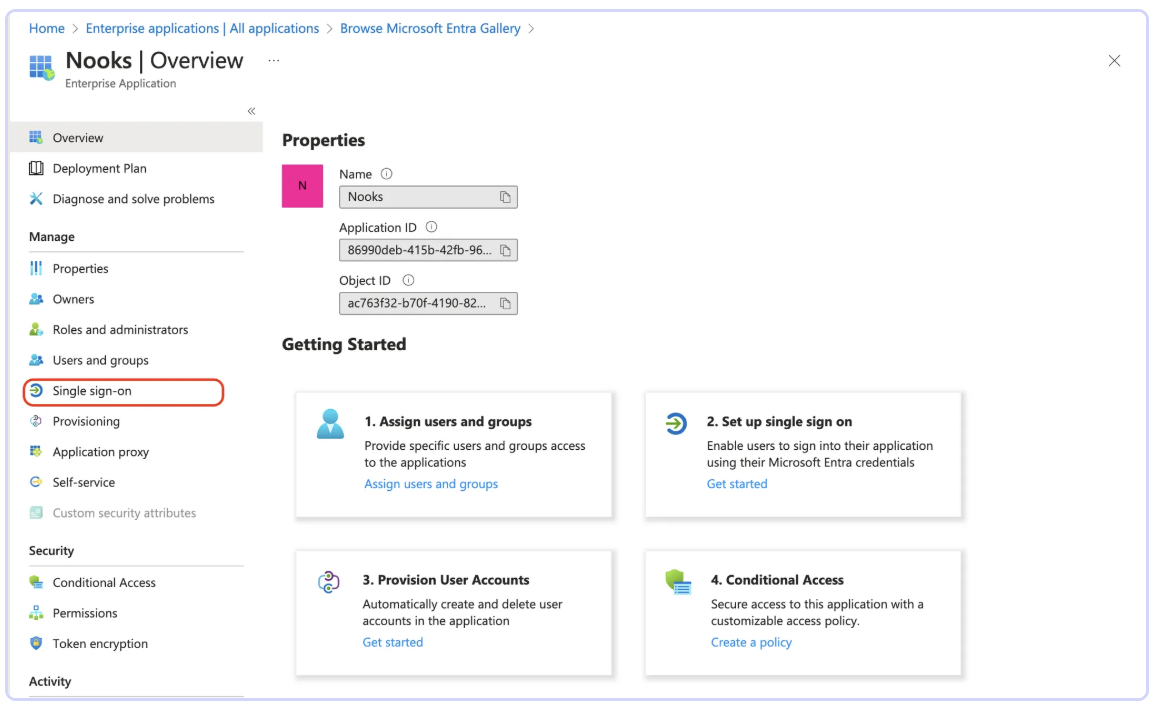
In the newly created application Overview page, click Single sign-on in the sidebar
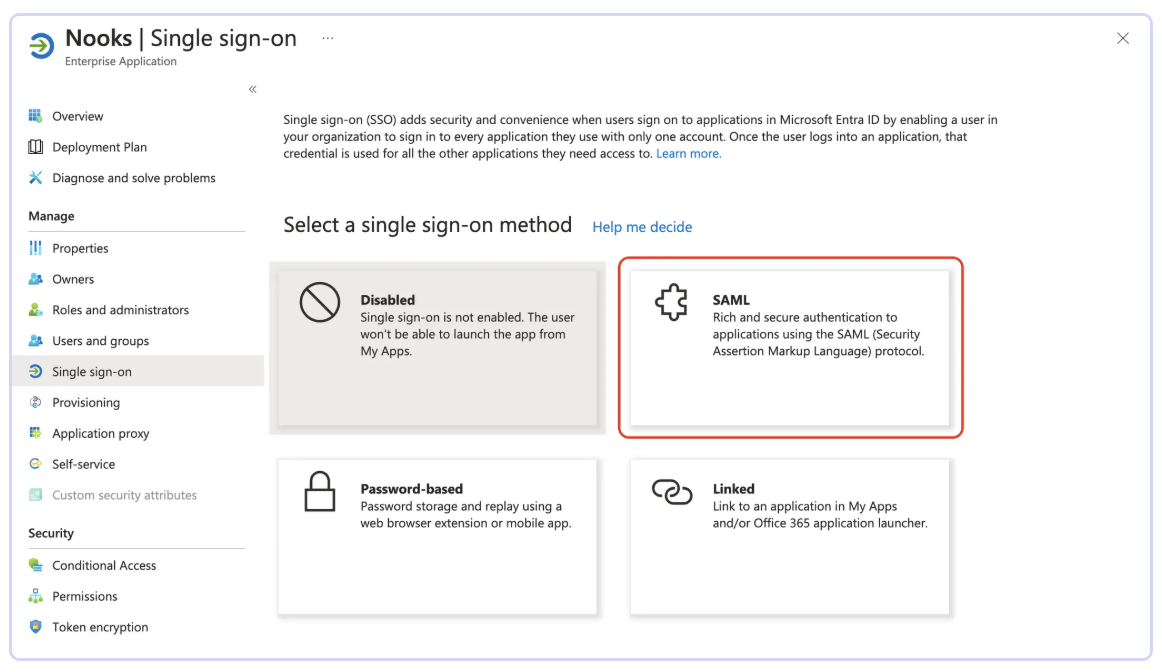
Select SAML
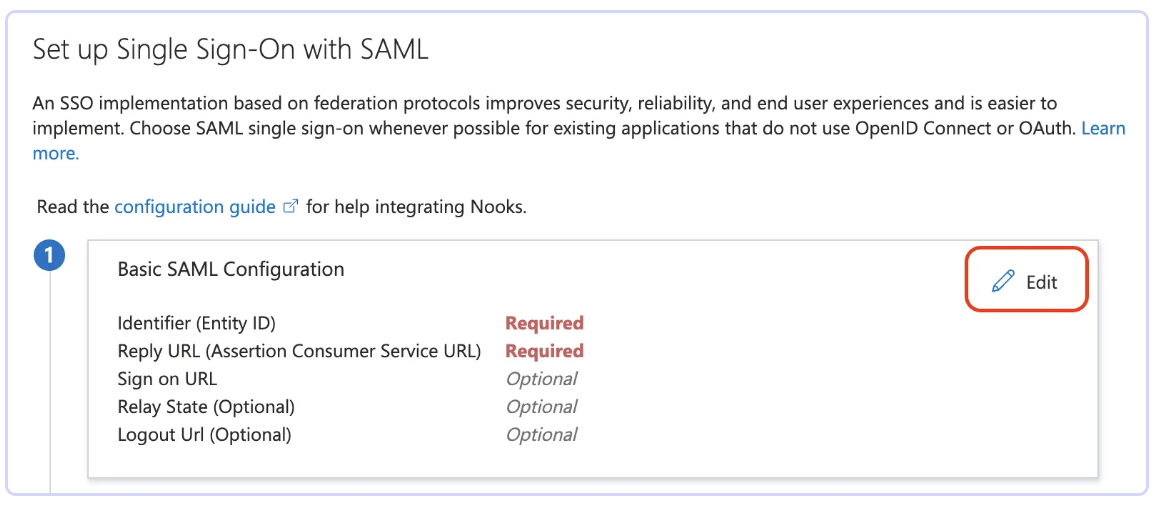
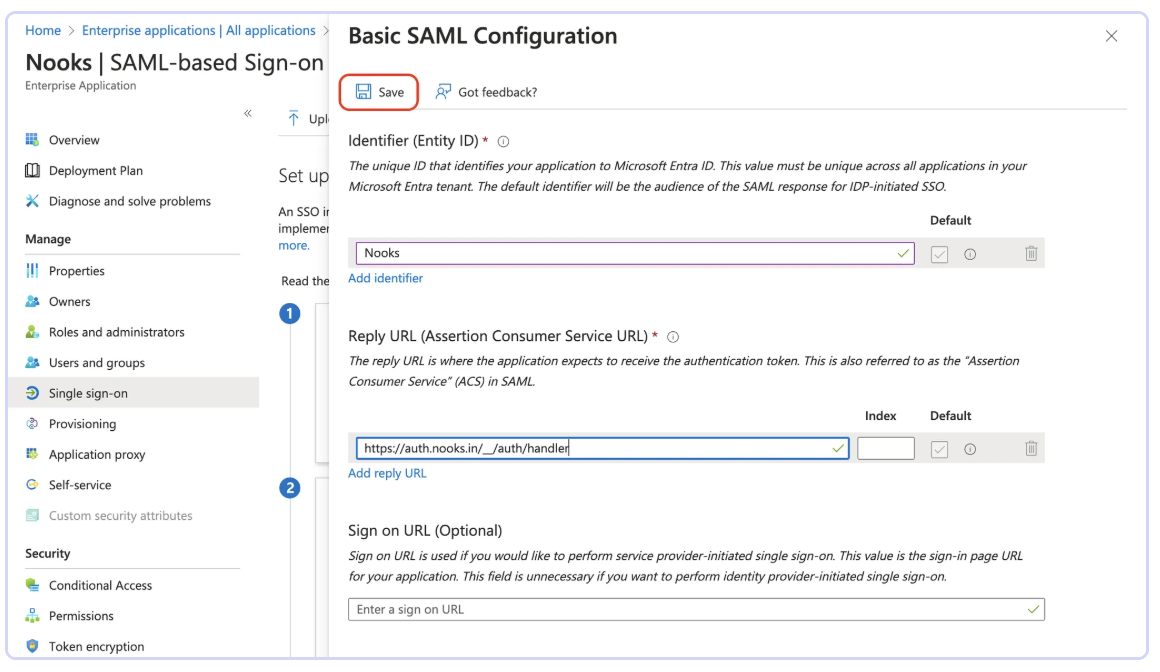
In Basic SAML Configuration, set Identified (Entity ID) as “Nooks”, and Reply URL (Assertion Consumer Service URL) as “https://auth.nooks.in/__/auth/handler” and click Save
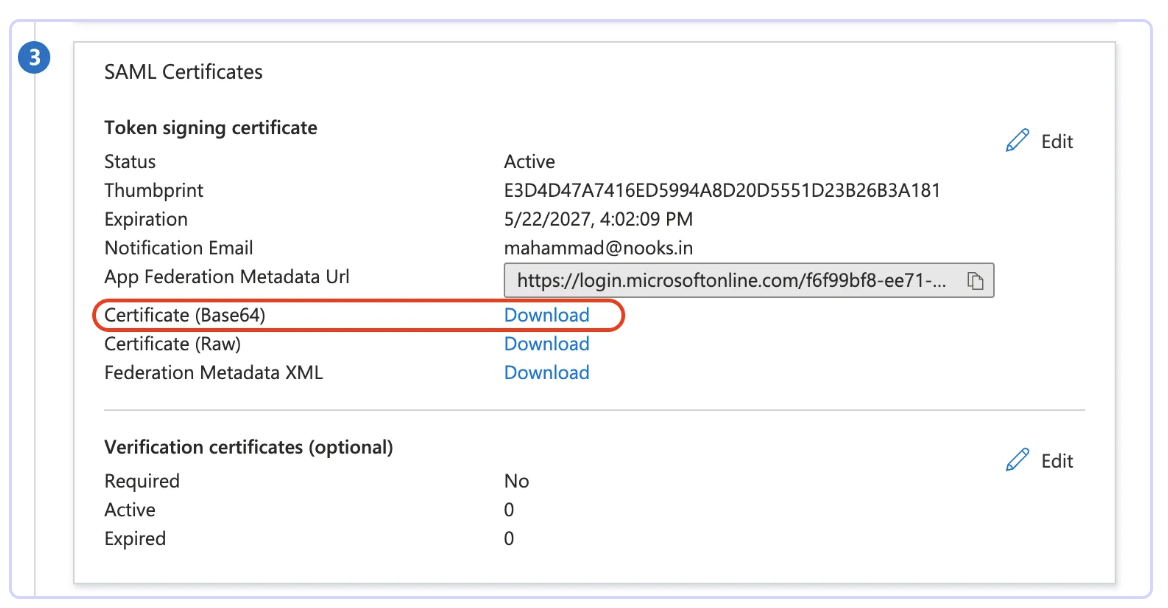
Under SAML Certificates, Download the Base64 Certificate and save it
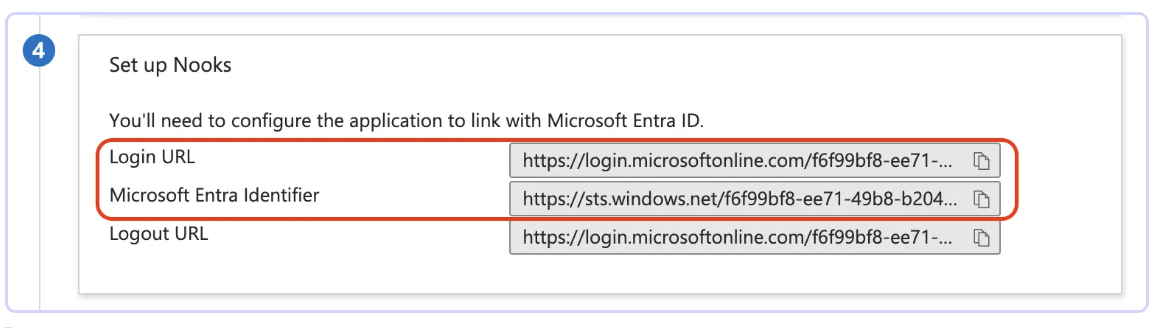
Under Set Up Nooks, copy the values of Login URL and Microsoft Entra Identifier and save them
Send the following information to us via email (support@nooks.in):
The Base64 Certificate that you downloaded in step 9
Login URL from step 10
Microsoft Entra Identifier from step 10
Your company’s email address domain(s) (i.e. whatever’s after ‘@’ in the email addresses in your org)
Our team will review and make the necessary configuration, after which you’ll be able to use Microsoft Entra SSO.