Salesforce Setup for Nooks Sequencing
Last updated: September 4, 2026
Learn how set up your team's Salesforce instance to ingest information from objects for use with Nooks Sequencing and push and update records in Salesforce as appropriate.
Background
The Nooks <> Salesforce integration uses OAuth to connect. All permissions are inherited from Salesforce roles. Users will only be able to see or interact with objects or records that they’re able to see or interact with in Salesforce. Access to the Salesforce API is required to use the Nooks integration.
Nooks Sequencing requires an admin user to connect and those credentials will be used for global settings. Each individual user will connect Salesforce via individual authentication and that connection will be used for activity logging for that user.
Each user will need to have API access in Salesforce.
Access & Permissions Required for the Salesforce Integration
Nooks requires both an admin connection with Salesforce as well as connections from individual users.
Nooks will use an admin-level connection via OAuth to read objects and fields for use within Nooks.
Nooks will use each user’s individual-level authentication via OAuth to create records in Salesforce. API access is required for all users.
Setup Steps
Step 1: Connect Salesforce in Nooks via OAuth
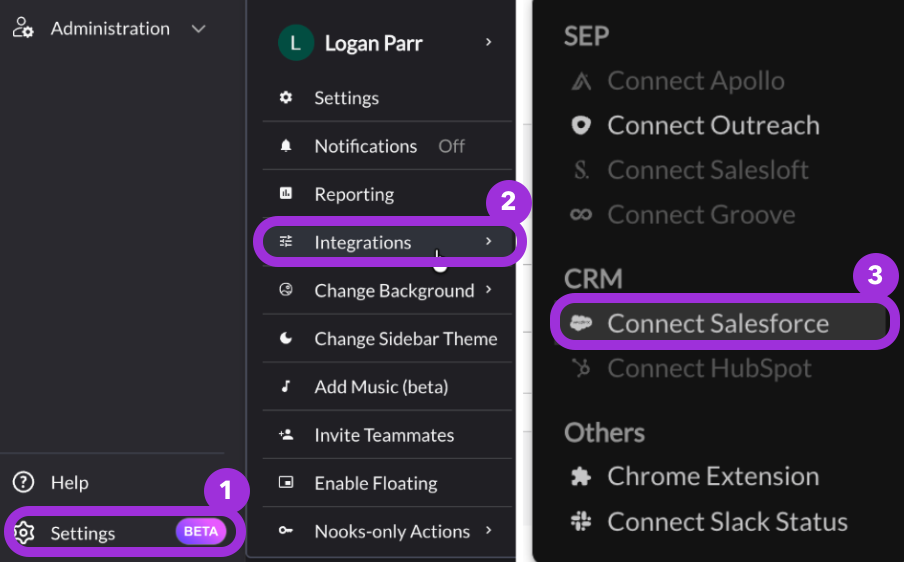
As an Admin user within Nooks, click on the Settings in the bottom left corner of the page. From the menu, select Integrations, then select Connect Salesforce.
You will be taken to the authentication page for Salesforce. Enter the Salesforce credentials you'd like to use to authenticate.
Return to the Nooks browser tab and refresh to confirm a successful connection.
Step 2: Install the Nooks Connected App in Salesforce
Begin by installing the Nooks Connected App in your Salesforce instance.
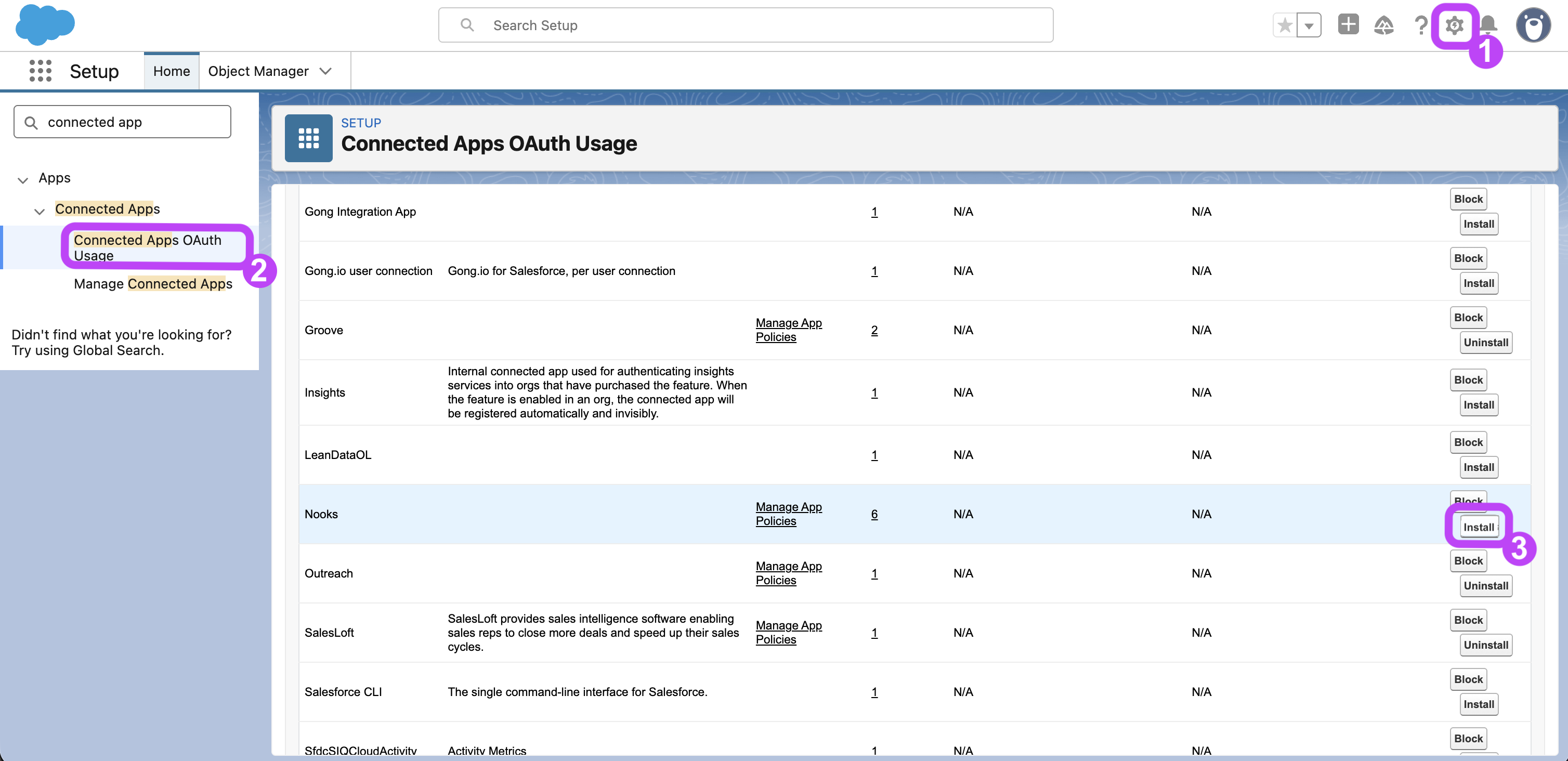
As an admin in Salesforce, open Salesforce Setup (gear icon).
In the Quick Find Box, search "Connected Apps". Click Connected Apps OAuth Usage.
Locate Nooks in your list of Connected Apps, then press Install on the right-hand side of the Nooks row.
After installing the Nooks Connected App, you can optionally customize how users in your Salesforce instance are able to connect to Nooks.
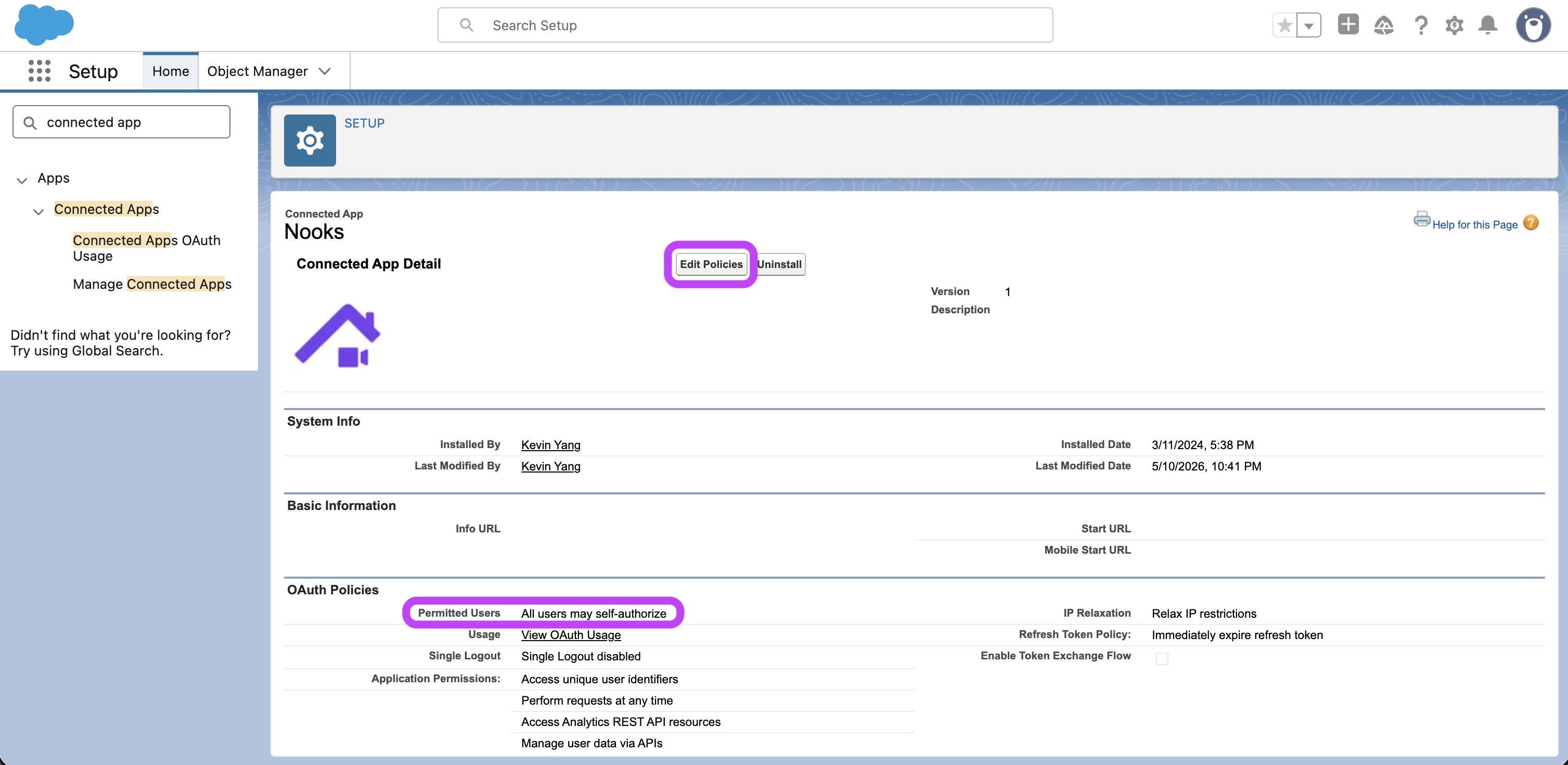
In the Nooks row of the Connected Apps OAuth Usage page, press Manage App Policies.
Inside the Nooks Connected App, press Edit App Policies.
Under OAuth Policies, find the Permitted Users setting. Configure it to your organization's needs.
[Salesforce Default] All users may self-authorize: Allows all users in the org to authorize to Nooks after successfully signing in.
Admin approved users are pre-authorized: Allows only users with the associated profile or permission set to access Nooks. After selecting this option, manage profiles for the app by editing each profile's Connected App Access list in Salesforce, or manage permission sets for the app by editing each permission set's Assigned Connected Apps.
This Salesforce help article contains additional information on managing OAuth access policies for a Connected App in Salesforce.
Step 3: Create new or identify existing fields in Salesforce
When sequencing prospects in Nooks, Nooks can stamp your Contact, Lead, Task, and Event records with additional Nooks data. This makes your Nooks data visible within Salesforce so that it can be used in reports and dashboards for more advanced reporting. that you can leverage in advanced Salesforce reporting.
We recommend creating custom fields on the objects listed below to store this data. Nooks does not require these fields to follow a specific naming convention. The field labels and API names provided below are common examples that work well for most teams, but you can adjust them to match your Salesforce org’s existing naming conventions.
As an alternative to creating entirely new fields, you can use existing fields in your Salesforce instance, so long as those fields match the required field types and properties.
Contact and Lead Objects
Create the following custom fields on both the Contact and Lead objects in Salesforce. Alternatively, identify existing fields with these properties that could be used instead. You will map these fields in Step 7.
Nooks Active in Sequence
Object: Lead and Contact
Field Type: Checkbox
Field Label: Nooks Active in Sequence
API Field Name: nooks_activeinsequence__c
Unique: No, allow duplicate values
External ID: No
Nooks Current Sequence Status
Object: Lead and Contact
Field Type: Text
Field Label: Nooks Current Sequence Status
API Field Name: nooks_currentsequencestatus__c
Unique: No, allow duplicate values
Not case sensitive
External ID: No
Field Length: 255
Nooks Current Sequence Name
Object: Lead and Contact
Field Type: Text
Field Label: Nooks Current Sequence Name
API Field Name: nooks_currentsequencename__c
Unique: No, allow duplicate values
Not case sensitive
External ID: No
Field Length: 255
Nooks Current Sequence Step
Object: Lead and Contact
Field Type: Text
Field Label: Nooks Current Sequence Step
API Field Name: nooks_currentsequencestep__c
Unique: No, allow duplicate values
Not case sensitive
External ID: No
Field Length: 255
Nooks Sequenced By
Object: Lead and Contact
Field Type: Lookup Reference
Relationship: User object
Field Label: Nooks Sequenced By
API Field Name: nooks_sequencedby__c
Nooks Date Added to Current Sequence
Object: Lead and Contact
Field Type: Date or DateTime
Field Label: Nooks Date Added to Current Sequence
API Field Name: nooks_dateaddedtocurrentsequence__c
External ID: No
Nooks Most Recent Sequence Removal Date
Object: Lead and Contact
Field Type: Date or Date/Time
Field Label: Nooks Most Recent Sequence Removal Date
API Field Name: nooks_mostrecentsequenceremovaldate__c
External ID: No
Nooks Current Sequence ID
Object: Lead and Contact
Field Type: Text
Field Label: Nooks Current Sequence ID
API Field Name: nooks_currentsequenceid__c
Unique: No, allow duplicate values
External ID: No
Field Length: 255
Nooks Current Sequence Step Type
Object: Lead and Contact
Field Type: Text
Field Label: Nooks Current Sequence Step Type
API Field Name: nooks_currentsequencesteptype__c
Unique: No, allow duplicate values
External ID: No
Field Length: 255
Nooks Current Sequence Task Due Date
Object: Lead and Contact
Field Type: Date or Date/Time
Field Label: Nooks Current Sequence Task Due Date
API Field Name: nooks_currentsequencetaskduedate__c
Unique: No, allow duplicate values
External ID: No
Nooks Number of Active Sequences
Object: Lead and Contact
Field Type: Number
Field Label: Nooks Number of Active Sequences
API Field Name: nooks_numberofactivesequences__c
Unique: No, allow duplicate values
External ID: No
Permissions Note: Make sure all Nooks users have read/write access to the fields you create on the Salesforce Contact and Lead objects.
When Nooks updates these fields for a prospect, it uses the Salesforce permissions of the Nooks user who was most recently assigned a task for that prospect. If that user does not have the required field permissions, Nooks may be unable to write the data back to Salesforce.
Activity Object
Create the following custom fields on both the Activity object in Salesforce. Alternatively, identify existing fields with these properties that could be used instead. You will map these fields in Step 6.
Nooks Sequence Name
Object: Activity
Field Type: Text
Field Label: Nooks Sequence Name
API Field Name: nooks_sequencename__c
Field Length: 255
Unique: No, allow duplicate values
Not case sensitive
External ID: No
Add to Page Layouts: Task Page Layout and Event Page Layout
Nooks Sequence Step Name
Object: Activity
Field Type: Text
Field Label: Nooks Sequence Step Name
API Field Name: nooks_sequencestepname__c
Field Length: 255
Unique: No, allow duplicate values
Not case sensitive
External ID: No
Add to Page Layouts: Task Page Layout and Event Page Layout
Nooks Recording URL
Object: Activity
Field Type: URL
Field Label: Nooks Recording URL
API Field Name: nooks_recordingurl__c
Unique: No, allow duplicate values
Not case sensitive
External ID: No
Add to Page Layouts: Task Page Layout
Nooks Call Result
Object: Activity
Field Type: Text
Field Label: Nooks Call Result
API Field Name: nooks_callresult__c
Field Length: 255
Unique: No, allow duplicate values
Not case sensitive
External ID: No
Add to Page Layouts: Task Page Layout
Nooks Prospect Number Dialed
Object: Activity
Field Type: Phone Number
Field Label: Nooks Prospect Number Dialed
API Field Name: nooks_numberdialed__c
Unique: No
Add to Page Layouts: Task Page Layout
Nooks Calling Method
Object: Activity
Field Type: Text
Field Label: Nooks Calling Method
API Field Name: nooks_callingmethod__c
Field Length: 64
Unique: No
External ID: No
Add to Page Layouts: Task Page Layout
Nooks Email Source Type
Object: Activity
Field Type: Text
Field Label: Nooks Email Source Type
API Field Name: nooks_emailsourcetype__c
Field Length: 64
Unique: No
External ID: No
Add to Page Layouts: Task Page Layout
Nooks Open Count
Skip creating this field if you will not be enabling email open or click tracking for your Workspace.
Object: Activity
Field Type: Number
Field Label: Nooks Open Count
API Field Label: nooks_opencount__c
Field Length: 18
Decimal Places: 0
Required: No
Unique: No
External ID: No
AI Prediction: No
Add to Page Layout: Task Page Layout
Nooks First Opened At
Skip creating this field if you will not be enabling email open or click tracking for your Workspace.
Object: Activity
Field Type: Date/Time
Field Label: Nooks
API Field Name: nooks_firstopenedat__c
Required: No
Add to Page Layout: Task Page Layout
Nooks Last Opened At
Skip creating this field if you will not be enabling email open or click tracking for your Workspace.
Object: Activity
Field Type: Date/Time
Field Label: Nooks
API Field Name: nooks_lastopenedat__c
Required: No
Add to Page Layout: Task Page Layout
Nooks Track Opens
Skip creating this field if you will not be enabling email open or click tracking for your Workspace.
Object: Activity
Field Type: Checkbox
Field Label: Nooks
API Field Name: nooks_trackopens__c
Default Value: No default value
Add to Page Layout: Task Page Layout
Nooks Click Count
Skip creating this field if you will not be enabling email open or click tracking for your Workspace.
Object: Activity
Field Type: Number
Field Label: Nooks Click Count
API Field Label: nooks_clickcount__c
Field Length: 18
Decimal Places: 0
Required: No
Unique: No
External ID: No
AI Prediction: No
Add to Page Layout: Task Page Layout
Nooks First Clicked At
Skip creating this field if you will not be enabling email open or click tracking for your Workspace.
Object: Activity
Field Type: Date/Time
Field Label: Nooks
API Field Name: nooks_firstclickedat__c
Required: No
Add to Page Layout: Task Page Layout
Nooks Last Clicked At
Skip creating this field if you will not be enabling email open or click tracking for your Workspace.
Object: Activity
Field Type: Date/Time
Field Label: Nooks
API Field Name: nooks_lastclickedat__c
Required: No
Add to Page Layout: Task Page Layout
Nooks Track Links
Skip creating this field if you will not be enabling email open or click tracking for your Workspace.
Object: Activity
Field Type: Checkbox
Field Label: Nooks Track Links
API Field Name: nooks_tracklinks__c
Default Value: No default value
Add to Page Layout: Task Page Layout
Nooks Meeting Status
Object: Activity
Field Type: Text
Field Label: Nooks Meeting Status
API Field Name: nooks_meetingstatus__c
Length: 64
Unique: No
External ID: No
Add to Page Layout: Event Page Layout
Nooks Booking Link
Object: Activity
Field Type: Text
Field Label: Nooks Booking Link
API Field Name: nooks_bookinglink__c
Length: 255
Unique: No
External ID: No
Add to Page Layout: Event Page Layout
Nooks Meeting ID
Object: Activity
Field Type: Text
Field Label: Nooks Meeting ID
API Field Name: nooks_meetingid__c
Length: 255
Unique: Yes
External ID: No
Add to Page Layout: Event Page Layout
Nooks Conference Link
Object: Activity
Field Type: URL
Field Label: Nooks Conference Link
API Field Name: nooks_conferencelink__c
Add to Page Layout: Event Page Layout
Nooks Organizer Email
Object: Activity
Field Type: Email
Field Label: Nooks Organizer Email
API Field Name: nooks_organizeremail__c
Unique: No
External ID: No
Add to Page Layout: Event Page Layout
Permissions Note: Make sure all Nooks users have read/write access to the fields you create on the Salesforce Activity object.
When Nooks logs a Task, it defaults to using the Salesforce permissions of the user assigned to that Task. When Nooks logs an Event, it uses the Salesforce permissions of the user who booked the meeting. If the user does not have the required field permissions, Nooks may be unable to write the data to Salesforce.
Step 4: Add or identify existing Task "Type" field and values for use with activity logging
You will need a picklist field on the Task object that can be used to distinguish different Nooks task types from one another. Alternatively, you can use existing an existing field (such as the Salesforce standard Task.Type field) and values that cover these areas:
"Email Sent"
"Email Received"
"Call"
"Generic" or "Other"
"LinkedIn"
"SMS"
Step 5: Map Salesforce Fields in Nooks for task write-back
As an admin user or a user with the "Manage CRM Settings" permission: In Nooks Settings > All Settings, you'll find a section for Integrations. Under this section, click into CRM Settings > Task Mappings. You will see the mappings for activities.
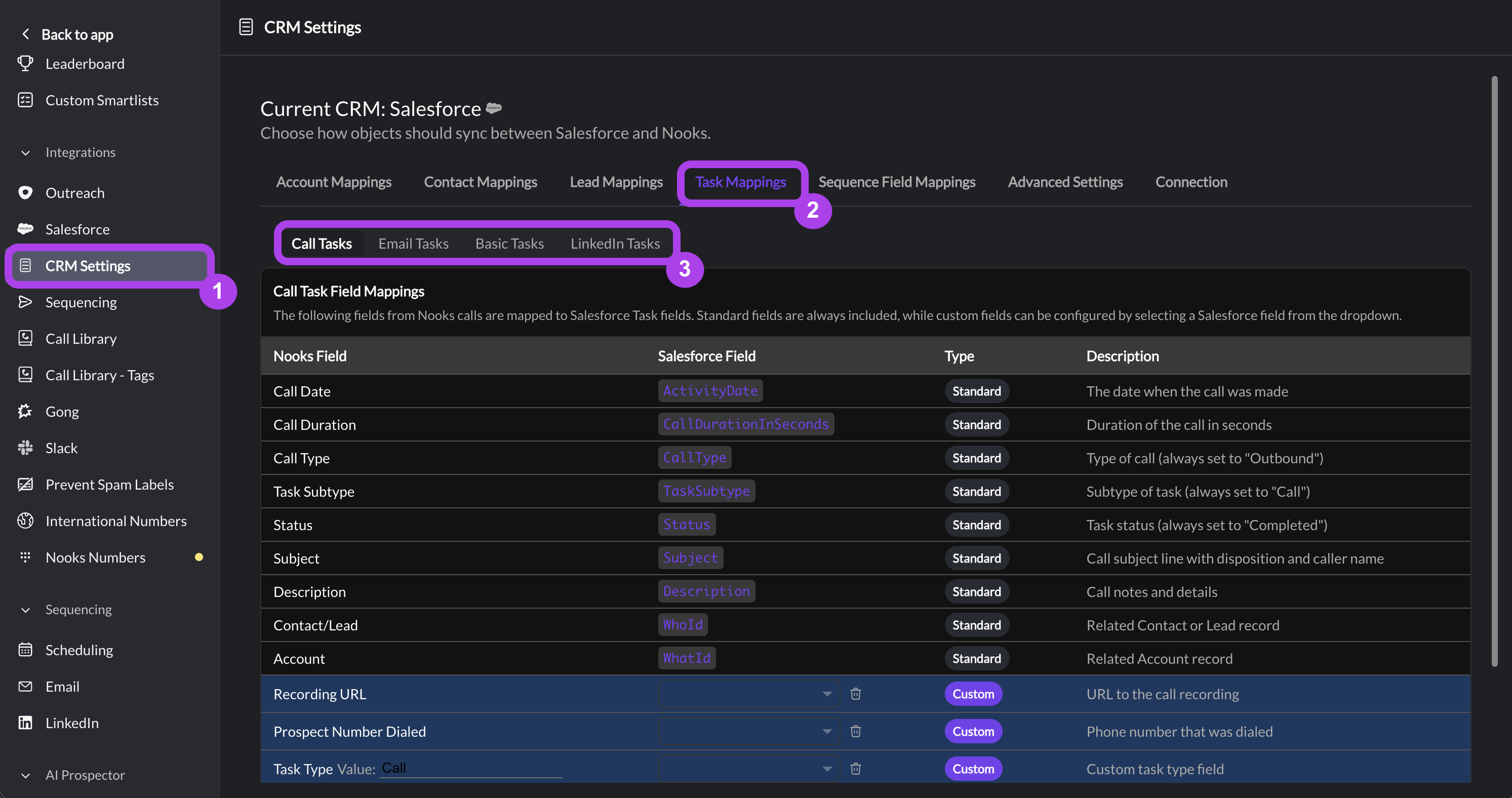
Call Tasks subtab: Map fields and values to be used when writing back call tasks.
Recording URL
Prospect Number Dialed
Task Type = Call
Step Name
Sequence Name
Disposition
Call Method
Email Tasks subtab: Map fields and values to be used when writing back email tasks.
Task Type (Outgoing) = Email Sent
Task Type (Incoming) = Email Received
Step Name
Sequence Name
Source Type
Open Count*
First Opened At*
Last Opened At*
Track Opens*
Click Count*
First Clicked At*
Track Links*
*Only map the open and link engagement fields if you will be enabling email open or link click tracking for your Workspace. Once you map these fields, you must enable the Log Email Opens & Clicks to Salesforce setting under CRM Settings > Advanced Settings. Data will not flow into the mapped fields until this setting is enabled. See Step 9 for more details.
Basic Tasks subtab: Map fields and values to be used when writing back basic tasks/action items.
Task Type = Generic or Other or Action Item
LinkedIn Tasks subtab: Map fields and values to be used when writing back LinkedIn tasks.
LinkedIn Messages section
Task Type = LinkedIn
Step Name
Sequence Name
LinkedIn Connection Requests section
Task Type = LinkedIn
Step Name
Sequence Name
SMS Tasks subtab: Map fields and values to be used when writing back SMS tasks.
Task Type = SMS
Step Name
Sequence Name
Step 6: Map Salesforce fields in Nooks for Contact and Lead Sequencing data
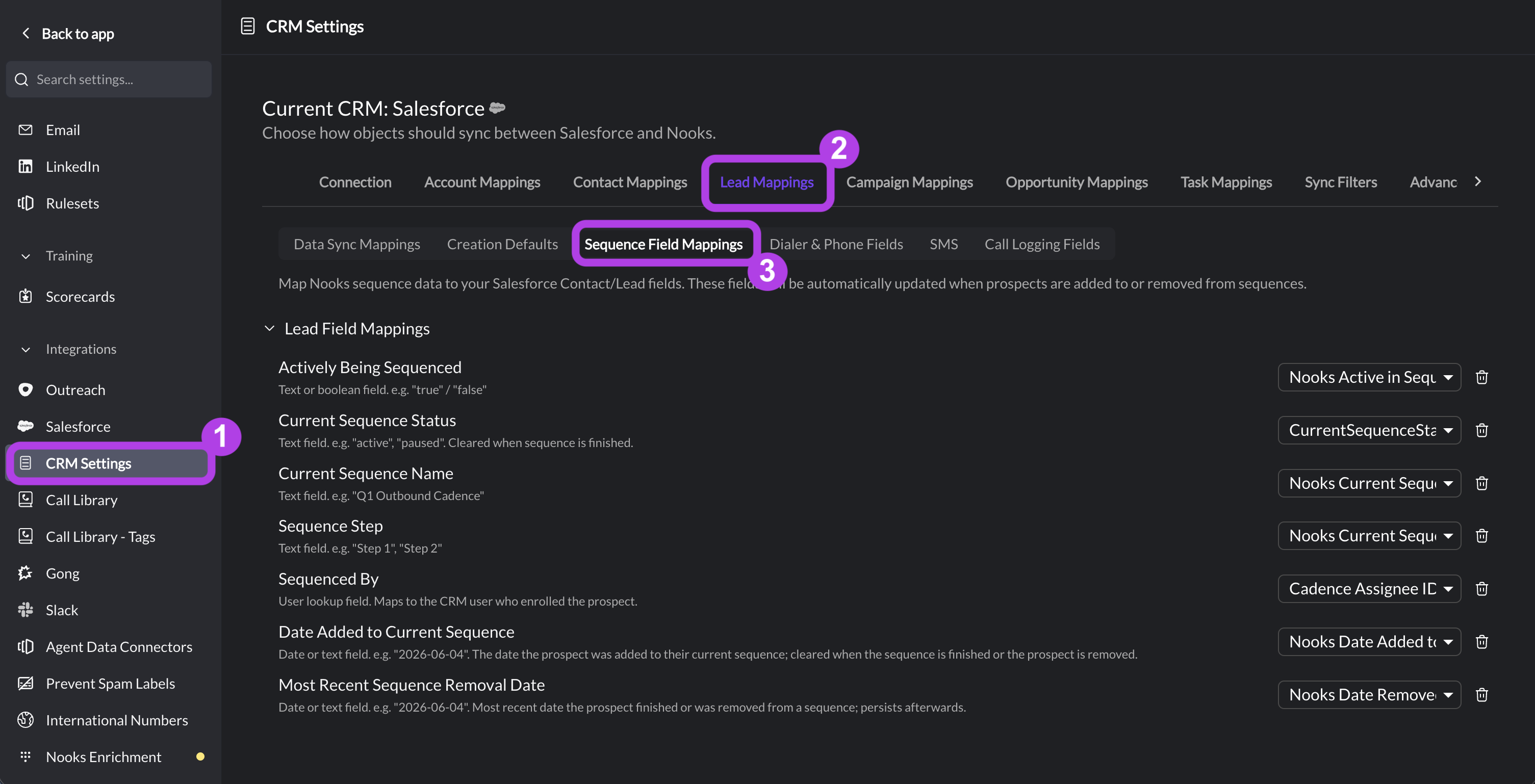
In Nooks Settings > All Settings, you'll find a section for Integrations. Under this section, click into CRM Settings. Use the Sequence Field Mappings subtab under the Contact Mappings and Lead Mappings tab to select the Contact and Lead fields into which Nooks will populate Sequencing data.
In the Contact Mappings tab > Sequence Field Mappings subtab: Populate field mappings for the following Contact fields:
Actively Being Sequenced = field “Nooks Active in Sequence”
Number of Active Sequences = field "Nooks Number of Active Sequences"
Current Sequence ID = field "Nooks Current Sequence ID"
Current Sequence Name = field “Nooks Current Sequence Name”
Current Sequence Status = field "Nooks Current Sequence Status"
Sequence Step = field “Nooks Current Sequence Step”
Current Sequence Step Type = field "Nooks Current Sequence Step Type"
Current Sequence Task Due Date = field "Nooks Current Sequence Task Due Date"
Sequenced By = field “Nooks Sequenced By”
Date Added to Current Sequence = field "Nooks Date Added to Current Sequence"
Most Recent Sequence Removal Date = field "Nooks Most Recent Sequence Removal Date"
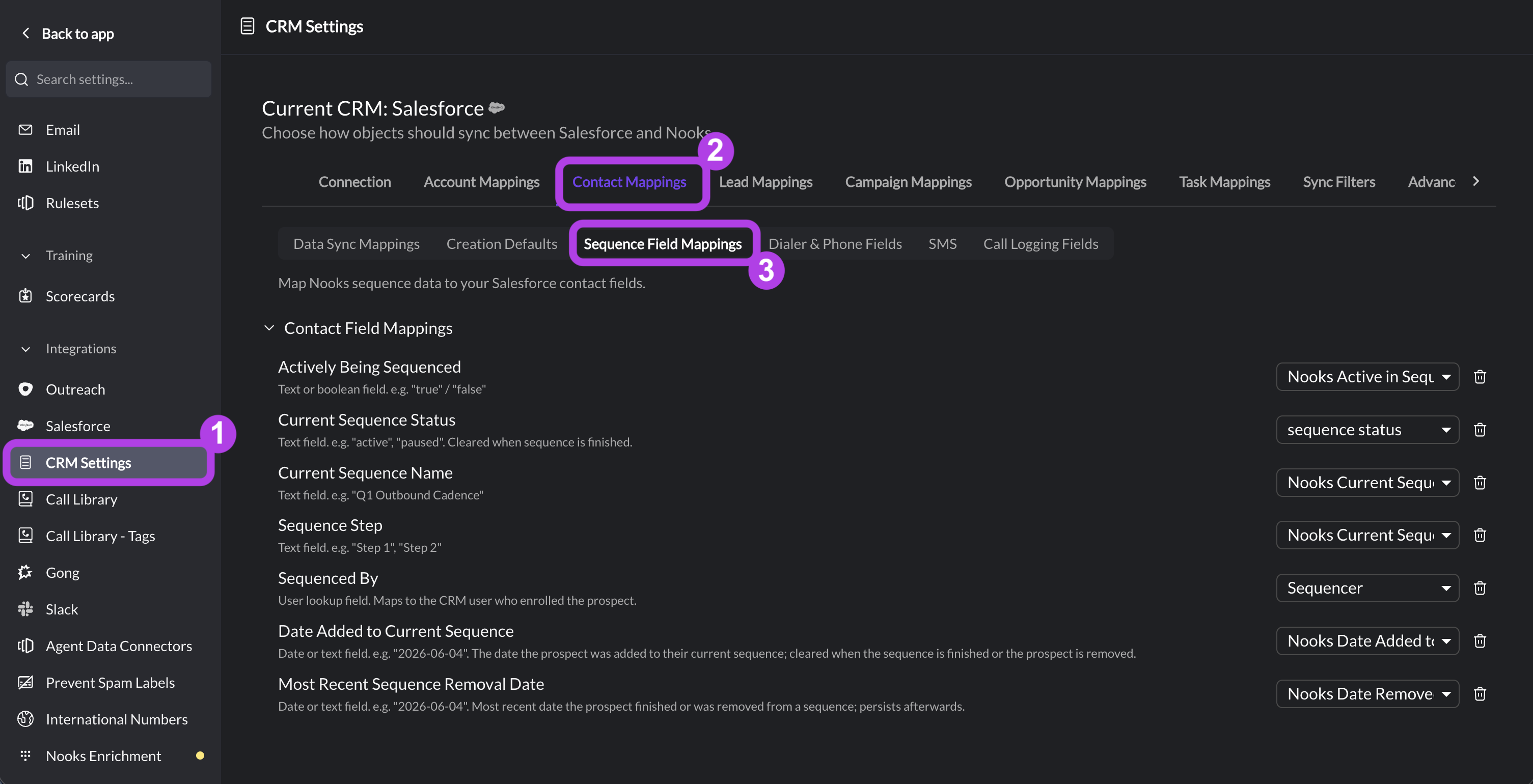
In the Lead Mappings tab > Sequence Field Mappings subtab: Populate field mappings for the following Lead fields:
Actively Being Sequenced = field “Nooks Active in Sequence”
Number of Active Sequences = field "Nooks Number of Active Sequences"
Current Sequence ID = field "Nooks Current Sequence ID"
Current Sequence Name = field “Nooks Current Sequence Name”
Current Sequence Status = field "Nooks Current Sequence Status"
Sequence Step = field “Nooks Current Sequence Step”
Current Sequence Step Type = field "Nooks Current Sequence Step Type"
Current Sequence Task Due Date = field "Nooks Current Sequence Task Due Date"
Sequenced By = field “Nooks Sequenced By”
Date Added to Current Sequence = field "Nooks Date Added to Current Sequence"
Most Recent Sequence Removal Date = field "Nooks Most Recent Sequence Removal Date"
Step 7: Add creation field defaults for Accounts, Leads, and Contacts in Nooks
In Nooks Settings > All Settings, you'll find a section for Integrations. Under this section, click into CRM Settings. Click into the Account Mappings, Contact Mappings, and Lead Mappings tabs to define defaults field values when Nooks creates records in Salesforce.
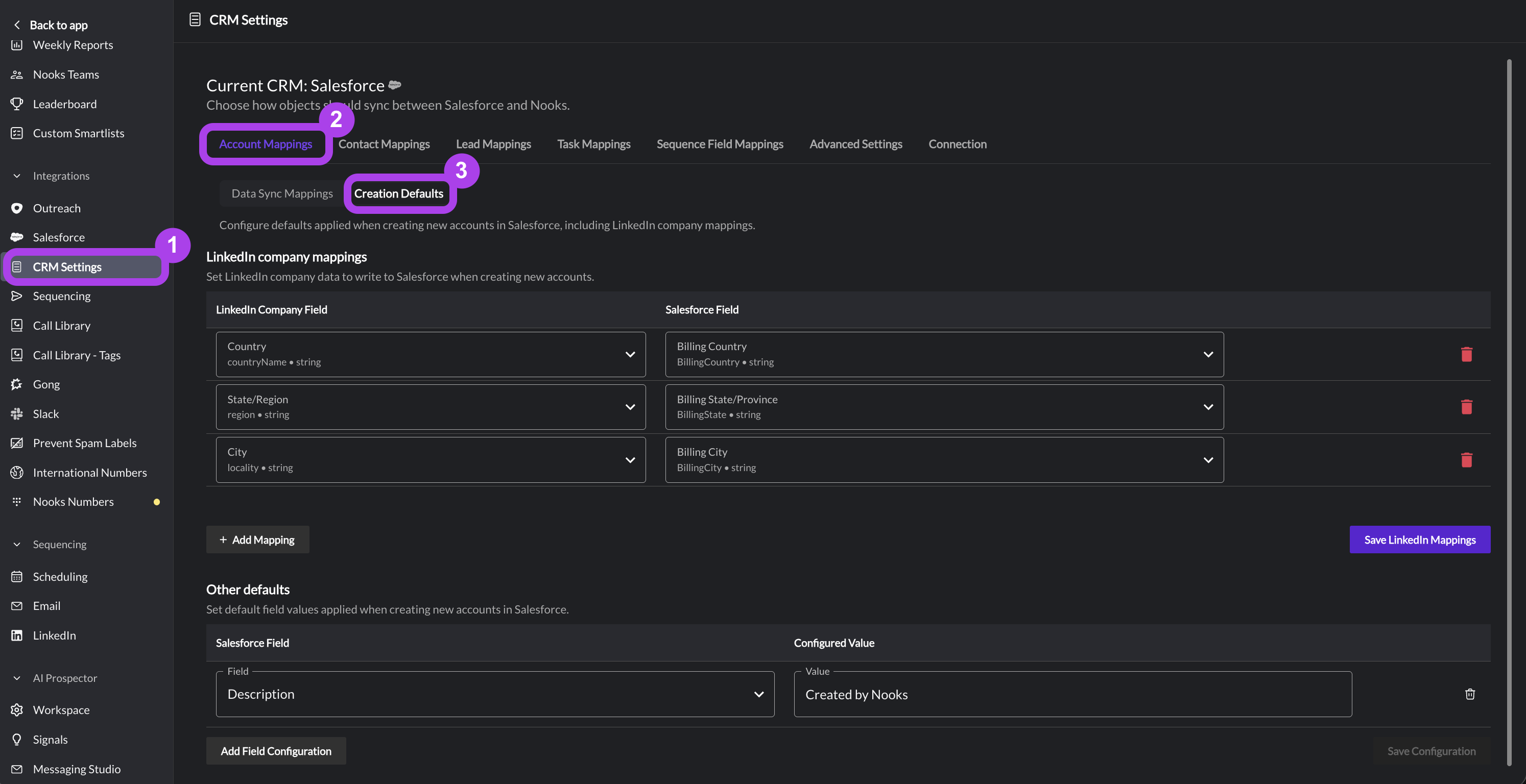
In the Account Mappings tab > Creation Defaults subtab:
Under LinkedIn Company Mappings, select what LinkedIn data you want Nooks to write into Salesforce when creating new Account records from LinkedIn. Press Save LinkedIn Mappings (lower-right) when finished.
Under Other Defaults, select fields to be populated with a default value when created by Nooks (e.g., "Source = Nooks). Press Save Configuration (lower-right) when finished.
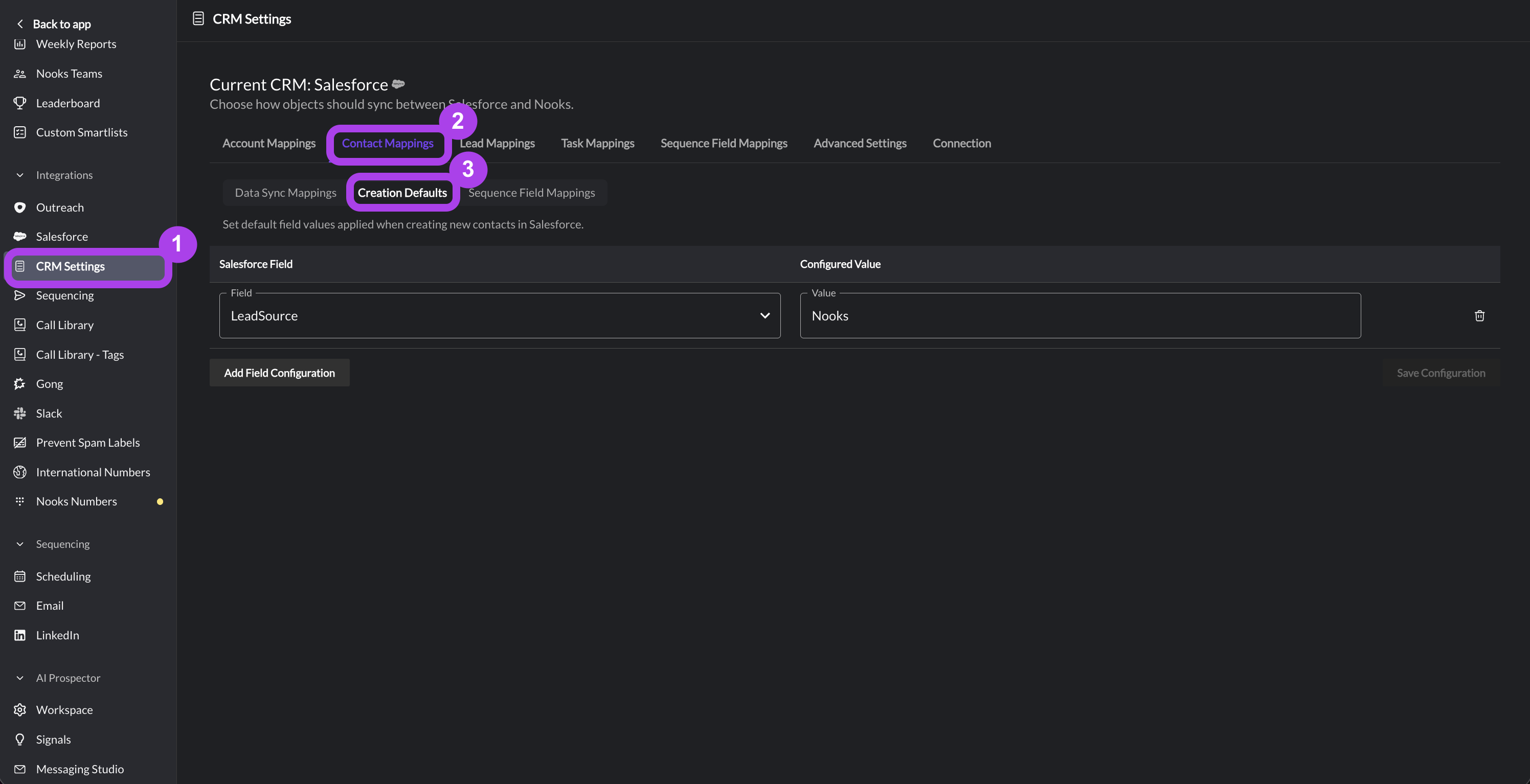
In the Contact Mappings tab > Creation Defaults subtab:
Select fields to be populated with a default value when created by Nooks (e.g., "Contact Source = Nooks"). Press Save Configuration (lower-right) when finished.
In the Lead Mappings tab > Creation Defaults subtab:
Select fields to be populated with a default value when created by Nooks (e.g., "Lead Source = Nooks"). Press Save Configuration (lower-right) when finished.
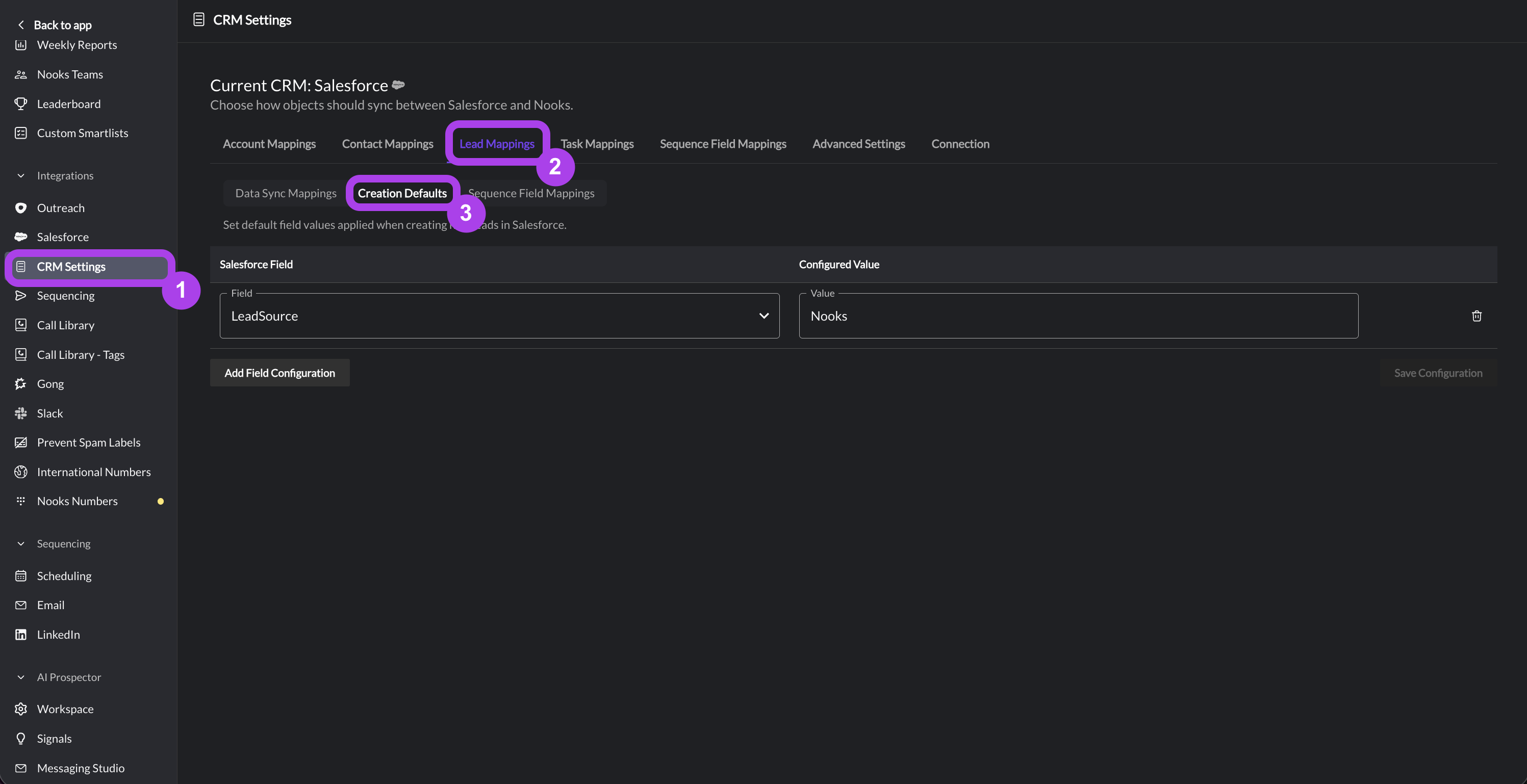
Some common use cases for the Creation Defaults fields include:
Tracking which records were created by Nooks.
Ensuring any custom fields required for Contact, Lead, or Account creation are populated with a value so your team does not encounter Salesforce errors when creating new records.
Step 8: Map data sync fields for Accounts, Leads, and Contacts in Nooks
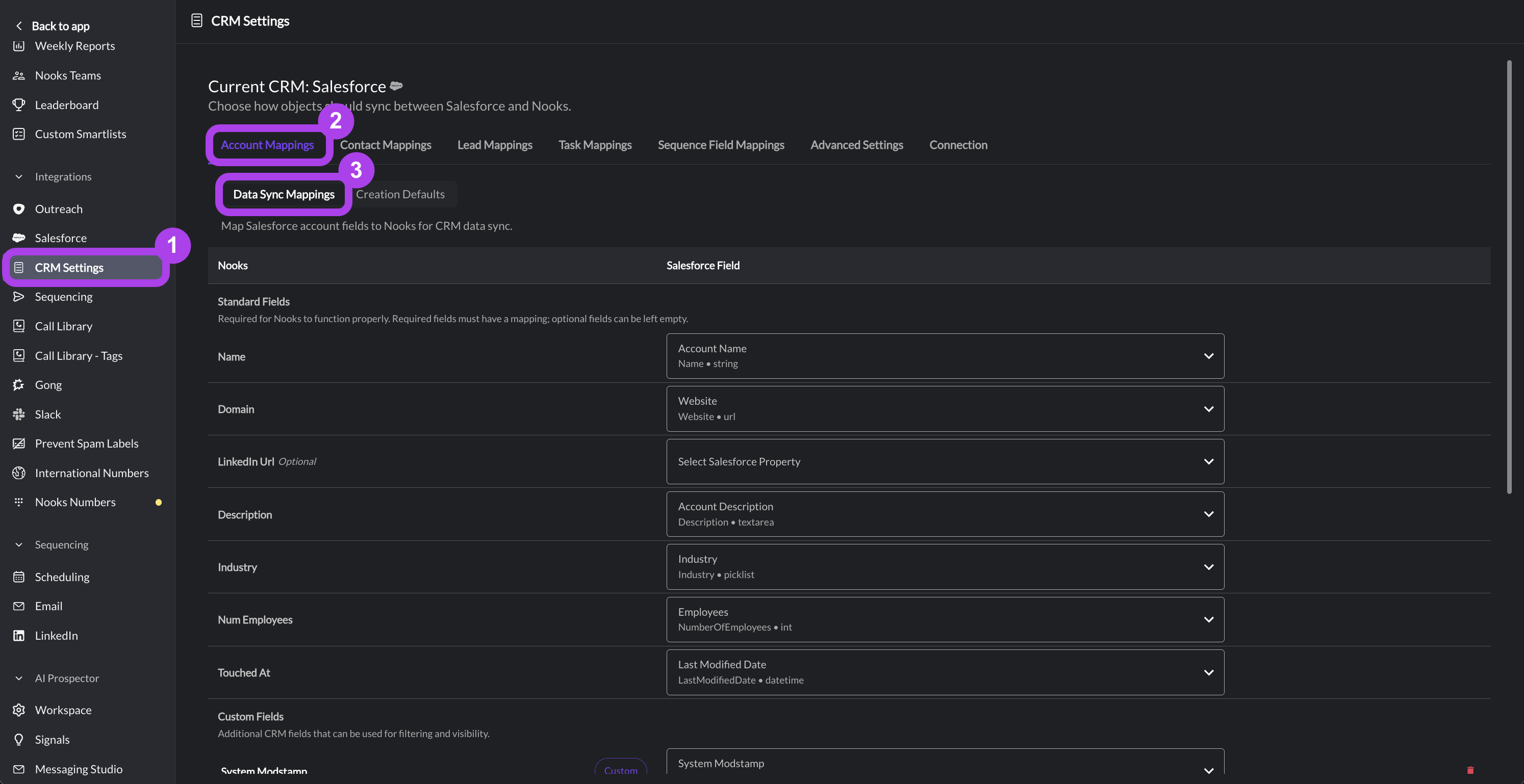
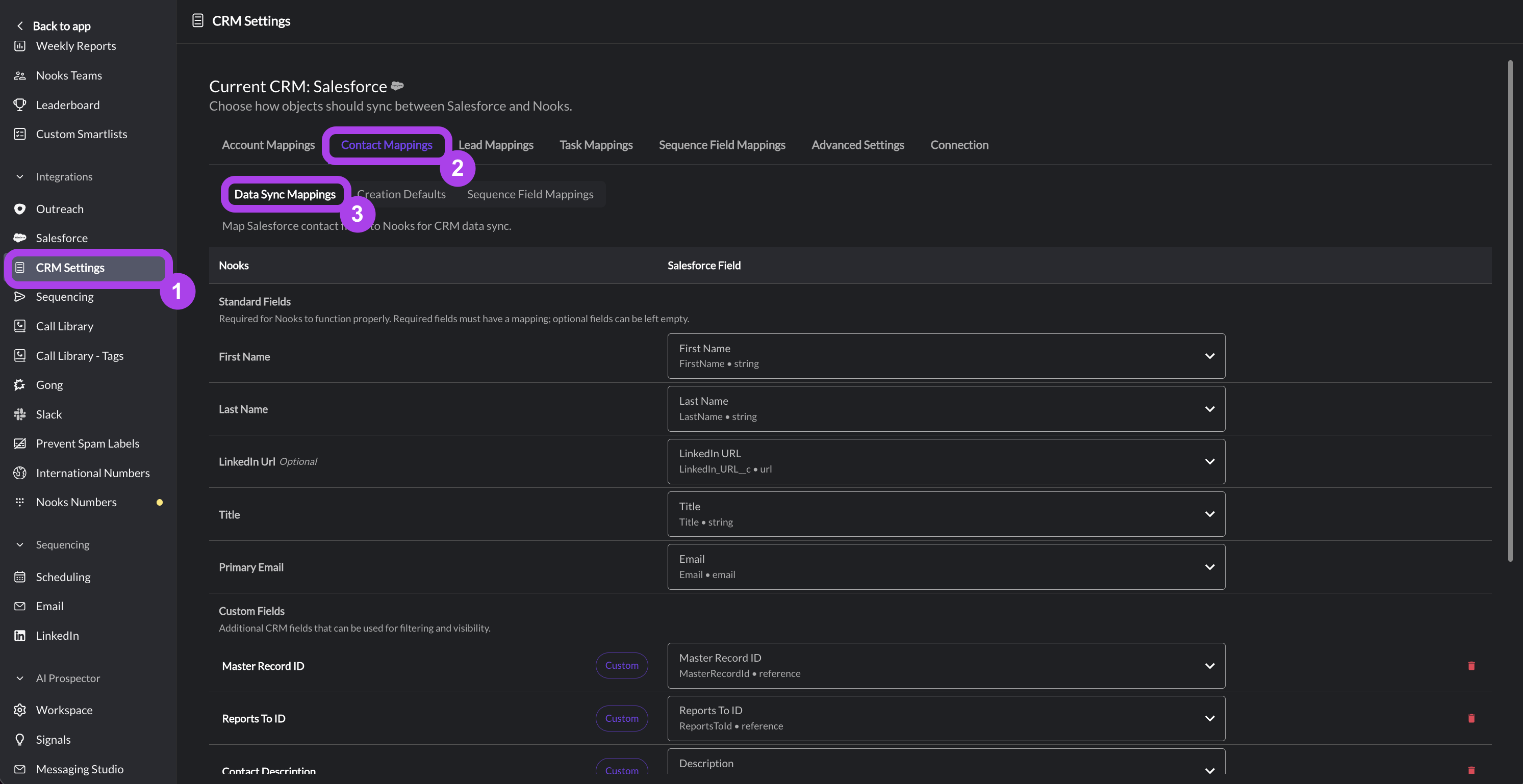
In Nooks Settings > All Settings, you'll find a section for Integrations. Under this section, click into CRM Settings to map Account, Lead, and Contact fields for use in filtering. These fields are used for filtering within the Accounts page and Prospects page, for Sequencing Automations, and for Template variables.
Click into the Account Mappings tab > Data Sync Mappings subtab.
Click + Add Custom Field Mapping and select the Salesforce field you want to pull in.
Once you’ve added the fields, click Save Mapping to save the page.
Click into the Contact Mappings tab > Data Sync Mappings subtab.
Click + Add Custom Field Mapping and select the Salesforce field you want to pull in.
Once you’ve added the fields, click Save Mapping to save the page.
Click into the Lead Mappings tab > Data Sync Mappings subtab.
Click + Add Custom Field Mapping and select the Salesforce field you want to pull in.
Once you’ve added the fields, click Save Mapping to save the page.
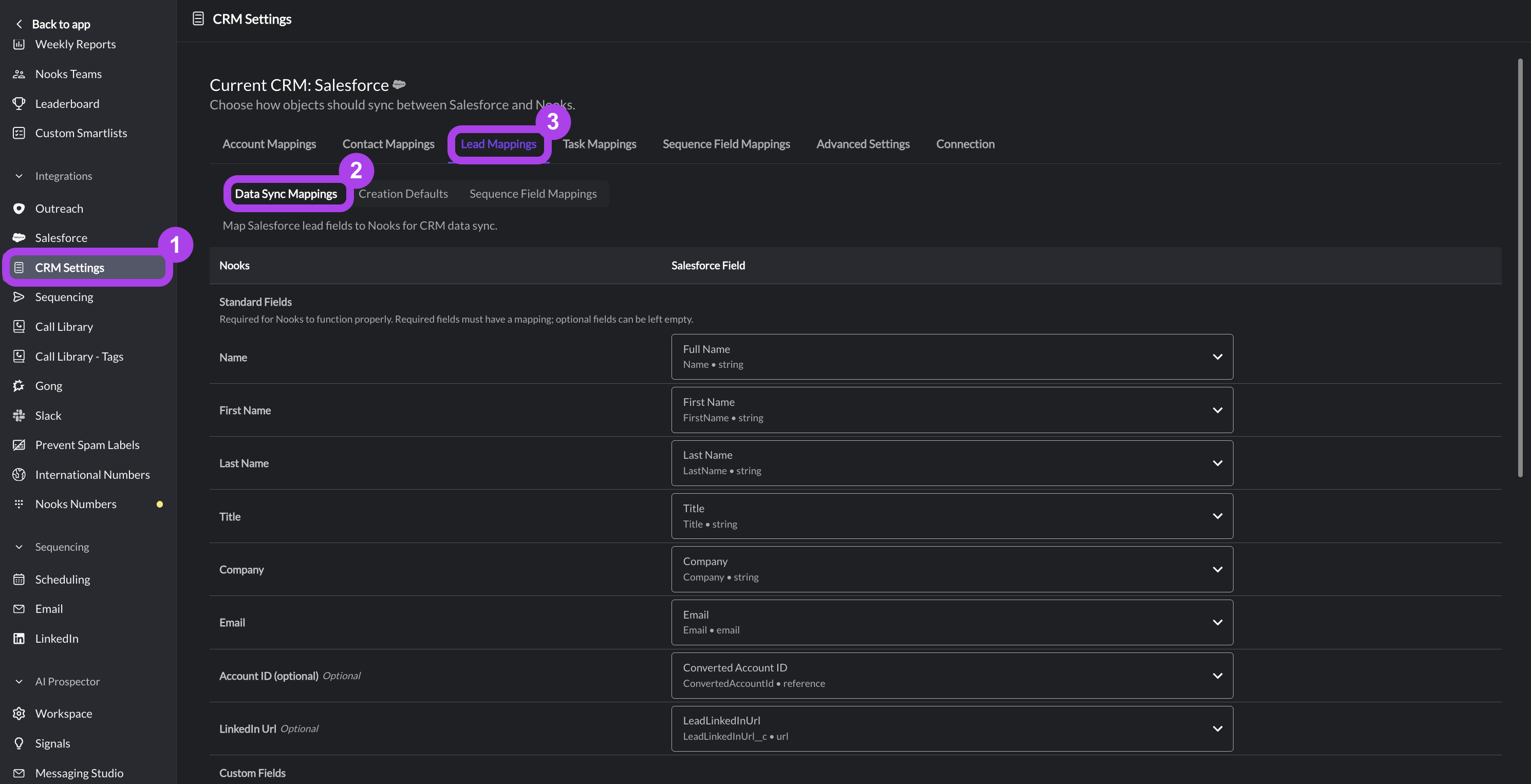
The data will be synced for newly mapped fields upon the next change to a record in Salesforce. For example, the next time an Account is modified, all fields will sync for that Account. Your Nooks representative can also manually initiate a full sync during deployment.
Step 9: Configure your Workspace's Advanced Settings
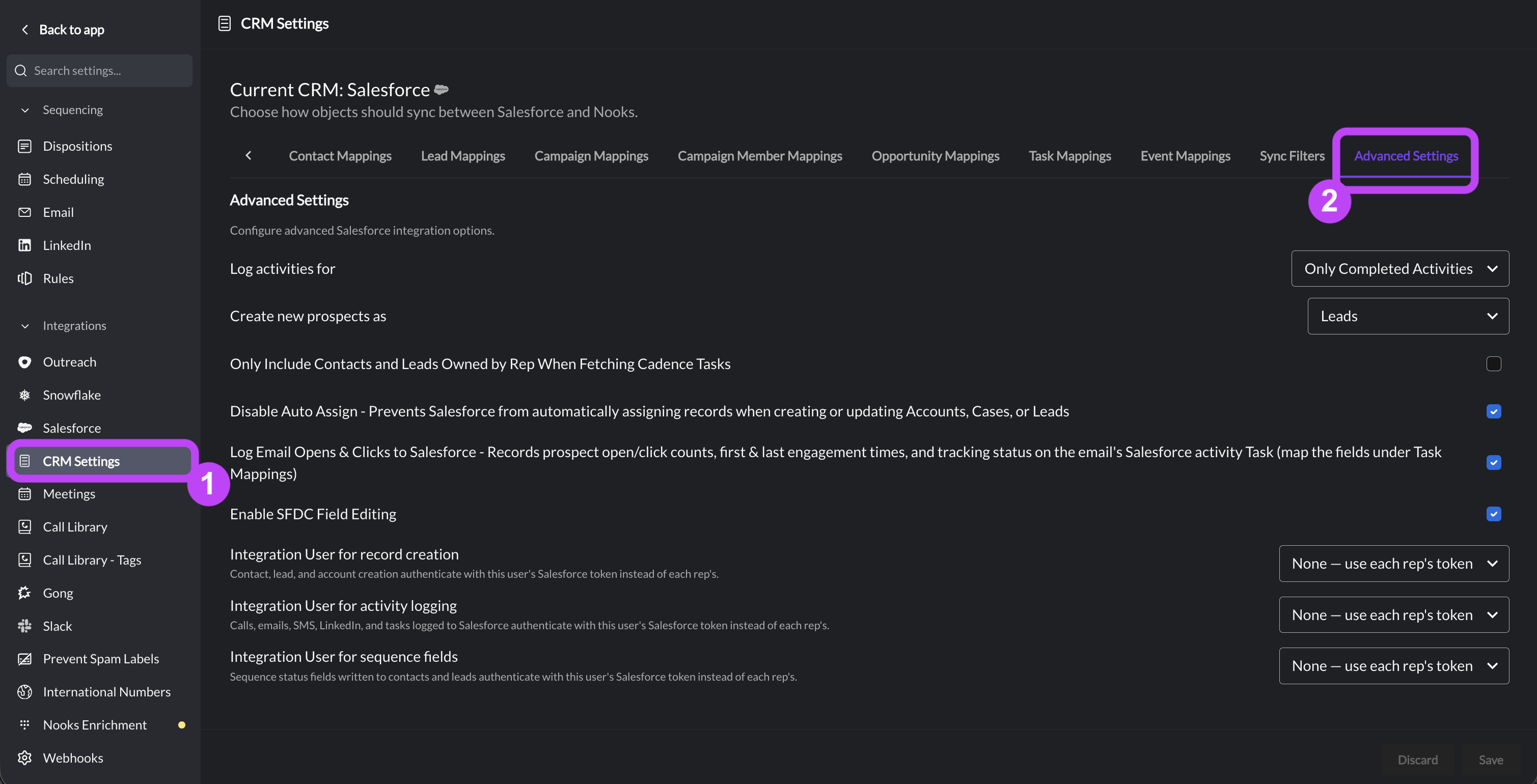
In Nooks Settings > All Settings, you'll find a section for Integrations. Under this section, click CRM Settings. Next, select the Advanced Settings tab to configure how Nooks should create new activities and prospects in your Salesforce instance.
Configure the following settings:
Log Activities For – Controls whether Nooks creates a Salesforce Task the moment an activity is created in Nooks or only once a rep actually completes the activity.
Only Completed Activities (default): Nooks will only create Salesforce Task records for activities that have been completed in Nooks.
All Activities: Nooks will create Salesforce Task records for Nooks activities as soon as they are created in Nooks. Nooks will create these activities as "open" Task records. When an activity is completed in Nooks, Nooks will update the "open" Task record to a "completed" Task record.
Create New Prospects As – Determines whether net-new prospects Nooks create in Salesforce are created as Contacts or Leads.
Contacts: Nooks will create Salesforce Contact records for prospects newly created via Nooks.
Leads: Nooks will create Salesforce Lead records for all prospects newly created via Nooks.
Only Include Contacts and Leads Owned by Rep When Fetching Cadence Tasks – Determines which Contacts and Leads are loaded into the Dialer when user selects a Salesforce Sales Cadence task list. (Note, this setting does not impact which Contacts and Leads are loaded into the Dialer when a user select a Nooks Sequence.)
Off (default): When a rep pulls a Salesforce Cadence into the Dialer, Nooks retrieves all tasks in the Cadence's task list, regardless of which user owns the task's associated Contact or Lead.
On: When a rep pulls a Salesforce Cadence into the Dialer, Nooks only retries tasks where the user is the owner of the task's associated Contact or Lead.
Disable Auto Assign – Determines whether Salesforce's native Assignment Rules are triggered by record modifications originating from Nooks.
Off (default): Any Salesforce Assignment Rules in your instance execute on all record updates originating from Nooks. Leaving this setting off may result in records being unintentionally reassigned to other Nooks users.
On (recommended): Any Salesforce Assignment Rules in your instance are explicitly bypassed for record updates originating from Nooks
Log Email Opens & Clicks to Salesforce – Controls whether email tracking data (open and click counts, first and last engagement dates, and email tracking statuses) are written to the Salesforce Task record that corresponds with a tracked email.
Off (default): Nooks does not write email tracking data to the Salesforce Tasks that correspond with tracked emails.
On: Nooks writes email tracking data to Salesforce Tasks that correspond with tracked emails. With this setting enabled, data only writes to Salesforce if you have email open and/or link click tracking enabled for your Workspace, and have mapped the Salesforce tracking data fields (see Step 4 in this guide).
Enable SFDC Field Editing – Controls whether users can editing edit Salesforce field values from Nooks.
On (default): Users can edit Salesforce fields via Nooks' UI. Any edits sync to the corresponding Salesforce record. Users are limited to editing the fields their Salesforce user has permissions to edit.
Off: Users cannot edit Salesforce fields via Nooks' UI, even if they have edit access to those fields in Salesforce.
Integration User for record creation – Determines which user's Salesforce token Nooks uses to create new Contact, Lead, and Account records in Salesforce.
None - use each rep's token (default): Nooks uses the Salesforce user belonging to the rep who initiated the create in Nooks. If you use this option, ensure all Nooks users have permissions to create Contacts, Leads, and Accounts in Salesforce.
Specific user: Select a specific user to route Contact, Lead, and Account record creation through. Whenever a rep initiates creates a new record in Nooks, Nooks uses your selected user's Salesforce token to create the corresponding record in Salesforce. If you use this option, ensure the user you select has permissions to create Contacts, Leads, and Accounts in Salesforce.
Integration User for Activity Logging – Determines which user's Salesforce token Nooks uses to create Task records in Salesforce.
None - use each rep's token (default): Nooks uses the Salesforce user belonging to the rep assigned to the Nooks task to create the Activity record in Salesforce. The assigned rep appears in the Salesforce Task's
CreatedByIdandOwnerIdfields. If you use this option, ensure all Nooks users have permissions to create Tasks in Salesforce.Specific user: Select a specific user to route Salesforce Task creation through. Whenever a user completes a Nooks task, Nooks uses the selected user's Salesforce token to create the corresponding Task in Salesforce. This integration user appears in the
CreatedByIdfield and the rep assigned to the Nooks task appears in theOwnerIdfield on the Salesforce Task record. If you use this option, ensure the user you select has permissions to create Tasks in Salesforce.
Integration User Used for Sequence Fields – Determine which user's Salesforce token Nooks uses to update the Nooks Sequencing fields on Salesforce Contact and Lead records.
None - use each rep's token (default): Nooks uses the Salesforce user belonging to the rep who initiated the prospect's Sequence status change to update the Nooks Sequencing fields on their corresponding Contact/Lead record in Salesforce. The rep appears in the
LastModifiedByIdfield on the Salesforce Contact/Lead record. If you use this option, ensure all Nooks users have permissions to edit Contact and Lead records in Salesforce.Specific user: Select a specific user to route all Nooks Sequencing field updates through. Whenever a prospect's Sequence status changes in Nooks, Nooks uses your selected user to update the Nooks Sequencing fields on their Contact/Lead record in Salesforce. This integration user appears in the LastModifiedById field on the Salesforce Contact/Lead record. If you use this option, ensure the user you select has permissions to edit Contact and Lead records in Salesforce.
Step 10: Map the Opt-In and Opt-Out Fields for Different Channels
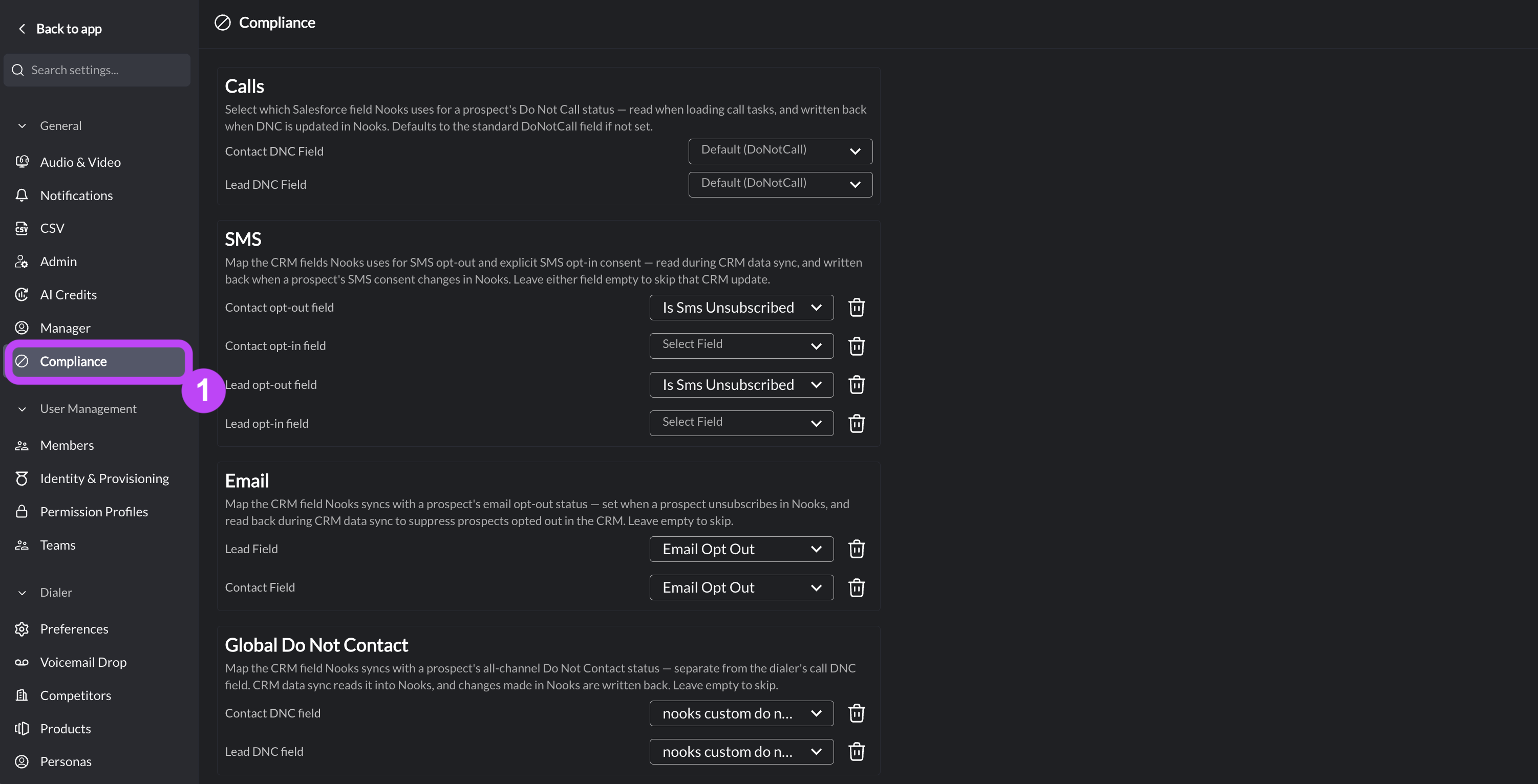
In Nooks, go to Settings > All Settings. Under the General section, select Compliance. Select a separate Salesforce checkbox field for each of the consent types. If you are unsure of which fields to select, work with your Salesforce admin team to determine the right ones or create new ones.
Calls
Contact DNC Field – Records whether a Contact has opted out of calls.
Lead DNC Field – Records whether a Lead has opted out of calls.
SMS
Contact Opt-Out Field – Records whether a Contact has opted out of SMS.
Contact Opt-In Field – Records whether a Contact has explicitly opted in to receiving SMS.
Lead Opt-Out Field – Records whether a Lead has opted out of SMS.
Lead Opt-In Field – Records whether a Lead has explicitly opted in to receiving SMS.
Email
Lead Field – Records whether a Lead has opted out of email communications.
Contact Field – Records whether a Contact has opted out of email communications.
Global Do Not Contact
Contact DNC Field – Records whether a Contact has opted out of all communications from any channel.
Lead DNC Field – Records whether a Lead has opted out of all communications from any channel.
Note that mapping these fields is not required. If you leave these fields unmapped, Nooks still records and enforces changes to opt-in/opt-out status in Nooks. These changes are simply not synced to your CRM. Nooks will also not read any prospect opt-in/opt-out status from the CRM if these fields are left unmapped. Learn more about the Compliance settings here.
FAQs
Is there a managed package to install?
No, there is no managed package to install at this time.
What records does Nooks create in Salesforce?
Nooks creates the following records in the following scenarios.
Nooks creates Leads and Contacts when Sequencing if they do not already exist in Salesforce, depending on the settings you configure in your Nooks Workspace.
Nooks creates Tasks for activities in Sequence.
Nooks can create Accounts, if desired.
Nooks does not create the following records.
Nooks does not create Opportunities.
Does Nooks create duplicate Contact/Lead records in Salesforce?
No. Nooks looks for existing Contacts or Leads before creating a new Contact record. Nooks will look for existing Contact records by comparing the following fields: “Email”, “Name”, “LinkedIn URL”. If a Contact does not already exist, Nooks will check for existing Leads via the "Email" field. If no existing Contact or Lead record is found, Nooks will create a new Contact or Lead record based on your Nooks Workspace settings.
Who will be listed as the Created By user for records created by Nooks?
For Leads/Contacts, the user who is Sequencing the Lead/Contact will be used as the Created By user on the Lead/Contact record.
For Tasks, the user who is completing the activity will be used as the Created By and Assigned To (i.e., Task "Owner") user.
If a prospect is removed from a Sequence, what happens to Contact/Lead fields such as "Nooks Current Sequence Name"?
The field will be cleared.
If a person is in two Sequences at once, what is populated in Lead/Contact fields such as "Nooks Current Sequence Name"?
The field will be overwritten with the most recent Sequence information.
Is IP allowlisting required?
No. This is not needed.
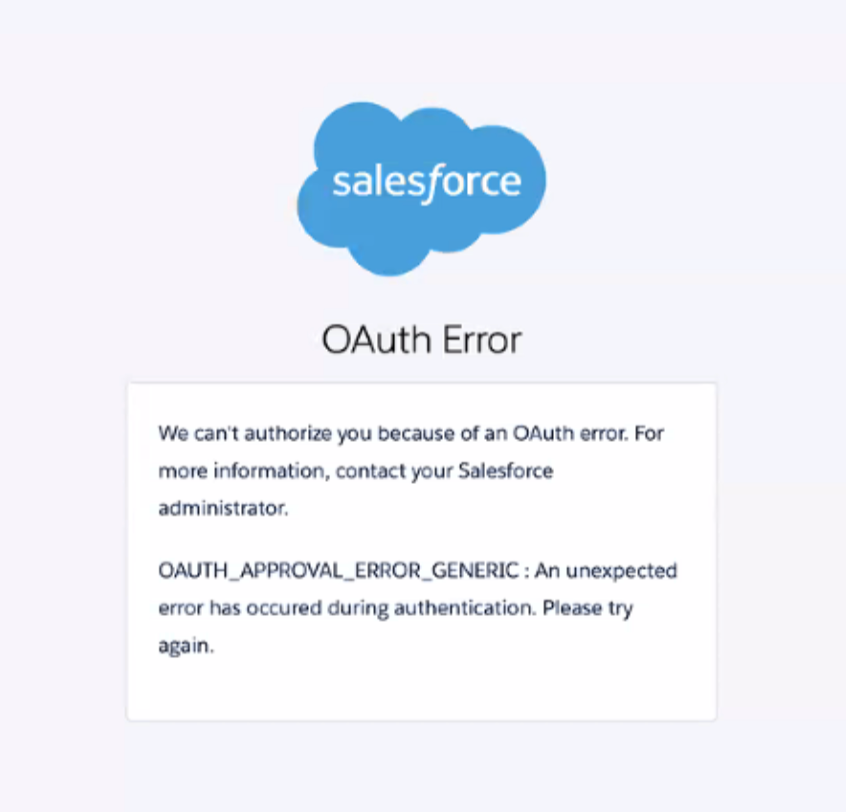
Why would end-users run into an OAuth error when attempting to connect Nooks to Salesforce?
If users receive OAuth Error OAUTH_APPROVAL_ERROR_GENERIC when they try to connect their Nooks accounts to Salesforce, it can mean that the user attempting to log in does not have sufficient permissions to authorize or use the Nooks Connected App.
First, verify the the Nooks Connected App is installed in Salesforce.
As a Salesforce admin, launch Salesforce Setup (gear icon at the top-right of Salesforce).
In the Quick Find box, search "Connected Apps". Select Connected Apps OAuth Usage.
Locate Nooks in the list of your instances Connected Apps.
Verify that the Nooks Connected App is installed. If it is not currently installed, press Install in the "App Actions" column.
If the Nooks Connected App is installed, next verify that the policies your team have configured for the Nooks Connected App permit the impacted user to sign in.
Click Manage App Policies next to Nooks Connected App.
Click Edit Policies.
Review the Permitted Users policy.
All users may self authorize: Any user in your Salesforce organization can approve and connect to the app during the OAuth sign-in flow.
Admin approved users are pre-authorized: Only users with explicit access (through their Salesforce Profile or Permission Set configuration) can use this app. If this option is selected, verify that the impacted user's Salesforce Profile or Salesforce Permission Sets currently permit them to access the Nooks Connected App.